


BOQ estimation
Plan the bill of quantities of a project, change quantities and rates, and send the changes for approval.
- Where to find it
- Planning > BOQ Estimation
- Who can use it
- People who have the View Project BOQs permission to open the page. The menu item shows to people who have the Add Project BOQs permission. Changing a BOQ needs Edit.
A bill of quantities (BOQ) is the list of work items of a project with a quantity and a rate for each. For example, "Excavation in soil" with 3,200 cubic metres at a rate of 850. Quantity multiplied by rate is the Amount. Billing, work orders and measurement all use the BOQ.
BOQ Estimation is where you build and change the BOQ before it becomes final. Most changes go into a draft. An approver must accept the draft before it becomes part of the approved BOQ.
Before you start
- Choose the project in the project list at the top of the screen.
- The project needs work items. See Work items.
- For work by template or area, the project needs a schedule template. You set it up in the schedule.
How the work goes
- Open Planning > BOQ Estimation. You see the BOQ items of the project.
- Change the draft. Choose one way: - Edit quantities, rates and work items in a sheet. See Update the BOQ in a sheet. - Set the BOQ of each schedule task for each area. See BOQ playground and Add BOQ items to many tasks at once. - Build the rate of an item from resources. See Rate analysis.
- Check the changes on the playground summary, then ask for approval. See Approve BOQ changes.
- The approver accepts or rejects the draft. An accepted draft becomes a new revision. See BOQ revisions.
- Read the approved BOQ in Project BOQ.
How to read the BOQ estimation page
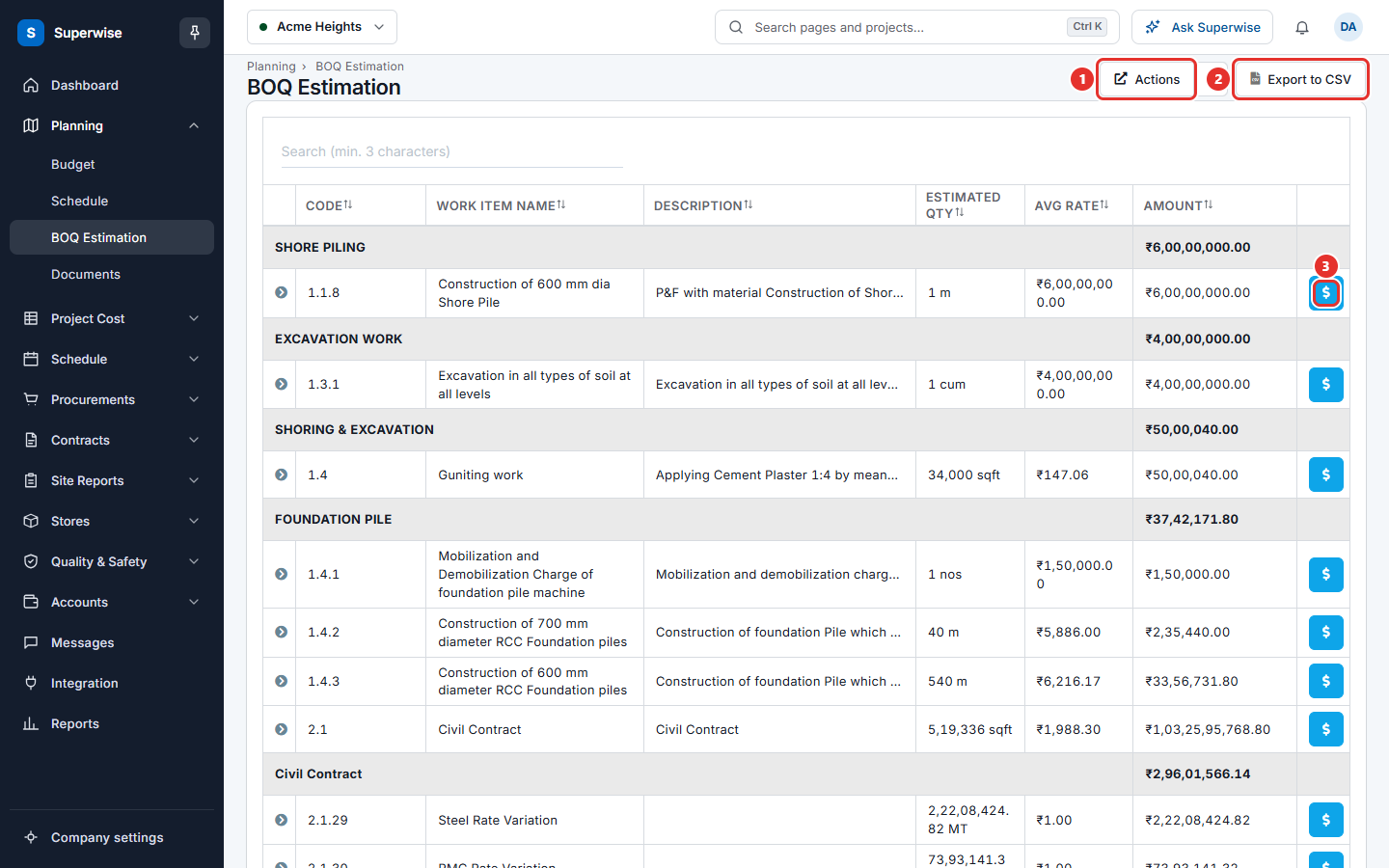
The page lists the work items of the project in groups by category. The group row shows the total of the category.
- Open Planning > BOQ Estimation.
- To find an item, type at least 3 characters in Search (min. 3 characters).
- To read more about an item, click the arrow at the start of its row. A panel opens with the tabs Related Tasks, Rate Analysis and Description.
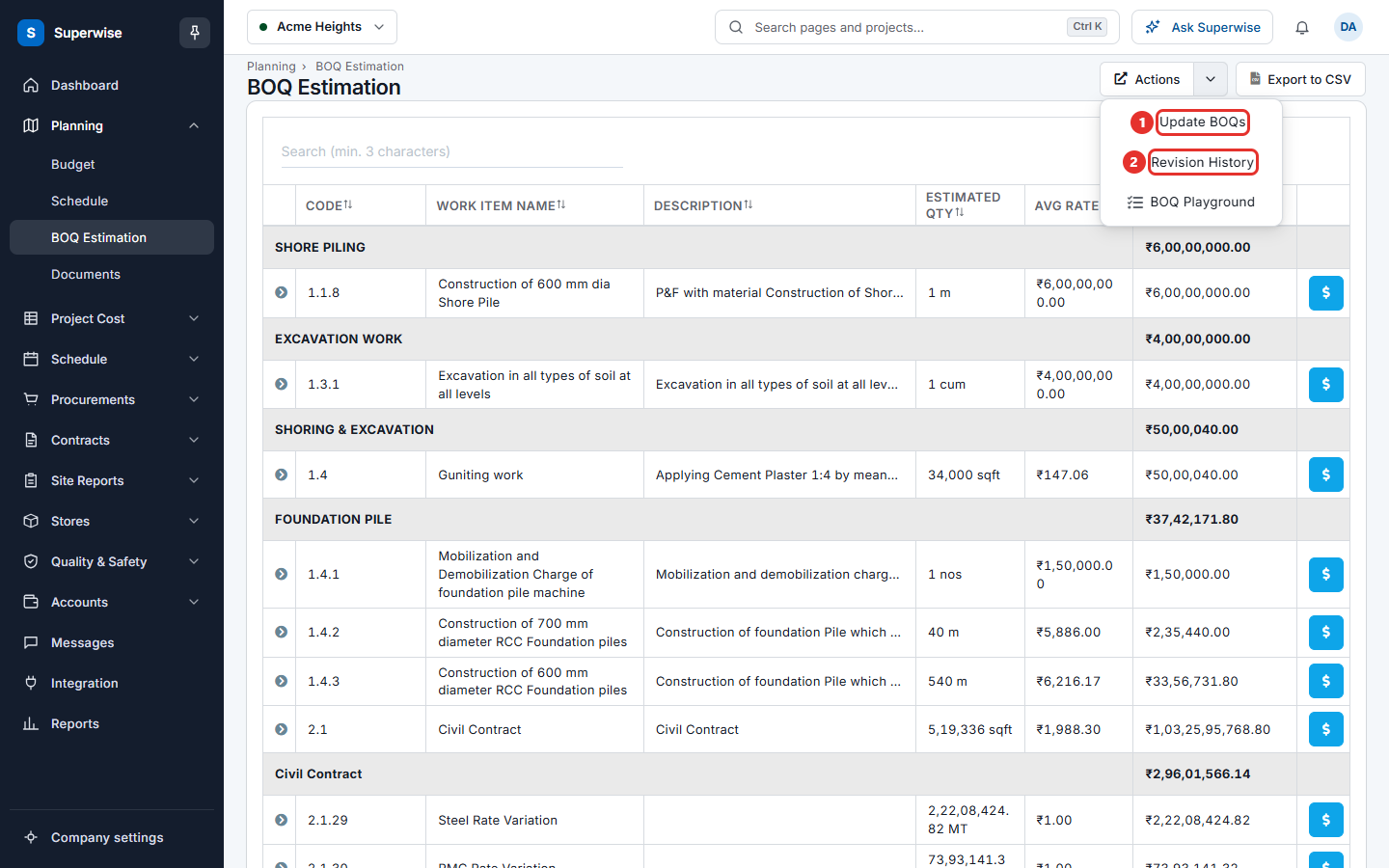
- To go to another tool, click Actions (mark 1) and choose from the list.
- To download the table, click Export to CSV (mark 2).
The list in Actions:
| Choice | What it does |
|---|---|
| Update BOQs | Opens the sheet where you add, change and delete BOQ items. |
| Revision History | Opens BOQ revisions. |
| BOQ Playground | Opens the BOQ playground. It shows only when the project has a schedule template and you may view templates. |
How to change a quantity, a rate or a description on this page
- Click the cell you want to change in Description, Estimated Qty or Avg Rate.
- Type the new value.
- Click outside the cell. Superwise saves it. The message BOQ Estimation updated successfully shows.
What the columns mean
| Name | What it means |
|---|---|
| Code | The code of the work item. |
| Work Item Name | The name of the work item. |
| Description | The text that describes the work. |
| Estimated Qty | The planned quantity, with its unit. A note such as "allocated 80" shows when the allocated quantity is not the same as the estimate. |
| Avg Rate | The rate of the item. |
| Amount | The quantity multiplied by the rate. |
Rules to know
- Estimated Qty cannot go below the quantity that is already allocated. The page says Error: Cannot reduce BOQ beyond allocated quantity.
- A rate must be above 0. The page says Error: Rate cannot be less than or equal to 0 (zero).
- If the save fails, the page says Error: BOQ Estimation could not be updated and gives the reason.
- An approval changes the BOQ for everyone. Work orders, requests for proposal and requests for quotation that use a BOQ item can block an approval. See Approve BOQ changes.
Related pages
- Update the BOQ in a sheet
- BOQ playground
- Add BOQ items to many tasks at once
- Rate analysis
- BOQ revisions
- Approve BOQ changes
- Project BOQ
- Project BOM
In this section
- Update the BOQ in a sheetAdd, change or delete the BOQ items of a project in one sheet, check the list of changes, and save them.
- BOQ playgroundSet the BOQ items, quantities and rates of each schedule task for the areas you choose, using a template of the project.
- Add BOQ items to many tasks at onceLoad the BOQ lines of chosen areas into one sheet, then add, change or delete the BOQ items of many tasks together.
- Rate analysis of a BOQ itemBuild the rate of a BOQ item from the resources it uses, such as cement, sand and labour, with quantity, wastage, rate and tax.
- BOQ revisionsSee the draft and the approved versions of the project BOQ, with the planned cost, who changed the status, and the remarks and files of each version.
- Approve BOQ changesCheck the changes in the draft BOQ, clear what blocks them, ask for approval, and approve or reject the draft.