


Staff (non-users)
Register site staff who do not sign in to Superwise, such as supervisors and labour, link them to projects and contractors, and approve them.
- Where to find it
- Company settings > General > Staff (Non-users)
- Who can use it
- People who have the View Site Staff permission. Adding needs Add, editing needs Edit, deleting needs Delete and approving needs Approve.
Staff (non-users) are people who work on site but do not sign in to Superwise. Examples are a security guard, a mason or a supervisor of a contractor. You register them here so that their presence on site can be recorded. People who sign in are users. Add them under Users.
The screen is called Site Staff in its page title. The entry in the left menu is Staff (Non-users).
Before you start
- Add the projects the staff work on. See Projects.
- If the staff belong to a contractor, add the contractor as an organization. See Organizations.
- If you want to link the staff to a resource, such as a labour type, that resource must be a labour resource.
- If the person also signs in to Superwise, create the user first. See Users.
How to add a staff entry
- Open Company settings in the left menu, then General, then Staff (Non-users).
- Click Add Staff (mark 1 in the first picture).
- In Name: (mark 1 in the second picture), type the full name.
- In Designation:, type the job, for example Supervisor.
- In Projects:, choose the projects the person works on.
- If the person is an employee who also has a user account, choose the user in Linked App User: (mark 2). Otherwise, choose the contractor in Contractor: (mark 3) and, if needed, the type of labour in Resource:.
- In Identification:, type an identity number, for example a card number.
- To add a photo of the identity proof, use the box Identification (Proof): and choose an image smaller than 1 mb.
- Click Save (mark 4).
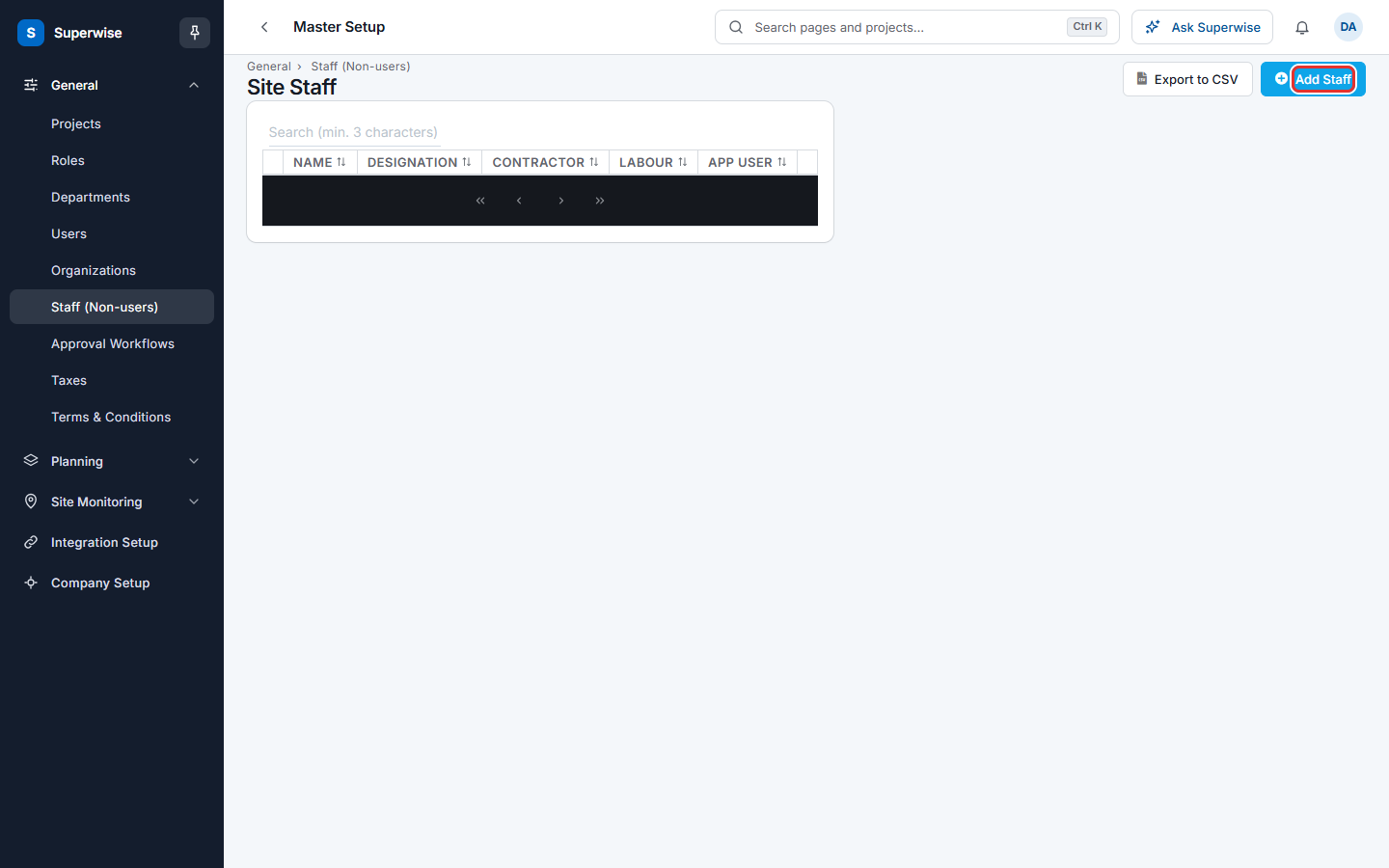
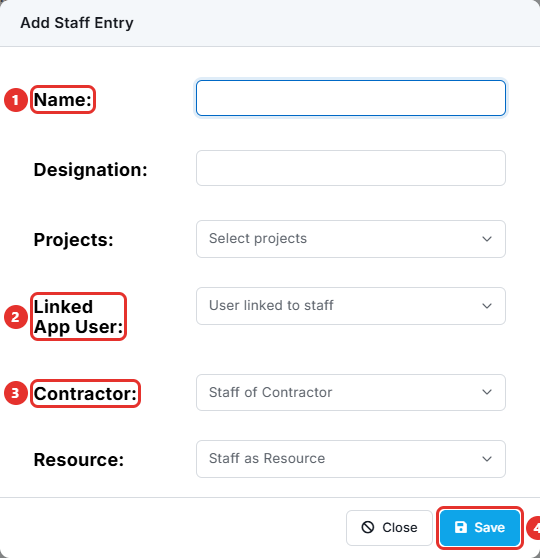
When you choose a user in Linked App User:, the fields Contractor: and Resource: are hidden. When you choose a contractor, Linked App User: is hidden.
How to change, approve or delete a staff entry
- In the list, click the three dots at the end of the row.
- Choose Edit, Delete, or Approve. When the entry is already approved, the choice is Disapprove.
- For Edit, change the fields in the box Edit Staff Entry and click Save. For the other choices, confirm the question.
To read more about a person, click the arrow at the start of the row. The row shows Identification, Projects, Created By and Created On, and the identity photo if there is one.
What the columns mean
| Name | What it means |
|---|---|
| Name | The name of the person. |
| Designation | The job of the person. |
| Contractor | The contractor the person works for. |
| Labour | The labour resource linked to the person. |
| App User | The user account linked to the person. |
What the fields mean
| Name | What it means |
|---|---|
| Name: | The full name. Required. |
| Designation: | The job of the person. |
| Projects: | The projects the person works on. |
| Linked App User: | The user account of the person, when the person also signs in. |
| Contractor: | The contractor the person works for. |
| Resource: | The labour type of the person. It must be a labour resource. |
| Identification: | An identity number, for example a card number. |
| Identification (Proof): | A photo of the identity card. The file must be smaller than 1 mb. |
Rules to know
- A name is required.
- A user, or a name with the same designation, cannot be registered twice. The message is "Staff ... is already registered".
- The contractor must be an organization that exists. The resource must be a labour resource.
- When you delete a staff entry, Superwise also deletes its project links and all its attendance records.
- Use the box Search (min. 3 characters) to find a person. Click Export to CSV to download the list.
If something goes wrong
| What you see | What to do |
|---|---|
| The Name field is required. | Type the name. |
| Staff ... is already registered | The person is already in the list. Edit that entry. |
| Invalid Vendor selected for Staff | Choose the contractor again from the list. |
| Invalid Resource selected for Staff | Choose a labour resource. |
| Staff entry could not be deleted | Read the message and try again, or ask your administrator. |