


Departments
Add the departments of your company, such as Civil or Electrical. Users, tasks and chats use them to show only the work of one team.
- Where to find it
- Company settings > General > Departments
- Who can use it
- People who have the View Other Masters permission. Adding needs Add, editing needs Edit and deleting needs Delete.
A department is a team in your company, for example Civil, Electrical or Accounts. You give departments to users. A user then sees the tasks and chats of those departments. Issues can also be sent to a department.
Before you start
- Make a list of the department names you need. Each name must be different.
- If you want a picture for a department, prepare a PNG image smaller than 100 kb.
How to add a department
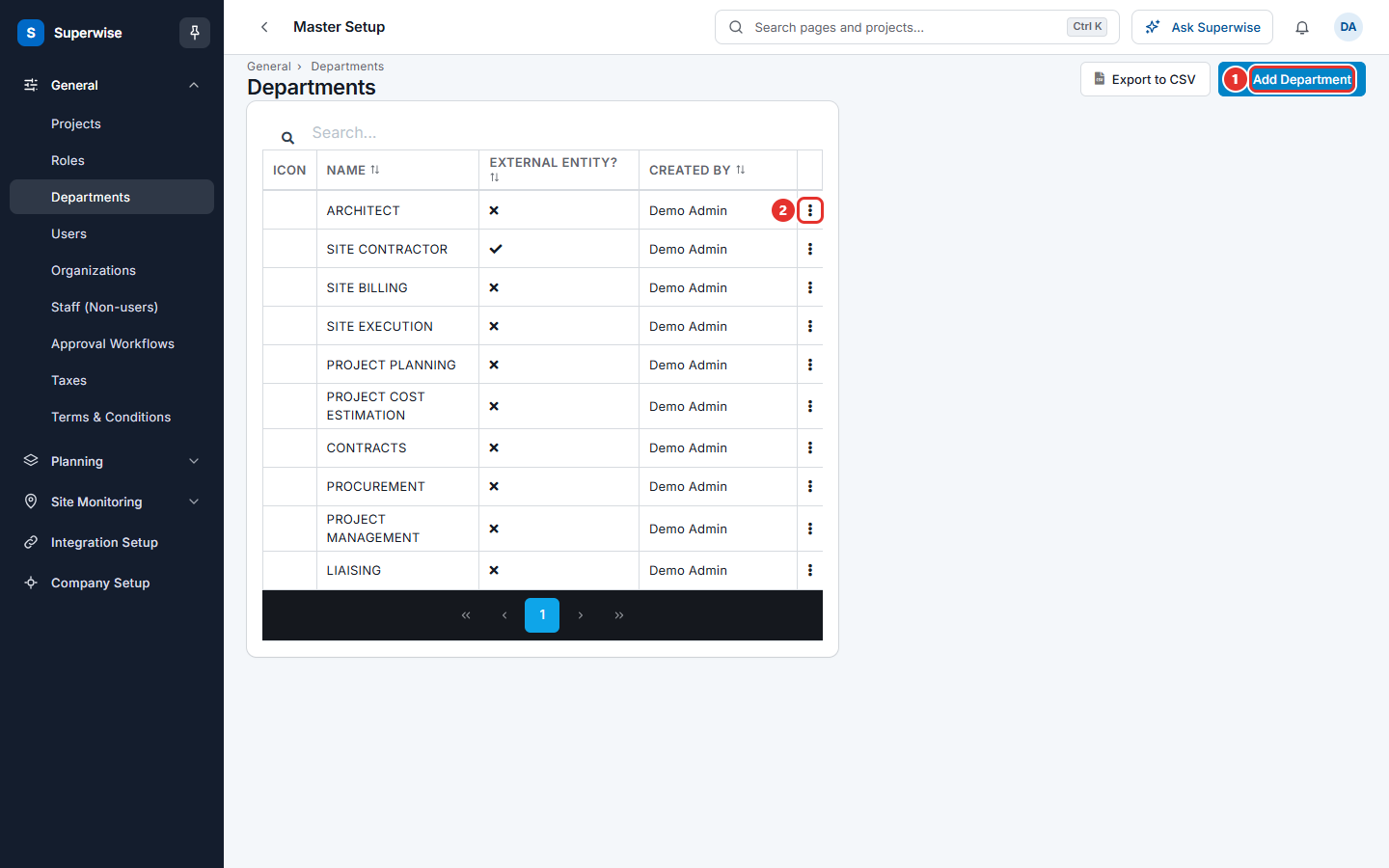
- Open Company settings in the left menu, then General, then Departments.
- Click Add Department (mark 1 in the first picture).
- In Name: (mark 1 in the second picture), type the department name, for example Civil.
- To add a picture, use the Icon: box (mark 2) and choose a PNG file. If you add no picture, Superwise draws a default icon from the name.
- If the department is for people outside your company, such as contractors, tick Is External Entity? (mark 3).
- Click Save (mark 4). A message says Department Added.
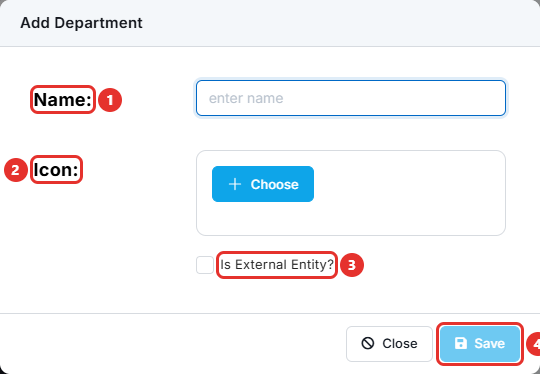
The button Save stays grey until you type a name. Click Close to leave without saving.
How to change a department
- In the list, click the three dots at the end of the row (mark 2 in the first picture).
- Choose Edit.
- In the box Edit Department, change the name, the icon or Is External Entity?.
- Click Save. A message says Department Updated.
How to delete a department
- In the list, click the three dots at the end of the row.
- Choose Delete.
- Read the question "Are you sure that you want to delete this department ?" and confirm it.
A message says Department Deleted.
What the columns mean
| Name | What it means |
|---|---|
| Icon | The picture of the department. |
| Name | The name of the department. |
| External Entity? | A tick means the department is for people outside your company. |
| Created By | The user who added the department. |
Rules to know
- A department name cannot be used twice. The message is "Department Name cannot be repeated."
- You cannot delete a department that has users. The message is "Department has User linked to it." Remove the department from those users first. See Users.
- You cannot delete a department that has issues. The message is "Department has issues linked to it."
- A department marked as an external entity is offered to external users. The other departments are offered to your own users.
If something goes wrong
| What you see | What to do |
|---|---|
| The Name field is required. | Type a name. |
| Department Name cannot be repeated. | Use a different name. |
| Department has User linked to it. | Edit the users and remove this department from them. |
| Department has issues linked to it. | The department cannot be deleted while issues use it. |
| The icon is not accepted. | Use a PNG file smaller than 100 kb. |