


Compare quotations of an RFQ
Put the prices of all suppliers side by side, see how each one differs from your request, and choose the best quotation.
- Where to find it
- Procurements > RFQ
- Who can use it
- People who have the View RFQs permission. Choosing the winner needs Approve on Quotations and Add on Purchase Orders.
The comparison screen RFQ - Comparative shows your request and every supplier's quotation in one table. You see the total, the rate of each material and how far each rate is from your target price. Use it to choose the winner.
Before you start
- The RFQ must be Closed or Awarded. Until the bid end time, the prices of the suppliers are sealed. The screen cannot show them.
- At least one supplier must have submitted a quotation.
How to open the comparison
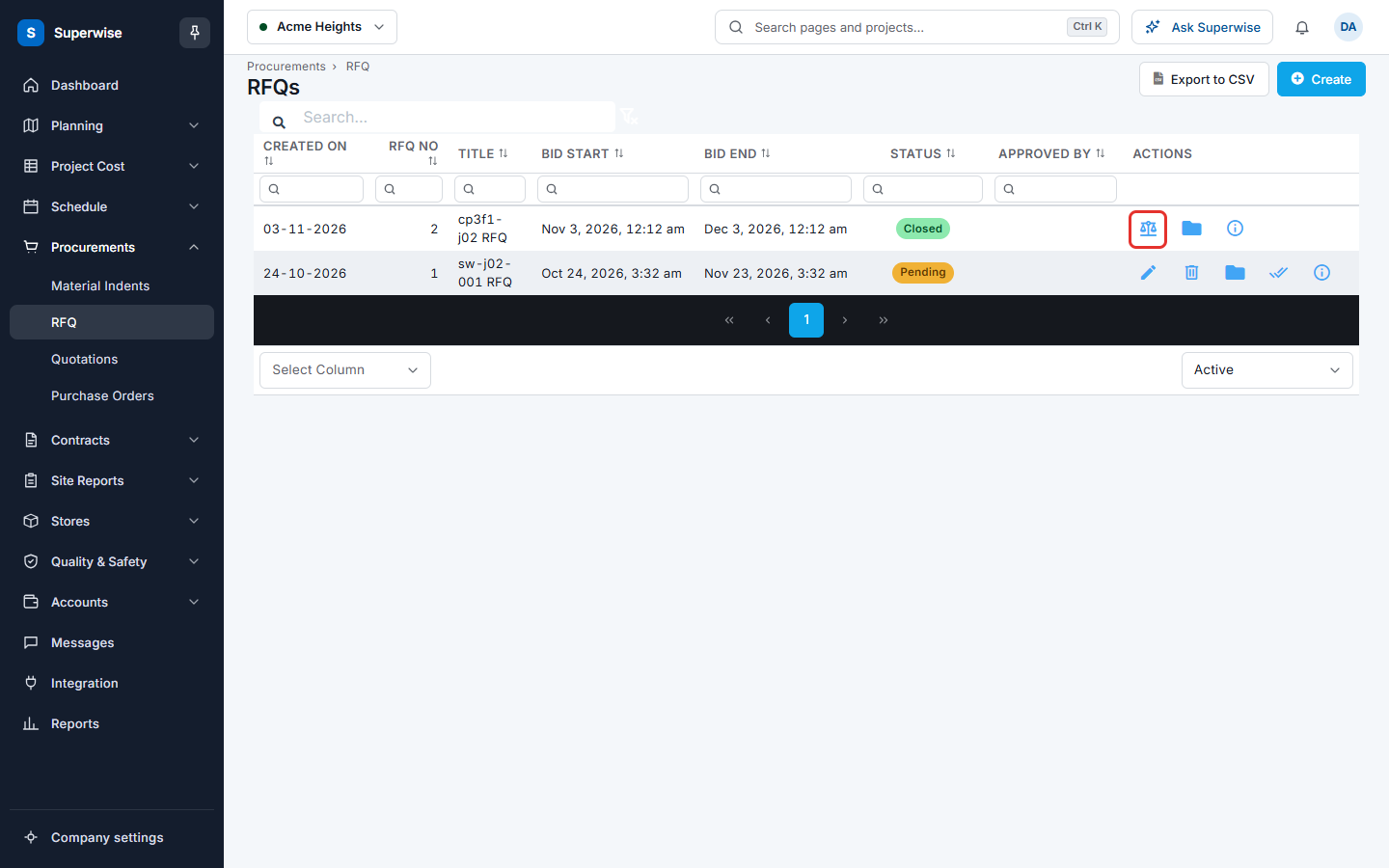
- Open Procurements > RFQ.
- Find the RFQ. Its status must be Closed or Awarded.
- Click the Compare Quotation icon (mark 1 in the picture) in the Actions column.
How to read the table
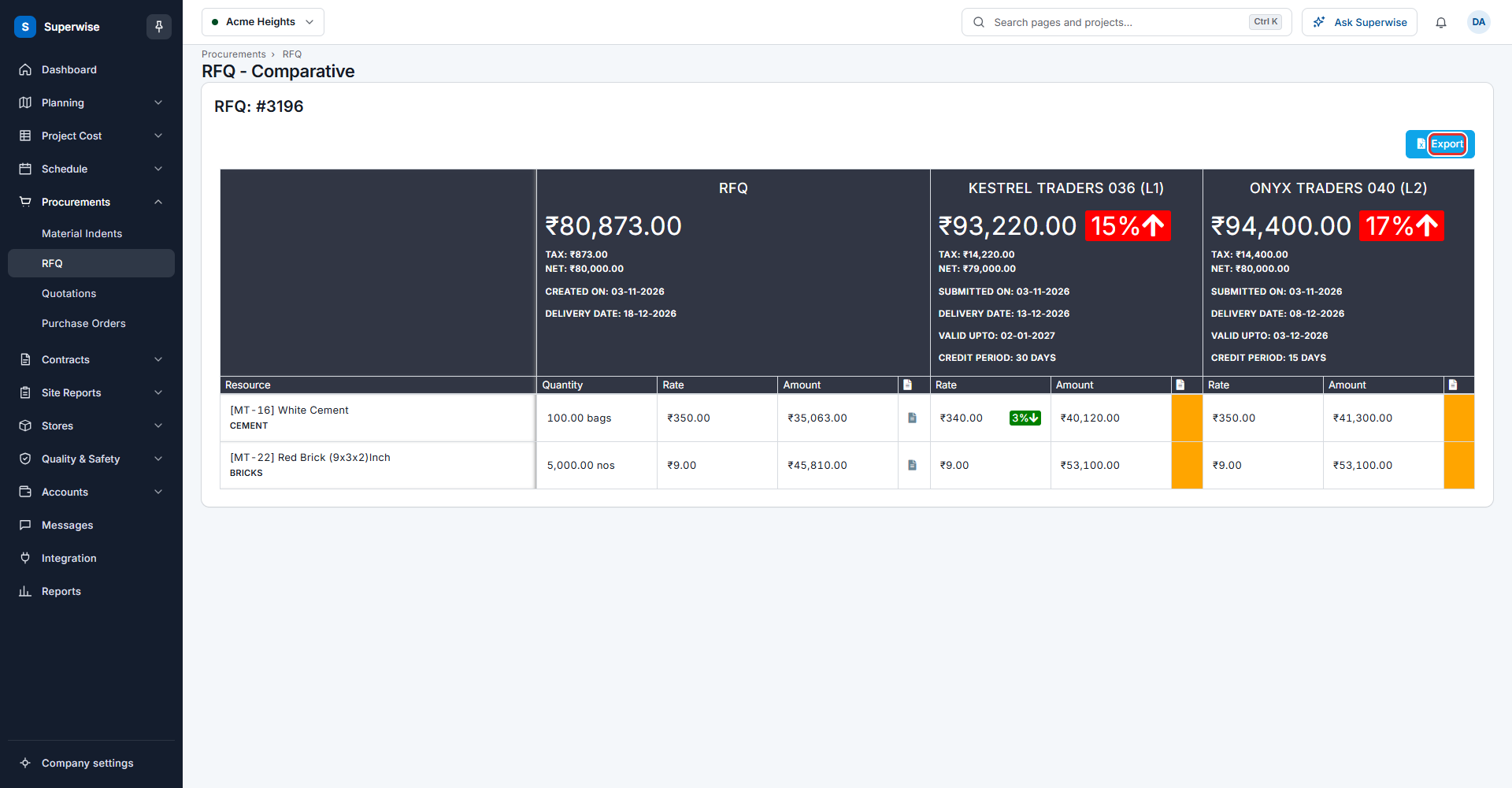
The heading shows RFQ: and the RFQ number. The first column, Resource, lists the materials with their category. The next columns are:
- RFQ: your own request. It shows the quantity and your target price.
- One column for each supplier, named with the supplier and a number: for example "Alder Steel Works (L1)". The supplier with the lowest net amount is L1, the next is L2, and so on.
Each column heading shows:
- The total amount, with its difference from the RFQ in percent. A red arrow up means the quotation is higher. A green arrow down means it is lower.
- Tax and Net amounts.
- Created On for the RFQ, or Submitted On for a supplier.
- Delivery Date, and for a supplier also Valid Upto and Credit Period in days.
Under the heading, each material has a Rate and an Amount. The RFQ column also has Quantity. A small document icon opens the specifications. A cell is shaded when the supplier changed the specification.
How to choose the winner
- Compare the total, the delivery date, the credit period and the rates.
- Go to Procurements > Quotations.
- Find the best quotation. If you need a lower price, click Negotiate first. See Quotations.
- Click Mark Awarded. The new purchase order form opens with the lines and rates of that quotation.
How to save the comparison
Click Export (mark 1 in the picture of the table). The system downloads a file with the same table.
Rules to know
- The supplier columns are ordered by net amount, lowest first.
- A material that a supplier did not quote has empty cells in that column.
- The comparison is by material. Two suppliers are compared on the same material only.
- A quotation that is not yet submitted, or an RFQ that is not yet closed, shows no prices.
If something goes wrong
| What you see | What to do |
|---|---|
| The table is empty | Open the screen with the Compare Quotation icon of an RFQ in the RFQ list. |
| A supplier has no prices | The supplier did not submit, or the RFQ is not closed yet. |
| There is no Compare Quotation icon | The RFQ is not Closed or Awarded. |