


Company setup masters
The lists you fill in once for the whole company, such as projects, users, roles and organizations, and the order in which to fill them.
- Where to find it
- Company settings > General
- Who can use it
- People who have the View permission for the master they open. Each chapter names its own permissions.
A master is a list of records that you create once and then pick from in many places. For example, you add a supplier once under Organizations. After that you choose that supplier on every purchase order (PO). The masters in this book are the base of everything else in Superwise. Fill them in before you start to work on a project.
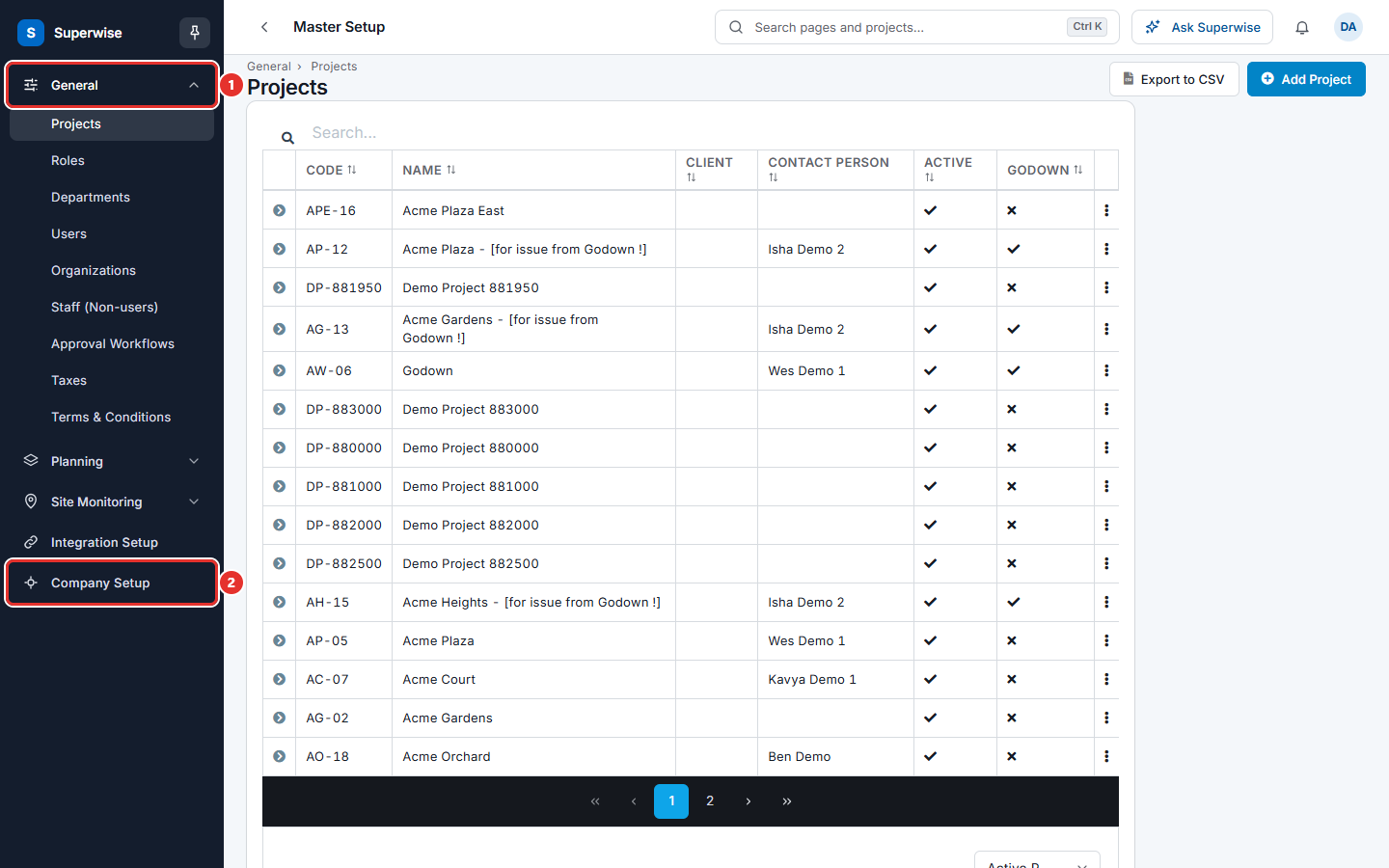
The masters are in the left menu under Company settings, in the group General.
Before you start
- Fill in the Company setup first. It holds the company name, the logo and the order number format.
- Sign in with a user who has the permissions of the masters you need.
In which order to fill the masters
Some masters need others to exist. Follow this order.
- Company Setup. See Company setup.
- Departments. The teams of your company. See Departments.
- Roles. What each kind of user can do. See Roles.
- Organizations. Suppliers, contractors, consultants, clients and SPVs. See Organizations.
- Taxes. Tax structures such as GST. See Taxes.
- Users. The people who sign in. A user needs a role. See Users.
- Projects. Each project needs at least one user. See Projects.
- Staff (Non-users). Site staff who do not sign in. See Staff (non-users).
- Approval Workflows. Who approves what, in which order. They need roles or users. See Approval workflows.
- Terms & Conditions. Standard texts for orders. See Standard Terms & Conditions.
After a project exists, you can go back to Users and give each user the projects they work on.
What each master is for
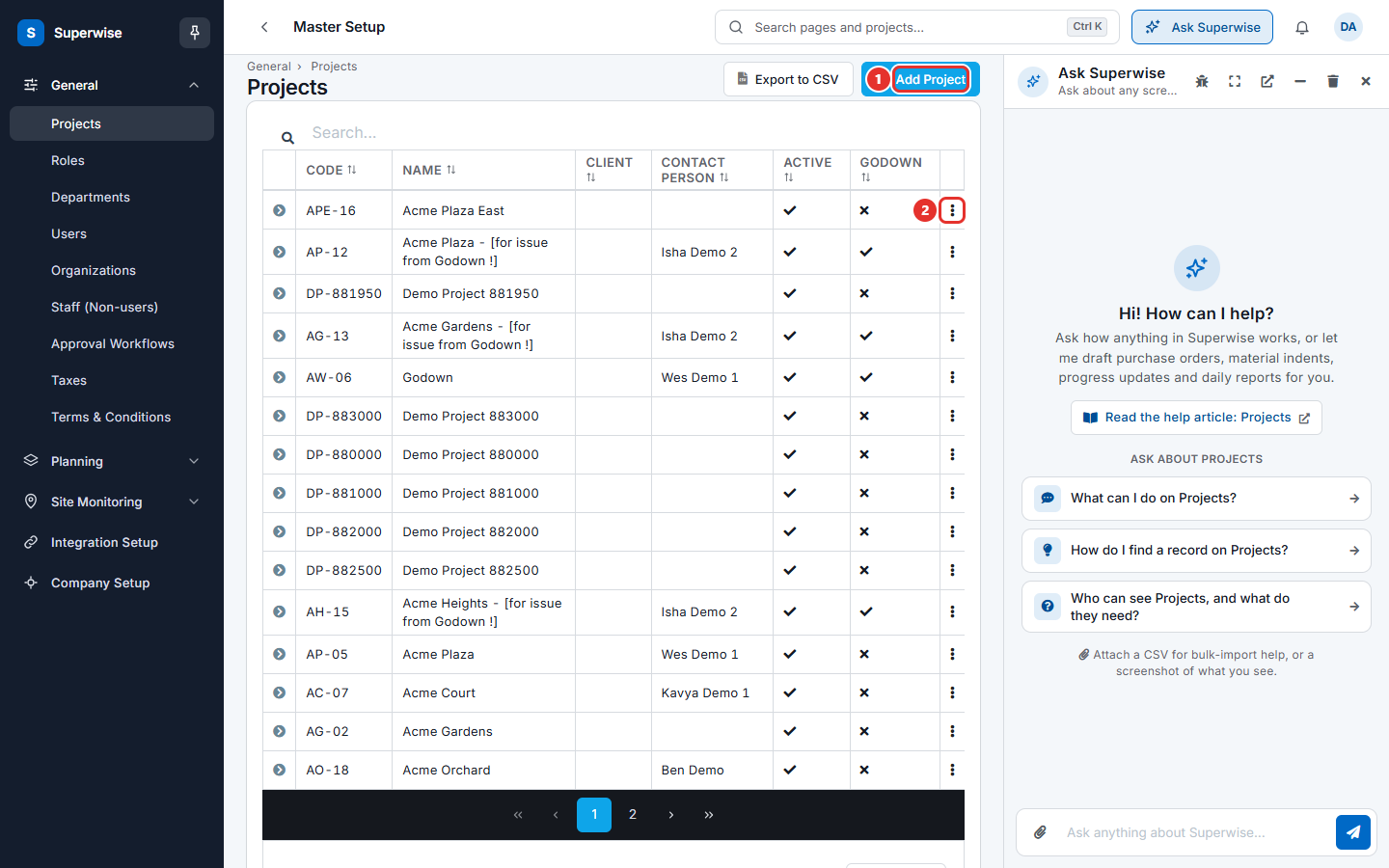
Most masters open as a list with a button to add a record, a search box and a menu of three dots on each row. The list of projects is an example. The mark 1 is the button to add a record. The mark 2 is the menu of a row.
| Master | What it holds |
|---|---|
| Projects | The construction sites or contracts. Almost every record in Superwise belongs to a project. |
| Roles | Sets of permissions: View, Add, Edit, Delete and Approve for each area. |
| Departments | Teams such as Civil or Electrical. |
| Users | People who sign in, with their roles and projects. |
| Organizations | Outside companies you work with. |
| Staff (Non-users) | Site staff who do not sign in. |
| Approval Workflows | The chain of approvers for records. |
| Taxes | Tax structures used on orders and bills. |
| Terms & Conditions | Standard texts for purchase orders and work orders. |
Rules to know
- You cannot delete a master record that other records use. Superwise tells you what uses it. Mark it inactive when the screen allows it.
- Who can open each master depends on the role of the user. See Roles.
Related pages
In this section
- ProjectsCreate a project, choose its users, mark its site on the map, and change its schedule and measurement settings. Also mark a project inactive or delete it.
- UsersAdd a person who signs in to Superwise, give the person roles and projects, reset a password, lock or unlock the account, or delete the user.
- RolesCreate a role and choose what it can view, add, edit, delete and approve in each area. Use a view-only role for people who only read.
- OrganizationsAdd suppliers, contractors, consultants, clients and other companies you work with, one by one or many at once, and mark them active or inactive.
- DepartmentsAdd the departments of your company, such as Civil or Electrical. Users, tasks and chats use them to show only the work of one team.
- TaxesCreate tax structures such as GST 18% from one or more tax rows, and see the effective tax rate that Superwise uses on orders and bills.
- Staff (non-users)Register site staff who do not sign in to Superwise, such as supervisors and labour, link them to projects and contractors, and approve them.
- Approval workflowsDefine who approves a record and in which order, then choose which workflow each area uses for the whole company or for one project.
- Standard Terms & ConditionsWrite standard terms and conditions once and reuse them on purchase orders and work orders, with placeholders for the supplier and the company.