


The dashboard
Learn what each part of the dashboard shows, how to approve items from it, and how to choose the cards you see.
- Where to find it
- Dashboard
- Who can use it
- Everyone who is signed in. The list Needs your action shows only the kinds of record that you have the Approve permission for.
The dashboard is the first screen after you sign in. It shows the project that is selected at the top left. It answers three questions: what waits for me, what happened this week, and how is the project doing.
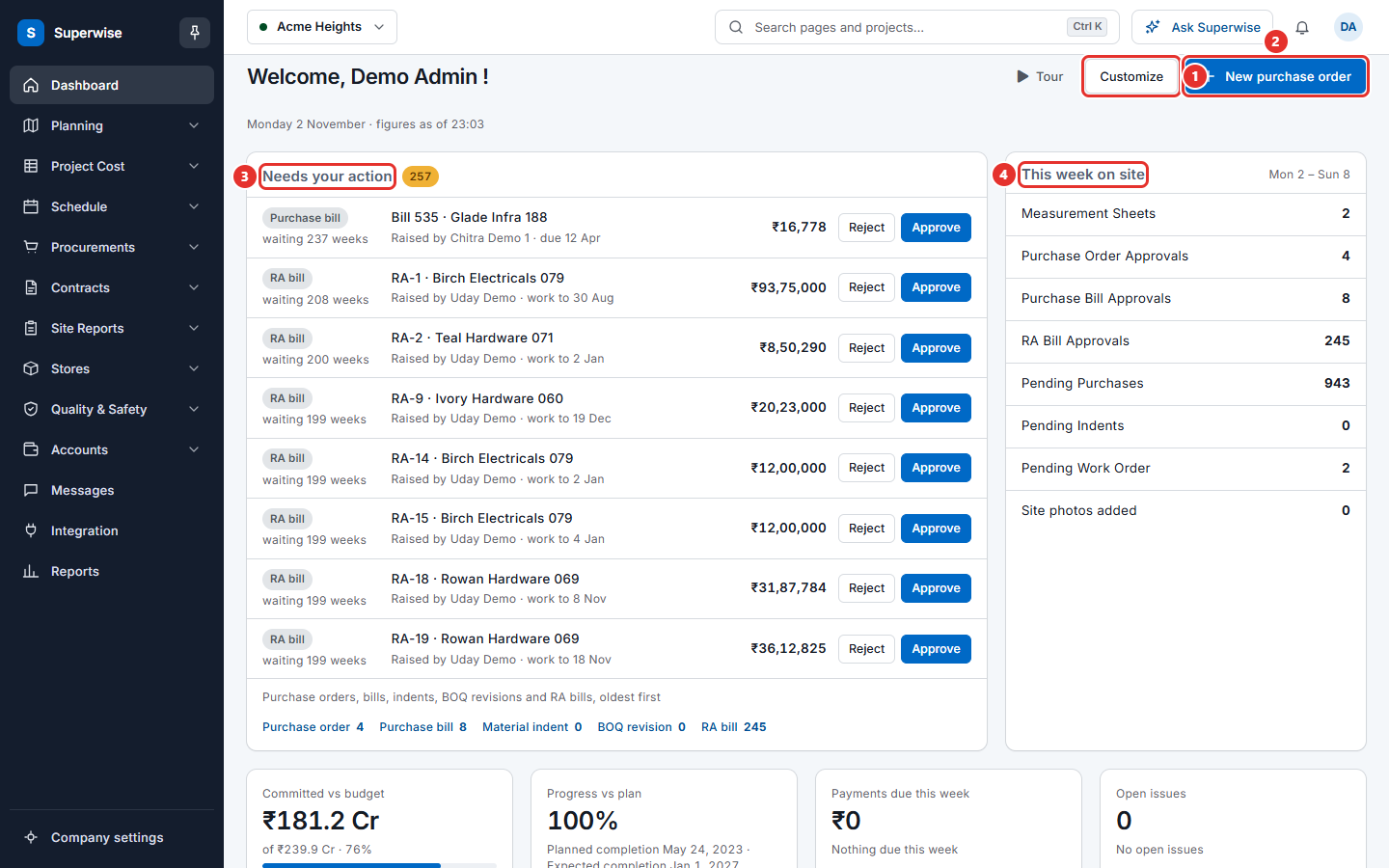
The top line reads "Welcome," and your name. Under it you see the day and the time of the figures, for example "Monday 2 November · figures as of 00:54". Two buttons are at the top right: Customize (mark 1) and New purchase order (mark 2). New purchase order opens the form to create a purchase order (PO). See Purchase orders.
Needs your action
This list (mark 3) holds records that wait for your approval. It shows the oldest first. A number next to the title shows how many are waiting.
Each line shows:
- The kind of record: Purchase order, Purchase bill, Material indent, BOQ revision or RA bill.
- How long it has waited, for example "waiting 3 days" or "waiting 2 weeks".
- The title, the person who raised it, and a date such as the due date.
- The amount.
- The buttons Reject (mark 1 in the next picture) and Approve (mark 2).
Click the title to open the record and read it before you decide.
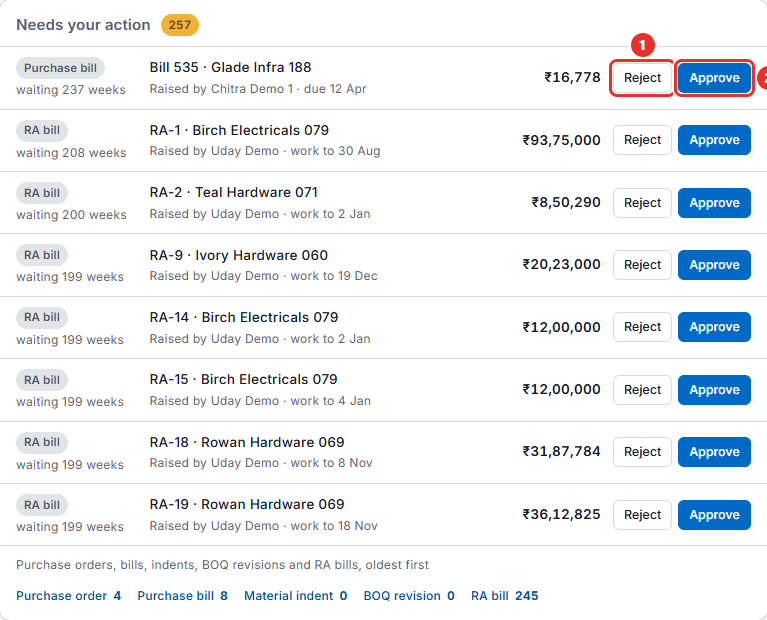
Under the list, a line of links shows how many records of each kind wait for you. Click one to open the list of that kind.
How to approve or reject from the dashboard
- Click the title of a line to check the record. Go back to the dashboard.
- Click Approve (mark 2) or Reject (mark 1) on the line.
- The line leaves the list and a message appears, for example "Approved" and the title. You have 5 seconds to click Undo.
- After 5 seconds Superwise records your decision. You cannot undo it from the dashboard after that.
The count next to the title goes down, and the text "handled" shows how many you decided in this visit. If a decision fails, the line comes back with the reason.
Warning: Approve and Reject act at once, after the 5 seconds. Open the record first if you are not sure.
Other messages in this box
| What you see | What it means |
|---|---|
| All caught up | Nothing waits for you. New items appear the next time you open the dashboard. |
| Nothing is queued for you | Your role has no approval permission for these kinds of record on this project. |
| N more are waiting | The list shows part of the records. Click Load more. |
| The queue could not be loaded | Click Try again. Your approvals are safe. |
This week on site
This box (mark 4) shows counts for the week from Monday to Sunday. The lines depend on the cards you chose in Customize. One line is Site photos added, which counts the photos added this week. Click a line to open the screen behind the number. If you see "Nothing to count yet", add cards in Customize.
The figures
Four boxes show the key figures of the project.
| Box | What it shows |
|---|---|
| Committed vs budget | The cost committed so far, and its share of the planned cost. |
| Progress vs plan | The percent complete, the planned and expected completion dates, and whether the project is on time or late. |
| Payments due this week | The amount and the number of payments due this week, and how many are overdue. |
| Open issues | The number of open issues, with the largest categories. |

A box that has no data says what to add. For example: Add “Project Cost” in Customize to see this. A box says "The project has no schedule yet." when the project has no schedule. Click the number in a box to open the screen it comes from.
More boxes
- Package-wise last update lists each package with its Package, Progress, Last update and Units updated. A package that has had no update for 7 days or more has an amber label. Click Open schedule → to open the schedule.
- Recent activity lists the latest package updates and site photos.
- Site photos shows the latest pictures of the project.
- More from your dashboard shows any other card that you chose.
On a phone, four quick buttons appear: Fill checklist, Site photo, Log progress and Receive material.
How to choose the cards you see
- Click Customize.
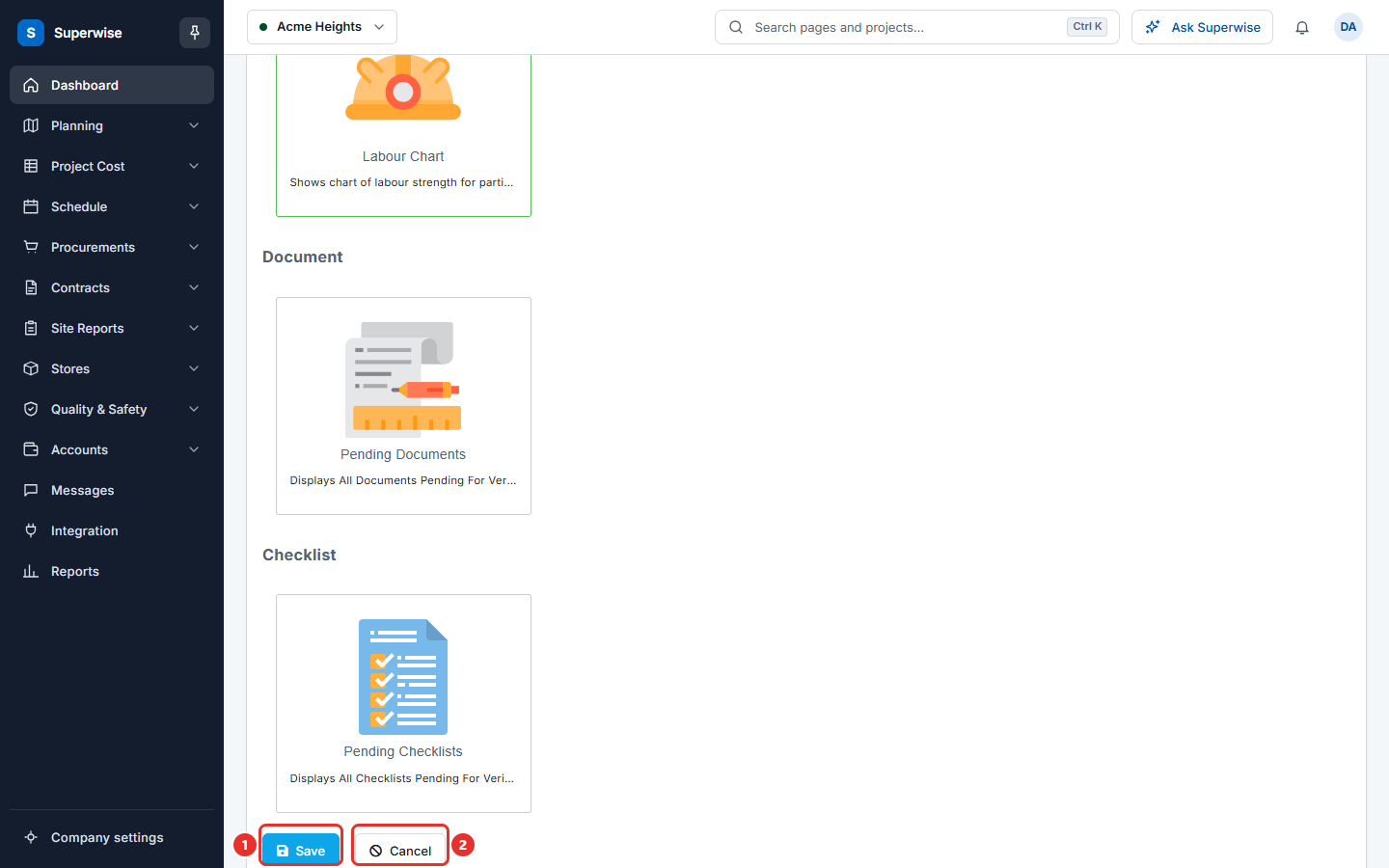
- On the page Configure Your Dashboard, tick the cards you want. Each card has a title and a short description.
- Click Save (mark 1 in the picture below). Click Cancel (mark 2) to leave without changes.
A new user who has no cards is taken to this page first.
Rules to know
- The dashboard follows the project in the project picker. Change the project to see the figures of another project.
- You see a kind of record in Needs your action only if your role has the Approve permission for it. See Roles and access.
- The figures are read when the page opens. Reload the page to see new numbers.
If something goes wrong
| What you see | What to do |
|---|---|
| A box shows a dash and a hint | Add the named card in Customize. |
| Needs your action is empty but you expect items | Check the project name. Then check that your role can approve that kind. |
| A figure shows "not available right now" | Reload the page. If it stays, tell your administrator. |