Project manager
What a project manager does in Superwise each day, the six screens to use most, and the order to follow on the first day.
- Who can use it
- People whose role lets them view and approve project records. Each screen needs its own permission.
A project manager keeps the project on time and on budget. In Superwise you approve what waits for you, watch progress and cost, follow orders, and look at reports.
What you do each day
- Approve or reject the records that wait for you.
- Check progress against the plan.
- Check that the cost stays near the budget.
- Follow purchase orders and deliveries.
- Look at open issues and decide who fixes them.
- Read the daily report.
The screens you use most

| Screen | Menu path | What you do there | Book |
|---|---|---|---|
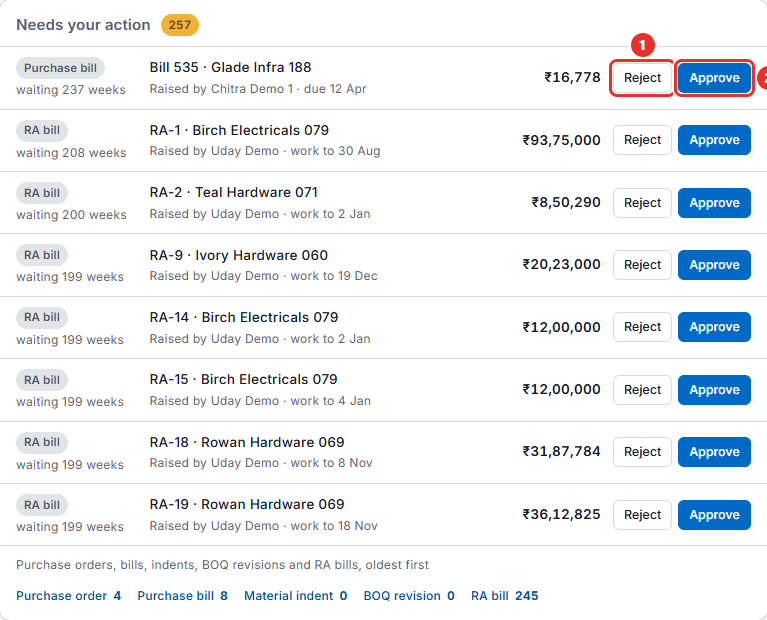
| Dashboard | Dashboard | Approve from Needs your action and read the figures | The dashboard |
| Budget | Planning > Budget | See the planned cost | Budget |
| Progress Log | Schedule > Progress Log | See what progress site has logged | Schedule |
| Purchase Orders | Procurements > Purchase Orders | Follow and approve orders | Purchase order |
| Issues | Quality & Safety > Issues | Follow the problems on site | Issues |
| Reports | Reports | Open the daily report and other reports | Reports |
Two more books help you: Daily summary and Schedule summary. Use Messages to talk to the team. See Messages.
What to do on the first day
- Choose your project in the project picker.
- Open the dashboard. Read the four figures: Committed vs budget, Progress vs plan, Payments due this week and Open issues.
- Open Needs your action. Check each item before you approve. See Approvals in plain words.
- Open Procurements > Purchase Orders and look at the orders that wait for approval.
- Open Quality & Safety > Issues and look at the open issues.
- Open Reports and find the daily report.
- If a card is missing on the dashboard, click Customize and add it.