


Tools
Track tools between projects. Send and receive tools, record lost or damaged tools, and see the tool stock of a project.
- Where to find it
- Stores > Tool Transfers
- Who can use it
- People who have the View permission on Resource Transfers. Moving tools needs Add. Editing needs Edit. Deleting needs Delete.
A tool is an item that your company keeps and uses again and again, for example a drilling machine or a set of scaffolding. A tool is not used up like cement. Superwise keeps the count of each tool at each project, so you know where the tools are.
Three screens in the Stores menu cover tools:
| Screen | What you do there |
|---|---|
| Tool Transfers | Send tools to another project and receive tools that other projects send. See Tool transfers. |
| Lost/Damaged | See the tools that were lost, damaged or never arrived. Add a remark or delete an entry. See Lost and damaged tools and material. |
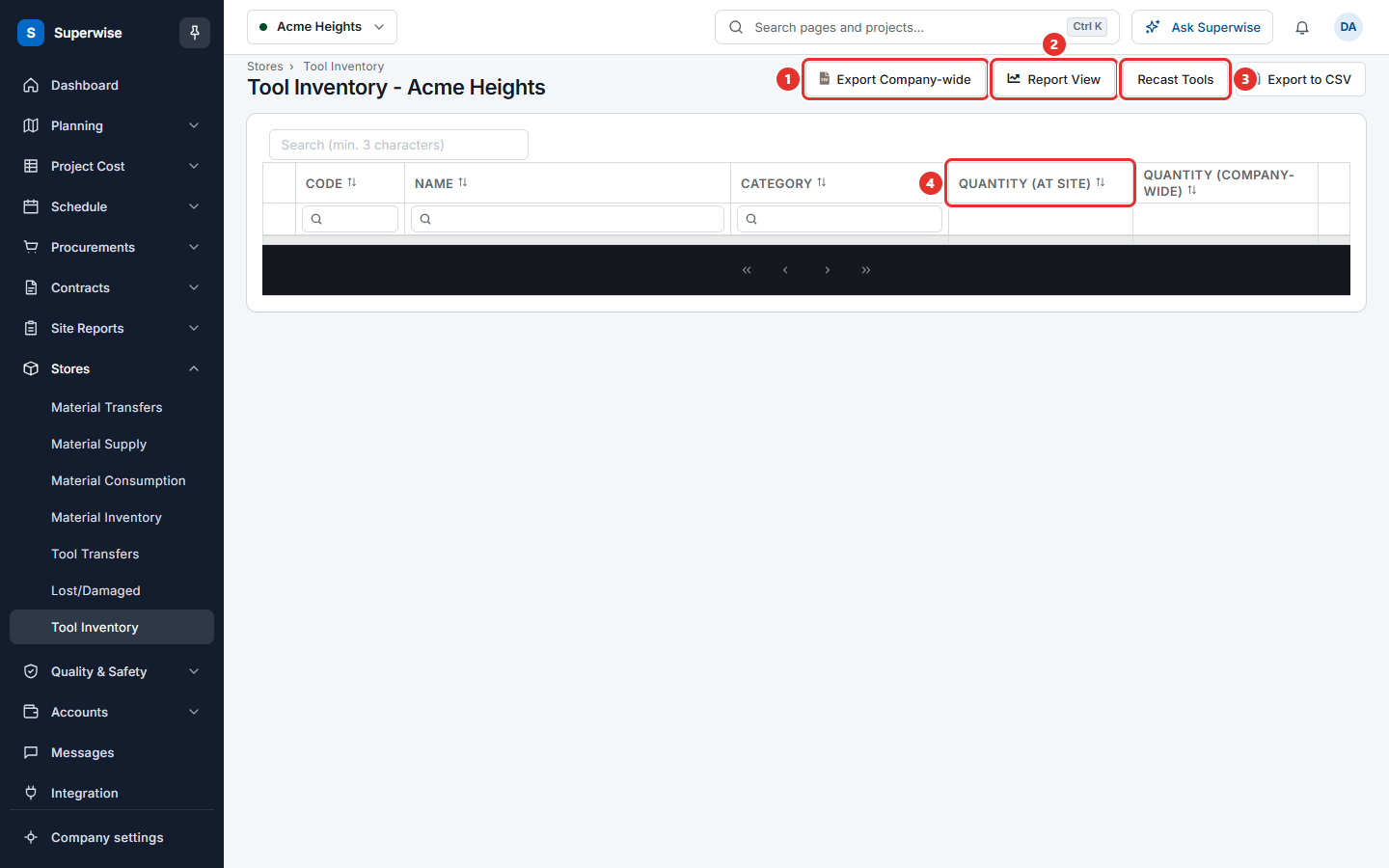
| Tool Inventory | See how many of each tool the project holds. Report a lost tool. Recast tools into other tools. See Tool inventory. |
How tools move
- Tools join a project when you buy them on a purchase order, or when another project sends them.
- To move a tool to another project, create a tool transfer. The stock of your project goes down.
- The other project receives the transfer. Its stock goes up.
- If a tool is lost or damaged, report it on Tool Inventory. If fewer tools arrive than were sent, the difference is written to the lost list.
- To turn tools into other tools, for example scrap pipes into a pipe frame, use Recast Tools.
Before you start
- Select the project in the project selector at the top of the screen. All three screens show that project.
- The tools must exist in your list of resources, with the type Tool.
Related pages
In this section
- Tool transfersSend tools from your project to another project, receive tools that arrive, and reject or delete a tool transfer.
- Lost and damaged tools and materialSee the tools and material that were lost, damaged or missing on arrival. Add a remark to an entry or delete an entry.
- Tool inventorySee how many of each tool your project holds, report a lost tool, recast tools into other tools, and export the stock of all projects.