


Company setup
Set the company name, logo, number format and alert rules that apply to every project, and check the subscription of your account.
- Where to find it
- Company settings > Company Setup
- Who can use it
- People who have the Admin View permission. Saving a change needs Admin Edit.
Company setup holds the settings that apply to your whole company, not to one project. You enter the company name and logo once. Superwise prints them on the letterhead of purchase orders (PO) and work orders. You also choose the date and currency style, the order number format and the alerts that all projects use.
Do this once, before you create the first project. Come back when the company details change, for example a new address or a new logo.
Before you start
- Sign in with a user who has the Admin permission. Ask your administrator to give it to you if the page does not open.
- Keep the company logo ready as an image file smaller than 500 kb.
What the page contains
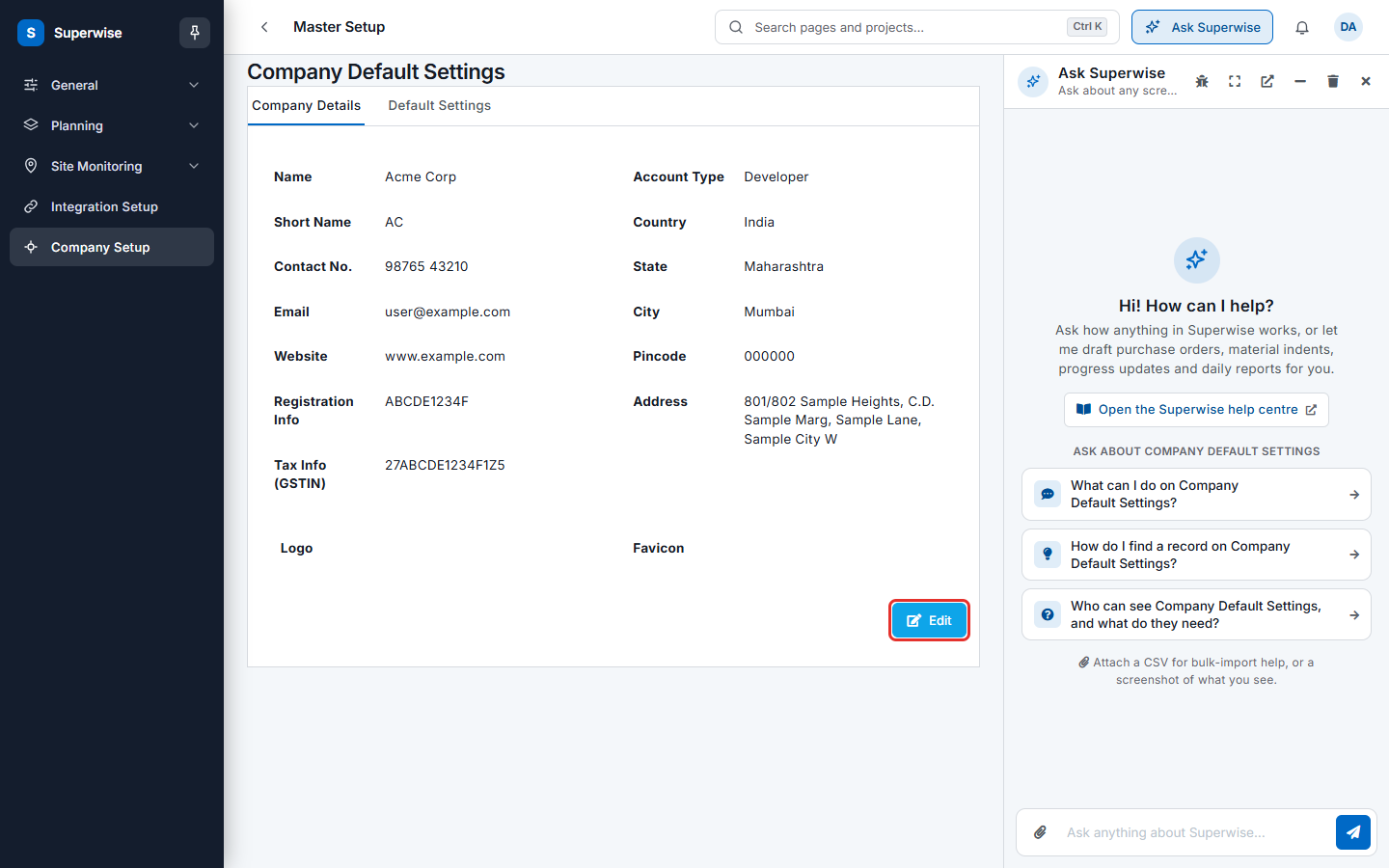
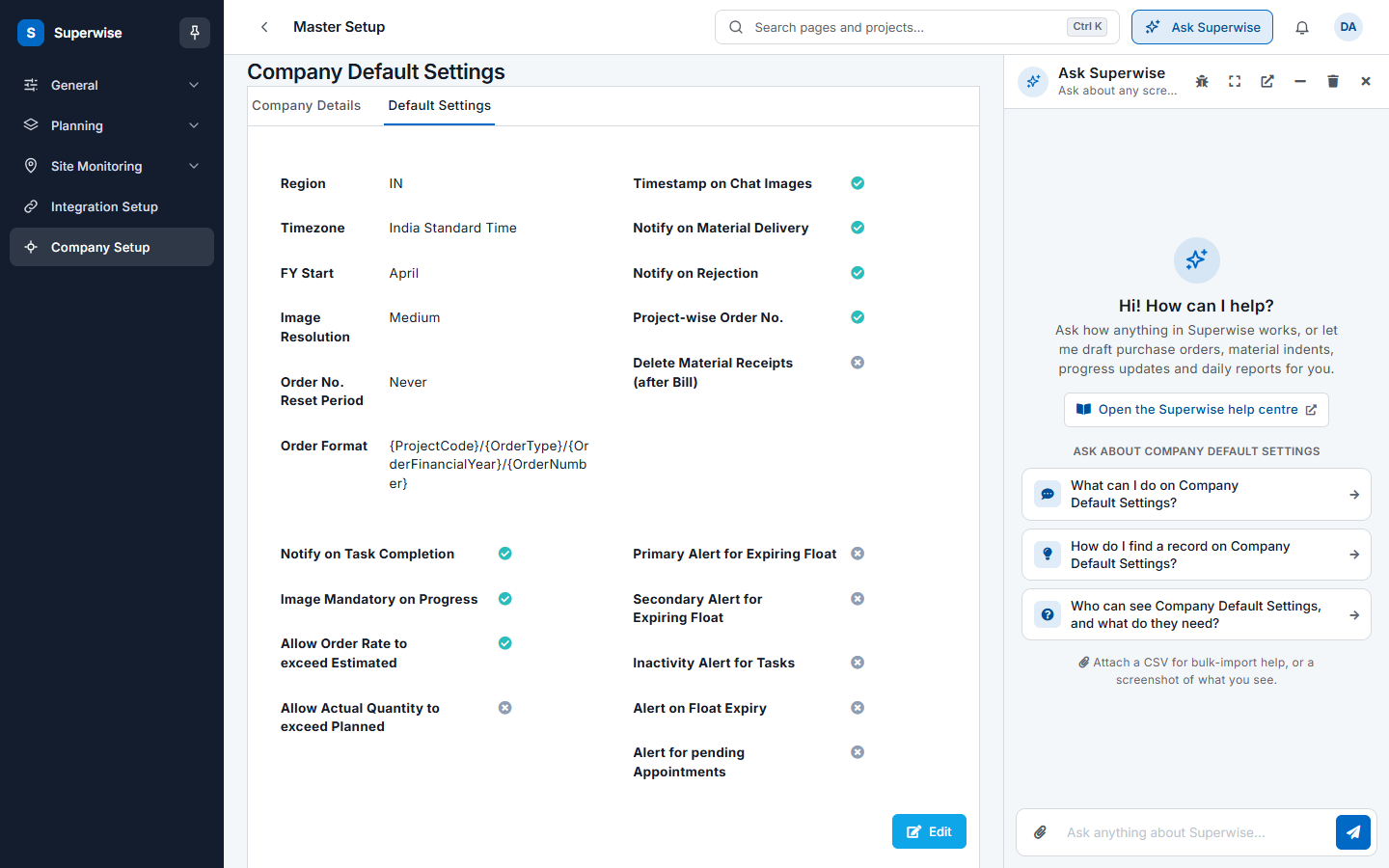
The page Company Default Settings has two tabs.
| Tab | What you do there |
|---|---|
| Company Details | Enter the name, contact details, address, tax number and logo of the company. See Company details. |
| Default Settings | Choose the region, financial year, order number format and the notifications and alerts. See Default settings. |
The account page Subscription shows your plan, your active projects and your billing details. See Subscription.
How to set up the company
- Open Company settings in the left menu, then click Company Setup.
- On the tab Company Details, click Edit (mark 1). Fill in the fields and click Save.
- Click the tab Default Settings, then click Edit. Choose the region, the start month of the financial year and the order number settings. Click Save.
- Go on to Company setup masters to add projects, roles, users and organizations.
Rules to know
- The settings apply to all projects of the company. A change takes effect for new documents. It does not change numbers already issued.
- Each tab has its own Edit button and its own Save button. Changes on one tab are not saved when you save the other tab.
- When you click another tab while editing, the edit closes and unsaved changes are lost.
Related pages
In this section
- Company detailsEnter or change the company name, contact details, address, tax number, logo and favicon that Superwise prints on purchase orders and work orders.
- Default settingsChoose the region, time zone, financial year, order number format, notifications and task alerts that every project in your company uses.
- SubscriptionSee your plan, active projects, active users and billing details, and change the plan, the payment card or the billing information.