


Service requests
Review, approve, reject or delete the requests that Superwise raises when measured work goes over the BOQ quantity.
- Where to find it
- Project Cost > Service Requests
- Who can use it
- People who have the View Service Requests permission. Approving or rejecting needs the Approve permission. Deleting needs the Delete permission.
A service request asks for more quantity on a bill of quantities (BOQ) item. The BOQ is the list of work items with quantity and rate for a project. You do not write a service request by hand. Superwise creates it when a measurement sheet takes the measured total of a BOQ item above its estimate. For example, the BOQ of Acme Heights allows 100 cubic metres of concrete in an area, and a measurement sheet brings the total to 120.
An approver decides on the request. Until the request is approved, the measurement sheet that caused it cannot be accepted.
Before you start
- A measurement sheet must have gone over the estimate. See Add a measurement sheet.
- To approve or reject, you must be an approver for the request in the approval workflow.
How to find a service request
- Open Project Cost > Service Requests.
- To search, type at least 3 characters in Search (min. 3 characters) (mark 1).
- To filter, use the boxes in the second header row. Each column has one box. Mark 2 is the box of Area. The box of Project starts with your current project already chosen. - Created On: choose a date range. - Project and Status: type a word, then choose a value from the list. - Area, Activity and Created By: type a word.
- To read a request, click the arrow at the start of its row.
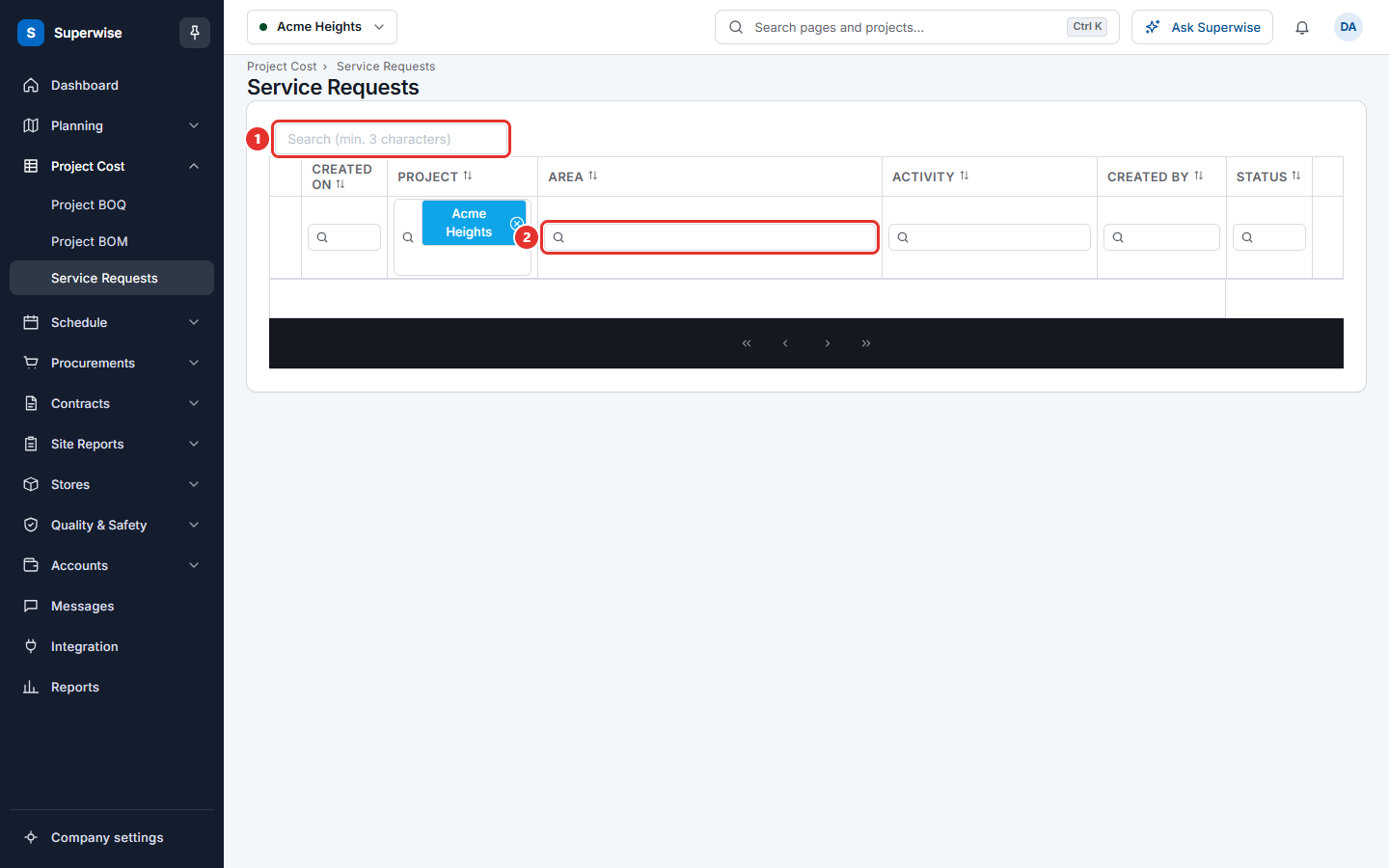
A status can show (Draft) after its name, and a revision number can show in brackets.
How to read the details of a request
Click the arrow at the start of the row. Choose a tab.
- BOQ Details lists the BOQ items, grouped by category. For each item it shows the Quantity asked for and the Estimated Quantity.
- Nodes lists the nodes (areas) of the request.
- Other Details shows who changed the status and when, the BOQ Revision, and any attachments you can download.
- Comments shows the comments on the request.
- Work Flow shows the approval steps as a diagram.
How to approve or reject a request
- Click the menu icon at the end of the row.
- Click Approve or Reject.
- In the dialog Confirm Action, type a reason in Comment (optional).
- Click Confirm. Click Cancel to stop.
When you reject a request, the dialog warns Corresponding Measurement Sheet will be rejected. Superwise rejects the measurement sheet and adds a remark to it.
How to delete a request
- Click the menu icon at the end of the row.
- Click Delete.
- Click Confirm.
Superwise rejects the measurement sheet that belongs to the request.
How to see who approved a request
Click the menu icon at the end of the row, then click Approval History. A panel opens with the approval steps. For an accepted request, Approval Info also shows. It opens the approval report.
What the columns mean
| Name | What it means |
|---|---|
| Created On | The date Superwise created the request. |
| Project | The project of the request. |
| Area | The area of the project, with its code. |
| Activity | The task of the measurement that went over. |
| Created By | The person who created the request. |
| Status | The state of the request, for example Pending, Rejected or Accepted. |
Rules to know
- Approve and Reject show only to a person whose approval step it is. The menu shows only the choices that fit the state of the request.
- Only the last approved service request can be rejected.
- Approve, Reject and Delete do not show for a request that a BOQ playground revision created. That request is part of a BOQ revision. See BOQ estimation.
- Delete shows only for a request that is pending or rejected, and only to people who have the Delete permission.
- When a rejected request is accepted later, its measurement sheet goes back to Pending.
If something goes wrong
| What you see | What to do |
|---|---|
| Only last approved Service Request can be rejected | Reject the newer approved request first. |
| Could not change status. followed by a reason | Read the reason. The approval workflow may need another person to act first. |
| No Approve or Reject in the menu | You are not the approver for this step, or the request is part of a BOQ revision. |