


Document stages
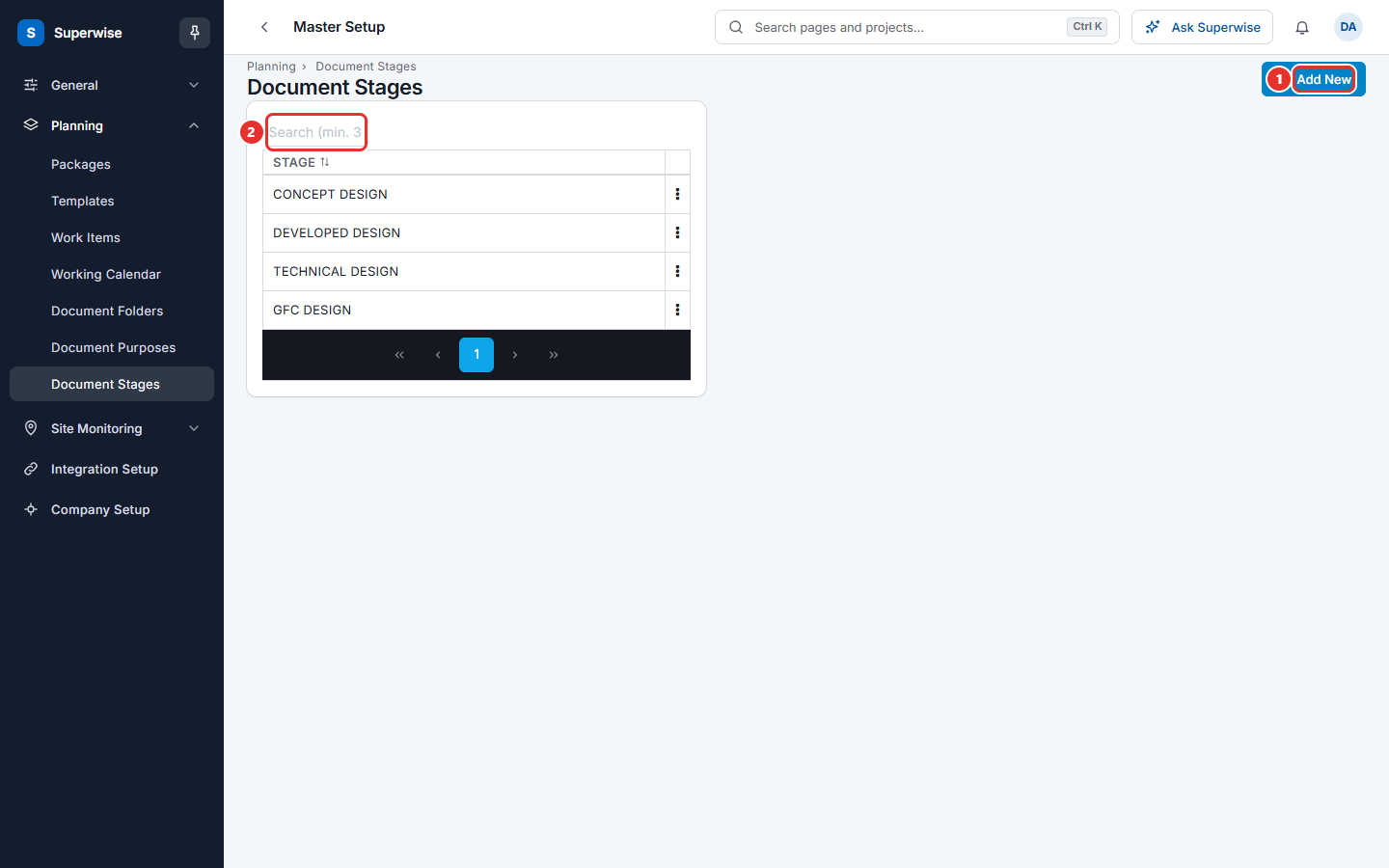
Set up the list of design stages for documents, such as Concept design or Technical design.
- Where to find it
- Company settings > Planning > Document Stages
- Who can use it
- People who have the View Other Masters permission. You also need the View Documents permission to see the menu item.
A document stage says how far a document has progressed. Examples are Concept design, Developed design and Technical design. You create the list once. When someone uploads a document to a project, they choose one stage in the Stage field.
A stage is different from a purpose. The stage says where the document is in the design. The purpose says why it was shared.
Before you start
Nothing is needed first. You can add stages at any time.
How to add a stage
- Open Company settings > Planning > Document Stages.
- Click Add New (mark 1 in the first picture).
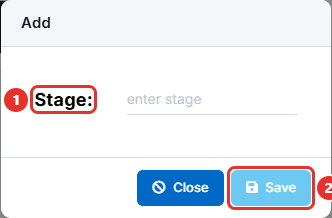
- Type the name in Stage: (mark 1 in the second picture). For example,
Concept design. - Click Save (mark 2). The button stays grey until you type a name.
How to edit or delete a stage
- Click the three dots at the end of the stage row.
- Click Edit, change the name, and click Save.
- Or click Delete and confirm the question.
Type at least 3 characters in Search (min. 3 characters) (mark 2 in the first picture) to find a stage. Click the STAGE heading to sort.
What the columns mean
| Name | What it means |
|---|---|
| STAGE | The name of the stage, as people see it when they upload a document. |
Rules to know
- A stage name cannot repeat. The system shows Document Stage cannot be repeated.
- You cannot delete a stage that a document uses. The system shows Documents are present for this stage. Change the stage on those documents first.
- You see Edit only with the Edit permission and Delete only with the Delete permission.
If something goes wrong
| What you see | What to do |
|---|---|
| Document Stage cannot be repeated | The name exists. Use the existing stage. |
| Documents are present for this stage. | Change the stage on those documents, then delete again. |
| Document Stages is not in the menu | Ask your administrator for the View Other Masters and View Documents permissions. |
Related pages
- Document purposes: the second list a document uses.
- Document folders: where documents are stored.
- Planning masters: the order to set up the planning lists.