


Get started
Learn how to sign in, find your way around Superwise, and understand how a project moves from setup to payment.
Superwise is a web portal for construction projects. You plan the work, buy materials, hire contractors, record what happens on site, and pay the bills. All of it is in one place, and every record belongs to a project.
Read this book first if you are new. It explains the screen you see after you sign in, the words that Superwise uses, and the order in which work moves through the system.
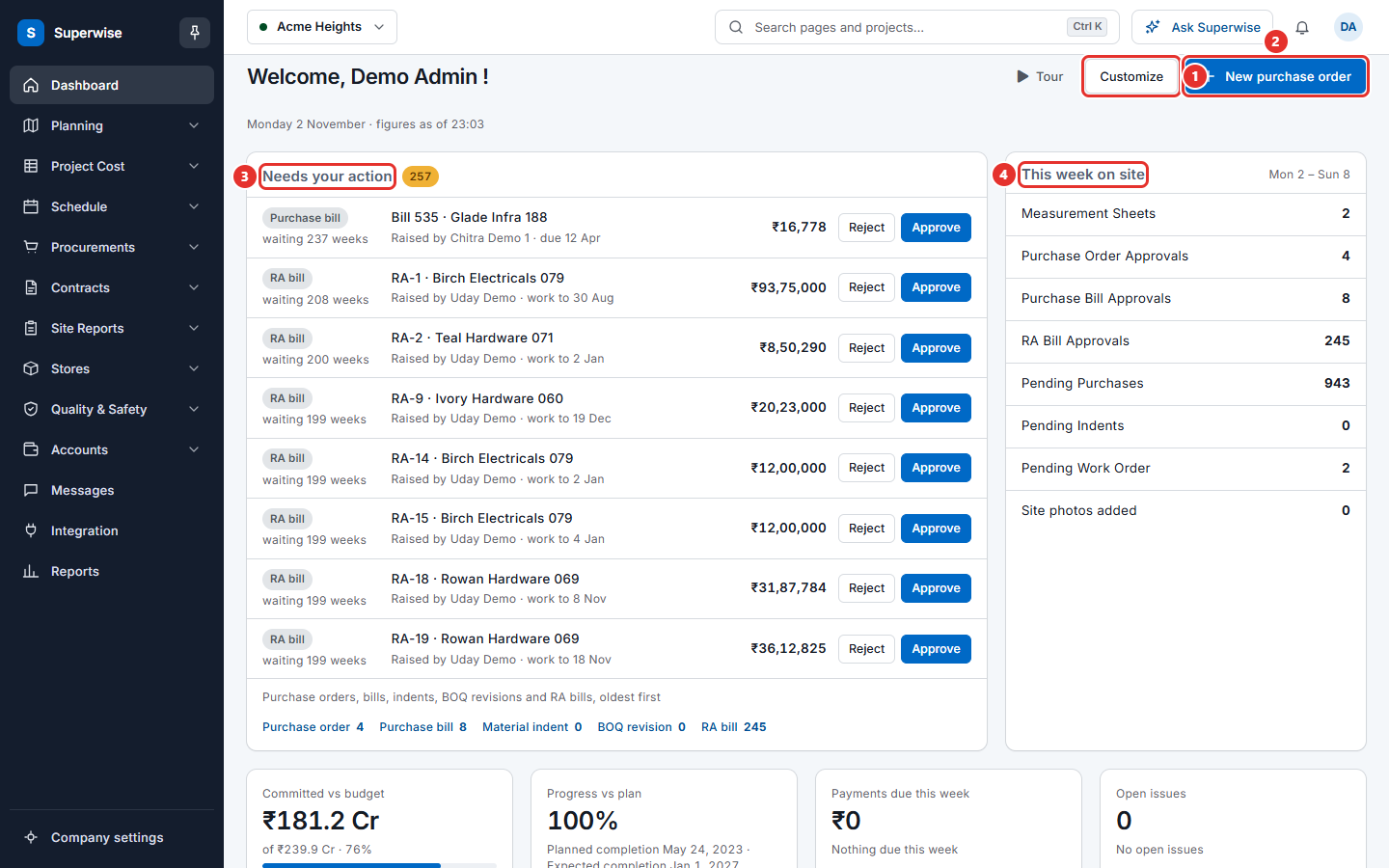
What you see after you sign in
The first screen is the Dashboard. The left menu lists the parts of Superwise. The top bar holds the project picker, the search box, the Ask Superwise button, the bell for notifications and your account menu. The middle of the page shows what needs your attention today.
How work moves through a project
Most work follows one of two chains. Each step is a record that you create, check and approve.
| Chain | Steps |
|---|---|
| Materials | Indent, request for quotation (RFQ), quotation, purchase order (PO), delivery, purchase bill, payment |
| Contract work | Request for proposal (RFP), proposal, work order, measurement, running account (RA) bill, payment |
The chapter How a project flows explains both chains and links to the book for each step.
Which chapter to read
| If you want to | Read |
|---|---|
| Sign in, reset a password or change your details | Sign in and password |
| Find a screen quickly | Find your way |
| Understand the first screen | The dashboard |
| See the whole project path | How a project flows |
| Look up a Superwise word | Words we use |
| Know why a menu or button is missing | Roles and access |
| Search, filter and save list views | Lists, filters and saved views |
| Understand why a record waits | Approvals in plain words |
| Get answers inside Superwise | Ask Superwise |
| Load old data from Excel | Bulk import |
If you want a short guide for your own job, open Start by role.
Note: All pictures in this help use sample data. The company Acme and the project Acme Heights are made up.
In this section
- Sign in and passwordSign in to Superwise, reset a forgotten password, change your password, and update your own profile.
- Find your wayLearn the left menu, the project picker, search with Ctrl K, notifications, Company settings and the Ask Superwise button.
- The dashboardLearn what each part of the dashboard shows, how to approve items from it, and how to choose the cards you see.
- How a project flowsSee the whole path of a project from company setup to payment, with the two chains for materials and for contract work.
- Words we useA list of the words Superwise uses, with a plain meaning and the place in the menu where you see each one.
- Roles and accessUnderstand how roles and permissions decide which menus, buttons and approvals you see, and who to ask when something is missing.
- Lists, filters and saved viewsLearn how list screens work in Superwise, including search, filters, column choice, saved views, sorting and export.
- Approvals in plain wordsLearn why some records wait for a person to approve them, how you approve or reject, and how the approval chain is set up.
- Ask SuperwiseUse the Ask Superwise assistant to get answers about any screen and to let it prepare some records for you.
- Bulk importLoad purchase orders, or earlier deliveries, rentals and labour reports, from an Excel file into one project.