


Add material consumption in bulk
Record the material that a contractor used on many tasks in one form, in three steps.
- Where to find it
- Stores > Material Consumption
- Who can use it
- People who have the Add permission on Material Consumption.
Use this form to record what one contractor used on site. You pick the contractor, load the tasks that are open for that contractor, type the quantities, and save. One save makes one consumption record with many lines.
The form has three steps: Vendor Details, Consumption and Summary.
Before you start
- Select the project in the project selector at the top of the screen.
- The contractor must have received material for the project. See Material supply.
- The project must have tasks with a bill of quantities (BOQ).
How to add a consumption record
- Open Stores > Material Consumption and click Bulk Add. The form opens in a new browser tab.
- In step Vendor Details, choose the Contractor (mark 1). Contractors that are not active show the word Inactive.
- Choose the Consumption Date (mark 2).
- Type Remarks if you need to. This is optional.
- Choose a Debit / Credit Reason (mark 3) if you will mark any line as credited. Otherwise leave it empty.
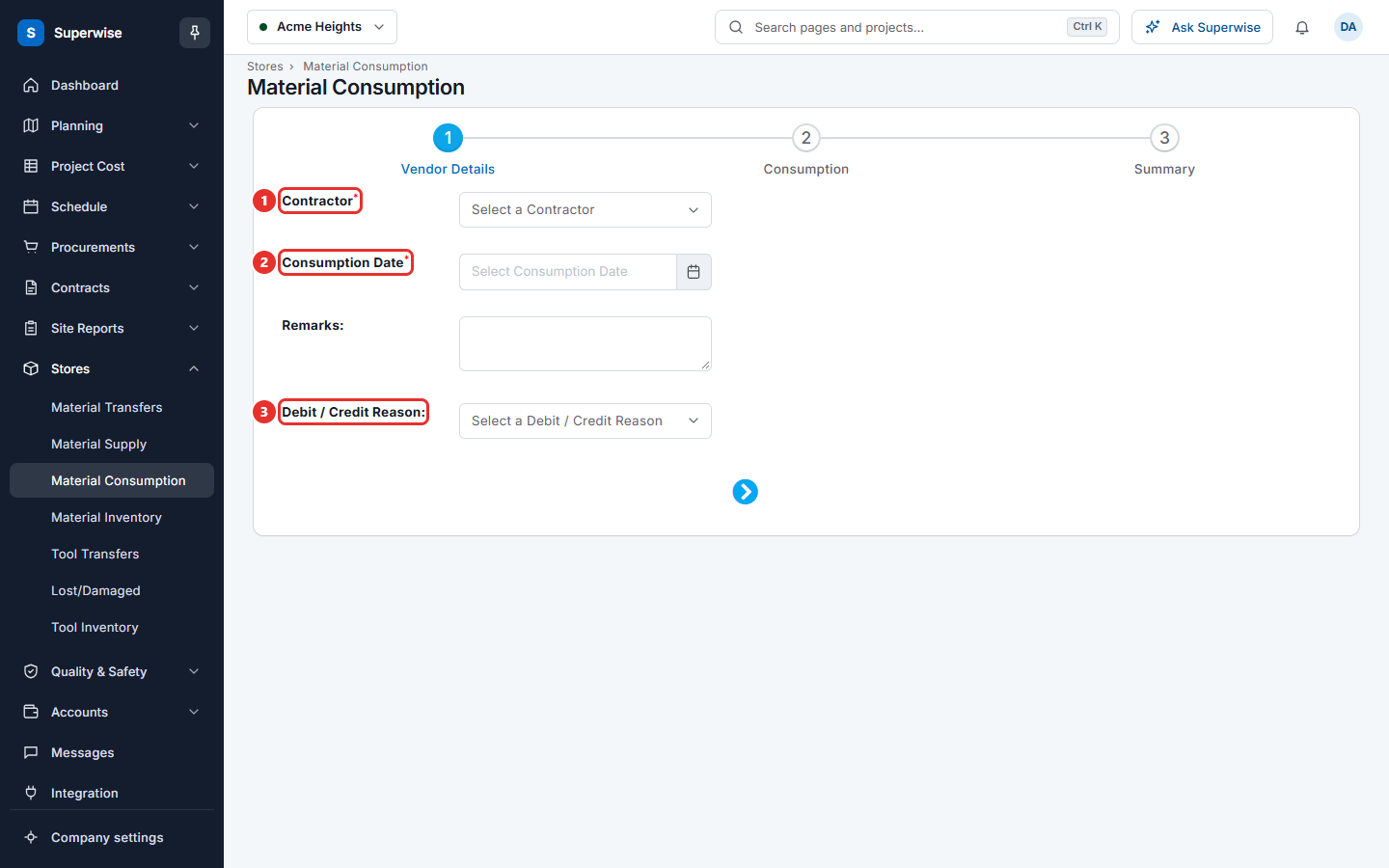
- Click the right arrow at the bottom to go to step Consumption.
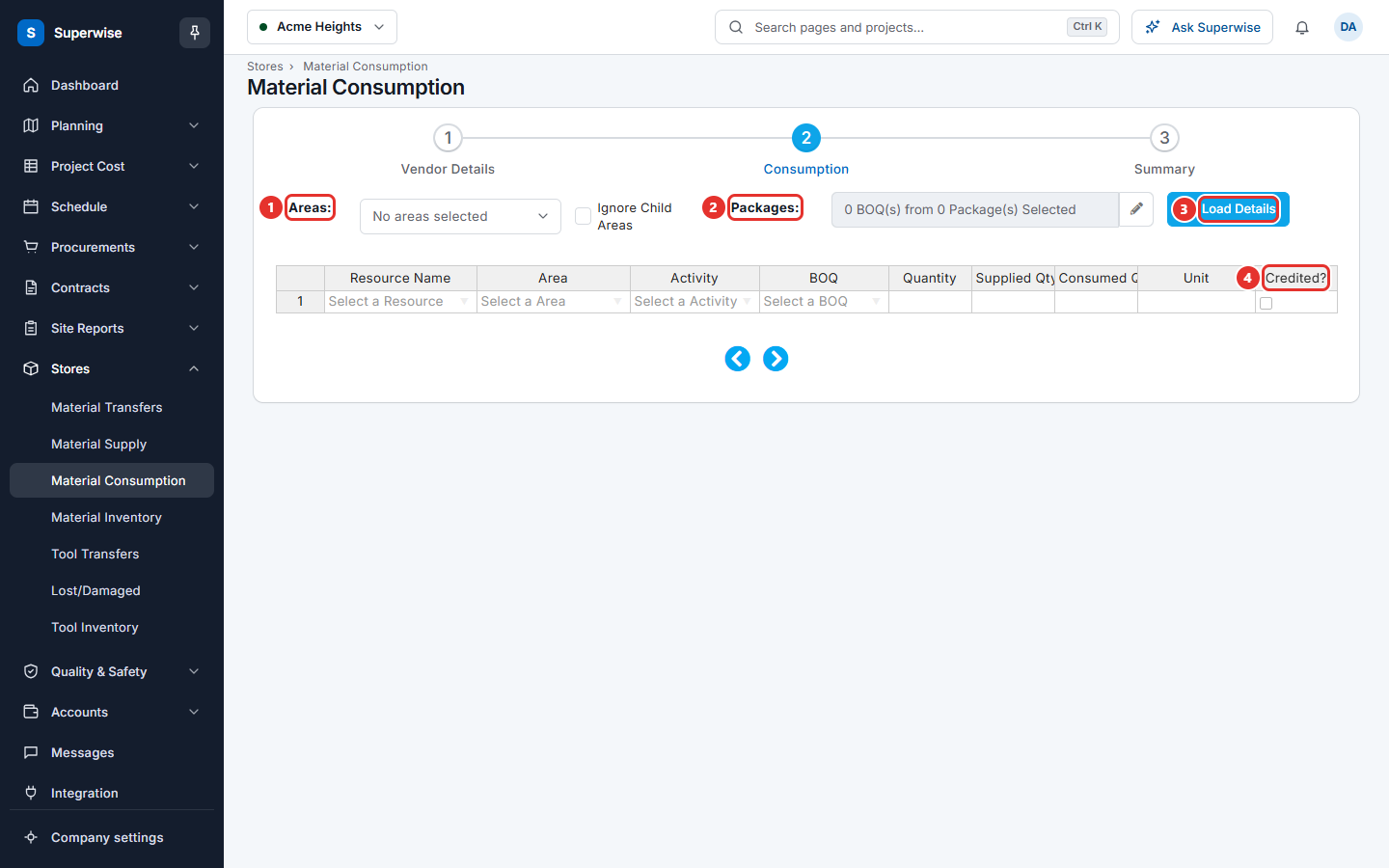
- In Areas (mark 1), choose one or more areas. Tick Ignore Child Areas if you do not want the areas below them.
- In Packages (mark 2), click the pencil button, tick the BOQs in the tree, and click OK. If the project has no BOQs, the box says "No BOQs Available in this Project".
- Click Load Details (mark 3). You must choose at least an area or a package first. The table fills with the open task BOQs of the contractor.
- In the table, type the Quantity for each line that was used. To delete a line that you do not need, right-click the row and choose the item that removes the row.
- Tick Credited? (mark 4) on a line if the contractor must get a credit for it.
- Click the right arrow to go to step Summary. Check the Contractor Details Summary and the Consumption Summary.
- Click SAVE.
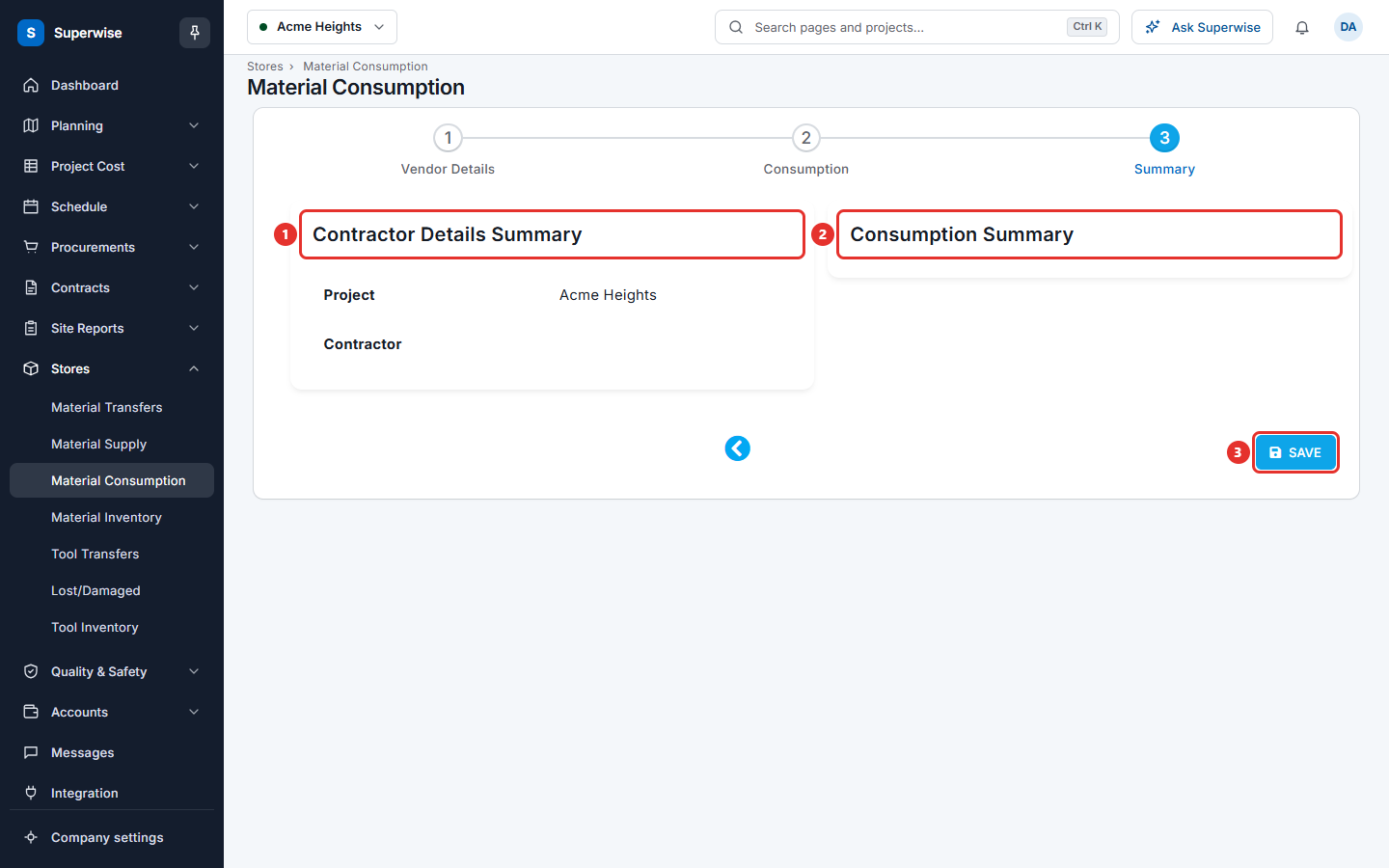
After you save, the message "Material Consumption Updated successfully!" shows. The list opens after 3 seconds.
You can also click a step name at the top to move between steps.
What the table columns mean
| Name | What it means |
|---|---|
| Resource Name | The material used. The list shows the materials in the contractor's supply. |
| Area | The schedule area of the task. |
| Activity | The task in that area. |
| BOQ | The BOQ line of that task. |
| Quantity | How much was used now. It must be above 0. |
| Supplied Qty | The total that the project supplied to this contractor. The screen fills it. |
| Consumed Qty | The total that this contractor already used in the project. The screen fills it. |
| Unit | The unit of the material. |
| Credited? | Tick it to raise a credit note for this line. |
Rules to know
- Each line needs a resource, an area, an activity and a BOQ.
- The same resource, area, activity and BOQ cannot appear in two lines.
- Quantity must be above 0 on every line.
- If any line is Credited?, you must choose a Debit / Credit Reason. Each credited line makes one pending credit note for the contractor. The amount is the quantity times the last purchase rate. If the material was never bought, the schedule of rates price is used.
- The contractor and the date are required. The system refuses a record without lines.
If something goes wrong
| What you see | What to do |
|---|---|
| Debit / Credit Reason Must be selected for IsCredited Entry | Go back to step Vendor Details and choose a reason. |
| Duplicate items found on Row No: | Two rows are the same. Keep one. |
| Resource not Selected on Row No: | Choose the resource in the rows named. |
| Area not Selected on Row No: | Choose the area in the rows named. |
| Activity not Selected on Row No: | Choose the activity in the rows named. |
| BOQ not Selected on Row No: | Choose the BOQ in the rows named. |
| Quantity must be greater than zero Selected on Row No: | Type a quantity above 0 in the rows named. |
| No Record to save Material Consumption. | Click Load Details and add at least one line. |
| Could not save Material Consumption. Please contact support | Try again. If it keeps failing, tell your administrator. |