


Petty cash
Record small cash expenses of a project with a reason, an amount and a picture of the bill, and accept or reject them.
- Where to find it
- Site Reports > Petty Cash
- Who can use it
- People who have the View Petty Cash permission. Creating needs Add, editing needs Edit, deleting needs Delete, approving needs Approve.
Petty cash is a small expense that the site team pays in cash, for example for tea, a taxi or a repair. Each expense has a reason, a date, an amount and a picture of the bill. A person with approval rights accepts or rejects it.
The screen is called Petty Cash. The portal also calls an expense a cash expense.
Before you start
- A project must exist, and you must be a member of it. The list shows the project chosen at the top of the screen.
- An expense reason must exist.
- Keep a picture of the bill or the receipt. The form needs at least one picture.
How to add a petty cash expense
- Open Site Reports > Petty Cash.
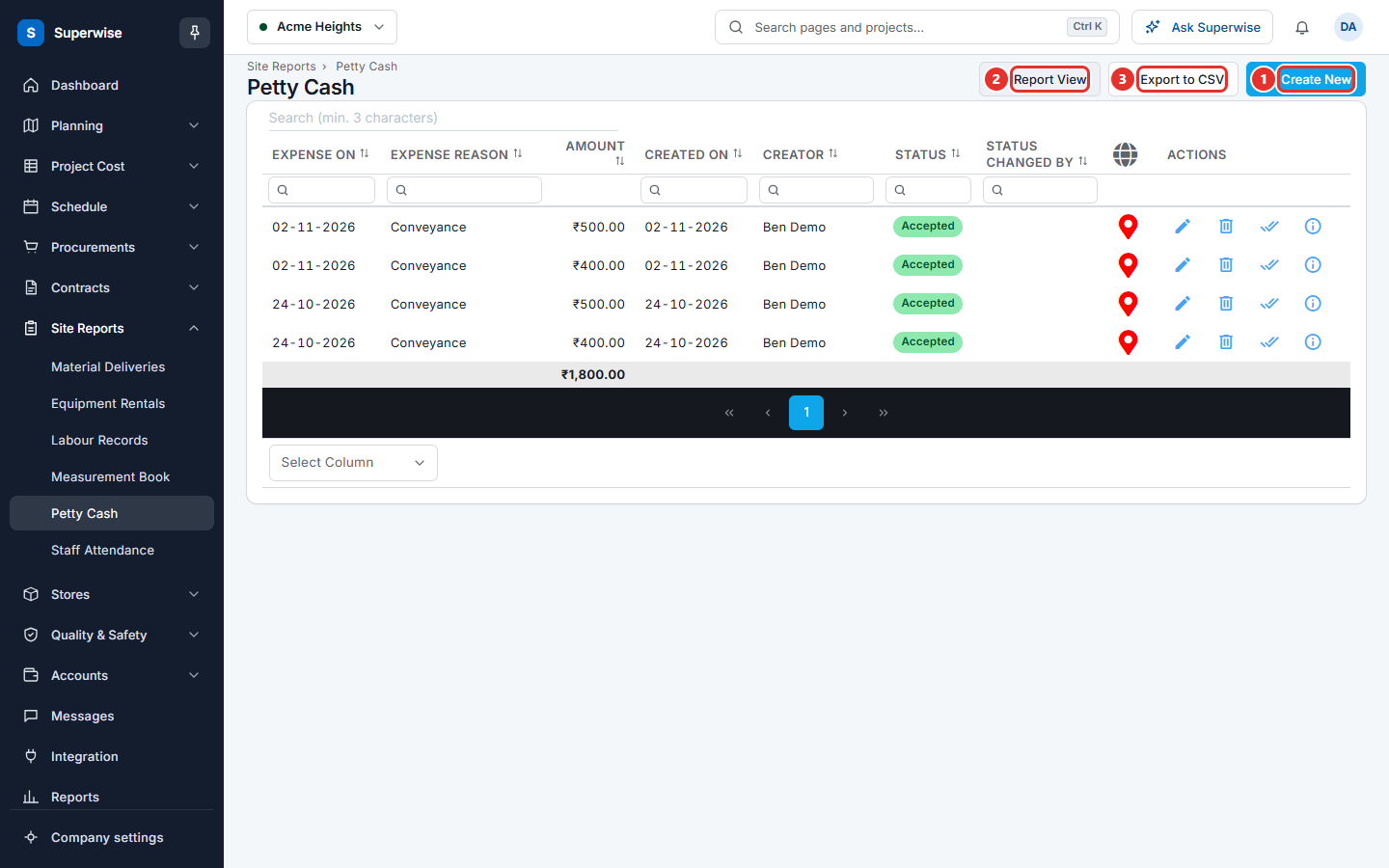
- Click Create New (mark 1 in the picture above). A sheet called Petty cash add opens at the side.
- In Reason (mark 1 in the picture below), choose the reason.
- In Date (mark 2), choose the date of the expense. You cannot choose a date in the future.
- In Amount (mark 3), type the amount.
- In Images (mark 4), add the pictures. You can add up to 3 pictures. Each picture can be up to 1 MB. To remove a picture, click the cross next to it.
- In Remark, write a note if you need to.
- Click SAVE (mark 5).
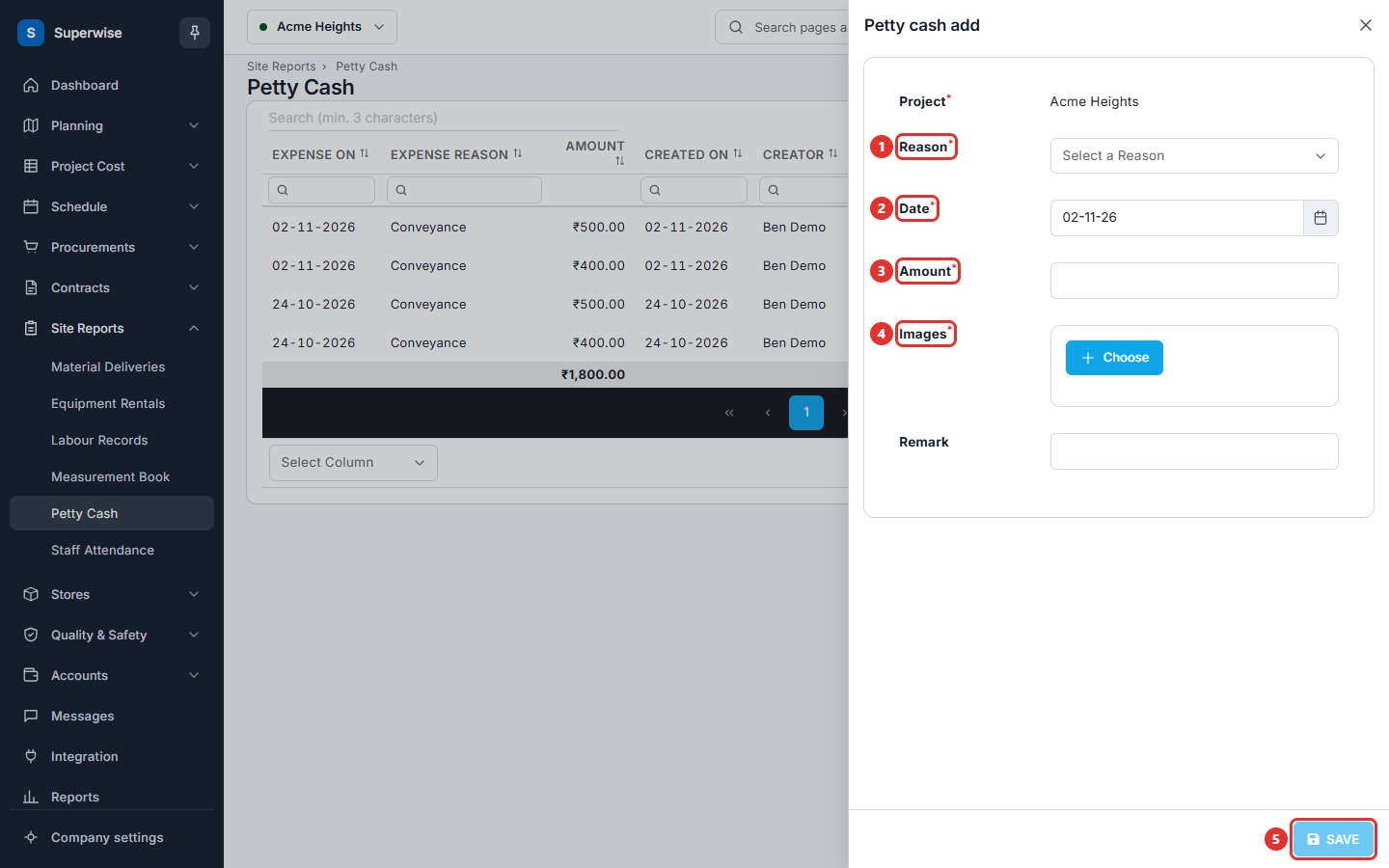
The SAVE button works when Reason, Date, Amount and Images are filled. The amount must be at least 0.01. The new expense is Pending.
How to find an expense
- Click one of the filter boxes under a column name. The columns Expense On and Created On take a date range.
- To show or hide columns, use Select Column at the bottom of the table. The column Project is hidden at first.
- Click Report View (mark 2 in the first picture) to see the expenses as a report. Click View Data to go back.
- Click Export to CSV (mark 3 in the first picture) to download the rows that match your filters.
- To see all the facts of an expense, click the information icon at the end of the row. The sheet shows the reason, the date, the amount, who created it, who changed the status, the remarks and the pictures. When the expense was paid, it also shows who was paid, the payment mode and the payment date.
How to accept or reject an expense
- At the end of the row, click the double check mark icon. A small menu opens.
- Click Approve or Reject.
- In the dialog Confirm Action, click Confirm.
- The message Petty Cash successfully Approved! or Petty Cash successfully Rejected! appears.
You can accept an expense that is Pending or Rejected. You can reject an expense that is Pending or Accepted.
How to edit or delete an expense
- To edit, click the pencil icon at the end of the row. The sheet Petty cash edit opens. Change the fields and click SAVE.
- To delete, click the bin icon at the end of the row. In the dialog Confirm Action, click Confirm. The message Petty Cash successfully deleted! appears.
What the columns mean
| Name | What it means |
|---|---|
| Expense On | The date of the expense. |
| Expense Reason | Why the money was spent. |
| Amount | The amount that was paid. |
| Created On | The date the record was created. |
| Creator | The user who created the record. |
| Status | The state of the expense: Pending, Accepted or Rejected. |
| Status Changed By | The user who accepted or rejected it. |
The column with a map icon shows the place where the expense was entered. A red icon means an invalid location.
Rules to know
- An expense that was paid cannot be deleted. The message is Cash Expense has been paid for.
- The date of an expense cannot be in the future.
If something goes wrong
| What you see | What to do |
|---|---|
| Already accepted. | The expense is accepted. No action is needed. |
| Already rejected. | The expense is rejected. No action is needed. |
| Cash Expense has been paid for | You cannot delete this expense. |
| Invalid selection for deletion. | Refresh the page and try again. |