


Project BOM
See every material, labour and machine resource a project needs, with planned, delivered and pending quantities and the cost against plan.
- Where to find it
- Project Cost > Project BOM
- Who can use it
- People who have the View Project BOQs permission. Rates and amounts show only for people who have the Add or Edit Project BOQs permission.
A bill of materials (BOM) is the list of resources a project needs. A resource is a material, a labour type or a machine, for example cement or a mason. Superwise builds the BOM from the bill of quantities (BOQ). The BOQ is the list of work items with quantity and rate. Each work item has a rate analysis, which says which resources one unit of work uses. Superwise multiplies the BOQ quantity by that use to get the total of each resource.
Use this page to see how much of each resource you plan to use, how much has arrived, and what is left.
Before you start
- Choose the project in the project list at the top of the screen.
- The project needs a BOQ with rate analysis. See Project BOQ and Rate analysis.
How to see the BOM of a project
- Open Project Cost > Project BOM.
- The table groups the resources by category. People who may edit also see the planned and projected amount of each group on its row.
- To find a resource, type at least 3 letters in the box Search.
- To sort the table, click a column name.
How to see the details of one resource
- Click the arrow at the start of the resource row.
- Choose a tab. - Related Tasks lists the activities that use the resource, with the package and the estimated quantity. - Rate Analysis lists the BOQ items that use the resource. It shows the BOQ quantity, the unit quantity, the wastage, the total quantity and the amount. This tab shows only for people who may edit. - Schedule shows a chart of the resource, month by month.
How to see the BOM as a report
- Click Report View at the top right of the page.
- The page shows the project name and a list where you choose items. Under them is a table with the columns Resource, Planned Quantity, Actual Quantity and Percent Consumption.
- Type in the boxes under the column names to filter the table.
- Click Export to CSV to download the table.
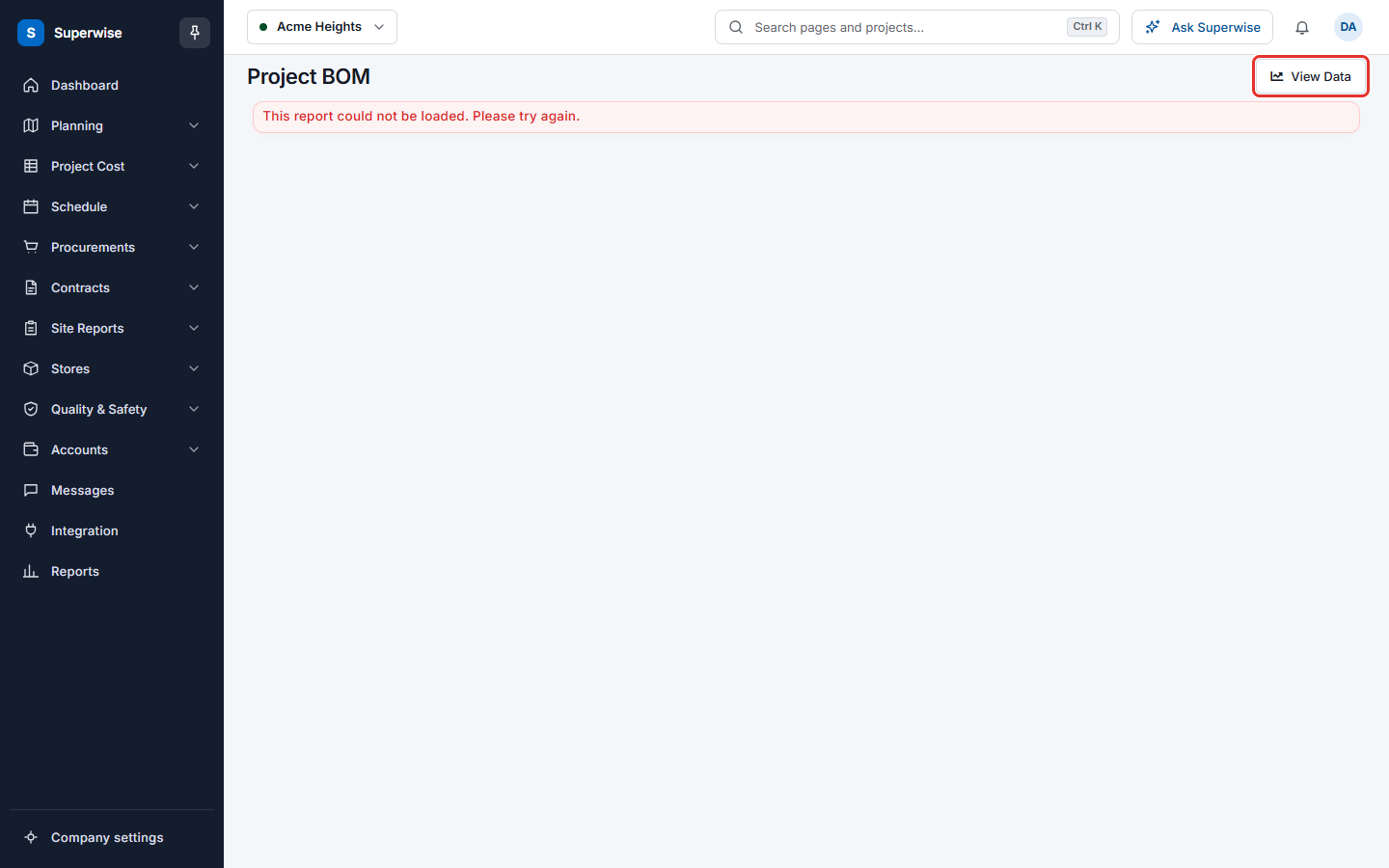
- Click View Data to return to the BOM table.
How to export the BOM
Click Export at the top right of the page. Superwise downloads the table. The export uses your search text and your sort.
What the columns mean
| Name | What it means |
|---|---|
| Name | The resource, for example a material. |
| Planned Qty | The total quantity of the resource that the BOQ needs. |
| Delivered Qty | The quantity that has arrived at the project. |
| Exp. Completed Qty | The quantity that the work done until now should have used. |
| Pending Qty | The quantity that the work still to do needs. |
| Planned Rate | The rate of the resource in the rate analysis. |
| Avg Purchase Rate | The average rate you paid. |
| Avg Purchase Rate w/ Tax | The average rate you paid, with tax. |
| Planned Amt | The planned quantity multiplied by the planned rate. |
| Projected Amt | The amount you expect to spend. It shows in red when it is above Planned Amt. |
People without the Add or Edit permission see only the first five columns.
Rules to know
- The BOM changes when the BOQ or a rate analysis changes. Approve the change in the BOQ first. See BOQ estimation.
- You cannot edit anything on this page.