


Find your way
Learn the left menu, the project picker, search with Ctrl K, notifications, Company settings and the Ask Superwise button.
- Where to find it
- Dashboard
- Who can use it
- Everyone who is signed in. Menu items appear only for people who have the matching permission.
Every Superwise screen has the same frame. The left menu is on the left. The top bar is at the top. The page you work on is in the middle. This page explains each part of the frame.

The top bar holds five parts, from left to right. Mark 1 is the project picker. Mark 2 is the search box. Mark 3 is Ask Superwise. Mark 4 is the bell for notifications. Mark 5 is your account button, which shows your initial.
The left menu
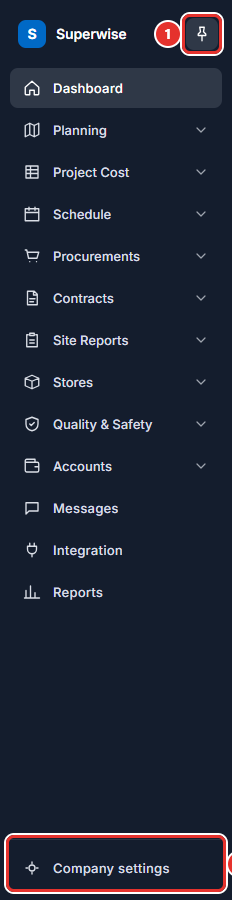
The left menu lists the parts of Superwise as groups. Click a group to open it. Click an item inside the group to open the screen. Groups and items that you have no permission to use are not shown. See Roles and access.
| Group | What is inside |
|---|---|
| Dashboard | Your first screen. See The dashboard. |
| Planning | Budget, Schedule, BOQ Estimation, Documents |
| Project Cost | Project BOQ, Project BOM, Service Requests |
| Schedule | Tasks, Gantt, Progress Log |
| Procurements | Material Indents, RFQ, Quotations, Purchase Orders |
| Contracts | RFP, Proposals, Work Orders |
| Site Reports | Material Deliveries, Equipment Rentals, Labour Records, Measurement Book, Petty Cash, Staff Attendance |
| Stores | Material Transfers, Material Supply, Material Consumption, Material Inventory, Tool Transfers, Lost/Damaged, Tool Inventory |
| Quality & Safety | Issues, Checks |
| Accounts | Debit / Credit Notes, Purchase Bills, RA Bills, Payments |
| Messages | Project chat. A dot appears when new messages arrive. |
| Integration | The event log of connected systems |
| Reports | Report generation |
Your menu can look different from this list. Some companies use a shorter menu, and some groups are hidden for people without the permission.
The pin button next to the Superwise name (mark 1 in the picture below) keeps the menu open (Pin navigation). Company settings is at the bottom (mark 2). On a narrow screen the menu shows icons only. Move the pointer over it to open it. On a phone, a bar at the bottom shows Home, Procurement, Site, Stores and More. More opens the full menu.
How to change the project
Most screens show the records of one project. The project name is at the top left, next to the menu.
- Click the project name.
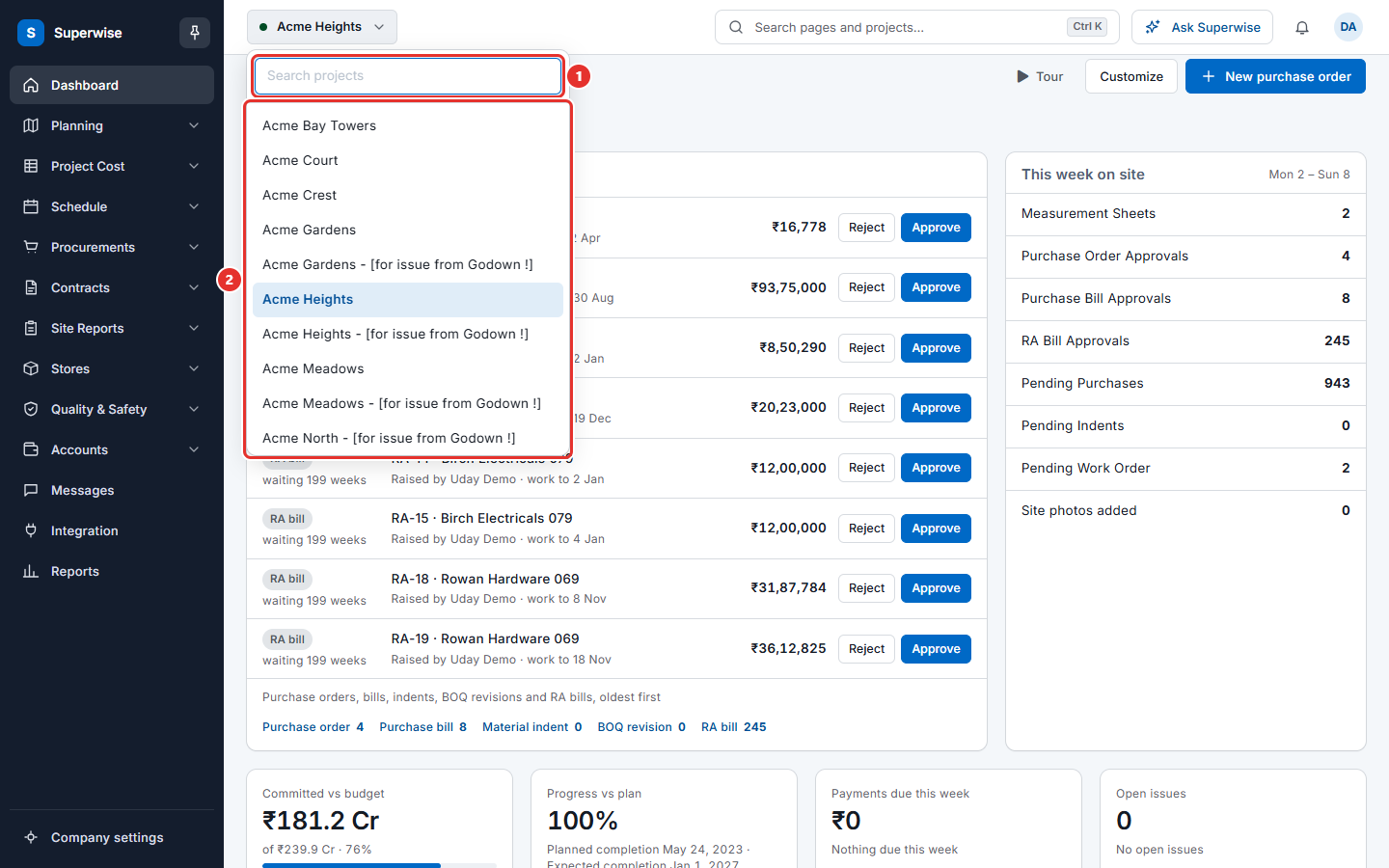
- Type part of a project name in Search projects (mark 1 in the picture below), or choose a name from the list (mark 2). Projects you used lately are listed under Recent. Other projects are under All projects.
- Click the project.
Superwise shows the same screen again, with the records of the new project. A grey dot before a project name means the project is not active.
If you see no records, check the project name first. Many screens look empty when the wrong project is selected.
How to search for a page or a project
Use the search box to jump to a screen without the menu.
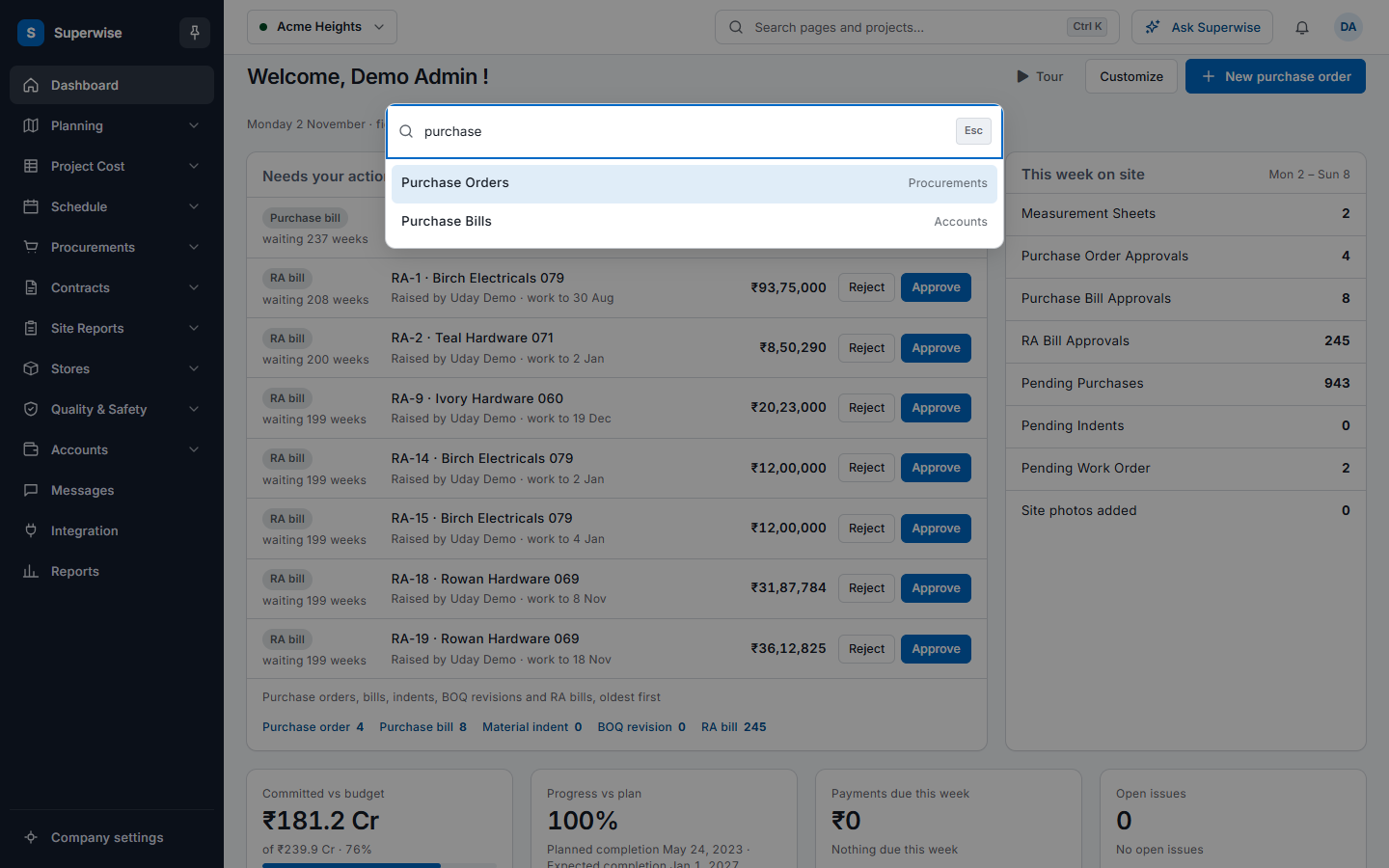
- Click Search pages and projects… or press Ctrl K. On a Mac, press Cmd K.
- Type one or two words, for example
purchase, in the text box at the top of the picture below. - Press the down arrow key to move in the list. Press Enter to open the highlighted line. The first line is highlighted at the start. You can also click a line.
- Press Esc to close the box without choosing.
The list has pages and projects. Each page line shows where the page sits in the menu. A project line switches to that project. If nothing fits, you see "Nothing matches" and your words.
The search finds pages and projects only. It does not search inside records such as one purchase order.
Notifications
Click the bell to see notifications. The bell shows a dot when you have some. At present the list holds new chat messages from your projects. Each line reads "New messages in" and the project name. Click it to open the chat. When there is nothing new, the box says "All caught up."
Company settings
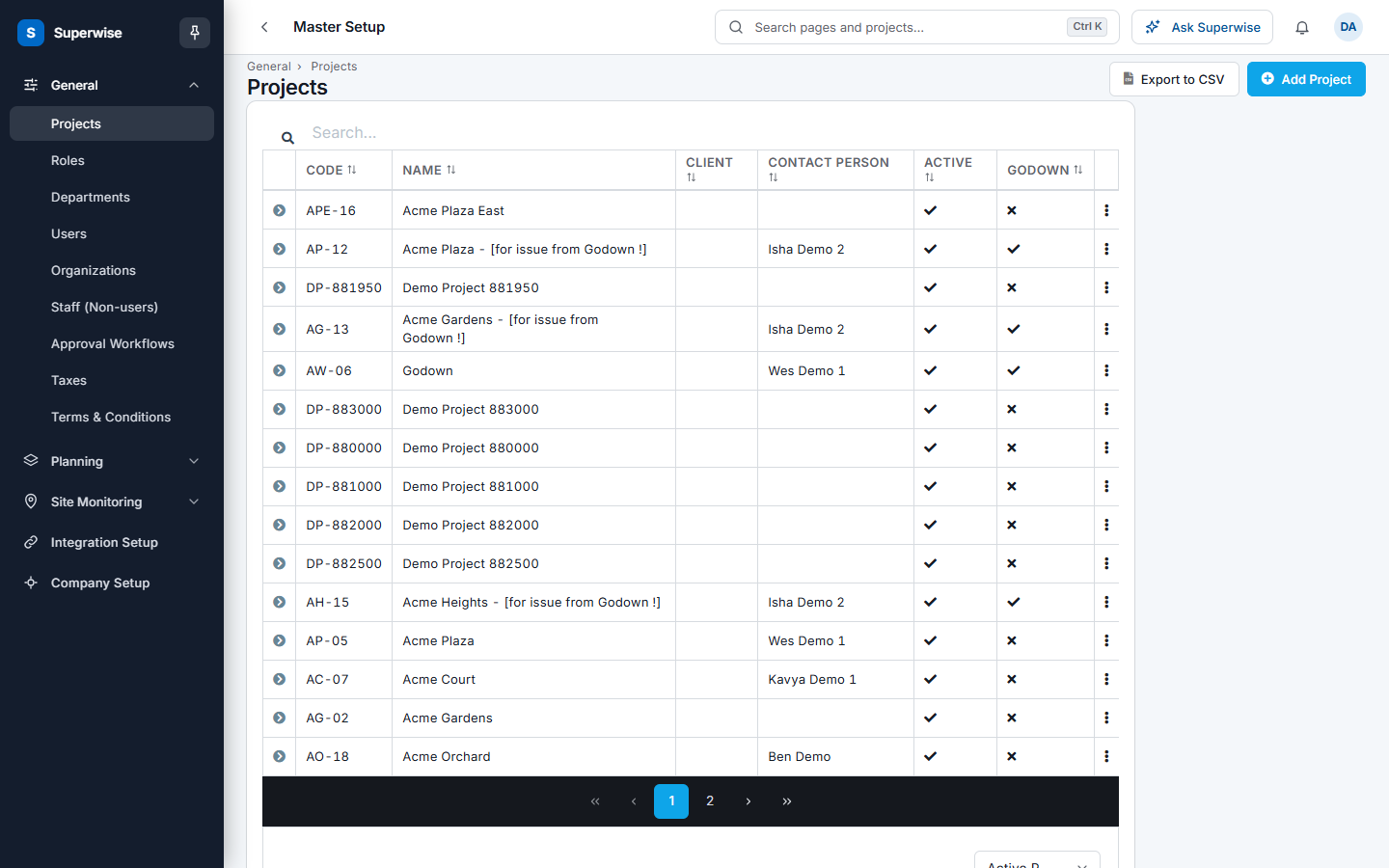
Click Company settings at the bottom of the left menu. It opens the setup pages that apply to the whole company, not to one project. The top bar then shows Master Setup and a back arrow. Click the arrow to return to the dashboard.
The company menu has these groups:
| Group | What is inside |
|---|---|
| General | Projects, Roles, Departments, Users, Organizations, Staff (Non-users), Approval Workflows, Taxes, Terms & Conditions |
| Planning | Packages, Templates, Work Items, Working Calendar, Document Folders, Document Purposes, Document Stages |
| Site Monitoring | Resources, Expense Reasons, Debit/Credit Reasons, Checklists/Forms, Issue Types |
| Integration Setup | Connect Superwise to other systems |
| Company Setup | Company default settings |
The link Company settings is shown only to people who may use these pages. Set these up once, before you start a project. See Company setup.
Ask Superwise
The button Ask Superwise is in the top bar. Click it, or press Ctrl /, to ask a question about any screen. See Ask Superwise.
Rules to know
- The left menu changes with your permissions. A missing item means you have no permission, not that the feature is gone.
- The project picker changes the project for every project screen. Company settings screens do not depend on a project.
- Ctrl K and Ctrl / work from any screen after you sign in.
If something goes wrong
| What you see | What to do |
|---|---|
| A menu group is missing | Ask your administrator to check your role. See Roles and access. |
| A list is empty | Check the project name at the top left. Then check the filters. See Lists, filters and saved views. |
| The project picker does not show a project | You may not belong to that project. Ask your project manager. |
| Company settings is missing | Your role does not include the company pages. |