


Approve payment requests
Accept, reject or comment on payment requests as the director and as accounts, before the accountant releases the money.
- Where to find it
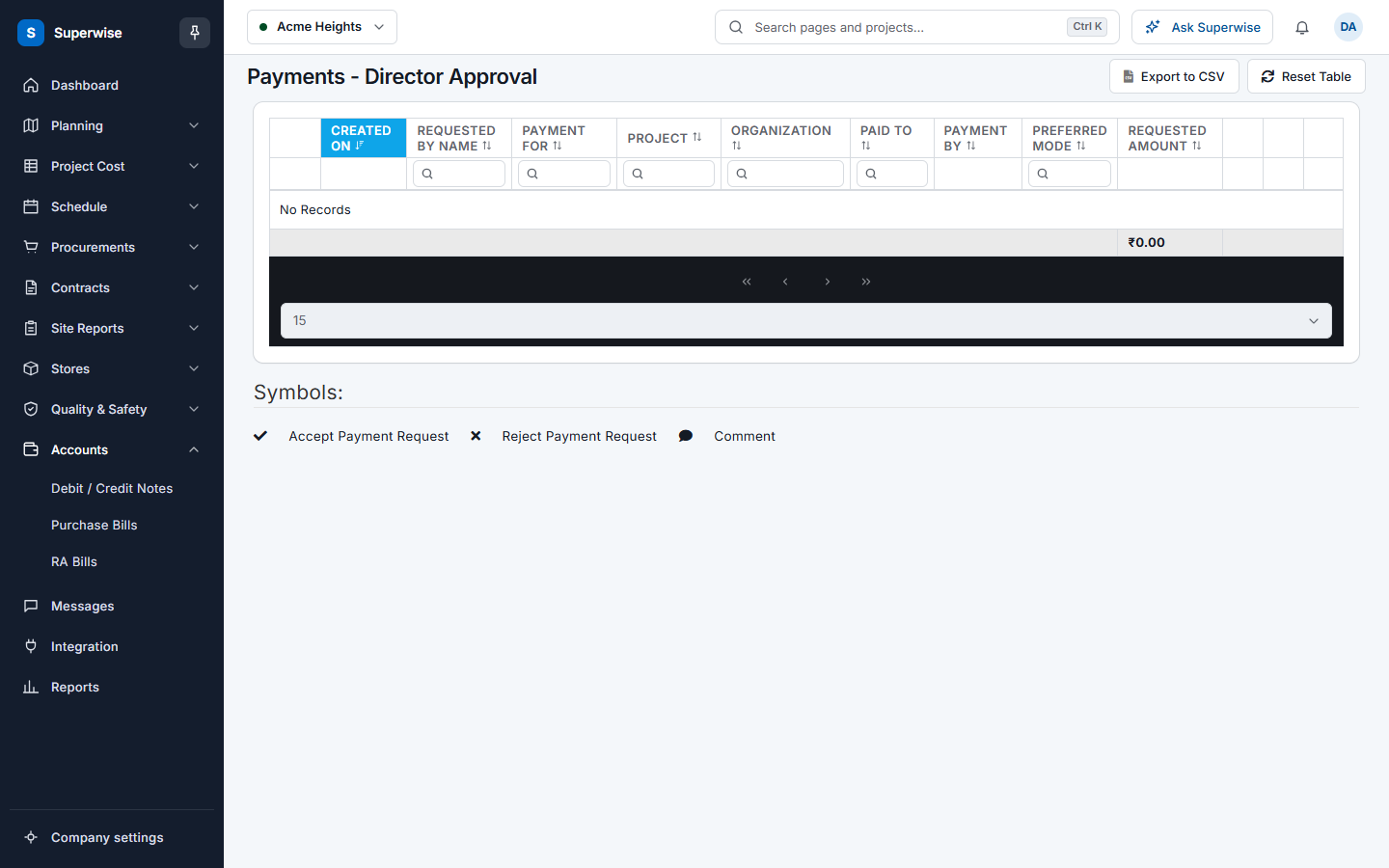
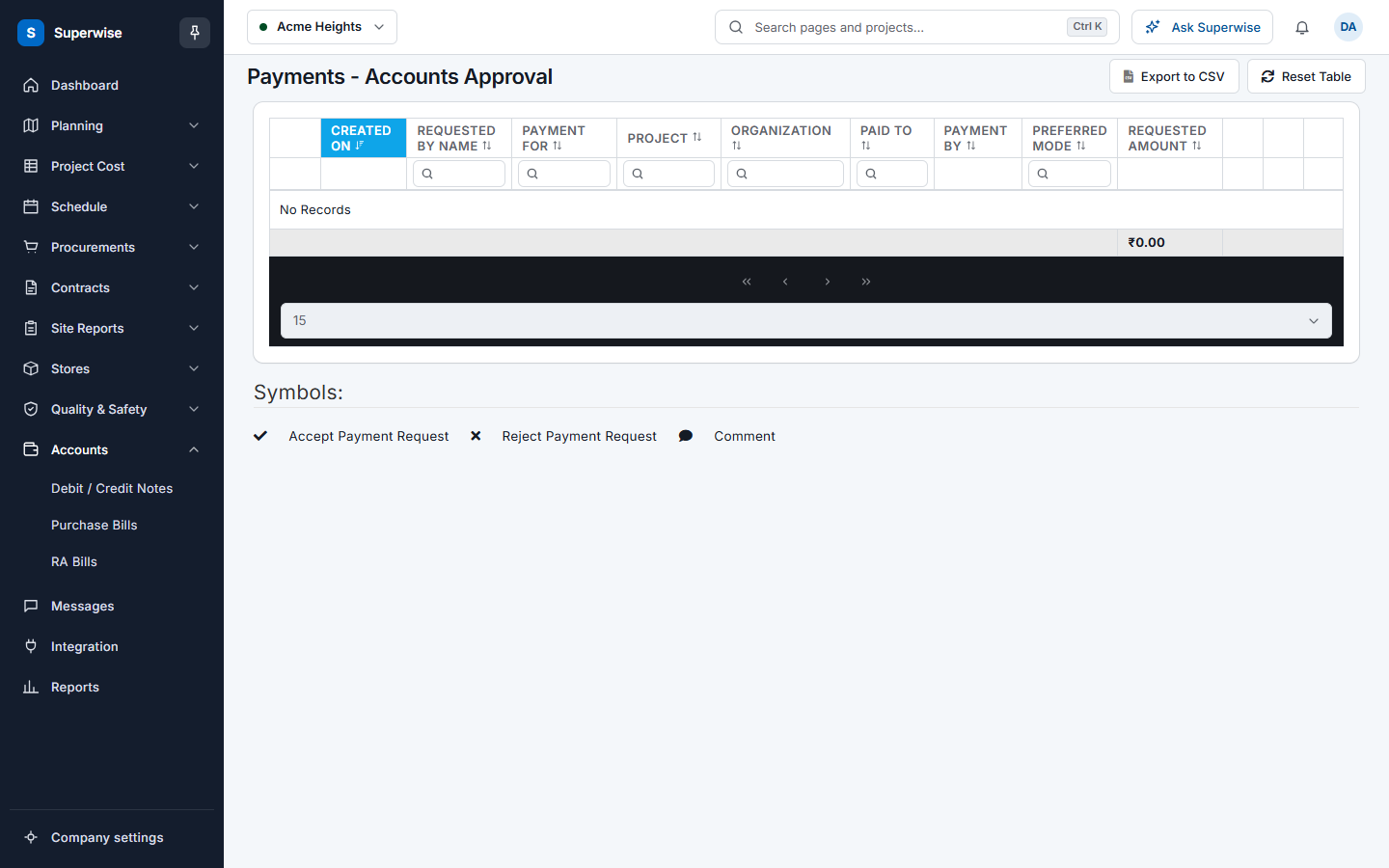
- Accounts > Payments > Director Approvals
- Who can use it
- People who have the View Admin permission. The Director Approvals and Accounts Approvals screens work in the same way.
Every payment request needs two approvals before it is released: first the director, then accounts. Each approval has its own screen with its own queue.
For example, a request for ₹1,00,000 is Queued. The director opens Director Approvals, reads the notes and clicks the tick. The request leaves that queue and appears in Accounts Approvals.
Before you start
- Select the project at the top of the screen. The queue shows the requests of that project.
- You need the View permission on Admin.
- A request enters Director Approvals when its status is Queued. It enters Accounts Approvals when the director has accepted it and accounts has not decided.
How to accept or reject a request
- Open Accounts in the left menu, open Payments and click Director Approvals or Accounts Approvals.
- Click the arrow at the start of a row to read the details: the bills, the notes and the earlier comments.
- To accept, click the tick button. To reject, click the cross button.
- A box titled Confirm Action asks you to confirm. The question is Are you sure you want to accept the payment request or Are you sure you want to reject the payment request.
- Click Confirm.
The row leaves the queue. The status becomes DirectorAccept, DirectorReject, AccountsAccept or AccountsReject.
How to add a comment
- Click the comment button.
- A box titled Director Comments or Accounts Comments opens. Type your remark in Comment:. The box shows Add Remarks... until you type.
- Click Save.
The release screen shows these comments to the accountant.
How to read the screen
The three columns of buttons are the same on both approval screens. The legend under the table, Symbols:, lists them: Accept Payment Request, Reject Payment Request and Comment. The columns are Created On, Requested By Name, Payment For, Project, Organization, Paid To, Payment By, Preferred Mode and Requested Amount. The total of Requested Amount shows at the bottom. See Payments for what they mean.
Rules to know
- A rejected request can be put back in the queue by the person who made it. See Payments.
- A director decision is saved with the name of the approver and the time.
- An accounts decision is saved in the same way.
If something goes wrong
| What you see | What to do |
|---|---|
| Access denied | You do not have the View permission on Admin. |
| An error occurred while updating the status. Please retry | Click Confirm again. If it fails again, tell your administrator. |
| A request is not in the queue. | It is waiting at an earlier step, or someone decided it already. Check its status in All Payments. |