


Bulk add measurement sheets
Load the BOQ items of chosen areas into a sheet, enter their measurements in one place, and save many measurement sheets at once.
- Where to find it
- Site Reports > Measurement Book
- Who can use it
- People who have the Add Measurement Book permission.
Use Bulk Add Measurement Sheets when you measure many BOQ items on the same day. You choose the packages and areas, load their items, and fill one row for each item. One click saves all of them.
Before you start
- The project must have a bill of quantities (BOQ) with tasks. If it has none, the page says Project currently does not have any Tasks to add Measurement.
- You need the Add permission for the measurement book.
How to bulk add measurement sheets
- Open Site Reports > Measurement Book.
- Click the arrow at the right side of Create, then click Bulk Add (mark 1 in the picture below). The arrow is shown when you may see tasks.
- In 1 Contractor, choose the contractor. This step is optional.
- In 2 Packages / BOQ's, click the pencil icon and choose the packages in the dialog Select Packages.
- In 3 Areas, click the pencil icon and choose the areas.
- Click Load Details. The grid fills with the BOQ items of your choice. Load Details needs packages and areas.
- Fill Quantity, Date and Remark in the row of each item you measured.
- Keep Accept All (mark 1 in the second picture) ticked if the sheets must be accepted as you save. Clear the tick to save them as Pending.
- Click SAVE (mark 2).
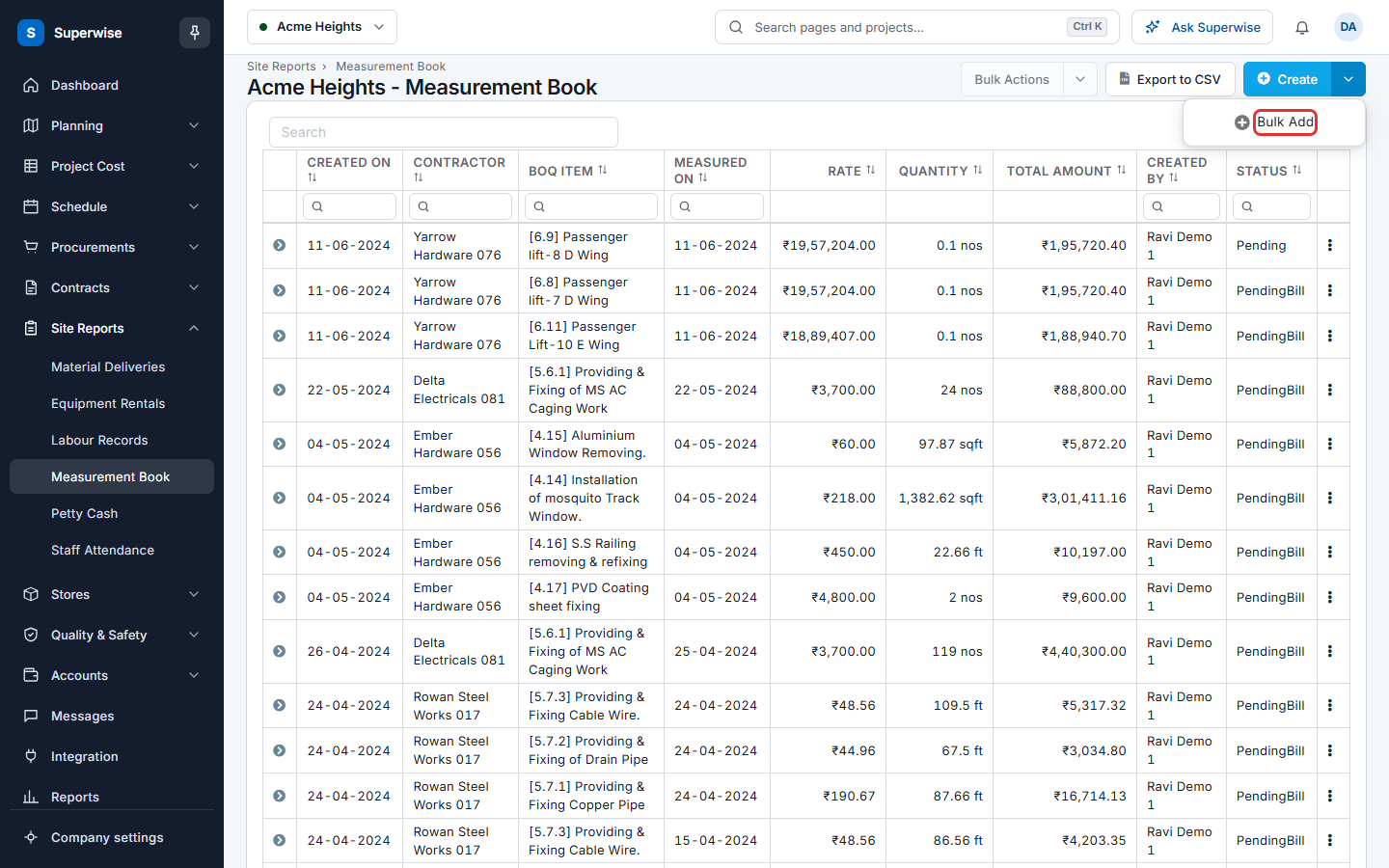
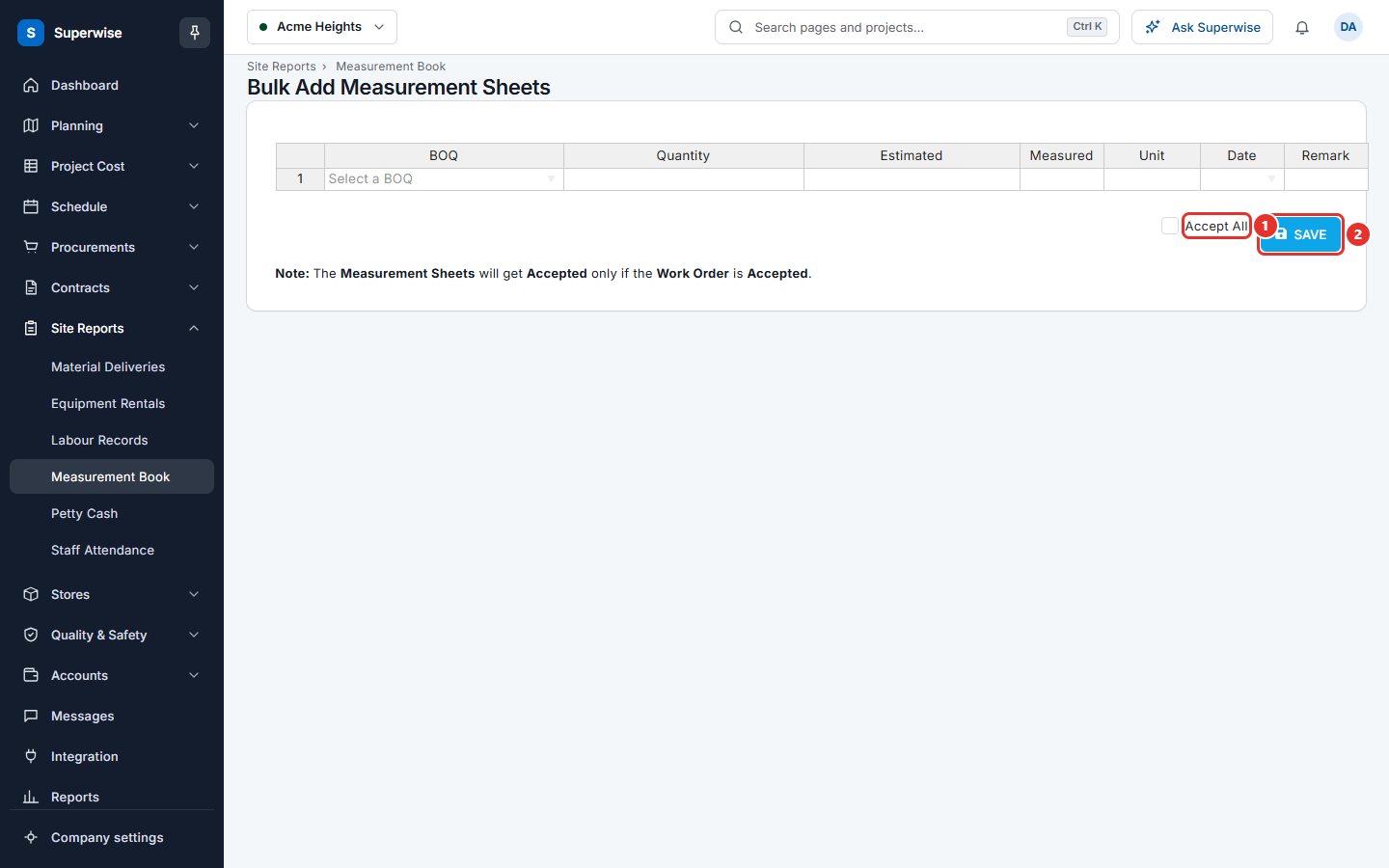
The steps 3 to 6 need a project that has BOQ tasks. When the project has none, the page shows only the grid, Accept All and SAVE.
If you change the contractor or the packages after you entered data, a dialog asks you to confirm. Copy your data first, because the grid is loaded again.
What the columns mean
| Name | What it means |
|---|---|
| BOQ | The BOQ item. |
| Rate | The price for one unit. |
| Quantity | The quantity you measured. |
| Estimated | The quantity that was planned for the item. |
| Measured | The quantity that is measured until now. |
| Unit | The unit of the item. |
| Date | The date of the measurement. |
| Remark | A note about the measurement. |
| Area | The area of the project. |
| Activity | The task in that area. |
Rules to know
- A row needs a quantity above 0. The page shows A quantity greater than zero is required on Row No: and the row numbers.
- The same BOQ item cannot be twice in the sheet. The page shows Duplicate items found on Row No: and the row numbers.
- The date of each row must be between the expected start date of the task and today.
- If the measured quantity goes over the estimate, a dialog says that a service request is created automatically. A measurement that goes over cannot be accepted until the service request is approved.
- A sheet is accepted only when its work order is accepted.