


Create an RFQ
Make a request for quotation, choose the suppliers and the materials, and save it as a draft or for approval. Also copy or edit an RFQ.
- Where to find it
- Procurements > RFQ
- Who can use it
- People who have the Add RFQs permission. Editing needs Edit. Copying needs Add.
Use this form to ask suppliers for a price. You choose the project, the bid period, the suppliers and the materials. When you save, the system makes one empty quotation for each supplier. The suppliers get their invitation only after the RFQ is approved.
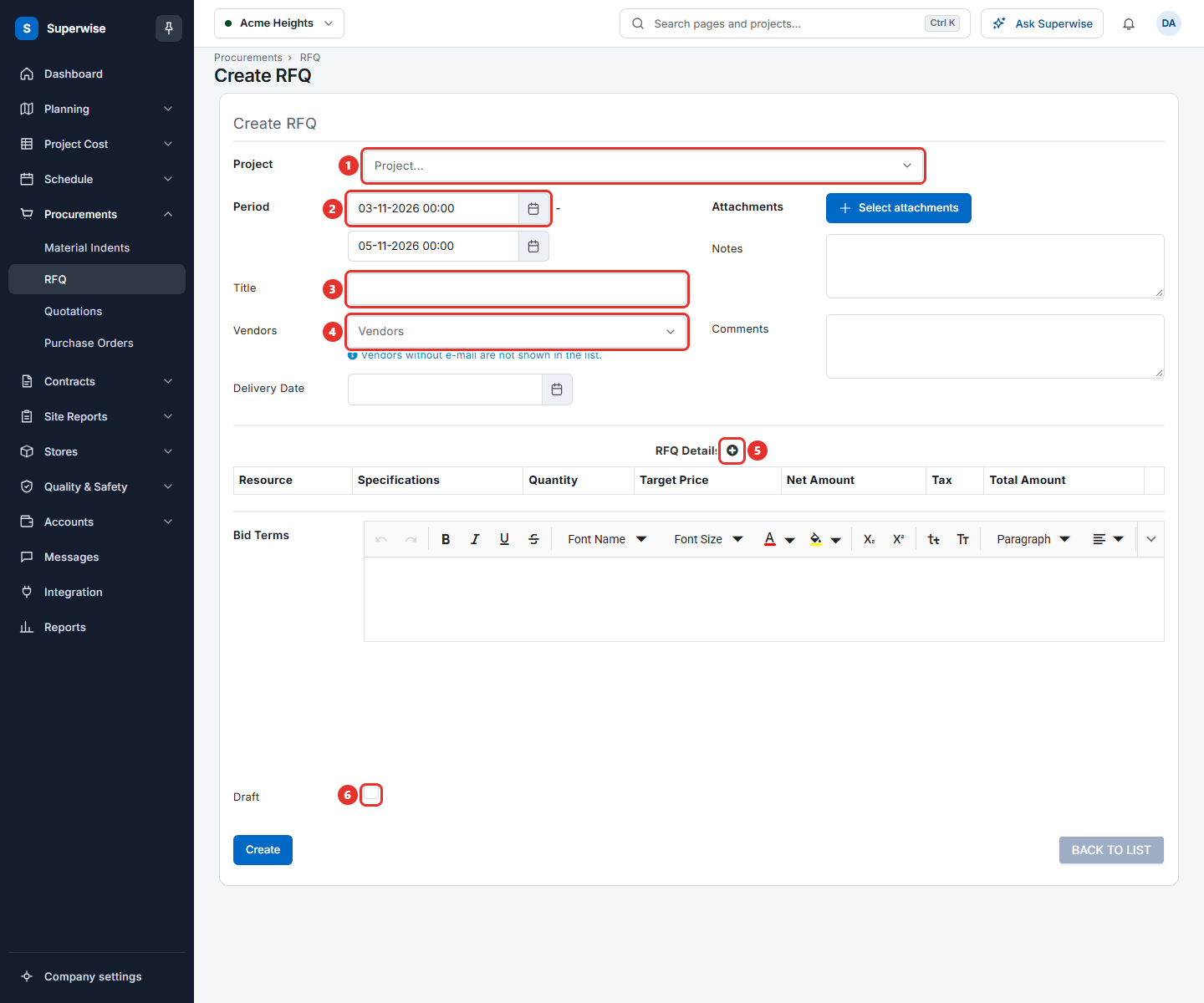
Before you start
- Select the project. You cannot change the project of an RFQ after it is saved.
- Make sure the suppliers you want have an e-mail address. A supplier without one is not shown in Vendors.
- Know the materials, the quantities and the delivery date.
How to create an RFQ
- Open Procurements > RFQ and click Create.
- Choose the Project (mark 1 in the picture of the form).
- Under Period (mark 2), set the start date and time, and the end date and time. Suppliers can answer between these two times.
- Type a Title (mark 3), for example "Steel bars for Acme Heights".
- Open Vendors (mark 4) and choose one or more suppliers.
- Set the Delivery Date you need. You can leave it empty.
- Add the materials. See the next section.
- Fill in Bid Terms if you want to send terms to the suppliers.
- Tick Draft (mark 6) if you are not ready. A draft is not sent for approval.
- Click Create.
The screen returns to the RFQ list. A draft has the status Draft. Any other RFQ has the status Pending and waits for approval. See Request for quotation (RFQ).
The fields Attachments, Notes and Comments are optional. Notes and Comments are text for your own team. The system writes your name before your comment.
How to add the materials
- In the table RFQ Details, click the Add line item icon (mark 5 in the picture of the form).
- In the window Add/Edit RFQ Detail, choose the Resource Type. Then choose the Resource Category and the Resource Name.
- Type the Specifications, for example the grade or brand you want.
- Type the Quantity.
- Type the Target Price. This is the price you hope to pay for one unit.
- Choose a Tax if one applies. Net Total and Line Total show the result.
- Click Save.
The window has the same fields as the window in Create a quotation. The price field is called Target Price here.
To change a line, click its pencil icon. To remove a line, click its trash icon and confirm.
If the schedule of the project was made from a template, the form also shows Areas, Categories and Build from the schedule. Choose areas and categories, then click Build from the schedule. The system fills the lines from the work plan. This is offered only when you create or copy an RFQ.
How to copy an RFQ
- Open the RFQ list and click a row to see its details.
- Click Duplicate. The form opens with the same suppliers and lines.
- Change what you need and click Create.
How to edit an RFQ
- Click the edit icon (pencil) in the Actions column. It is shown while the RFQ is not yet Live.
- Change the fields. The project is shown as text and cannot change.
- Click Save Changes.
If you tick Draft, the RFQ stays a draft. If you do not, the RFQ goes to Pending and needs approval again. When it was already past Pending, the revision number goes up by 1. Changed or new lines set the quotations of those suppliers back to Pending.
What the fields mean
| Name | What it means |
|---|---|
| Project | The project the materials are for. |
| Period | The start and end of the bid. Suppliers answer inside this time. |
| Title | A name for the RFQ. It is required. |
| Vendors | The suppliers who get the request. You need at least one. |
| Delivery Date | The date you need the material. Suppliers see it. |
| Attachments | Drawings or documents for the suppliers. |
| Notes | Text for your own team. |
| Comments | A remark added to the history of the RFQ. |
| Bid Terms | Terms that the suppliers must follow when they answer. |
| Draft | Keeps the RFQ as a draft. |
| Target Price | The price per unit you expect. It must be more than 0. |
Rules to know
- The RFQ needs a title, at least one supplier and at least one line.
- A material can appear only once in the same RFQ.
- Each line needs a quantity and a target price that are more than 0.
- If you change the project while you create an RFQ, the lines are cleared. A copied RFQ keeps its lines.
If something goes wrong
| What you see | What to do |
|---|---|
| The Title field is required. | Type a title. |
| RFQ Details not added | Add at least one line with Add line item. |
| RFQ has duplicate resources | Remove the repeated material. |
| RFQ Details has invalid quantity. | Type a quantity above 0 on every line. |
| RFQ Details has invalid rate. | Type a Target Price above 0 on every line. |
| There ar no vendors in the RFP. RFP needs at least 1 (one) vendor. | Choose at least one supplier in Vendors. |