


Projects
Create a project, choose its users, mark its site on the map, and change its schedule and measurement settings. Also mark a project inactive or delete it.
- Where to find it
- Company settings > General > Projects
- Who can use it
- People who have the View Projects permission. Creating needs Add and changing needs Edit. Deleting and marking active or inactive need Delete.
A project is one construction site or one contract. Almost everything in Superwise belongs to a project: the schedule, the bill of quantities (BOQ), purchase orders, site reports and bills. You create a project once, add the people who work on it, and then use it in the other books.
Before you start
- Add the users who will work on the project. See Users. You can also invite a user from the project form.
- If you are a contractor, add the client as an organization. See Organizations.
- Decide the code and the name. The code can have up to 10 characters and the name up to 50. Both must be new. Superwise uses the code in order numbers.
How to create a project
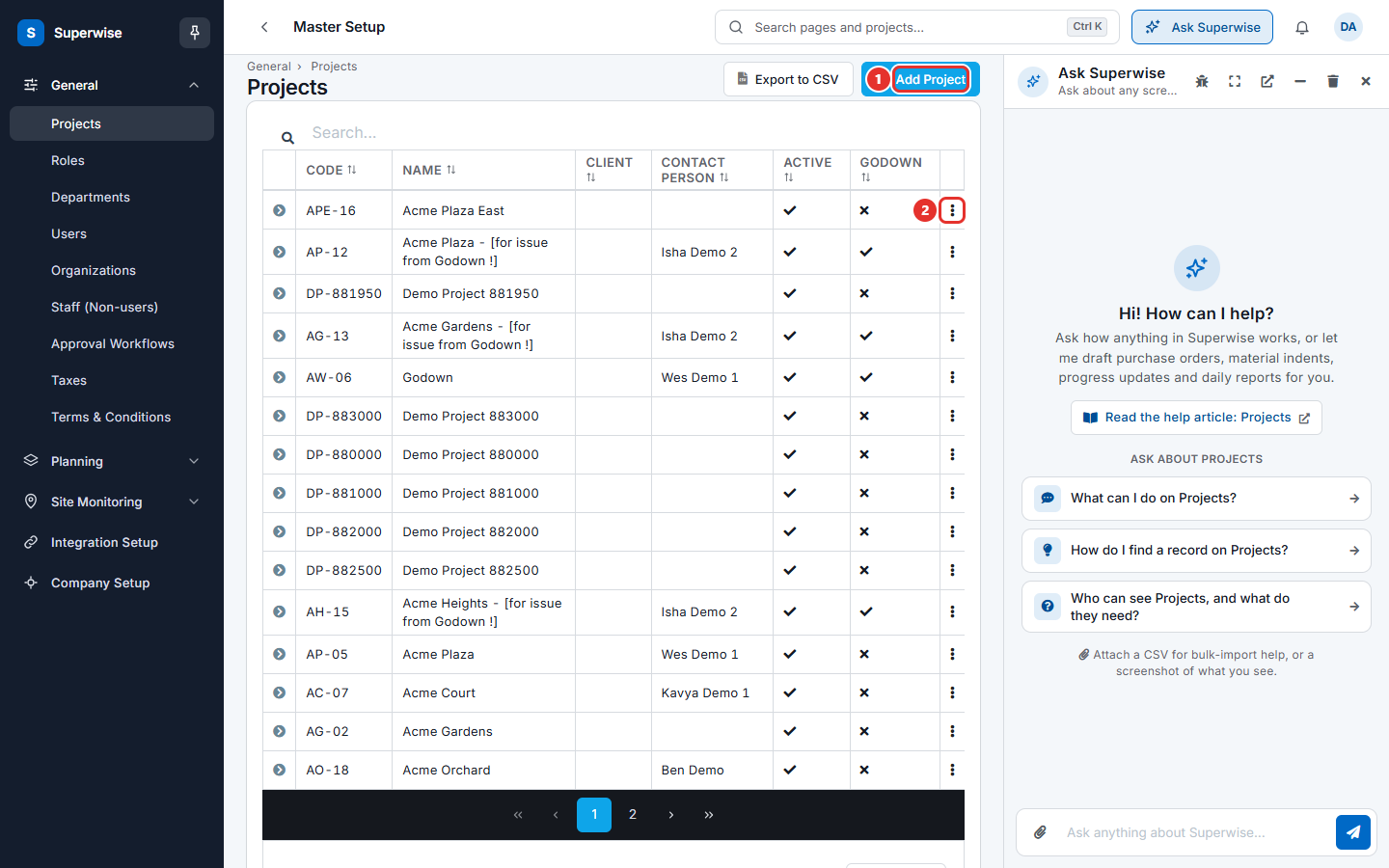
- Open Company settings in the left menu, then General, then Projects.
- Click Add Project (mark 1 in the first picture).
- In Code (mark 1 in the second picture), type a short code for the project, for example AH-01.
- In Name (mark 2), type the project name, for example Acme Heights.
- In Users (mark 3), choose every user who works on the project. To add a person who is not in the list, click Invite users.
- In Contact Person (mark 4), choose the person in charge. This person must be one of the chosen users. The name appears on orders.
- Click Select under Image to add a picture of the project. This is optional.
- If the project is a store and not a construction site, switch Is Godown? to Yes.
- In Address (mark 5), type the site address as you would search for it on Google Maps. Choose a result. The map moves to the place.
- Click Save (mark 6). A message says that the project was saved.
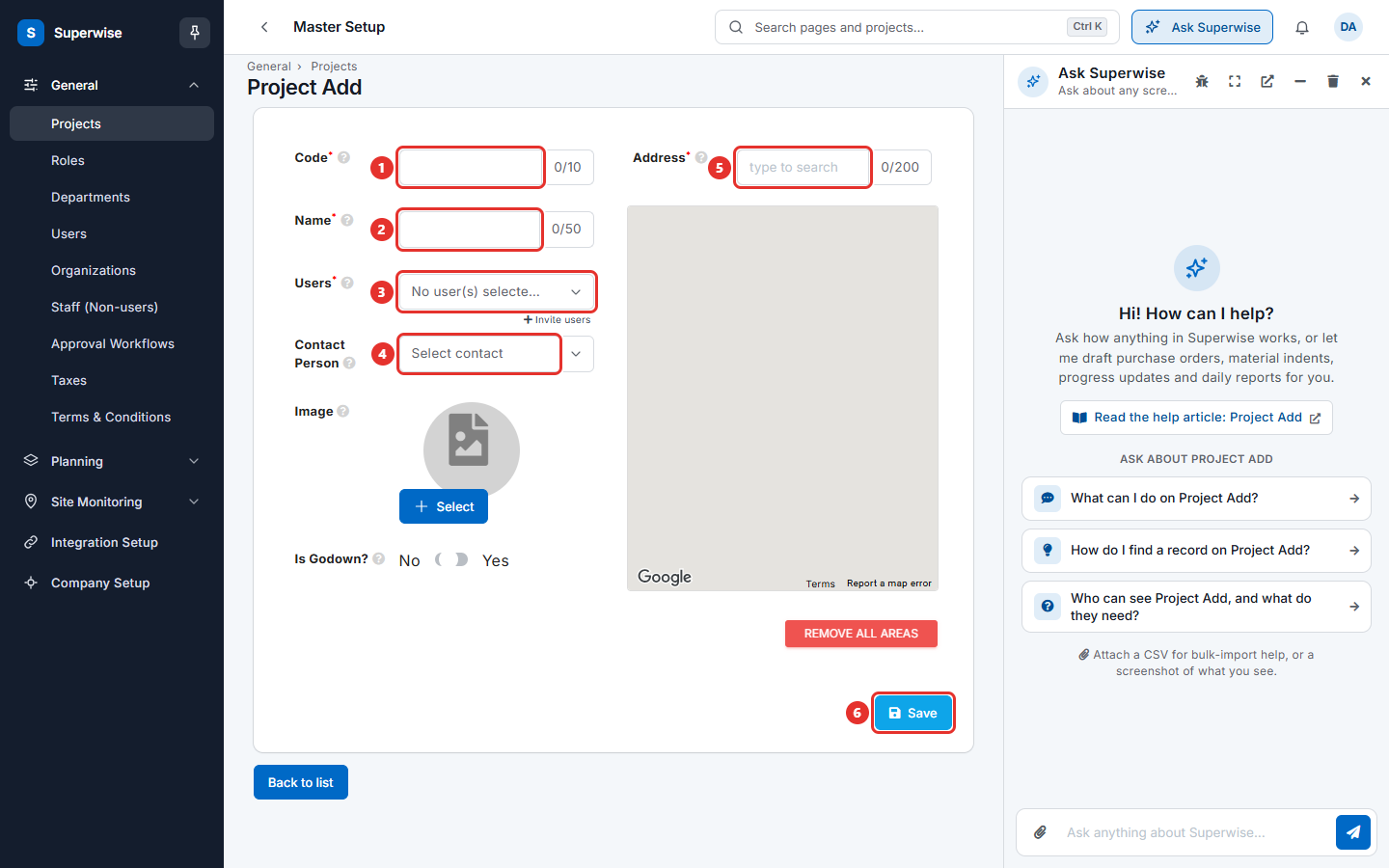
Contractor accounts also see Client, Work Order and Work Name on this form. Choose the client organization, type the work order reference of the client, and type a short description of the work. Accounts on a subscription plan also see Billing Frequency.
How to mark the project area on the map
- On the project form, use the polygon tool on the map. Click the points of the site boundary one after the other.
- Click the area to give it a name. Type the name in the box Tag and click Save Tag. Each tag must be different from the others.
- To remove one area, click it and click Delete Area.
- To remove all areas, click Remove all areas, then Yes.
How to change a project
- Open the list of projects.
- Click the three dots at the end of the row and choose Edit.
- Change the fields and click Save.
To see more about a project without opening the form, click the arrow at the start of the row. The row opens with these tabs:
| Tab | What it shows |
|---|---|
| Users | The users of the project with their Name and Contact. |
| Location | The map of the site. It shows only when an area is saved. |
| SPVs | The special purpose vehicle (SPV) companies of the project, with their Share. Not shown for contractor accounts. Click Add SPV, choose the SPV, type the share as a number from 0 to 1, and click Save. The shares must add up to 100%. |
| Checklists | The checklists that the project uses. For each one you see Checklist, Initiator, Workflow, Start Date and Time. Click Add Checklist to add a row. Use Copy From to take the list of another project. |
| Other Details | The schedule and measurement settings, the site address, and for contractors the work name and the work order. |
| Integration | Shows when your company has an integration client. See Integration setup. |
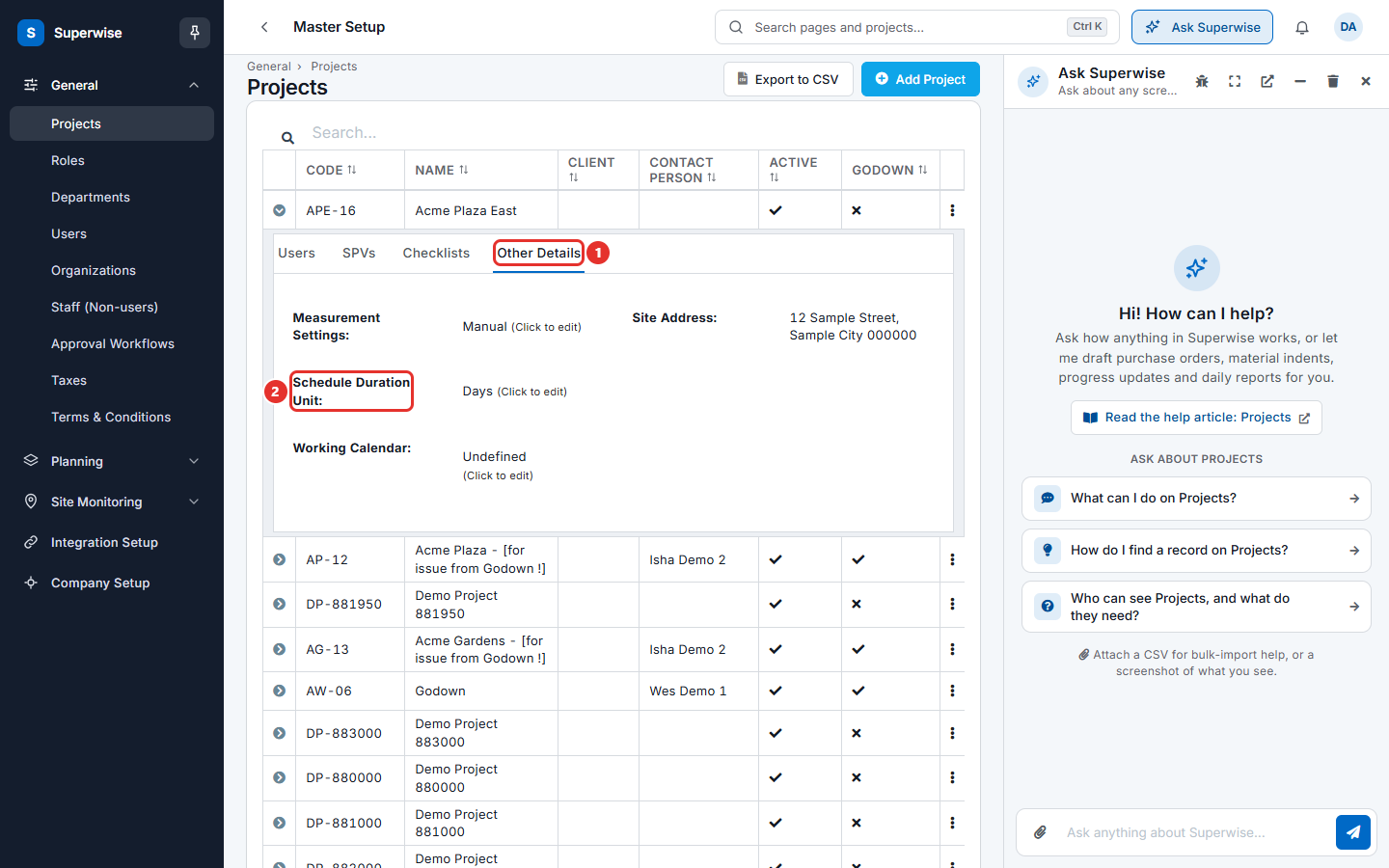
How to change the schedule and measurement settings
- Open the row of the project and click the tab Other Details (mark 1 in the third picture).
- Click the value you want to change, for example Schedule Duration Unit (mark 2). A note (Click to edit) shows next to it.
- Choose the new value. Click Save. Click Revert to go back.
| Name | What it means |
|---|---|
| Measurement Settings | How the quantities of work done are recorded: Manual, On Progress or On Complete. |
| Schedule Duration Unit | Whether the schedule counts in Days or Hours. |
| Working Calendar | The calendar that says which days are working days. It shows Undefined until you choose one. |
How to mark a project inactive or delete it
- Open the list of projects.
- Click the three dots at the end of the row (mark 2 in the first picture).
- Choose Mark Inactive to stop work on the project. Choose Mark Active to start it again. Choose Delete to remove the project.
- Read the question and click Confirm.
Use the filter at the bottom of the list to show All Projects, Active Projects or Inactive Projects. The list starts with the active projects.
What the columns mean
| Name | What it means |
|---|---|
| Code | The short code of the project. |
| Name | The name of the project. |
| Client | The client organization. |
| Contact Person | The person in charge of the project. |
| Active | A tick means the project is active. |
| Godown | A tick means the project is a store. A godown is a store that holds materials and tools. It is not a construction site. |
Rules to know
- The code and the name cannot repeat. You cannot use the word Purchase as a name.
- At least one user is needed. If you choose a contact person, that person must be one of the users.
- You cannot mark an existing project as a godown when it has a BOQ or a schedule.
- You cannot delete a project that has records. The message names what is in it, for example purchase orders, work orders, bills, payments, documents, BOQs, schedule tasks, challans or issues. Mark the project inactive instead.
- On accounts with a subscription, you can mark a project active only when your plan has room for one more active project.
- Click Export to CSV on the list to download the project list.
If something goes wrong
| What you see | What to do |
|---|---|
| Project Name cannot be repeated | Use a different name. |
| Project Code cannot be repeated | Use a different code. |
| Please add project users | Choose at least one user. |
| Project contact needs to be added as a User | Add the contact person to Users, or clear Contact Person. |
| Project SPV shares require to sum up to 100% | Change the shares in the SPVs tab until they add up to 100%. |
| Project has BOQs. Cannot mark it as Godown. | Keep Is Godown? at No. |
| Could not delete the project as entries are present | Read the lines under the message. Mark the project inactive instead. |
| Project area tags need to be unique. | Type a different tag for the area. |