


Enter or change a proposal
Enter the bid of a contractor by hand when it comes by phone or e-mail without an RFP, or change a proposal you entered before.
- Where to find it
- Contracts > Proposals
- Who can use it
- People who have the Add Proposals permission. Changing a proposal needs Edit.
Most proposals come from contractors through an RFP. Use this form when a contractor gives you a bid in another way, for example by e-mail, and there is no RFP. The proposal you enter is saved as Submitted. Then you can award it and make a work order.
Before you start
- The project and the contractor must exist in the system.
- The BOQ items of the work must exist in the project. See Project BOQ.
- Have the bid of the contractor at hand: the rate of each item, the validity date and the terms.
How to enter a proposal
- Open Contracts > Proposals.
- Click Create. The form Create Proposal opens.
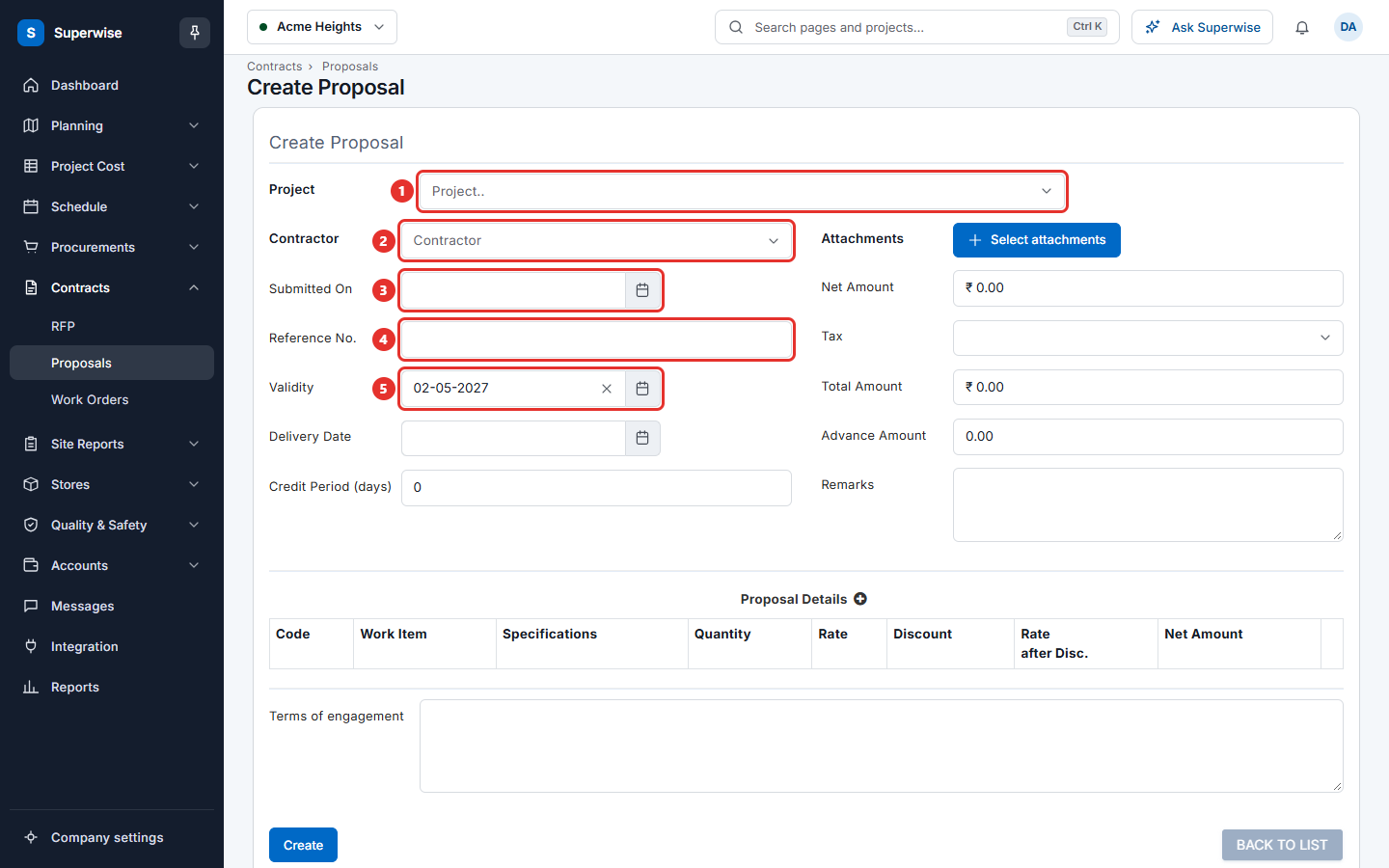
- Choose the Project (mark 1).
- Choose the Contractor (mark 2).
- Set Submitted On (mark 3), the date the contractor gave you the bid.
- Type the Reference No. (mark 4) that the contractor used, if there is one.
- Set Validity (mark 5), the last date the offer is open. Set Delivery Date and Credit Period (days) if the contractor gave them.
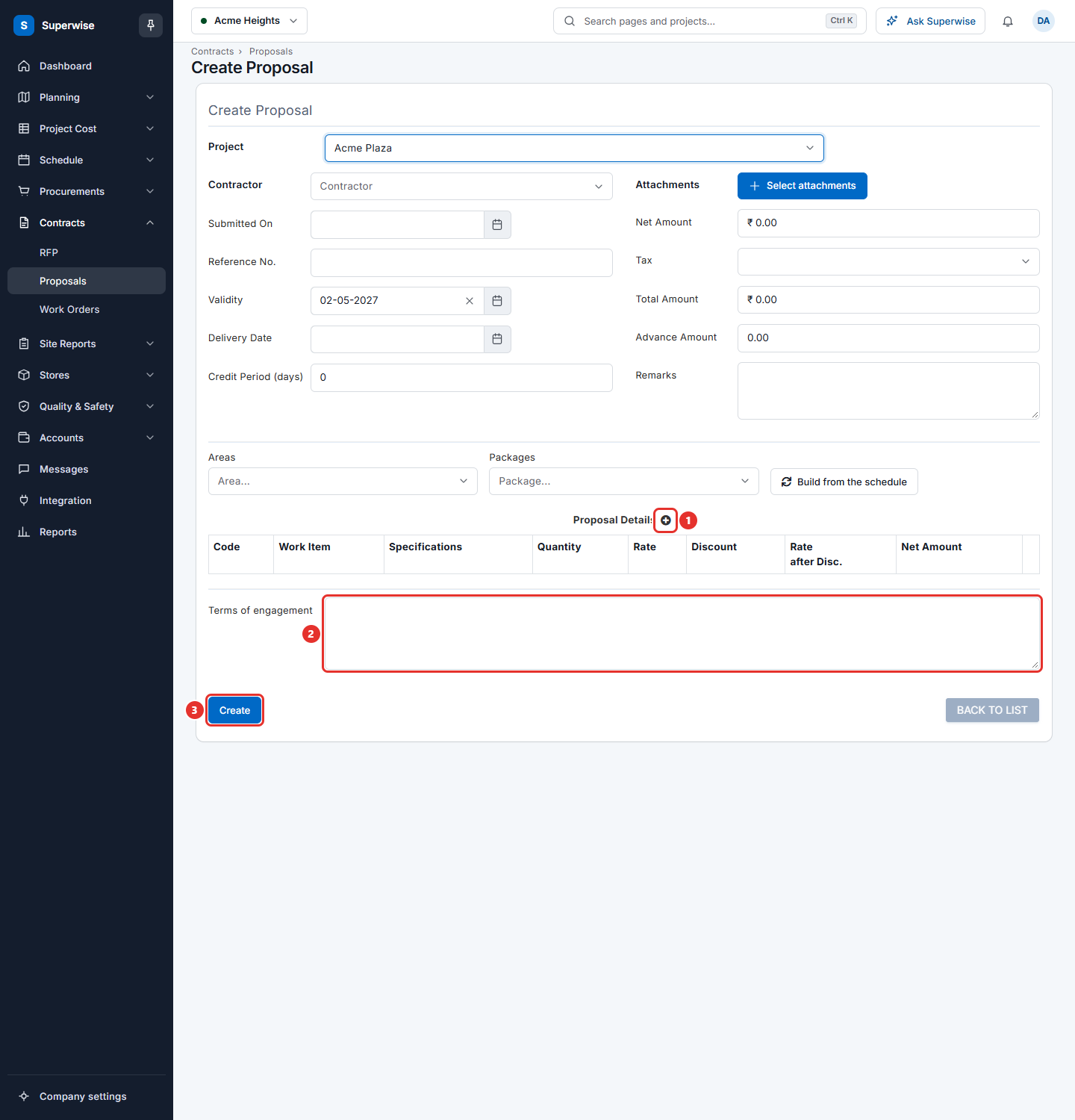
- Add the BOQ items. See How to add the BOQ items.
- Choose the Tax, and type the Advance Amount if the contractor asks for one.
- Type the Terms of engagement and any Remarks.
- Click Create.
How to add the BOQ items
Each line is one BOQ item with the rate of the contractor.
- Click the plus icon next to Proposal Details (mark 1 in the picture above). The window Add/Edit Proposal Detail opens.
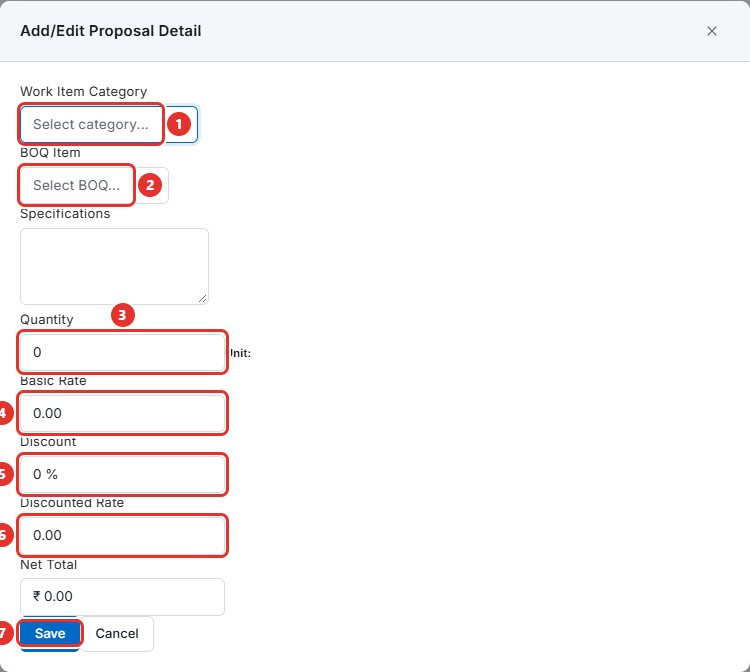
- Choose the Work Item Category (mark 1), then the BOQ Item (mark 2).
- Type the Specifications if the contractor wrote a note for this item.
- Type the Quantity (mark 3).
- Type the Basic Rate (mark 4), the rate before discount.
- Type the Discount in percent (mark 5). The Discounted Rate (mark 6) is the Basic Rate minus the discount.
- Click Save (mark 7). Net Total is the discounted rate times the quantity.
You can also type the Discounted Rate yourself. The system then works out the Discount.
To change a line, click its pencil icon. To remove a line, click its bin icon and click Confirm.
How to change a proposal
- Open Contracts > Proposals.
- Click the Edit icon of the proposal. It is shown only for a proposal you entered by hand that is Submitted or Negotiating.
- Change the fields or the lines. The project and the contractor cannot be changed.
- Click Save Changes.
The system keeps the earlier version of the proposal as a revision, so you can see what changed. See Compare revisions of a proposal.
What the fields mean
| Name | What it means |
|---|---|
| Project | The project the proposal is for. |
| Contractor | The contractor who made the bid. |
| Submitted On | The date of the bid. |
| Reference No. | The reference number of the contractor. |
| Validity | The last date the offer is open. |
| Delivery Date | The delivery date the contractor gave. |
| Credit Period (days) | The number of days the contractor gives you to pay. It must be between 0 and 1000. |
| Attachments | Files from the contractor. Click Select attachments. |
| Net Amount | The sum of Net Amount of all lines. You cannot type here. |
| Tax | The tax of the proposal. Choose one from the list. |
| Total Amount | Net Amount plus the tax. You cannot type here. |
| Advance Amount | An advance payment the contractor asks for. |
| Remarks | A note for your own team. The system adds your name in front of it. |
| Terms of engagement | The conditions the contractor wrote. |
Rules to know
- You need at least one line. A BOQ item can be on the proposal only once.
- Each line needs a quantity above 0 and a rate above 0.
- Either all lines or none of the lines are linked to schedule activities.
- A line must be a BOQ item of the selected project.
If something goes wrong
| What you see | What to do |
|---|---|
| "Invalid vendor" | Choose the Contractor again. |
| "Invalid Project" | Choose the Project again. |
| "Proposal Details not added" | Add at least one line. |
| "Proposal Details has duplicates" | The same BOQ item is on two lines. Remove one. |
| "Proposal Details has line items with incorrect quantity" | Give every line a quantity above 0, or remove the line. |
| "Proposal Details has line items with incorrect rate" | Give every line a rate above 0. |
| "Please enter a valid credit period in days" | Type a number from 0 to 1000 in Credit Period (days). |
| "All (or none) of the Proposal details should be linked with activities" | Link every line to activities, or none of them. |