


Purchase bills
Find, certify, reject, pay and delete the bills your suppliers send for material, labour and equipment, and download a certified bill as a PDF.
- Where to find it
- Accounts > Purchase Bills
- Who can use it
- People who have the View Purchase Bills permission. Creating needs Add, editing needs Edit, deleting needs Delete, certifying, rejecting and marking as paid need Approve.
A purchase bill is the bill (invoice) that a supplier sends you. In Superwise you check it against the purchase orders and the delivery receipts you already hold, and you pay only what the site really received.
For example, Alder Steel Works sends a bill for 20 tonnes of steel bars delivered in October. Acme creates a purchase bill, picks the purchase order and the October period, and Superwise lists the delivery receipts for that period. An approver then certifies the bill, and the accountant pays it.
This screen lists the purchase bills of the project you have selected.
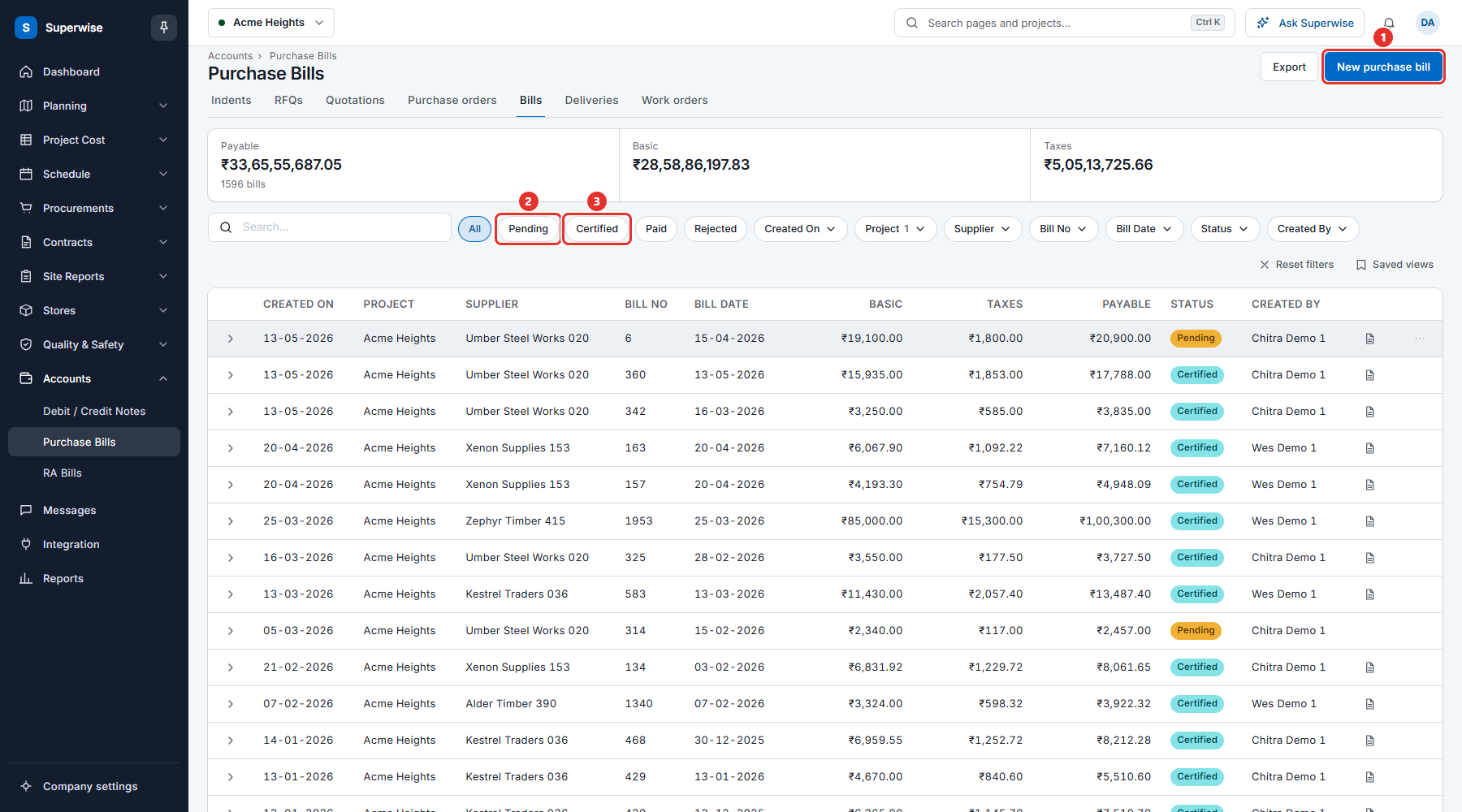
How a purchase bill moves
- Site staff record deliveries as material deliveries and approve them. The supplier delivers against an approved purchase order.
- You create a purchase bill. It starts as Pending.
- An approver clicks Certify. The status becomes Certified. The bill can now be paid and downloaded as a PDF.
- The accountant pays the bill. See Payments. When the money is paid, the approver clicks Paid and the status becomes Paid.
- If the bill is wrong, the approver clicks Reject. The status becomes Rejected.
Before you start
- Select the project at the top of the screen. The list shows the bills of that project.
- The supplier must exist in your company list of suppliers.
- The purchase order must be approved, and the delivery receipts must be approved. Receipts that are not approved do not appear on the bill.
- To create, edit or delete a bill you need the Add, Edit or Delete permission on Purchase Bills. To certify, reject or mark a bill as paid you need the Approve permission.
How to find a bill
- Open Accounts in the left menu and click Purchase Bills.
- Click a status filter above the table: All, Pending, Certified, Paid or Rejected.
- To narrow the list more, use the other filters: Created On, Project, Supplier, Bill No, Bill Date, Status and Created By. Type at least 3 letters in Search... to search the table.
- Click Reset filters to clear all filters.
- Click Export to download the filtered list.
The three tiles above the table add up the bills that match your filters: Payable, Basic and Taxes.
How to certify, reject, pay or delete a bill
- In the row of the bill, click the More button (the three dots, mark 4 in the picture above).
- Choose an action from the menu.
- A box titled Confirm Action asks you to confirm. Click Confirm. Click Cancel to stop.
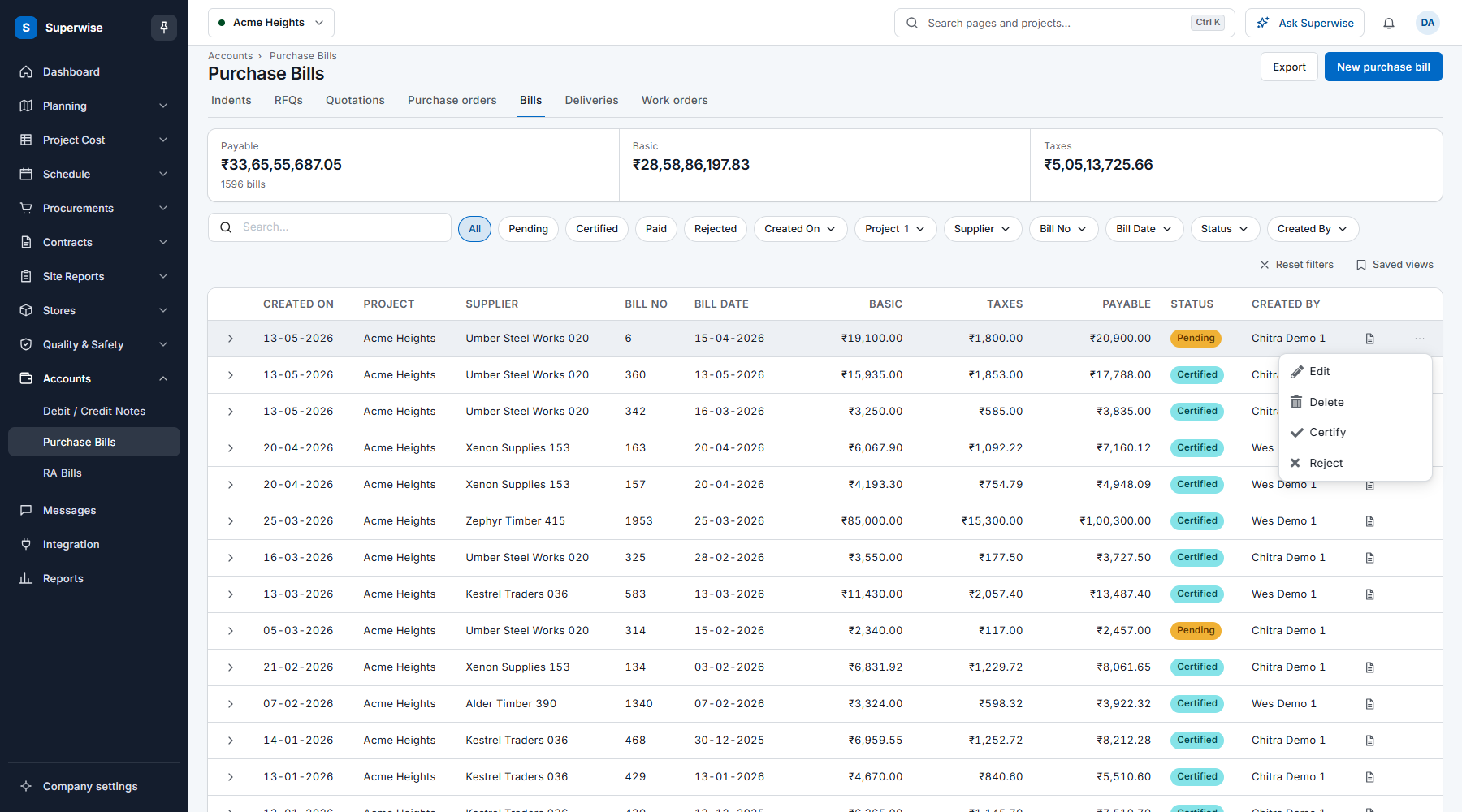
The menu shows only the actions that you may use for that bill.
| Action | When you see it | What it does |
|---|---|---|
| Edit | You have the Edit permission. | Opens the bill in the form. |
| Delete | You have the Delete permission. | Deletes the bill. |
| Certify | You have the Approve permission and the bill is Pending. | Approves the bill for payment. |
| Reject | You have the Approve permission and the bill is Pending. | Rejects the bill. |
| Paid | You have the Approve permission and the bill is Certified. | Marks the bill as paid. |
| Download Bill (PDF) | You have the View permission and the bill is Certified or Paid. | Downloads the bill as a PDF. |
What the columns mean
| Name | What it means |
|---|---|
| Created On | The day someone created the bill in Superwise. |
| Project | The project that the bill belongs to. |
| Supplier | The company that sent the bill. |
| Bill No | The number printed on the supplier's bill. |
| Bill Date | The date printed on the supplier's bill. |
| Basic | The amount before tax. |
| Taxes | The tax on the bill. |
| Payable | The amount you must pay: basic, plus tax, minus debit notes, plus credit notes, with any round off. |
| Status | Pending, Certified, Paid or Rejected. |
| Created By | The person who created the bill. |
Click the arrow at the start of a row to open its details. The tabs are Details, Comments, Other Details, Other Bills in Project, Purchase Orders, Challans and Debit / Credit Notes. A challan is the delivery receipt that the site signed. If the supplier's bill file is attached, a file icon at the end of the row opens it.
Rules to know
- A delivery receipt can be on one bill only. When you save a bill, its receipts are locked to that bill.
- When you edit a bill, it goes back to Pending and the approvers are told.
- When an approver certifies a bill, its delivery receipts and its debit and credit notes become Billed.
- When an approver rejects a bill, its delivery receipts stay locked to it. Edit the bill and save it again, or delete it, to release them.
- You cannot delete a bill that has a payment linked to it, even a payment that is only a request. Superwise shows Bill has payments issued.
- When you delete a bill, its delivery receipts and its debit and credit notes become available for another bill.
- Paid is a manual mark. Superwise does not check that a payment exists before you click it.
Warning: Click Paid only after the payment is made. Superwise does not check it for you.
If something goes wrong
| What you see | What to do |
|---|---|
| You cannot see New purchase bill. | You do not have the Add permission on Purchase Bills. Ask your administrator. |
| Bill has payments issued. when you delete. | A payment is linked to the bill. Remove the payment first. See Payments. |
| The More menu has no Certify. | The bill is not Pending, or you do not have the Approve permission. |
| A delivery is not on the bill. | Check that the delivery receipt is approved, that its date is inside the bill period, and that it is not on another bill. See Create a purchase bill. |