


Project BOQ
See the approved bill of quantities of a project, the progress of each work item, and the cost and quantity reports.
- Where to find it
- Project Cost > Project BOQ
- Who can use it
- People who have the View Project BOQs permission. Rates and amounts show only for people who have the Add or Edit Project BOQs permission.
A bill of quantities (BOQ) is the list of work items of a project, each with a quantity and a rate. For example, "Concrete M25" with 420 cubic metres at a rate of 7,500. The quantity multiplied by the rate is the Amount. The Project BOQ page shows the approved BOQ of the project you work in. It also shows how much of each item is done.
You read the BOQ here. To change it, use BOQ estimation.
Before you start
- Choose the project in the project list at the top of the screen.
- The BOQ must be approved. Until then the page can be empty. See Approve BOQ changes.
How to read the project BOQ
- Open Project Cost > Project BOQ.
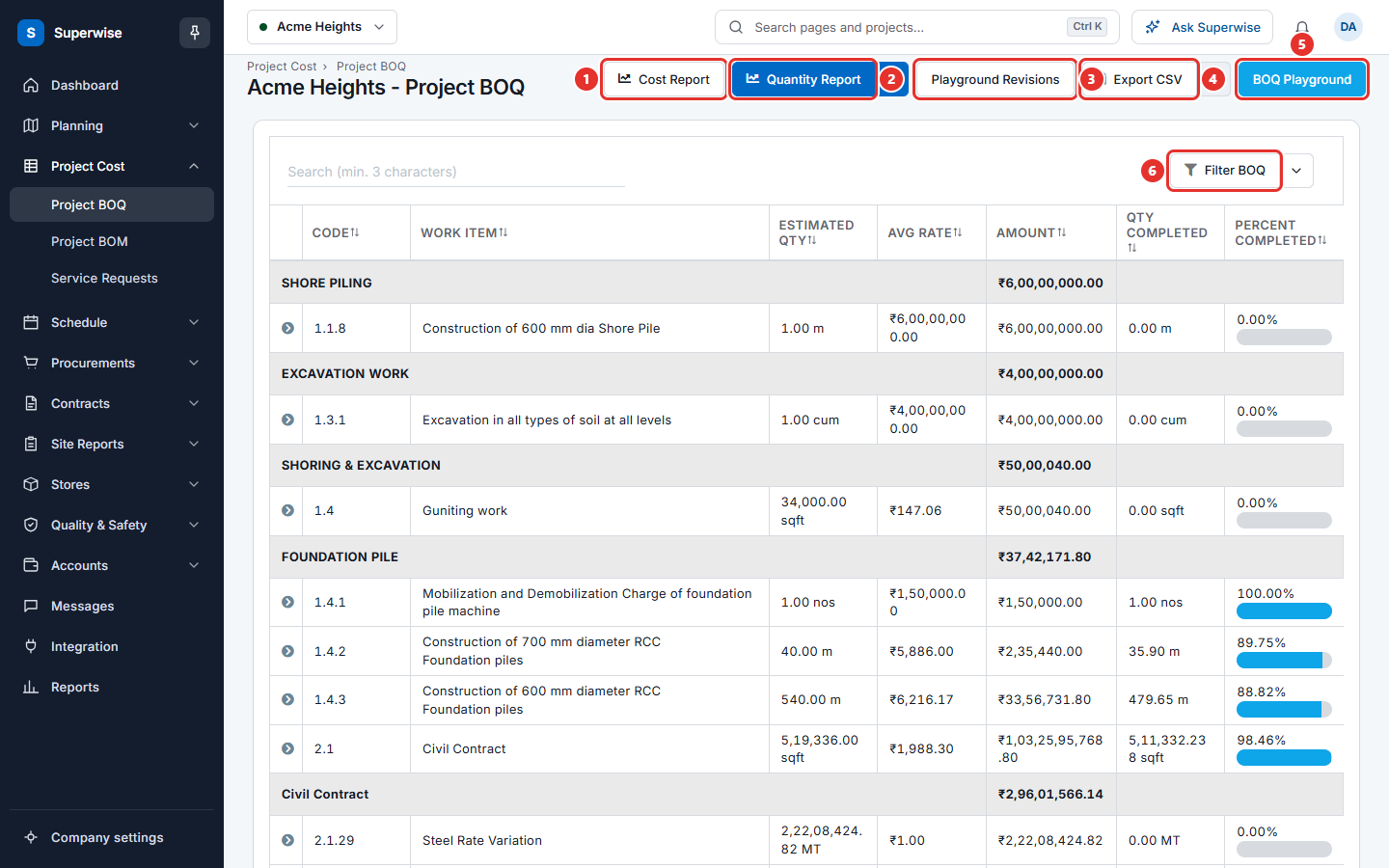
- The table groups the work items by category. People who may add or edit also see the total of each category on its row.
- To find an item, type at least 3 characters in Search (min. 3 characters).
- To sort the table, click a column name. To change the width of a column, drag the edge of its header.
How to see the details of a work item
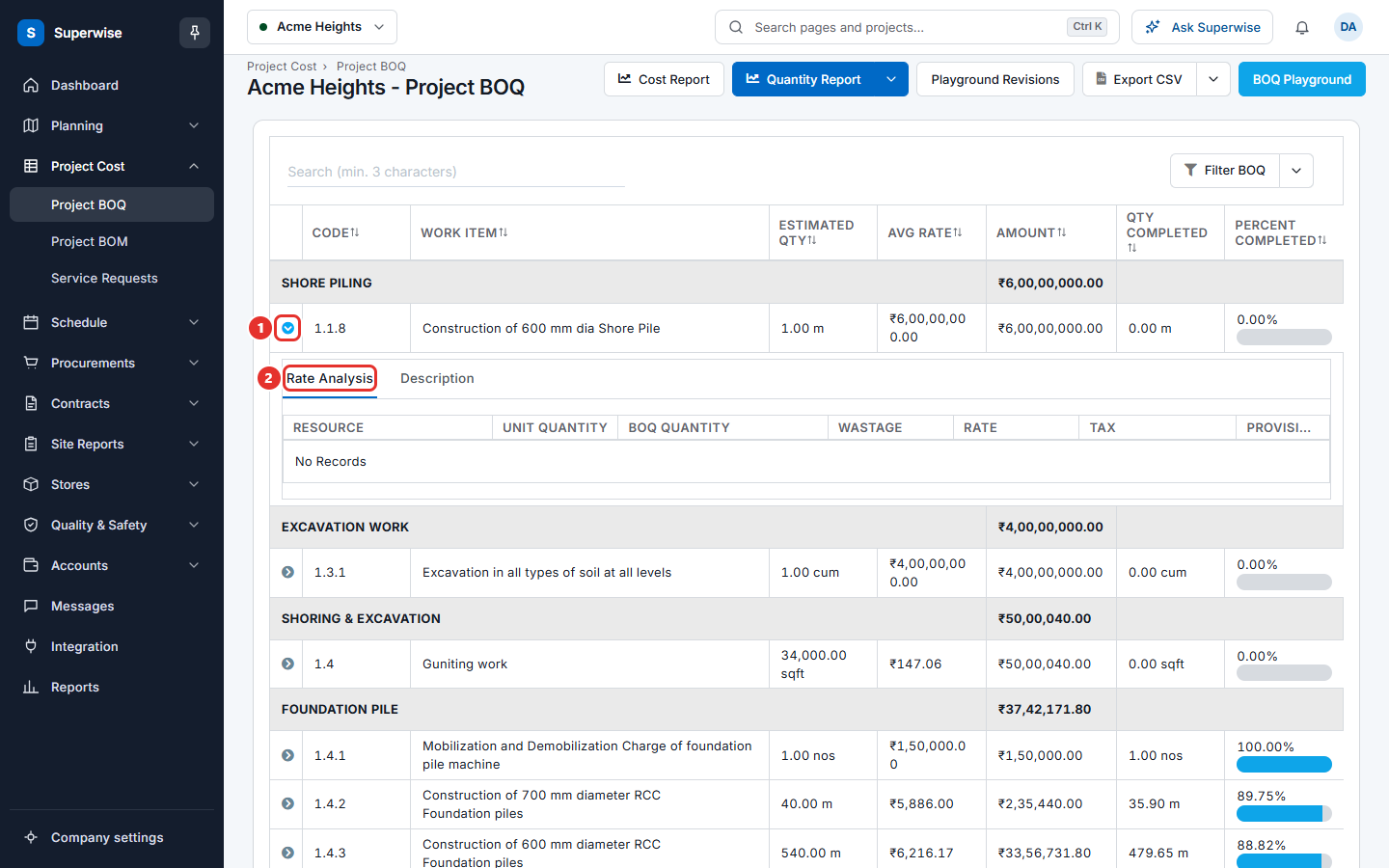
Click the arrow at the start of the row. A panel opens with tabs.
- Related Tasks lists the schedule activities that use the item, with the template, package, contractor, rate, estimated quantity, measured quantity and the percent done. It shows a tick in Provisional? when the quantity is provisional. This tab shows only to people who may view templates, and only when the item has tasks.
- Rate Analysis lists the resources that build up the rate. This tab shows only to people who may add or edit.
- Description shows the text of the work item.
How to see the cost report and the quantity report
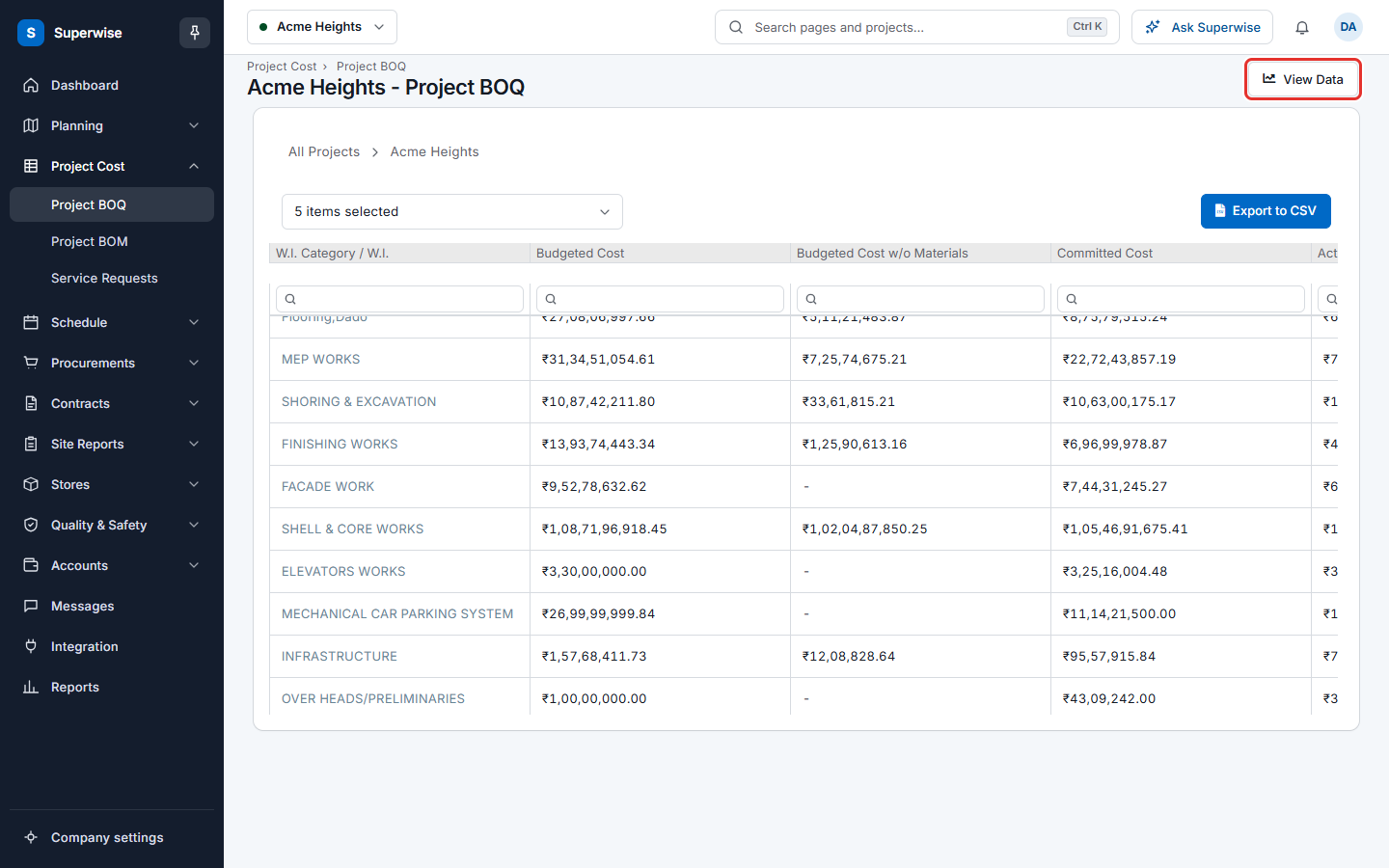
- Click Cost Report (mark 1 in the first picture) to see the cost in a drill-down table. Click a row to go deeper.
- Click Quantity Report (mark 2) to see the quantity in a drill-down table. Click the arrow next to it to choose Month Report or Weekly Report.
- Click View Data to return to the BOQ table.
How to view the BOQ by package
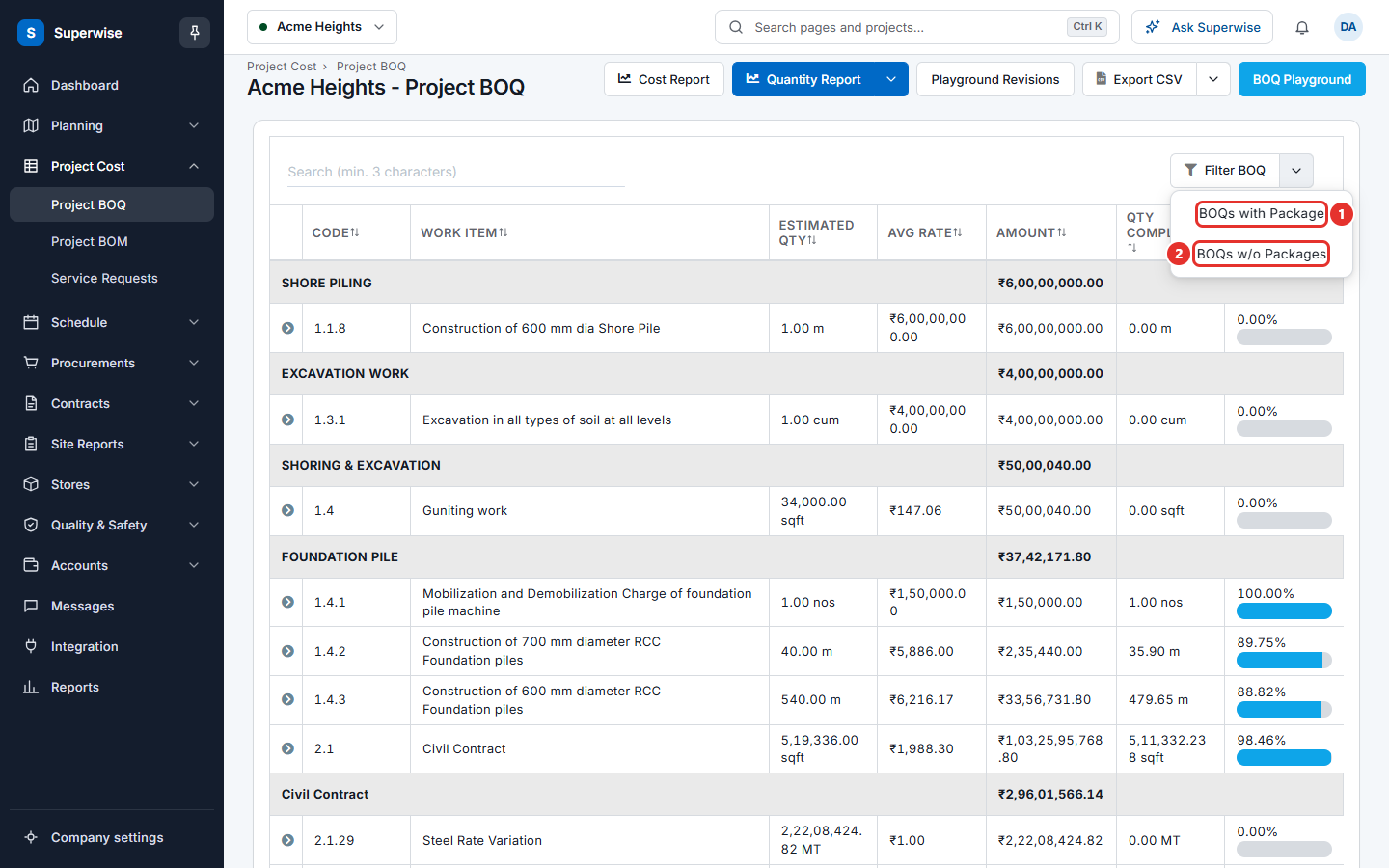
Click the arrow next to Filter BOQ (mark 6 in the first picture). Choose BOQs with Package or BOQs w/o Packages. Each opens a new browser tab. See BOQ by package.
How to export the BOQ
Click the arrow next to Export CSV (mark 4). Choose Export (BOQ-wise) to get one row for each BOQ item. People who may view templates also see Export (Area-wise). It gives the BOQ split by area.
What the columns mean
| Name | What it means |
|---|---|
| Code | The code of the work item. |
| Work Item | The name of the work item. |
| Estimated Qty | The approved quantity. A note under it, such as "allocated 80", shows when the allocated quantity is not the same as the estimate. |
| Avg Rate | The average rate of the item. |
| Amount | The estimated quantity multiplied by the rate. |
| Qty Completed | The quantity measured until now. |
| Percent Completed | Qty Completed as a share of Estimated Qty, with a bar. |
People without the Add or Edit permission do not see Avg Rate and Amount.
Rules to know
- This page is read only. You change quantities and rates in BOQ estimation.
- People who may approve see a warning when a BOQ revision waits for them. It starts with There is a update to the BOQs waiting for your approval. Click here in the message to review it.
- BOQ Playground and Playground Revisions lead to the editing tools of BOQ estimation.