


Rate analysis of a BOQ item
Build the rate of a BOQ item from the resources it uses, such as cement, sand and labour, with quantity, wastage, rate and tax.
- Where to find it
- Planning > BOQ Estimation
- Who can use it
- People who have the Edit Project BOQs permission.
A rate analysis shows how the rate of one work item is built. A work item is a line of a bill of quantities (BOQ). The BOQ is the list of work items with quantity and rate. For example, one cubic metre of concrete uses cement, sand, stone and a mason. You list each resource with the quantity it needs for one unit of work. Superwise adds the amounts and gives the rate of the item.
The same data feeds the Project BOM. The BOM is the list of all resources the project needs.
Every work item has a standard rate analysis in the work item master. Each project has its own copy. Change the copy here when your project has different needs. This page is about the copy of the project. For the standard one, see Work items.
Before you start
- The resources you need must exist. See Resources.
- You need the Edit permission for project BOQs.
How to enter the rate analysis of a BOQ item
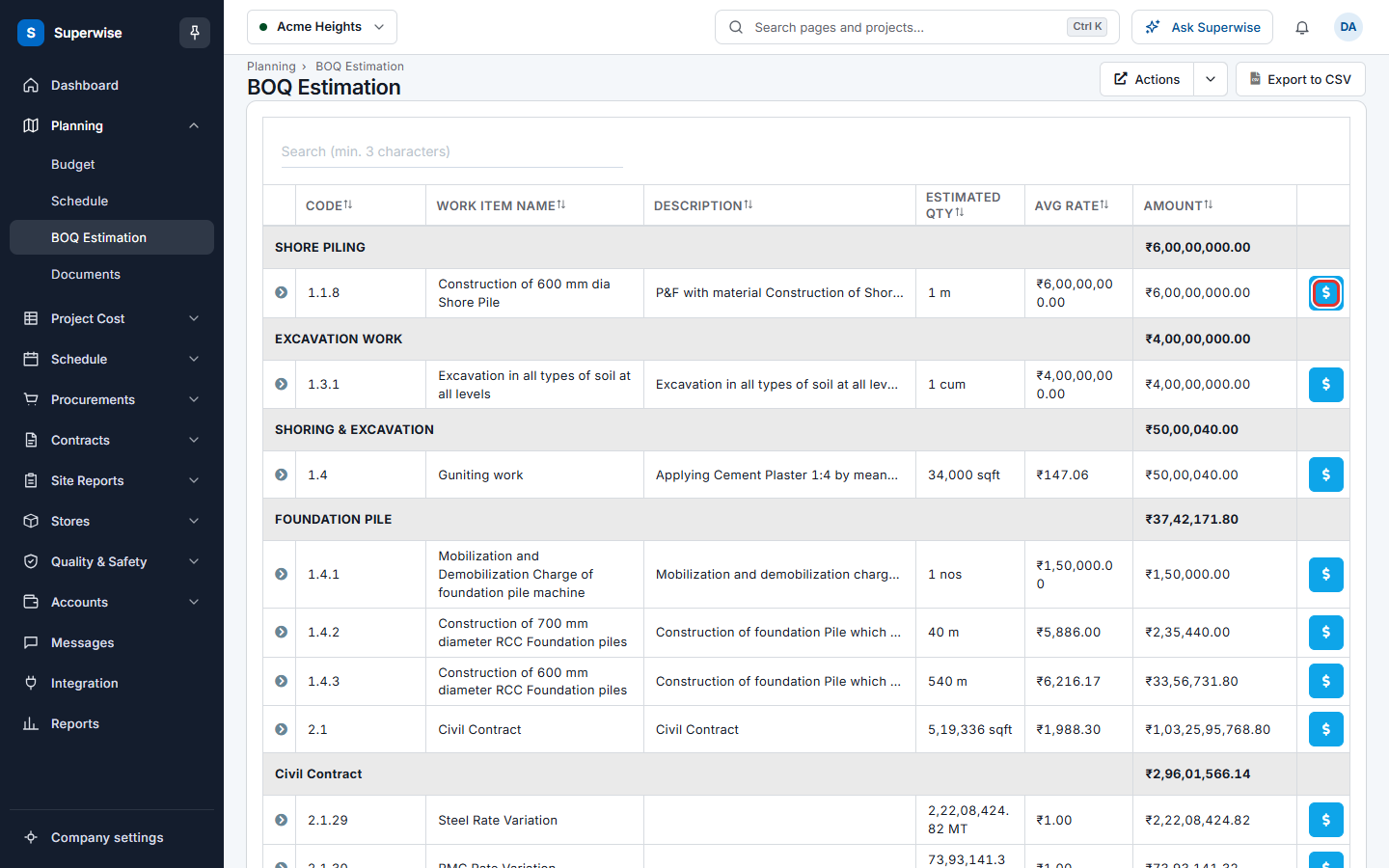
- Open Planning > BOQ Estimation.
- In the row of the item, click the dollar button (mark 1). Its tooltip says Rate Analysis. The editor opens in a new browser tab.
- If the message Rate Analysis is not applied on the project. To apply, please clive SAVE. shows above the table, the project still uses the standard rate analysis. Your save will make the copy for the project.
- To add a resource, go to the empty row at the bottom. Choose a Category, then a Resource. The Unit, the Rate and the Tax fill in from the resource.
- Type the Quantity for one unit of the work item.
- Type the Wastage (%) if some of the resource is lost. Leave it empty for no wastage.
- Change the Rate or the Tax if the project has a different price.
- Tick Provisional? when the line is not final.
- Click Save (mark 1 in the second picture).
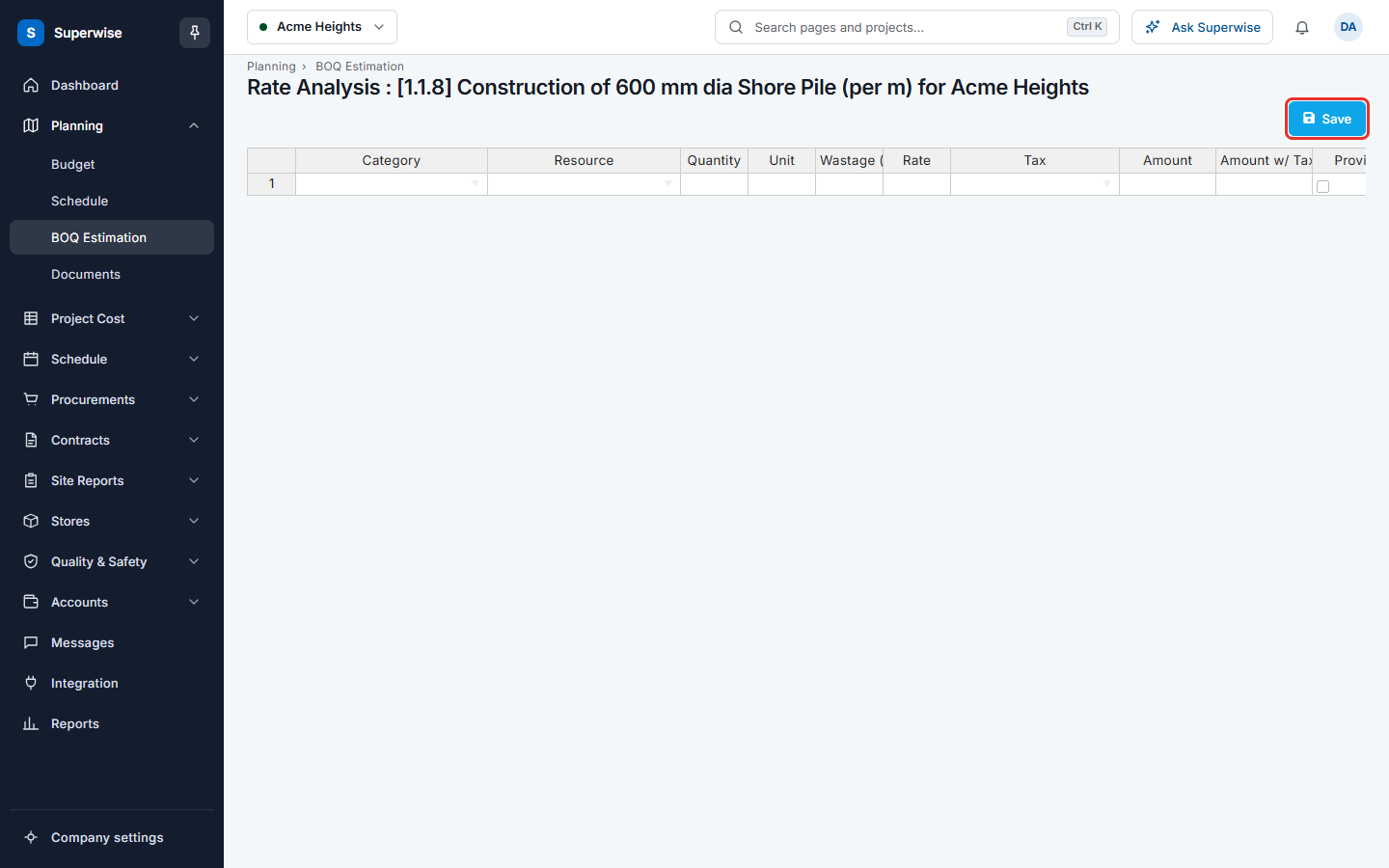
After you save, the page opens the BOQ estimation list.
What the columns mean
| Name | What it means |
|---|---|
| Category | The group of the resource. |
| Resource | The resource. The list shows the resources of the category. |
| Quantity | The quantity for one unit of the work item. It cannot be below 0. |
| Unit | The unit of the resource. You cannot change it. |
| Wastage (%) | The share that is lost. It must be from 0 to 99.99. |
| Rate | The price of one unit of the resource. It cannot be below 0. |
| Tax | The tax on the resource. |
| Amount | Rate multiplied by Quantity, plus the wastage. For a rate of 100, a quantity of 2 and wastage of 10%, the amount is 220. |
| Amount w/ Tax | The amount with the tax added. |
| Provisional? | A tick means the line is not final. |
Rules to know
- Superwise saves only the rows that have a category, a resource and a quantity.
- The row menu (right-click) has commands to add a row above or below, remove a row, cut, copy and paste.
- Superwise shows the errors that the save finds in a red list above the table.
- A change in the rate analysis changes the rate of the BOQ item and the Project BOM.
If something goes wrong
| What you see | What to do |
|---|---|
| An error has occurred while loading the rate analysis. Please try again later | Reload the page. |
| An error has occurred. Please try again later | Try the save again. If it stays, tell your administrator. |
| A red list above the table | Read each line, fix the rows it names, and save again. |