


Revise a purchase order and compare revisions
Change an approved purchase order, see what changed between revisions, and undo the last change while it waits for approval.
- Where to find it
- Procurements > Purchase Orders
- Who can use it
- People who have the Edit Purchase Orders permission can revise. People who have the View Purchase Orders permission can compare revisions.
An order often changes after it is approved. The supplier may change a rate, or the site may need more material. When you save a change to an approved order, the system keeps the old version and gives the order a new revision number. The old and new versions can be compared side by side.
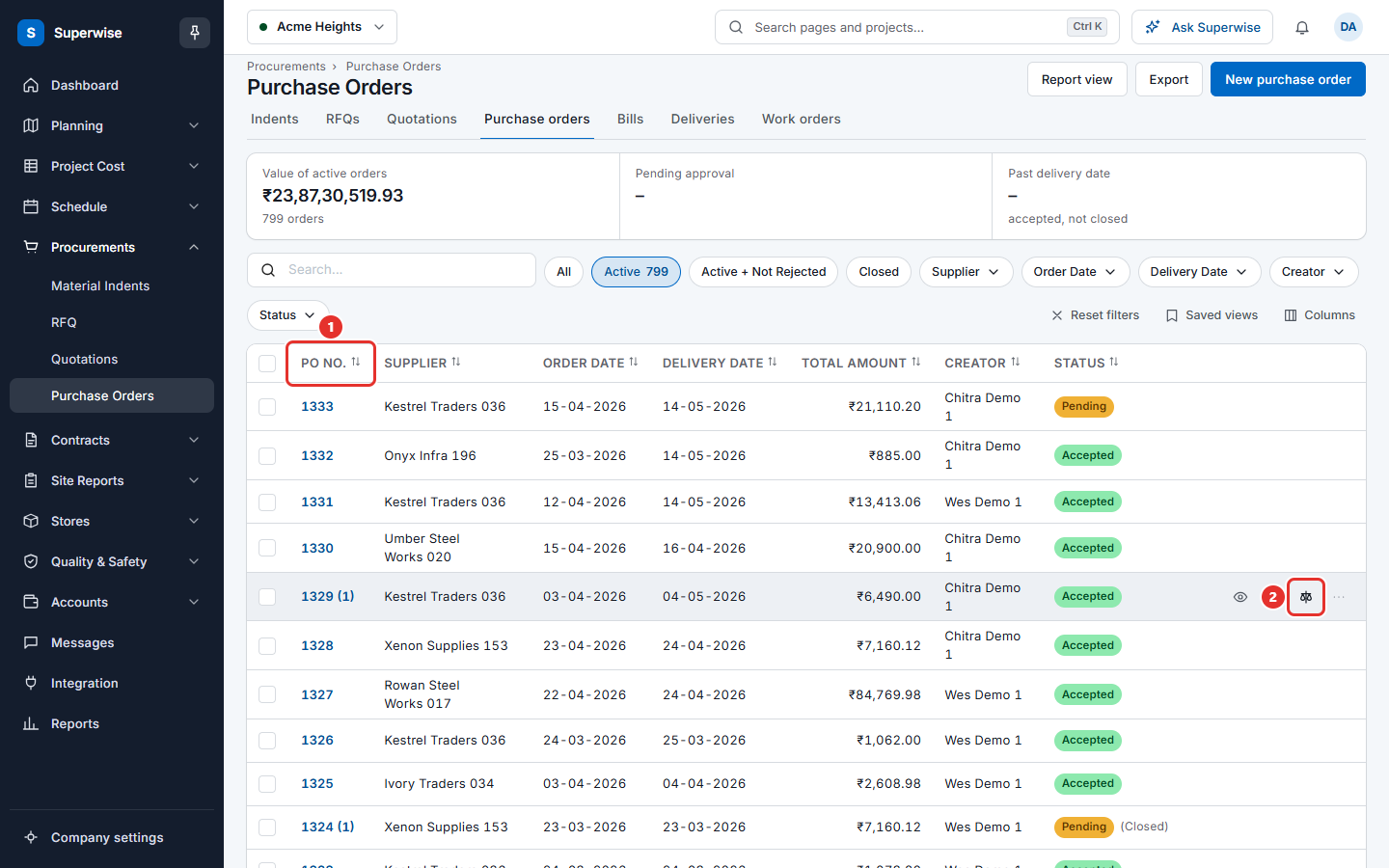
The revision number shows in brackets after the PO No. For example "1333 (2)" is the second revision of order 1333.
Before you start
- The order must be Accepted and not closed, or Pending, or Rejected. Only these orders have the Edit icon.
- You need the Edit permission on Purchase Orders.
How to revise a purchase order
- Open Procurements > Purchase Orders.
- Point at the row and click the Edit icon in the Actions column. You can also use Edit in the details of the order.
- Change the dates, the quantities, the rates or the terms. You can add new items. You can remove an item that has no deliveries or bills.
- Click Save.
The revision number goes up by 1. An approver then checks the change on the approval screen, where the new revision is shown next to the earlier version. See Approve a purchase order.
Note: The supplier, the SPV and the order date can change only while the order is Pending and has no revision. After that they are shown as text.
How to compare revisions
- Find an order that has a number in brackets after its PO No.
- Click the Compare revisions icon (mark 2 in the picture of the list).
- Read the screen. See the next section.
How to read the comparison
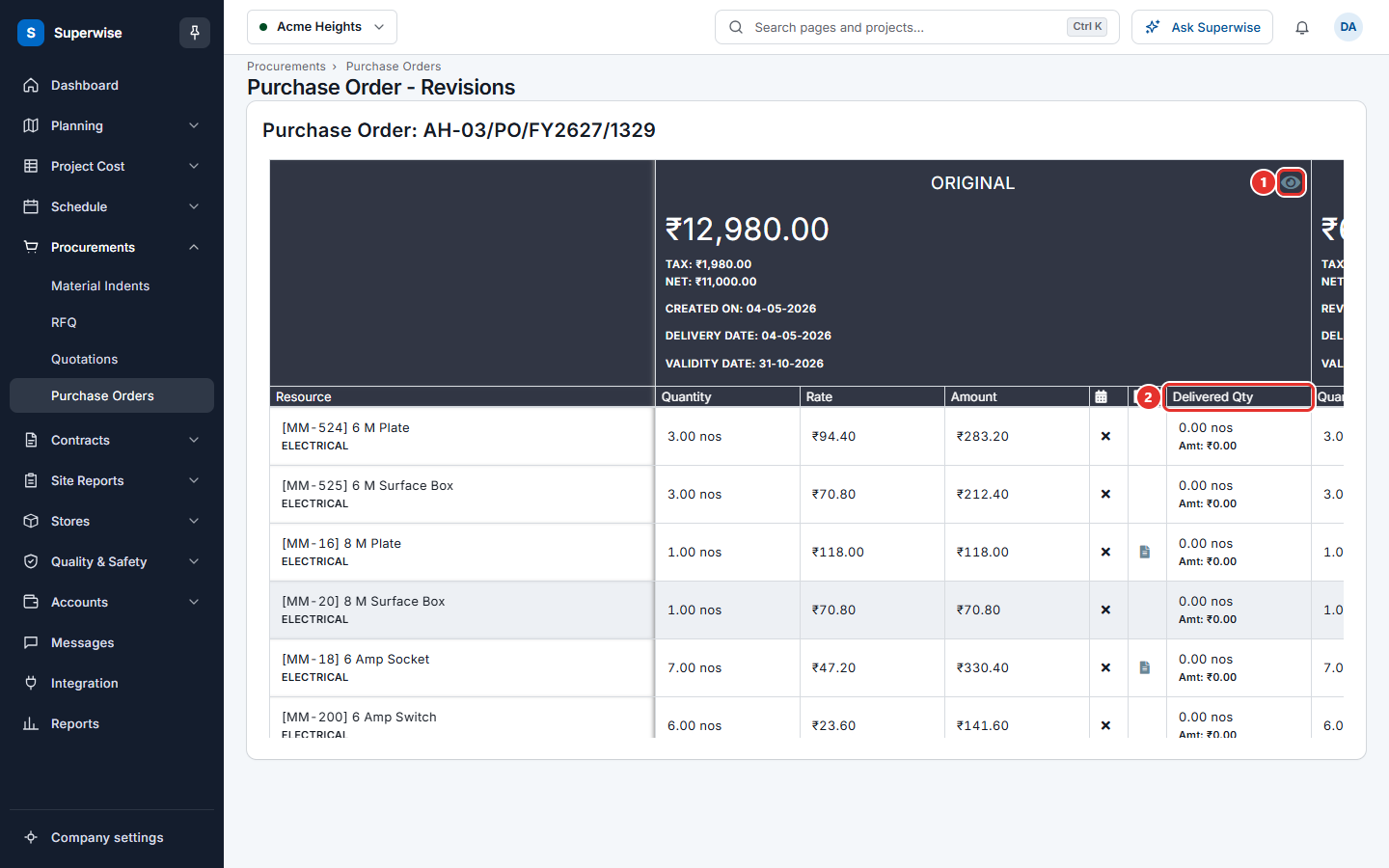
The heading shows the order number. The first column, Resource, lists the materials. Then there is one block of columns for each version: Original, Revision 1, Revision 2 and so on.
Each block shows:
- The total and the validity date in the heading. An eye icon, View details (mark 1), opens that version.
- Quantity, Rate and Amount for each material.
- A calendar icon column: whether a delivery schedule is required.
- A document icon column: the specifications.
- Delivered Qty (mark 2): how much was delivered.
Arrows show how a value moved from the version before. A red arrow up means the value went up. A green arrow down means it went down.
How to undo the last change
- On the comparison screen, click Undo Changes. The button is at the top right of the card. It is shown only to people with the Edit permission, when the order has more than one version and the latest one is still Pending.
- If the validity date of the last revision is today or in the past, the window asks for a new Validity Date. Choose a date in the future.
- In the window Confirm Action, click Confirm. The window asks "Confirm revert the Purchase Order?".
The order goes back to the earlier revision.
Rules to know
- You can undo a change only while the order is Pending. If it is already approved, the screen shows "Cannot undo changes as the Purchase Order is not in Pending State".
- You cannot undo a change if another open order of the same supplier in the project has one of the same materials. The screen shows "Cannot undo changes as the Purchase Order has Resources have other open Purchase Orders".
- A quantity cannot be set below what was already delivered. The message starts with "PO Quantity is less than" or "PO Stop Quantity is less than".
- A quantity cannot be set below what was already billed. A material that has bills cannot be removed. The messages are "Following resources have PO quantity less than Billed Quantity :" and "Following deleted Resources have Bills created against them :".
- Rows marked Closed are closed. You cannot change them.
If something goes wrong
| What you see | What to do |
|---|---|
| No Edit icon | The order is closed, or you do not have the Edit permission. |
| No Compare revisions icon | The order has no revision yet. |
| Cannot undo changes as the Purchase Order is not in Pending State | The order was approved. Make a new revision instead. |
| PO Quantity is less than the delivered quantity done on schedule | Raise the quantity to at least what was delivered. |