


Working calendars
Define the days and hours a project works, and the holidays when it does not, so schedule dates skip non-working days.
- Where to find it
- Company settings > Planning > Working Calendar
- Who can use it
- People who have the View Calendars permission. Creating and importing need Add. Editing needs Edit. Deleting needs Delete.
A working calendar tells Superwise which days a project works. It has a weekly day off, such as Sunday, and a list of other days off, such as a festival or a monsoon stop. When Superwise plans a schedule, it counts only the working days. You create the calendars once and choose one for each project.
Before you start
Nothing is needed first. Make the calendars before you create projects, so you can choose one when you set up a project.
How to create a working calendar
- Open Company settings > Planning > Working Calendar.
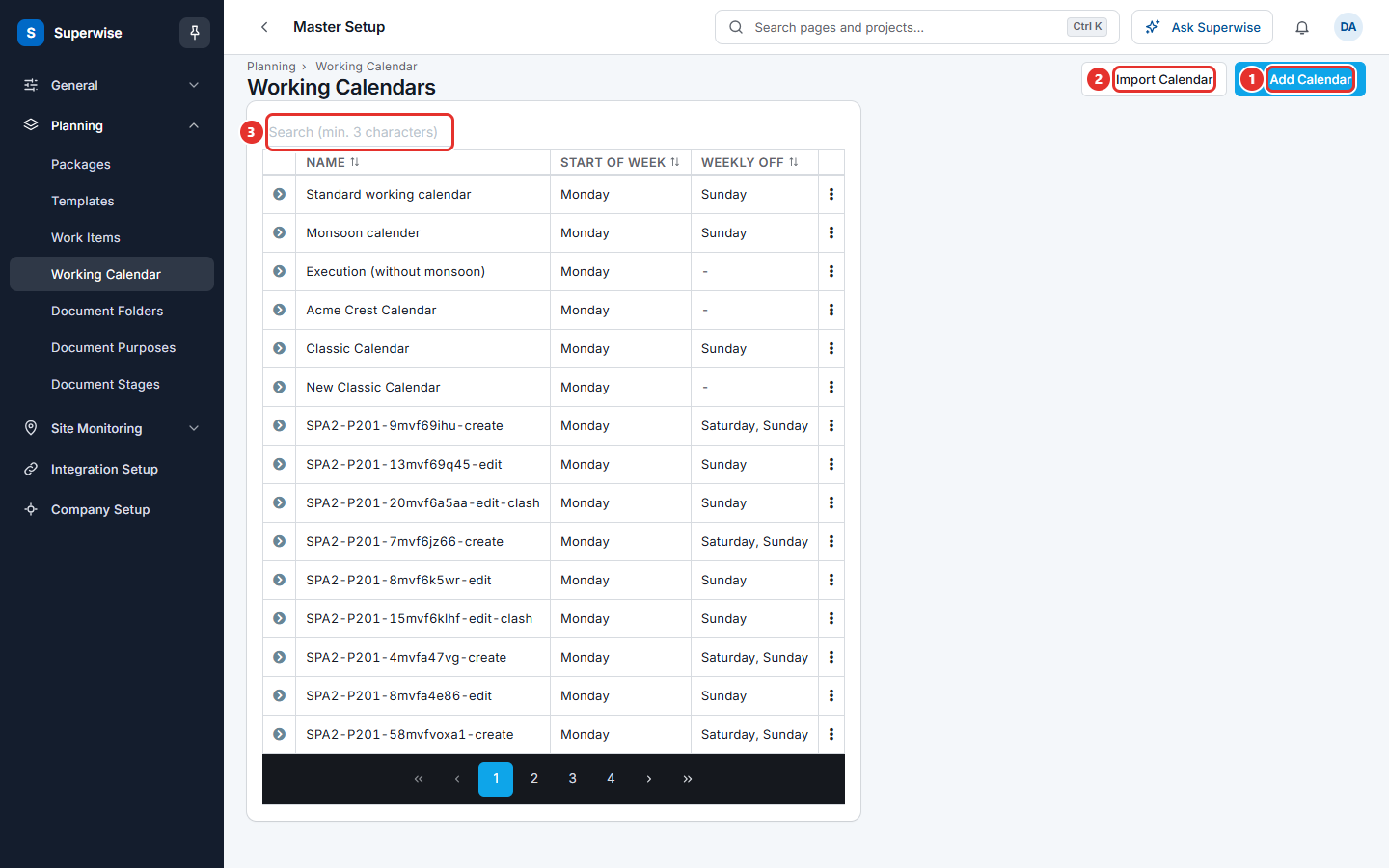
- Click Add Calendar (mark 1 in the list picture).
- Type a name in Name (mark 1 in the form picture). For example,
Standard working calendar. The name is required. - Choose a day in Start Of Week (mark 2). This is required.
- In Weekly Off (mark 3), choose the days that are off every week. The list does not offer the day you chose as the start of the week. Leave No weekly off if the project works all 7 days.
- In Start-Time / End-Time (mark 4), choose a start hour and an end hour. This step is optional. You can clear each choice.
- In Non-Working Days (mark 5), click each date that is a day off. Click a date again to remove it. Each chosen date also appears as a small tag under the calendar. Click the cross on a tag to remove that date.
- Click Create (mark 6).
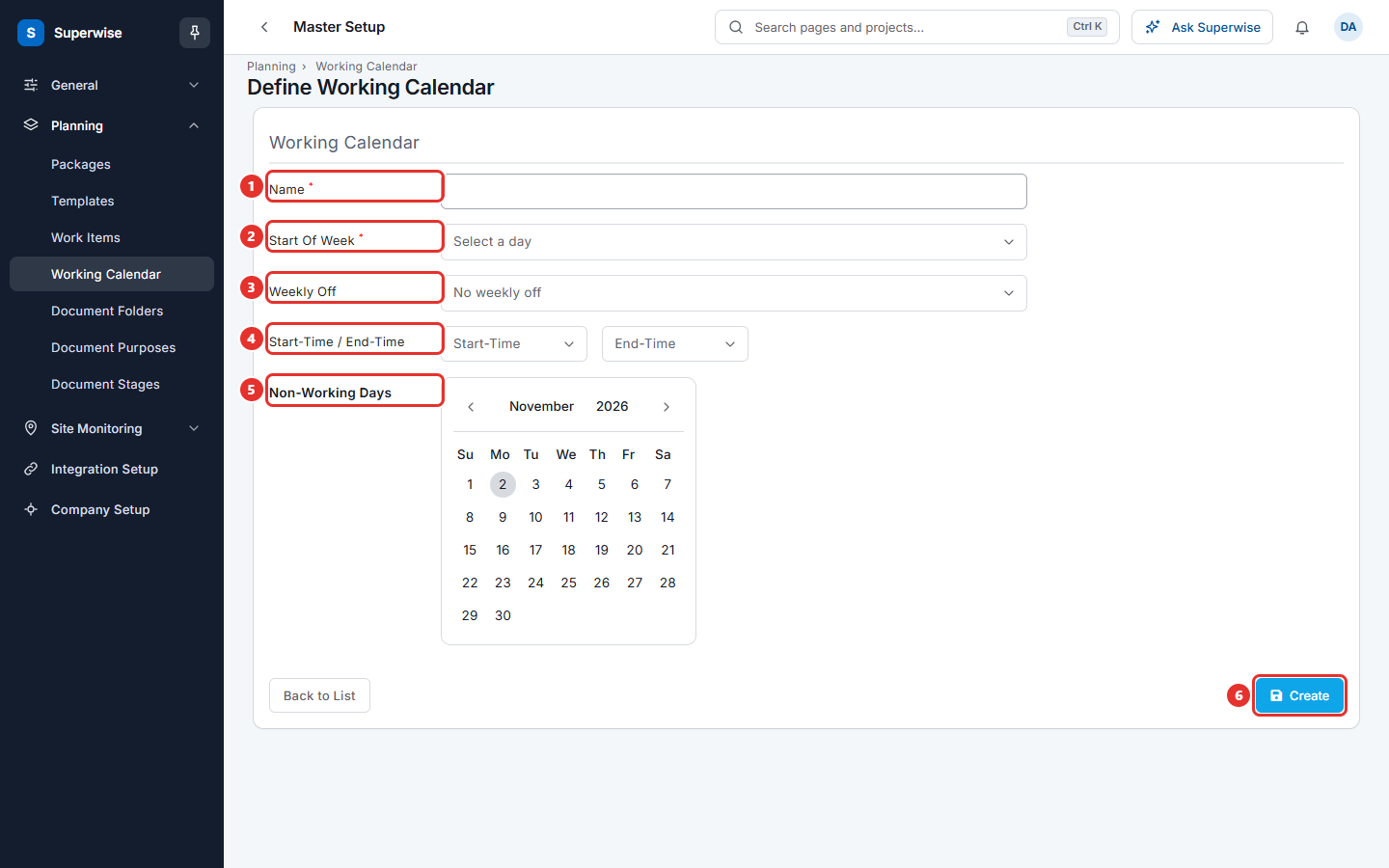
Click Back to List to leave the form without saving.
How to see the days off of a calendar
- Open the Working Calendars list.
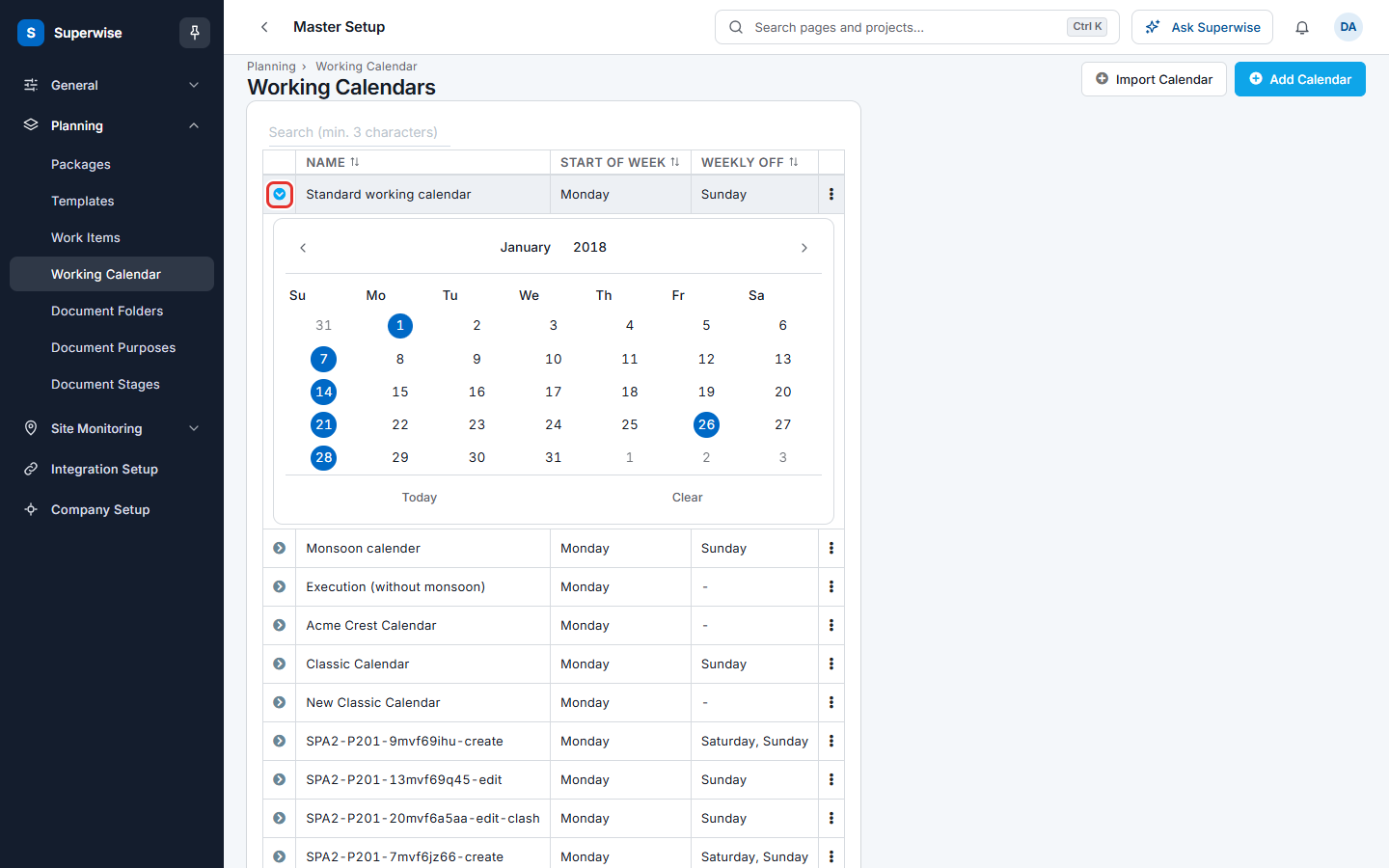
- Click the arrow at the start of the row (the mark in the picture). A month calendar opens under the row.
- The calendar marks the non-working days. Weekly off days are marked too.
How to edit or delete a working calendar
- Click the three dots at the end of the row.
- Click Edit to open the same form with the saved values. Change what you need and click Save.
- Click Delete to remove the calendar. A box with the title Confirm Action asks you to confirm. Click Confirm.
How to import a calendar from a file
Use this when your planner keeps the calendar in a scheduling file.
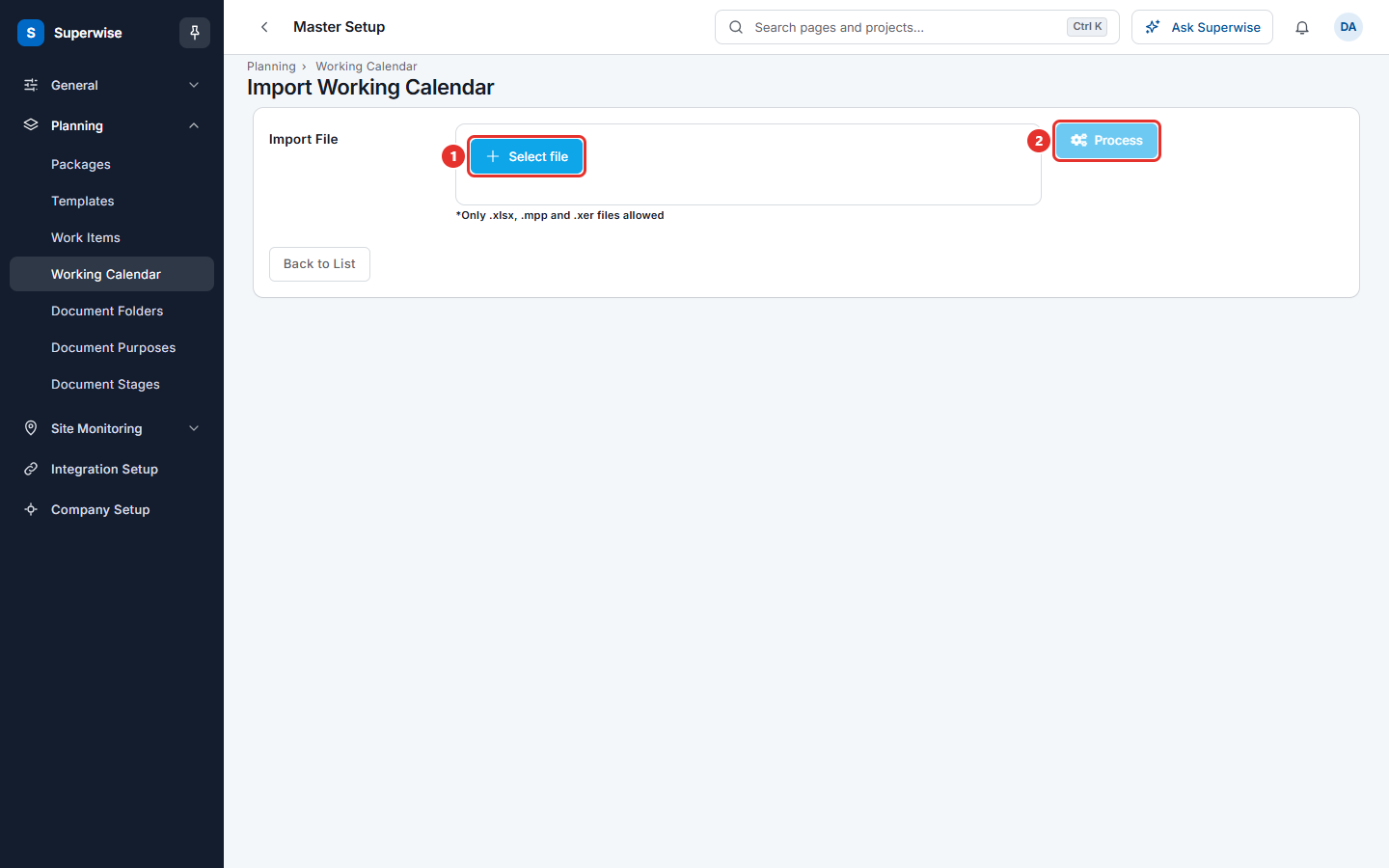
- Click Import Calendar (mark 2 in the list picture) on the list page.
- Click Select file (mark 1 in the import picture) and choose the file. The page accepts only .xlsx, .mpp and .xer files, up to 75 MB.
- Click Process (mark 2). Superwise reads the calendars in the file.
- Choose one in Select Calendar. If the file holds one calendar, it is chosen for you.
- Type the new calendar name in Name.
- Click Import.
What the columns mean
| Name | What it means |
|---|---|
| NAME | The calendar name. |
| START OF WEEK | The first day of the week for this calendar. |
| WEEKLY OFF | The days that are off every week. A dash means none. |
Rules to know
- A calendar name cannot repeat. When you import a calendar with a name that exists, the system shows Name cannot be repeated for the working calendar.
- The start of the week cannot also be a weekly off. The system shows Start of week cannot be a weekly off.
- You cannot delete a calendar that a project uses. The system shows This Working calendar is associated with Project(s). Choose another calendar for those projects first.
If something goes wrong
| What you see | What to do |
|---|---|
| The Name field is required. | Type a name. |
| Name cannot be repeated for the working calendar | Type a different name. |
| The Start Of Week field is required. | Choose a day in Start Of Week. |
| Start of week cannot be a weekly off | Remove that day from Weekly Off, or choose another start day. |
| This Working calendar is associated with Project(s). | Change the calendar on those projects, then delete again. |
| Please upload .xlsx, .mpp or .xer files only | Choose a file of one of these types. |
| The file could not be read. Upload a Microsoft Project (.mpp) or Primavera (.xer) file. | Check that the file is a valid scheduling file of one of these kinds. |
Related pages
- Templates: the task plans that use the calendar dates.
- Planning masters: the order to set up the planning lists.