


Proposals
See the bids that contractors send for your RFPs. Ask a contractor to bid again, award a proposal, archive or delete it.
- Where to find it
- Contracts > Proposals
- Who can use it
- People who have the View Proposals permission. Creating needs Add, editing needs Edit, deleting needs Delete, and negotiating or archiving needs Approve.
A proposal is the bid of one contractor. It lists a rate for each BOQ item of the work, the validity of the offer, the credit period and the terms. A contractor sends a proposal in answer to an RFP. You can also enter a proposal by hand when a contractor sends one by phone or e-mail without an RFP.
For example, Acme sends an RFP for the foundation work of Acme Heights to three contractors. Each contractor sends one proposal. Acme has three proposals for that RFP. Acme compares them and awards one.
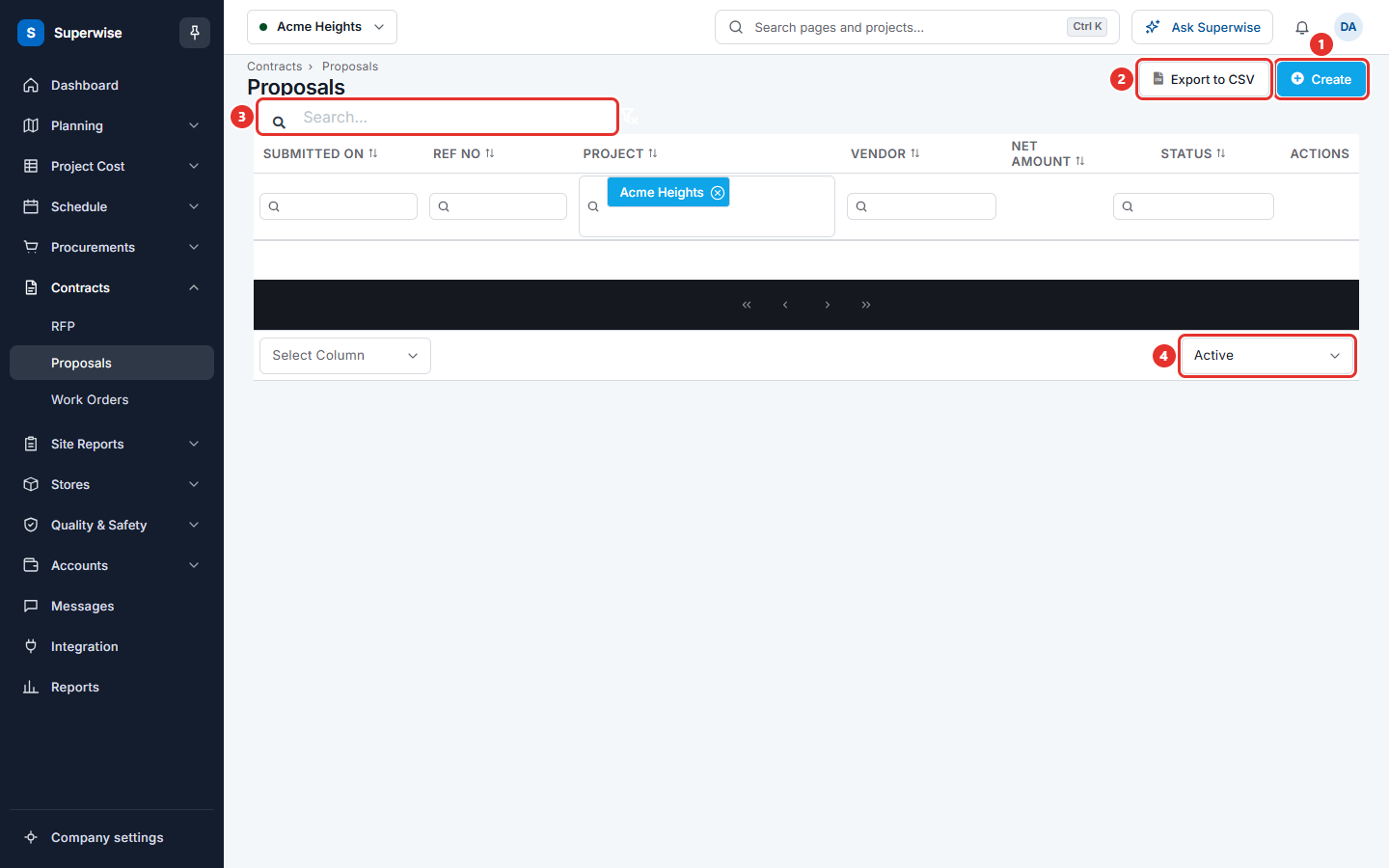
This screen lists the proposals of the project you have selected.
How the proposal flow works
- You approve an RFP. The system makes one proposal for each invited vendor, with the status Pending, and sends the invitation e-mails.
- Each contractor opens the link in the e-mail and sends a proposal.
- The proposal becomes Submitted. When every invited vendor has submitted, the RFP closes at once, before Bid End.
- When the RFP is Closed, you compare the proposals.
- You award the best proposal. This opens a work order.
Before you start
- Select the project in the project selector at the top of the screen.
- To see bids from an RFP, the RFP must be approved and its bid period must have run.
- To enter a proposal by hand, you need the Add permission on Proposals.
How to find a proposal
- Open Contracts > Proposals.
- Type at least 3 letters in the Search... box (mark 3), or type in the fields under the column headings.
- Use the list at the bottom right (mark 4) to choose All, Active or Archived. The list starts on Active.
- Click the filter icon next to the search box to clear all filters.
To show more columns, such as Credit (days), Rev and Updated By, use Select Column at the bottom left. To save the list as a file, click Export to CSV (mark 2).
What the columns mean
| Name | What it means |
|---|---|
| Submitted On | The date the contractor sent the proposal. |
| Ref No | The reference number the contractor gave to the proposal. |
| Project | The project of the proposal. |
| Vendor | The contractor who made the proposal. |
| Net Amount | The total of the proposal before tax. It is empty while the bid is sealed. |
| Status | Where the proposal is in its life. See the next table. |
| Actions | The icons for this row. |
What the statuses mean
| Status | What it means |
|---|---|
| Pending | The contractor is invited but has not opened the link. |
| Delivered | The invitation was sent. |
| Opened | The contractor opened the invitation. |
| Viewed | The contractor looked at the details. |
| Draft | The contractor saved a draft and did not send it. |
| Submitted | The contractor sent the proposal. |
| Negotiating | You asked the contractor to bid again. |
| Awarded | You gave the work to this contractor. |
| Awarded to other | You gave the work to another contractor. |
| Not Submitted | The bid period ended or the RFP was rejected, and the contractor sent nothing. |
What the action icons do
Move the mouse over an icon to see its name. Only the icons that fit the status and your permissions are shown.
| Icon name | What it does | When it is shown |
|---|---|---|
| Edit | Opens the form to change the proposal. See Enter or change a proposal. | The proposal has no RFP, it is Submitted or Negotiating, and you have Edit. |
| Delete | Deletes the proposal. | Same as Edit, and you have Delete. |
| Compare Revisions | Opens the comparison of revisions. | The proposal has been revised. |
| Negotiate | Asks the contractor to bid again. | The proposal is Submitted, and you have Edit. |
| Award | Starts a work order for this proposal. | The proposal is Submitted or Negotiating, and you have Edit. |
| Resend Invitation | Sends the invitation e-mail again. | The proposal belongs to an RFP, it is Pending, and you have Add. |
| Archive or Un-Archive | Moves the proposal out of the Active list. | Always. The system checks the Approve permission when you confirm. |
How to ask a vendor to bid again
Use this when a proposal is submitted and you want a better price or better terms.
- Click the Negotiate icon in the Actions column.
- Click Confirm in the window Confirm Action.
The message "Proposal moved to Negotiation!" shows. The status becomes Negotiating. The contractor gets an e-mail and can send a new bid with the same link. The earlier bid is kept. See Compare revisions of a proposal.
You need the Approve permission to do this.
How to award a proposal
- Click the Award icon in the Actions column.
- The form for a new work order opens. It is filled from the proposal. Follow Create a work order.
When the work order is saved, the proposal becomes Awarded, the other proposals of the RFP become Awarded to other, and the RFP becomes Awarded.
How to send an invitation again
Use this when a contractor lost the e-mail.
- Click the Resend Invitation icon of a Pending proposal.
- Click Confirm in the window Confirm Action.
The system sends a new e-mail with a new link. The link in the old e-mail does not work any more.
How to archive or delete a proposal
- Click the Archive or Delete icon.
- Click Confirm in the window Confirm Action.
An archived proposal leaves the Active list. Choose Archived at the bottom right to see it.
Warning: You cannot undo a delete.
Rules to know
- The bids stay sealed until the RFP is Closed. Until then you see no amounts, terms or dates of an RFP proposal.
- A contractor can send a proposal only while the RFP is Live.
- You can edit or delete only a proposal that you entered by hand. A proposal that came from an RFP belongs to the contractor.
- Each time you save a changed proposal that was already submitted, the system keeps the earlier version as a revision.
If something goes wrong
| What you see | What to do |
|---|---|
| Net Amount is empty | The bid is sealed. Wait until the RFP is Closed. |
| The Edit icon is missing | The proposal came from an RFP, or it is not Submitted or Negotiating. |
| The Award icon is missing | The proposal is not Submitted or Negotiating, or you do not have the Edit permission. |
| The proposal you look for is not in the list | The list shows Active proposals. Choose Archived or All at the bottom right. |
Related pages
- Enter or change a proposal
- Compare revisions of a proposal
- RFPs
- Compare the proposals of an RFP
- Work orders
In this section
- Enter or change a proposalEnter the bid of a contractor by hand when it comes by phone or e-mail without an RFP, or change a proposal you entered before.
- Compare revisions of a proposalSee how one proposal changed from revision to revision. Check the validity, delivery date, credit period, net amount and the rate of each BOQ item.