


Bulk add material deliveries
Enter many material deliveries at once in a sheet, or paste them from Excel, and save them in one step.
- Where to find it
- Site Reports > Material Deliveries
- Who can use it
- People who have the Approve Material Deliveries permission.
Use Bulk Add Material Deliveries when you have many delivery challans to enter, for example the records of one week. You type or paste the rows into a sheet. One click saves all of them. The sheet cannot add pictures.
Before you start
- You need the Approve permission for material deliveries.
- The projects, suppliers and materials must exist in Superwise. The names in the sheet must be the same as in Superwise.
- Only active suppliers and materials of the type Material are in the lists.
How to bulk add deliveries
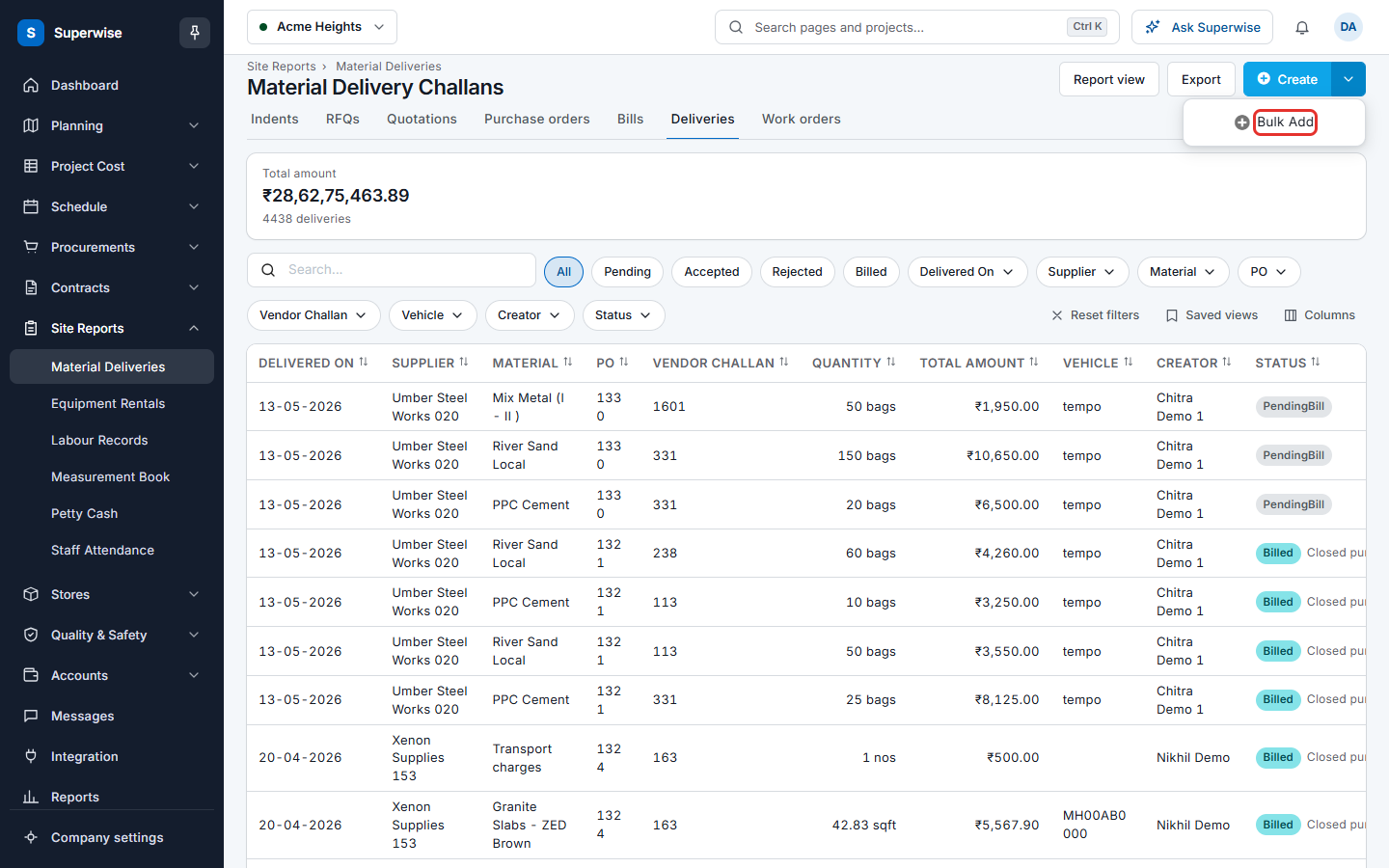
- Open Site Reports > Material Deliveries.
- Click the arrow at the right side of Create, then click Bulk Add (mark 1 in the first picture below). The menu item is shown only to people who can approve.
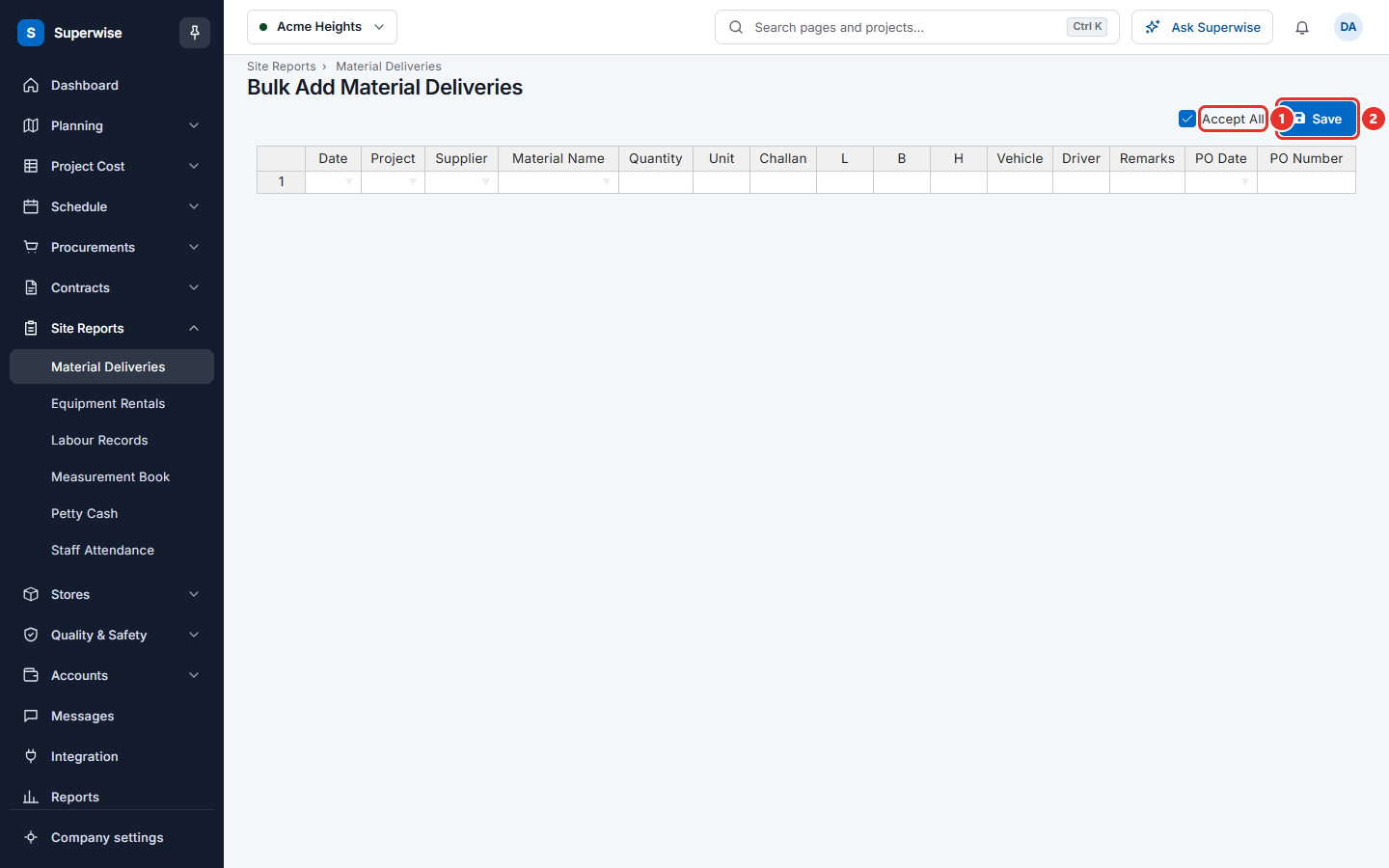
- Fill one row for each delivery. In the columns Project, Supplier and Material Name, choose the name from the list. You can also paste rows that you copied from Excel.
- Fill in Quantity. The column Unit is filled by Superwise.
- Fill in Challan, Vehicle, Driver and Remarks if you have them. Use L, B and H (length, breadth, height) only for materials that are counted by size.
- If the delivery belongs to a purchase order (PO), fill in PO Number and PO Date. Fill in both.
- Keep Accept All (mark 1 in the second picture below) ticked if the deliveries must be accepted as you save. Clear the tick to save them as Pending.
- Click Save (mark 2).
If the save works, Superwise opens the list Material Delivery Challans.
What the columns mean
| Name | What it means |
|---|---|
| Date | The date the material arrived. |
| Project | The project that received the material. Required. |
| Supplier | The supplier. Required. |
| Material Name | The material. Required. |
| Quantity | How much arrived. Required. |
| Unit | The unit of the material. You cannot change it. |
| Challan | The supplier's challan number. |
| L, B, H | Length, breadth and height of one unit. |
| Vehicle | The vehicle number. |
| Driver | The name of the driver. |
| Remarks | A comment about the delivery. |
| PO Date | The date of the purchase order. |
| PO Number | The number of the purchase order. |
Rules to know
- Superwise saves all rows or none. If one row is wrong, nothing is saved, and the page shows one line for each wrong row.
- Every row needs a Project, a Supplier, a Material Name and a Quantity.
- Every row also needs a Challan number.
- A material that must be bought on a PO cannot be added here without PO Number and PO Date.
- When the material needs delivery details, the row needs a Vehicle.
- The PO Number and PO Date must match a PO of the same project, supplier and material.
- You must be a member of the project in each row.
- If you leave the page with rows that are not saved, the page asks you first.
If something goes wrong
| What you see | What to do |
|---|---|
| Please ensure to enter Project, Vendor, Material Name, Quantity for all records. | Fill the four columns in every row, or delete the empty row. |
| Incorrect project at row 2 (the row number changes) | Choose the project from the list in that row. |
| Incorrect vendor at row 2 | Choose the supplier from the list in that row. |
| Incorrect material at row 2 | Choose the material from the list in that row. |
| Challan is Required at Row: 2 | Type the challan number in that row. |
| Invalid Purchase Order Number at row 2 | Check PO Number and PO Date in that row. They must match one purchase order. |
| An error has occurred. Please try again later | Wait a moment and try again. If it stays, tell your administrator. |