


Create a material delivery
Record one load of material that a supplier delivered to site, edit it later, or delete it.
- Where to find it
- Site Reports > Material Deliveries
- Who can use it
- People who have the Add Material Deliveries permission. Editing needs Edit and deleting needs Delete.
Use this form when a supplier delivers material to site. You fill in the supplier, the material, the quantity and the vehicle. Add photos if the material needs them. After you save, the delivery is Pending until an approver accepts it.
Before you start
- The supplier and the material must exist in Superwise.
- If the material must be bought on a purchase order (PO), the PO must be approved and not closed.
- Keep the supplier's challan (receipt) and the vehicle number at hand.
How to create a delivery
- Open Site Reports > Material Deliveries.
- Click Create at the top right of the list. The form Create/Edit Material Delivery opens for the project that is chosen at the top of the screen.
- In Unloading Date, choose the date and time. You cannot choose a time in the future.
- In Supplier, choose the supplier. Suppliers that are not active show the word Inactive.
- In Receipt No. (mark 2), type the supplier's challan number. You can type up to 20 characters.
- In Material (mark 3), choose the material.
- If a field Purchase Order appears, choose the PO. The field appears when the material has an open PO. When the PO has revisions, a field Purchase Order Revision also appears.
- If the material is measured in 2 or 3 dimensions, fill in Length. Fill in Breadth and Height when the screen asks for them. Superwise works out the quantity from the dimensions.
- In Quantity (mark 4), type the quantity. The unit of the material is shown next to the box. The Rate is shown when a material is chosen. A rate with a
~in front is an estimate, because no PO is linked. - In Vehicle No. (mark 5), type the vehicle number, for example
MH04AB1000. You can type up to 20 characters. - Fill in Driver (up to 50 characters), Notes and Comments (up to 500 characters each) if you need to.
- Add pictures in the section Images. See the next section.
- Click SAVE (mark 6).
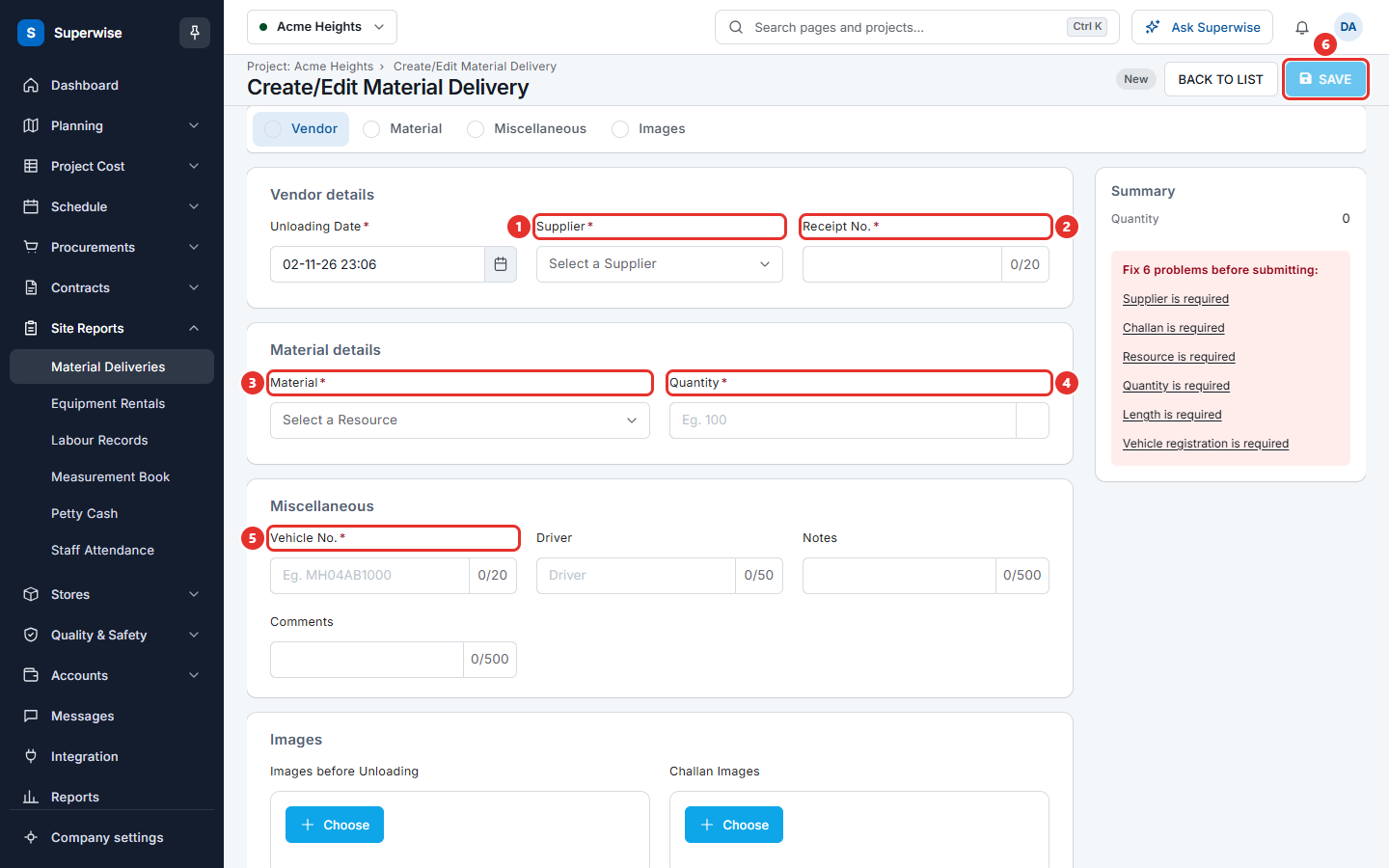
The box Summary at the right shows the quantity. If a required field is empty, the box lists the problems. Click a problem to go to the field. SAVE works when no problem is left.
How to add pictures
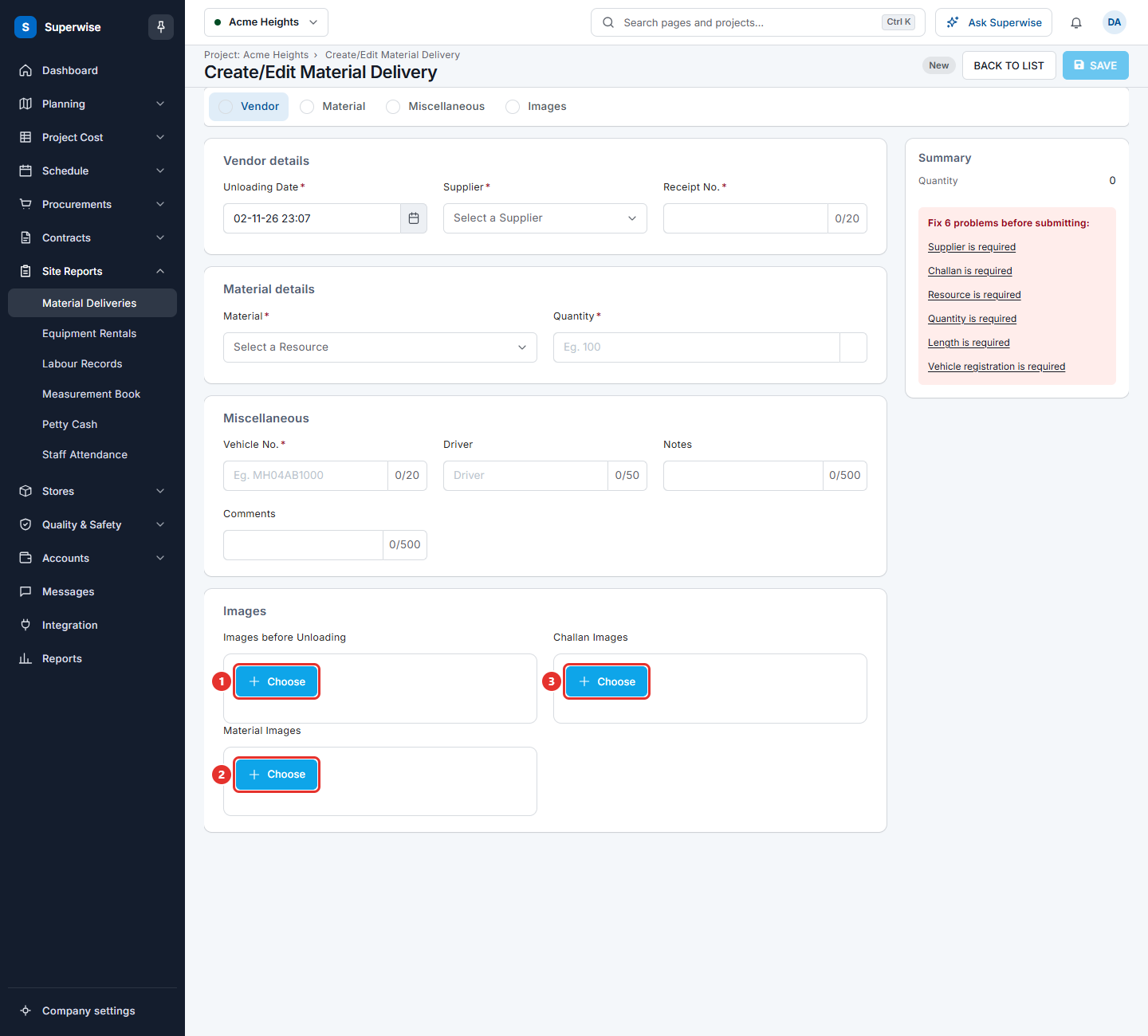
The section Images has three boxes: Images before Unloading, Material Images and Challan Images. A star next to the name means that this material needs the pictures.
- Click Choose under the box (marks 1, 2 and 3 in the picture below).
- Select one or more picture files. Each file can be up to 500 KB.
- Wait until the picture appears. To remove a picture, click the cross next to it.
How to edit a delivery
- In the list, find the delivery. Click the pencil icon at the end of the row, or open the details and click Edit.
- Change the fields. The supplier and the material cannot be changed in an edit.
- Click SAVE. The status goes back to Pending.
The pencil icon is not shown when the delivery is on a bill, or when its purchase order is closed.
How to delete a delivery
- In the list, click the bin icon at the end of the row.
- In the dialog Confirm Action, click Confirm.
The bin icon is shown for Pending and Rejected deliveries. It is also shown for Accepted deliveries whose purchase order is open.
What the fields mean
| Name | What it means |
|---|---|
| Unloading Date | The date and time the material was unloaded at site. |
| Supplier | The supplier who delivered. You must choose one. |
| Receipt No. | The supplier's challan number. You must fill it in. |
| Material | The material that came. You must choose one. |
| Purchase Order | The PO that the delivery fulfils. Some materials must have one. |
| Purchase Order Revision | The revision of the PO, when the PO was revised. |
| Length, Breadth, Height | The size of one unit, for materials that are counted by size. |
| Rate | The price of one unit. It comes from the PO. |
| Quantity | How much arrived. It must be between 0.0001 and 100000000. |
| Vehicle No. | The number of the vehicle that brought the material. |
| Driver | The name of the driver. |
| Notes | A short note about the delivery. |
| Comments | Your comment for the approver. After the first save, earlier comments are shown too. |
Rules to know
- A material can be set to need a PO. Then you cannot save without one.
- The quantity of all deliveries on a PO line cannot be more than the stop quantity of that line.
- When the PO line needs a delivery schedule, the quantity must fit in the schedule.
- A material can be set to need the pictures. Then you cannot save without them.
- A delivery that sits on a delivery schedule can be edited only while it is Pending or Accepted.
- You cannot edit a delivery that is on a bill.
If something goes wrong
| What you see | What to do |
|---|---|
| Supplier is required, Challan is required, Resource is required, Quantity is required | Fill in the field named in the message. |
| Vehicle registration is required | Type the vehicle number in Vehicle No.. |
| Vehicle Number is Invalid. Please enter the number in format 'MH01AA0001' | Type the number without spaces, in the format shown. |
| Quantity must be between 0.0001 and 100000000. | Type a quantity in this range. |
| Purchase Order is Required for Resource. | Choose a PO in Purchase Order. |
| The number of resources you have entered exceeds the PO order quantity. | Lower the quantity, or ask the buyer to change the PO. |
| No Vehicle Loaded Images., No Material Loaded Images., No Vehicle Unloaded Images. | Add pictures to the box that the message names. |