


Approvals in plain words
Learn why some records wait for a person to approve them, how you approve or reject, and how the approval chain is set up.
- Where to find it
- Company settings > General > Approval Workflows
- Who can use it
- Anyone can read this page. Seeing the workflows needs the View Approval Workflows permission. Changing them needs Add or Edit.
Some records must be checked by a person before the work can go on. A purchase order is a good example. After you create it, it waits. A person with the right permission approves it, or rejects it. Only then can the next step happen. This check is called an approval.
What an approval does
- A record that waits shows the status Pending in its list.
- An approved record moves on. For example, you can record a delivery only against a purchase order that is approved.
- A rejected record shows the status Rejected. It goes back to the person who made it, so they can correct it.
Many kinds of record can need approval. Examples are purchase orders, purchase bills, RA bills, work orders, quotations, proposals, payments and material deliveries.
How to approve or reject
There are two places.
- On the dashboard. Open the list Needs your action. Click Approve or Reject on a line. See The dashboard.
- In the list of the record. Open the list, for example Procurements > Purchase Orders. Click the small button Approve or reject at the end of the row. Check the record. Then decide.
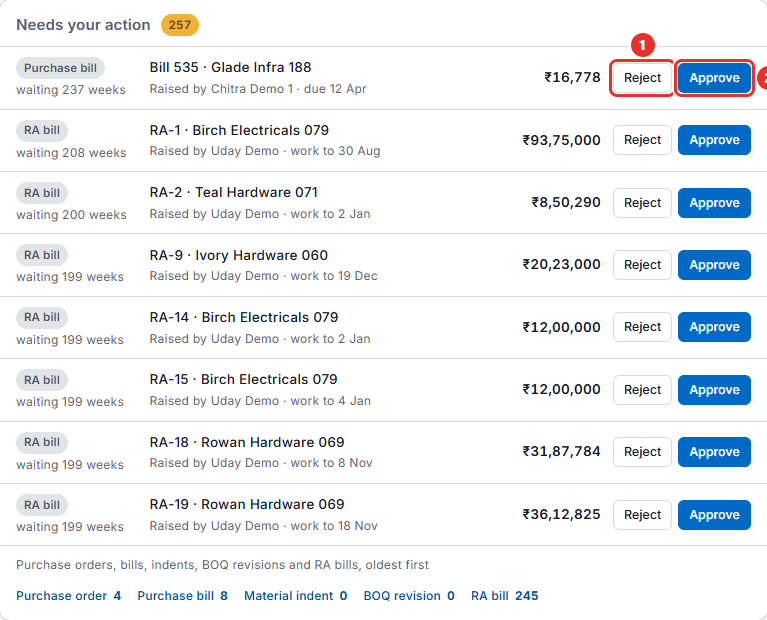
You can approve only a record that waits for you. If your role has no Approve permission for that kind of record, you do not see the buttons.
How the approval chain is set up
An approval workflow is a named chain. It says who approves a kind of record, and in which order. An administrator sets the workflows in Company settings > General > Approval Workflows.
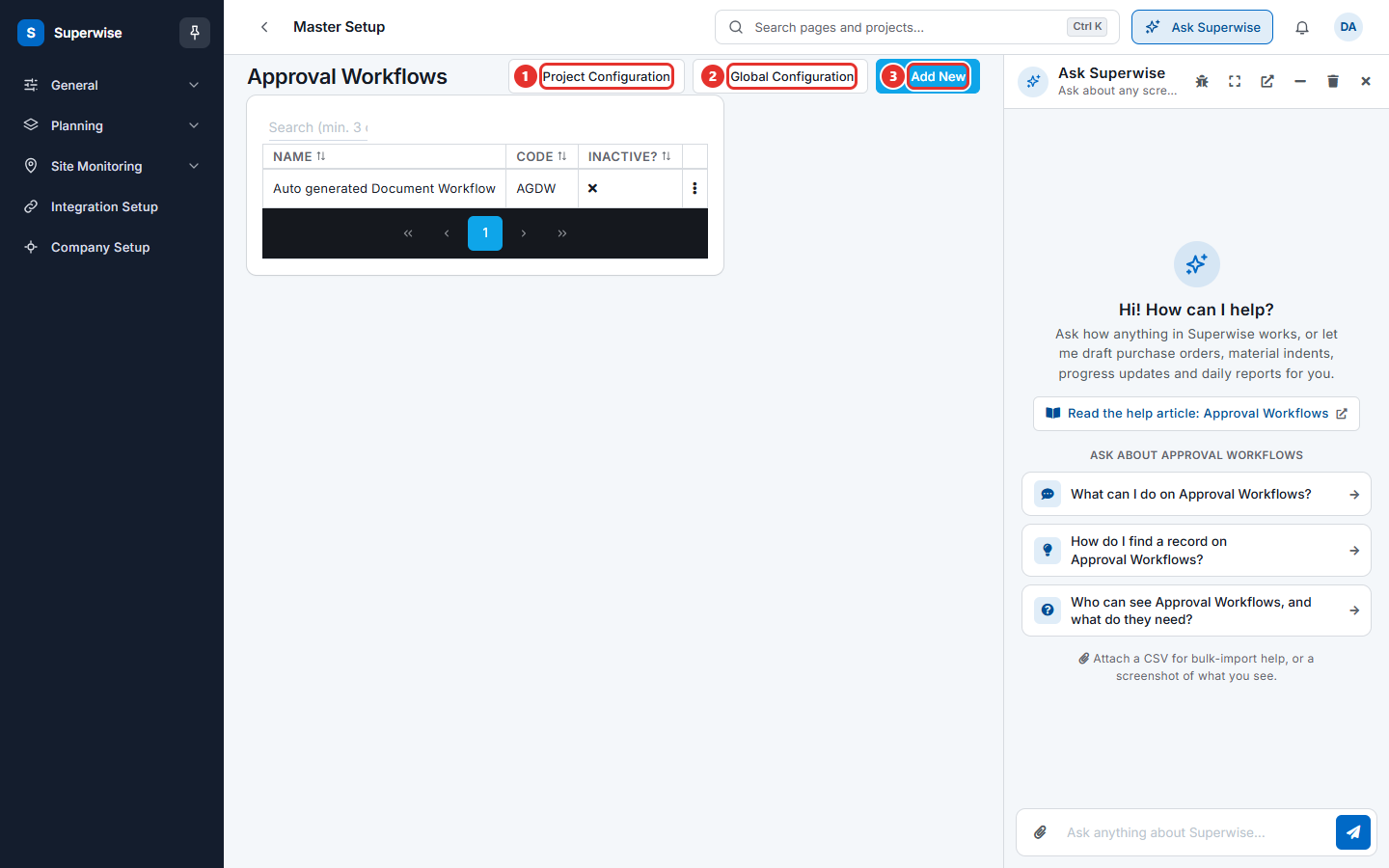
- Click Add New (mark 3) to make a workflow. The form asks for a Name, a Code, the Subscribers and the Workflow itself. A picture of the chain appears next to the text.
- Click Global Configuration (mark 2) to choose which workflow each kind of record uses in the whole company. On that page, choose a workflow in Select Workflow for each area and click Save.
- Click Project Configuration (mark 1) to choose a different workflow for one project.
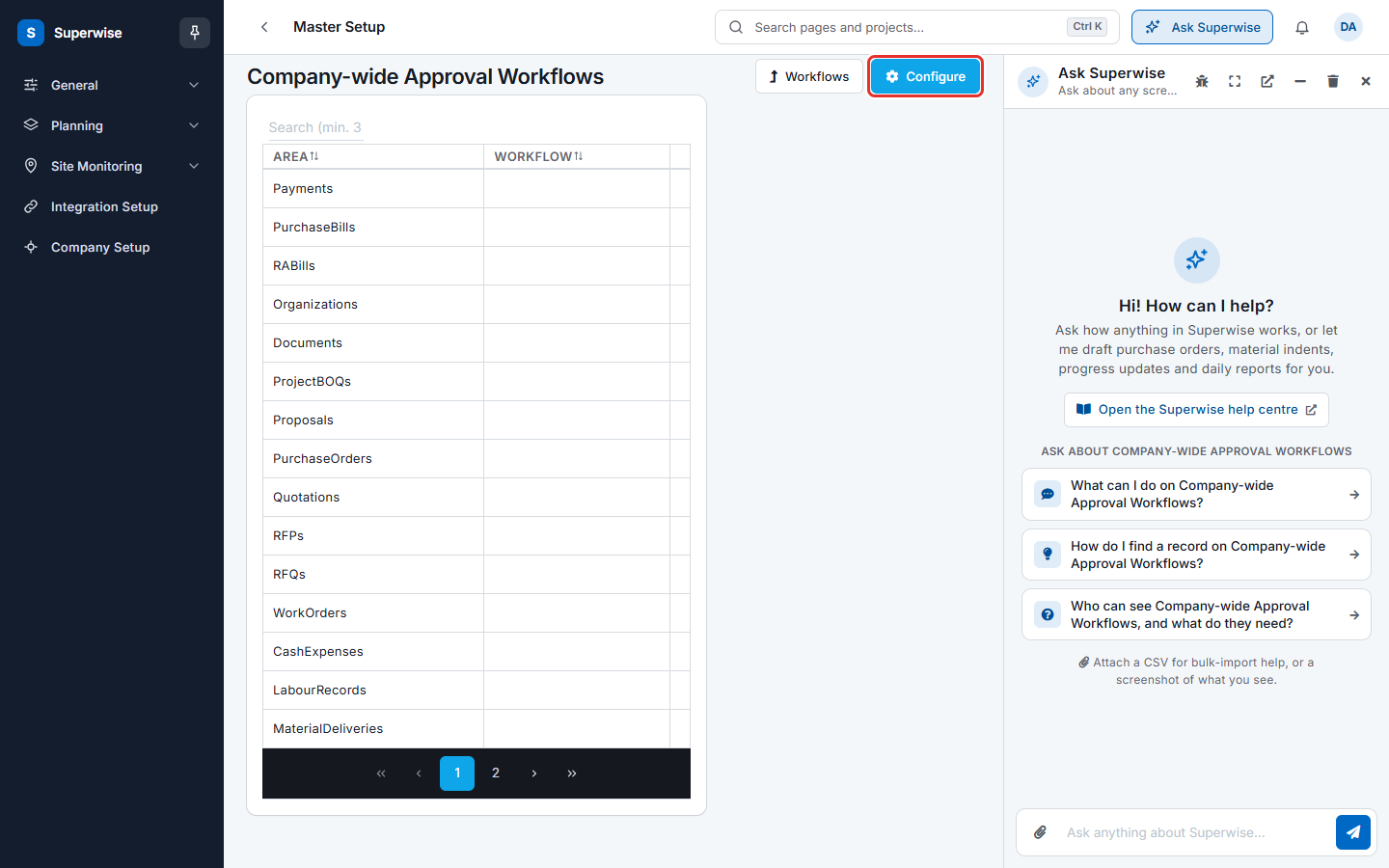
A project can have its own choice. If it does not, the company-wide choice applies.
Why can I not approve?
| Reason | What to do |
|---|---|
| Your role has no Approve permission for this kind of record | Ask your administrator. See Roles and access. |
| The record is not waiting for you | Look at the status. It may be approved, rejected or waiting for another person. |
| You are in another project | Check the project name at the top left. |
| The record is still a draft | The person who made it must submit it first. |
Rules to know
- An approver should read the record before deciding. The dashboard buttons act after 5 seconds.
- Every kind of record has its own approval permission. See Roles and access.
- If a kind of record has no workflow, check with your administrator how it is approved in your company.
- Setting up workflows is described in General.
If something goes wrong
| What you see | What to do |
|---|---|
| A record stays Pending for a long time | Ask the next approver to open Needs your action. |
| The approve button is missing | See the table above. |
| Nothing is queued for you | You do not approve these kinds of record on this project. |