


Add BOQ items to many tasks at once
Load the BOQ lines of chosen areas into one sheet, then add, change or delete the BOQ items of many tasks together.
- Where to find it
- Planning > BOQ Estimation
- Who can use it
- People who have the Add Project BOQs permission.
Use this sheet when many tasks of a template need BOQ lines. A bill of quantities (BOQ) is the list of work items with quantity and rate. A template is a set of schedule tasks, for example "Typical Floor". An area is a part of the project that uses the template, for example "Tower A". In the sheet, each row is one BOQ item of one task in the chosen areas.
The BOQ playground does one task at a time. This sheet does many tasks in one go.
Before you start
- Choose the project in the project list at the top of the screen.
- The template must have tasks. The sheet lists the tasks that are not milestones and not summary tasks.
- You need the Add permission for project BOQs.
How to add BOQ items in bulk
- Open Planning > BOQ Estimation, click Actions and choose BOQ Playground.
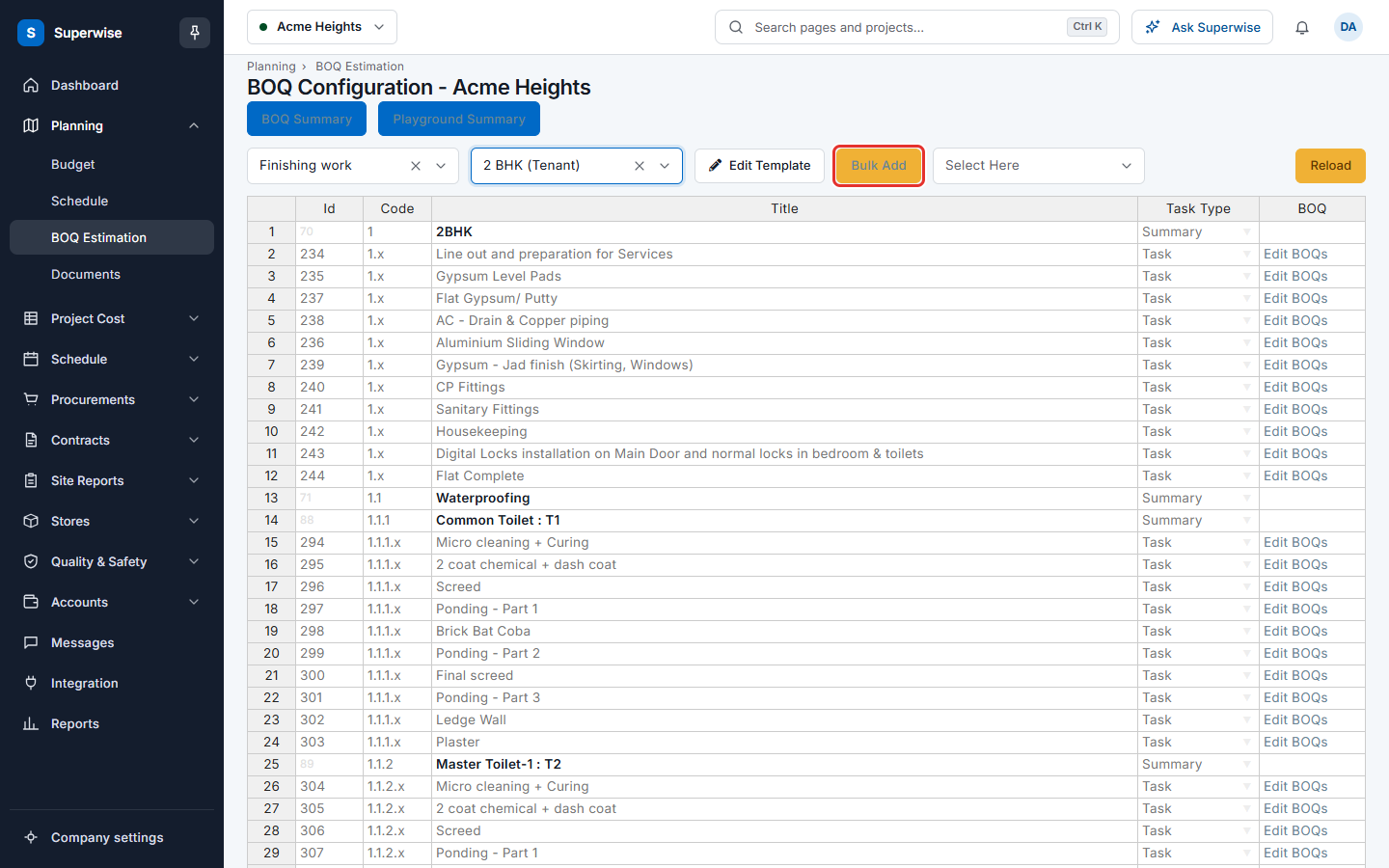
- Choose a category and a template. The button Bulk Add (the mark in the first picture) shows.
- Click Bulk Add. The page Bulk Add opens.
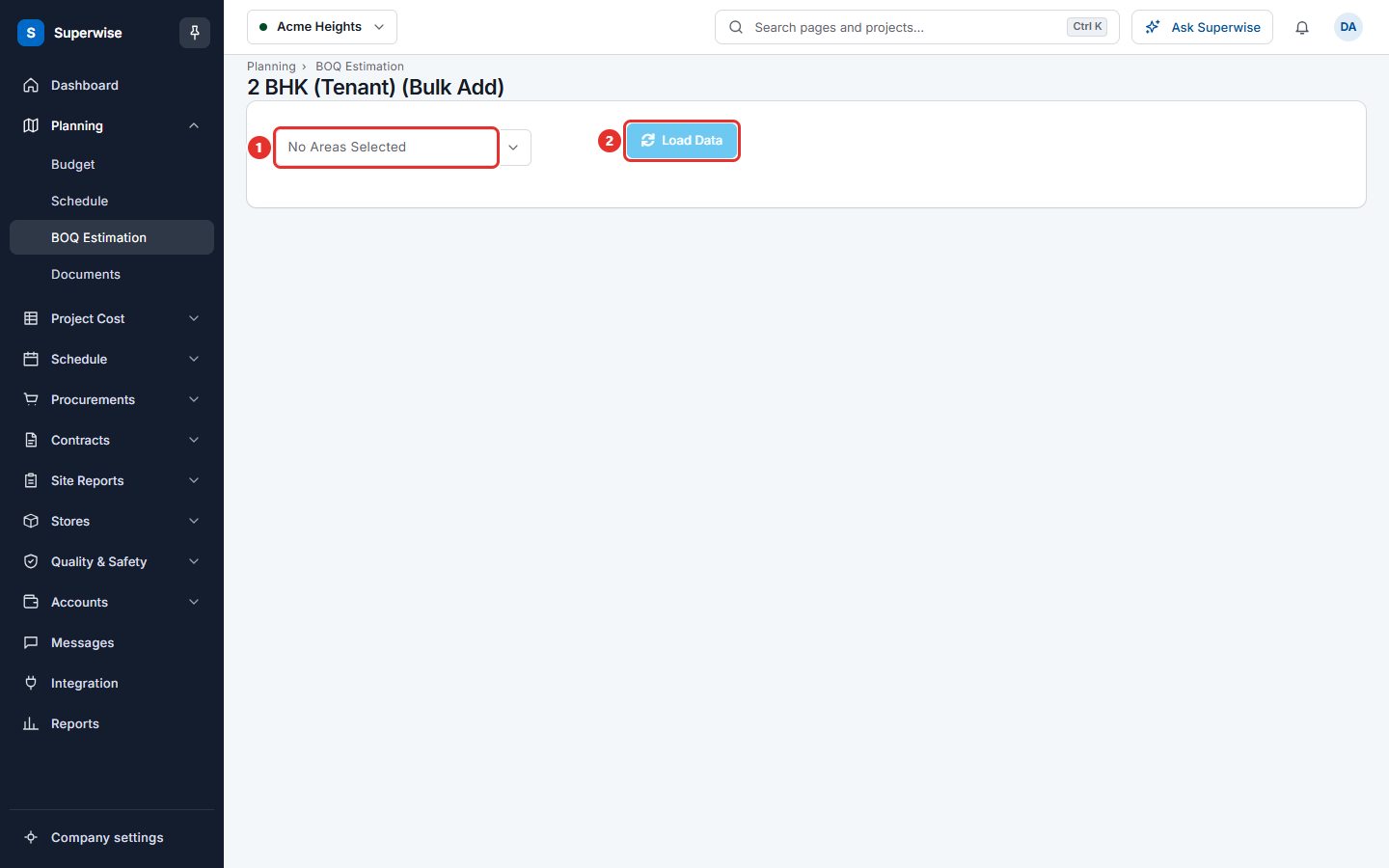
- Open the list that says No Areas Selected (mark 1 in the second picture) and choose the areas. Use the box Type to search... to find an area. If the template has only one area, Superwise chooses it and loads the data for you.
- Click Load Data (mark 2 in the second picture). The button is off until you choose an area. The sheet fills with the BOQ lines that exist.
- To add a line, go to the empty row at the bottom. Choose the Task Name, the Work Item Category and the Work Item. Type the Quantity and the Rate.
- To change a line, type a new value in its cell.
- To delete a line, right-click its row and choose the delete row command.
- Click SAVE.
How to confirm the changes
After you click SAVE, the dialog Confirm Action opens. It does not save yet.
- Read the tabs Added, Modified and Deleted. Each tab shows how many rows it holds.
- Click Confirm to save. Click Cancel to go back to the sheet. Confirm is off when nothing changed.
The message BOQs were saved successfully! shows.
What the columns mean
| Name | What it means |
|---|---|
| Task Name | The task of the template, with its code in square brackets. |
| Work Item Category | The category of the work item. |
| Work Item | The work item. |
| Quantity | The quantity for the task. It must be above 0. To add a note, right-click the cell and choose Add/Edit Comments. |
| Unit | The unit of the work item. You cannot change it. |
| Rate | The price for one unit. It must be above 0. |
| Provisional? | Tick it when the quantity is not final. |
Rules to know
- Rows that were added or changed in the draft before show in a colour. A green row is an added line. A yellow row is a changed line.
- The changes are a draft. An approver must accept them. See Approve BOQ changes.
If something goes wrong
| What you see | What to do |
|---|---|
| BOQ items are not selected | Choose at least one area, then click Load Data. |
| Template Task not Selected on Row No: and numbers | Choose a task in those rows. |
| Work Item not Selected on Row No: and numbers | Choose a work item in those rows, or delete the rows. |
| Quantity on Row No: and numbers must be Positive and Non - Zero | Type a quantity above 0. |
| Rate on Row No: and numbers must be Positive and Non - Zero | Type a rate above 0. |
| Duplicate BOQ items found on Row No: and numbers | Keep one row for each work item in a task. |