


Baselines
Save a copy of the schedule dates, choose which copy to compare with, and see how far each task is from its baseline.
- Where to find it
- Schedule > Tasks
- Who can use it
- People who have the View Tasks permission can see baseline dates. Creating and switching need the Edit Tasks permission. Deleting needs the Delete permission.
A baseline is a saved copy of the schedule dates. Later, you compare the live dates with the baseline. The difference tells you how late or early the project is.
Example: on 1 March the plan says the slab of Acme Heights finishes on 30 April. You save a baseline. In May the slab finishes on 10 May. Against the baseline, the slab is 10 days late.
Superwise also makes a baseline by itself each time a new revision of the schedule is approved. Its title starts with "Auto-generated on Schedule Approval". See Revisions.
Before you start
- The project needs a schedule. You cannot create a baseline without one.
- Open Schedule > Tasks and choose the project.
How to see baseline dates
- Open Schedule > Tasks.
- Click Baseline above the tree. The bar chart shows the baseline dates as thin bars under the task bars.
- Click a row and read Baseline start and Baseline finish in the Inspector.
- Read the line at the bottom. It shows the Project finish date and how many days it is from the baseline, for example
+4 d vs baseline. It sayson baselinewhen there is no difference.
How to see the list of baselines
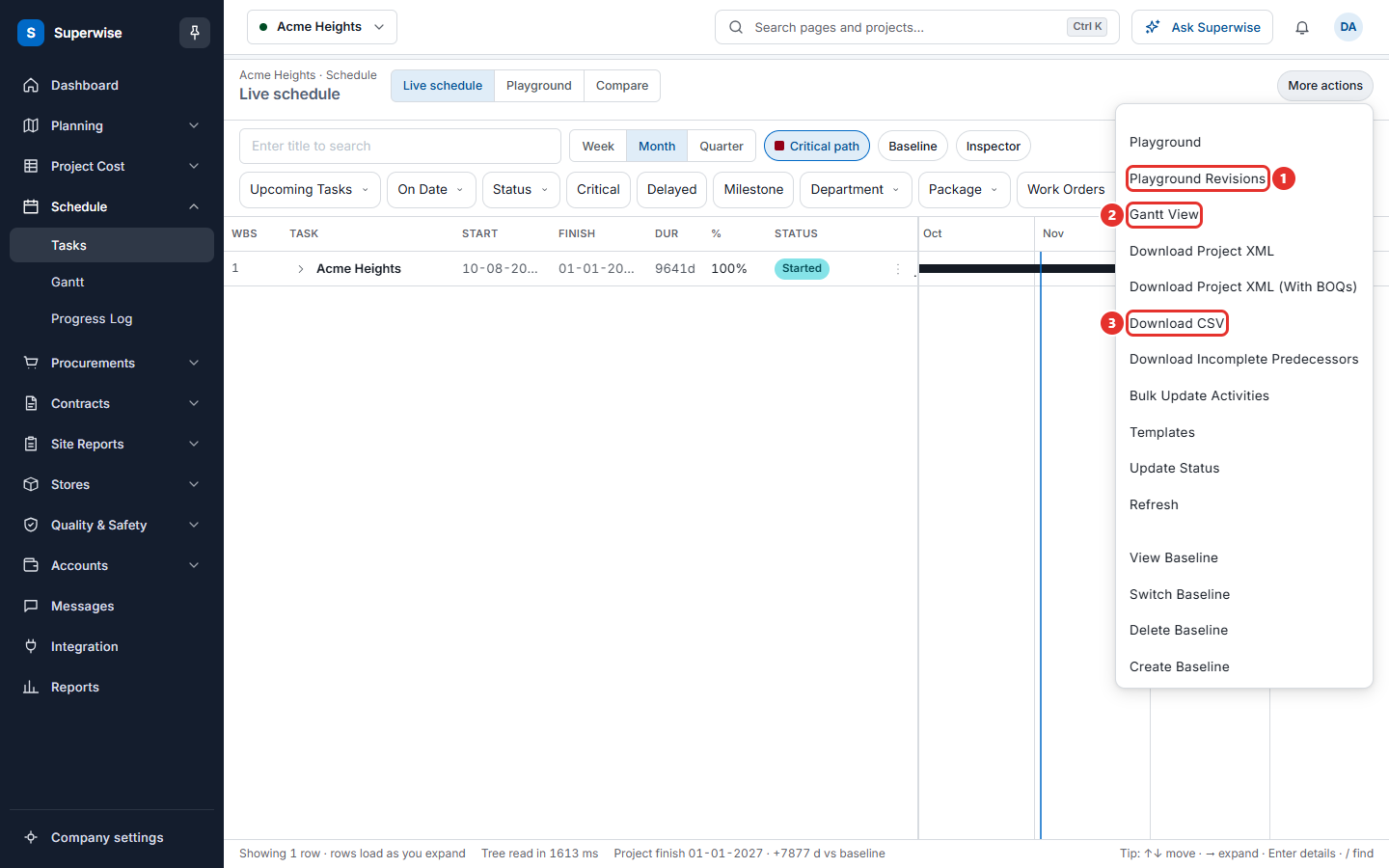
- Click More actions.
- In the second group, choose View Baseline.
- The window Baselines lists each baseline with Created On, Title, Created By and Active?. A tick in Active? marks the baseline in use.

How to create a baseline
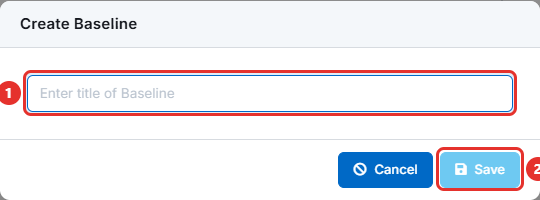
- Click More actions and choose Create Baseline.
- In the box, type a title (mark 1), for example
Baseline before monsoon. Each title must be different. - Click Save (mark 2). The button works only when the title is not empty.
- The message Baseline Saved appears.
How to change the baseline in use
- Click More actions and choose Switch Baseline.
- Choose a baseline in the list Select a Baseline (mark 1).
- Turn Use Planned Dates? (mark 2) on or off.
- Click Switch. The message Baseline Changed successfully! appears.
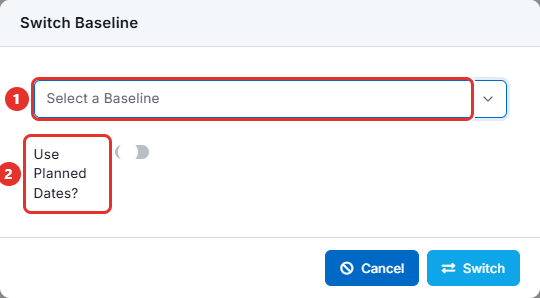
With Use Planned Dates? on, the baseline shows the dates that were first planned. With it off, the baseline shows the dates the schedule had when the baseline was saved.
How to delete a baseline
- Click More actions and choose Delete Baseline.
- Choose the baseline in the list.
- Click Delete. The message Baseline Deleted! appears.
Rules to know
- Only one baseline is active at a time. A tick in Active? marks it.
- A baseline title cannot be repeated. Superwise says "Title cannot be repeated".
- If the project has no schedule, Superwise says "Please create a Schedule before creating a Baseline".
Warning: Deleting a baseline cannot be undone.
If something goes wrong
| What you see | What to do |
|---|---|
| No Create Baseline in the menu | You need the Edit Tasks permission. Ask your administrator. |
| Save is grey | Type a title. |
| Title cannot be repeated | Type a different title. |