


Document folders
Create the folder tree for project documents and decide which roles can view, add, edit or delete in each folder.
- Where to find it
- Company settings > Planning > Document Folders
- Who can use it
- People who have the View Other Masters permission. You also need the View Documents permission to see the menu item. Add, Edit and Delete need the matching permission.
Document folders hold the drawings and files of your projects. You build the folder tree here once. Each folder says which roles can see it and what they can do in it. When people upload a document, they choose one of these folders.
A global folder is a folder that every project shares. Any user can view a global folder. Rights to add, edit and delete in a global folder follow the administrator permissions, so you do not set roles for it. A normal folder uses the roles you set.
Before you start
- Create the roles you need under Company settings > General > Roles.
- If you want documents in a folder to need approval, create the approval workflow first under Company settings > General > Approval Workflows. Some tenants do not show the Approval WorkFlow field.
How to add a folder
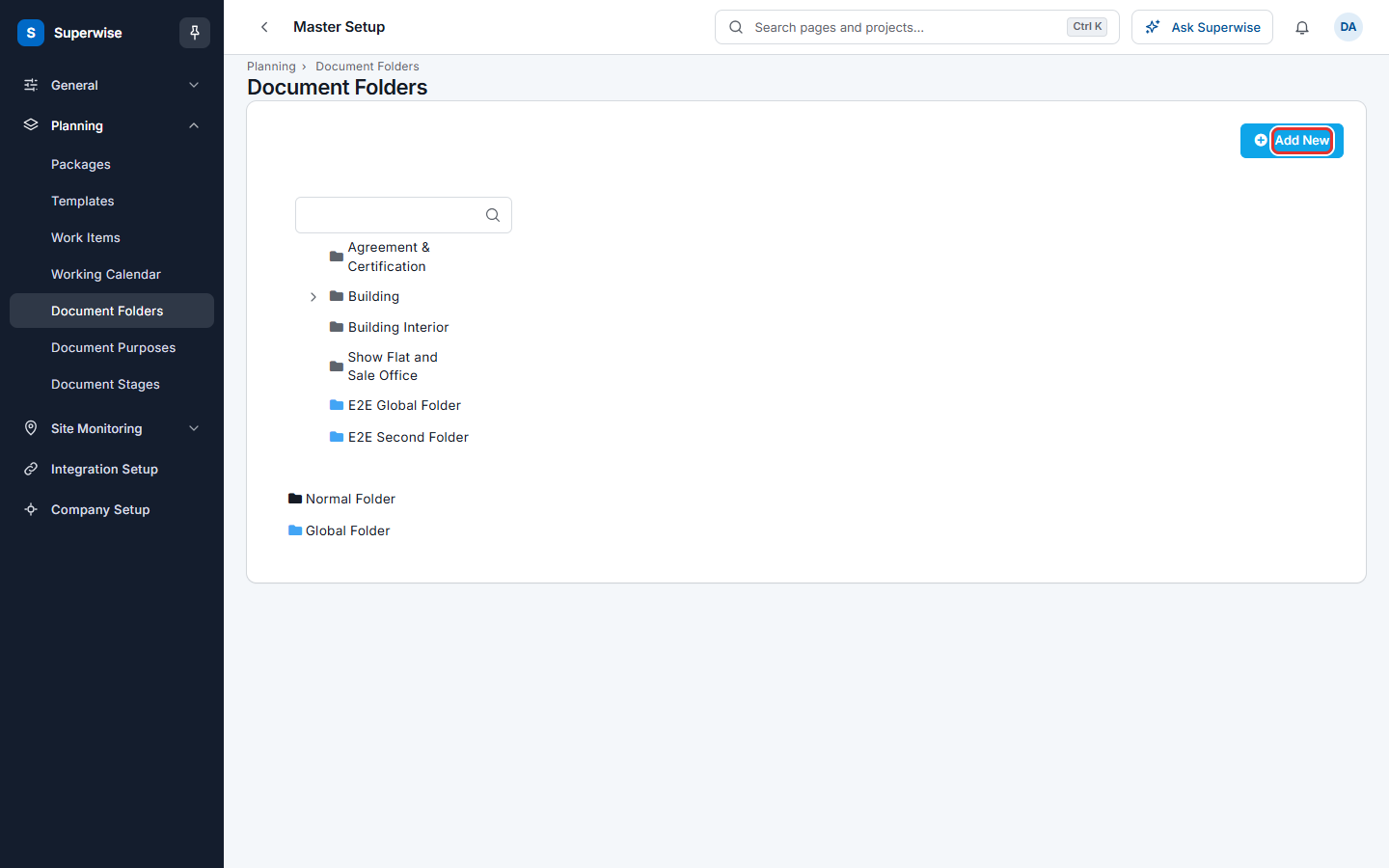
- Open Company settings > Planning > Document Folders.
- Click Add New (the mark in the first picture). A form opens at the side.
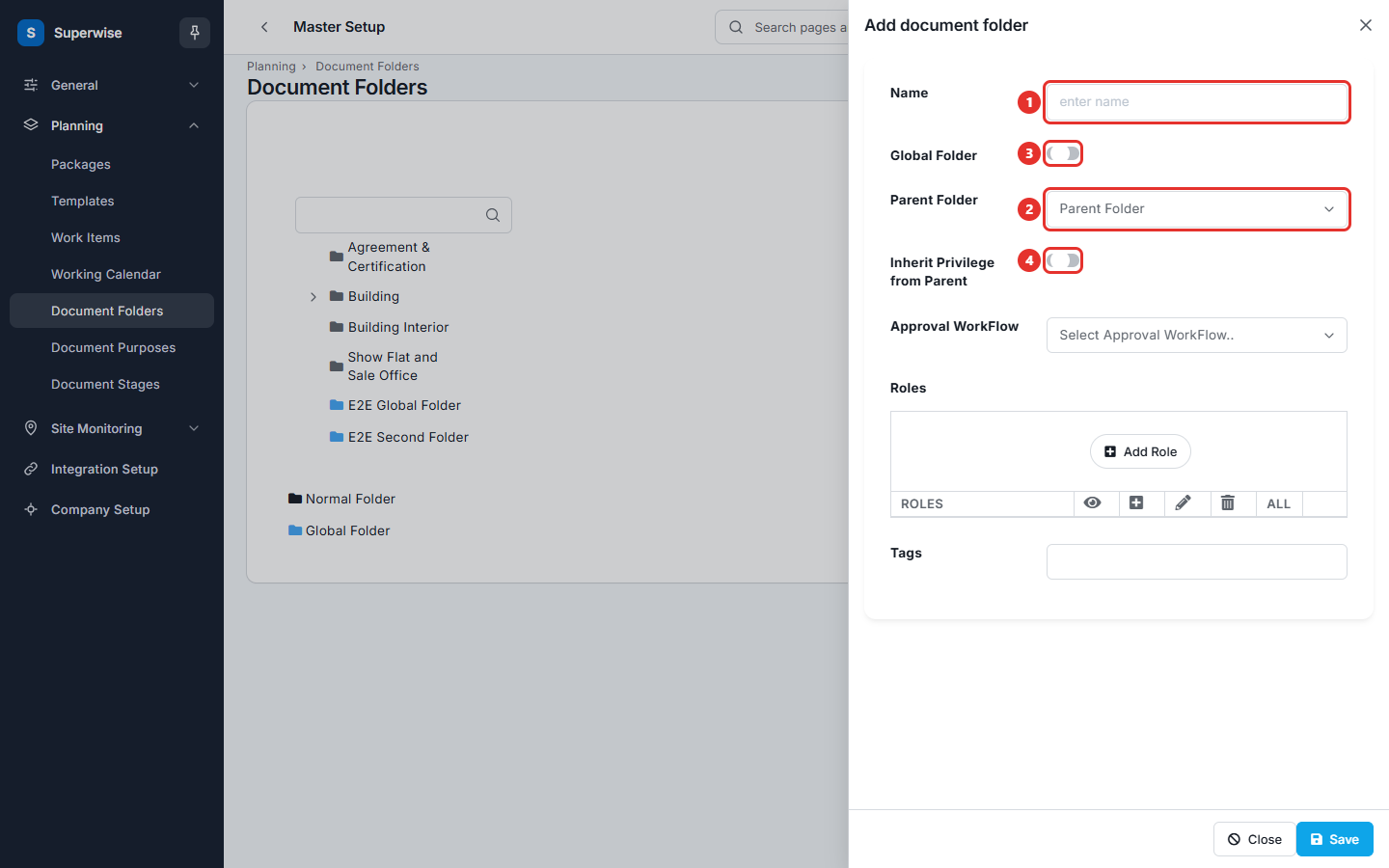
- Type the folder name in Name (mark 1 in the second picture). Names must be different inside the same parent folder.
- Choose a Parent Folder (mark 2) if the folder sits inside another folder. Leave it empty for a top level folder.
- Turn on Global Folder (mark 3) if all projects share the folder. The switch turns on by itself when the parent is a global folder.
- For a normal folder, choose how rights are set with Inherit Privilege from Parent (mark 4). See the next section.
- Type words in Tags if you want to add tags. Press Enter after each tag.
- Click Save.
How to set who can use a normal folder
You have two choices for a normal folder.
Take the rights from the parent folder. Turn on Inherit Privilege from Parent. The folder uses the roles and the approval workflow of its parent. You need a Parent Folder for this.
Set the rights on this folder. Leave Inherit Privilege from Parent off.
- If the Approval WorkFlow field is shown, choose a workflow to make documents in this folder need approval. This step is optional.
- Click Add Role in the Roles table (mark 1 in the picture).
- Choose a role in the Roles column.
- Tick the boxes for the rights that role gets. The four boxes are view, add, edit and delete. Tick All to give all four.
- Repeat for each role. Click the bin icon at the end of a row to remove a role.
- Click Save (mark 2).
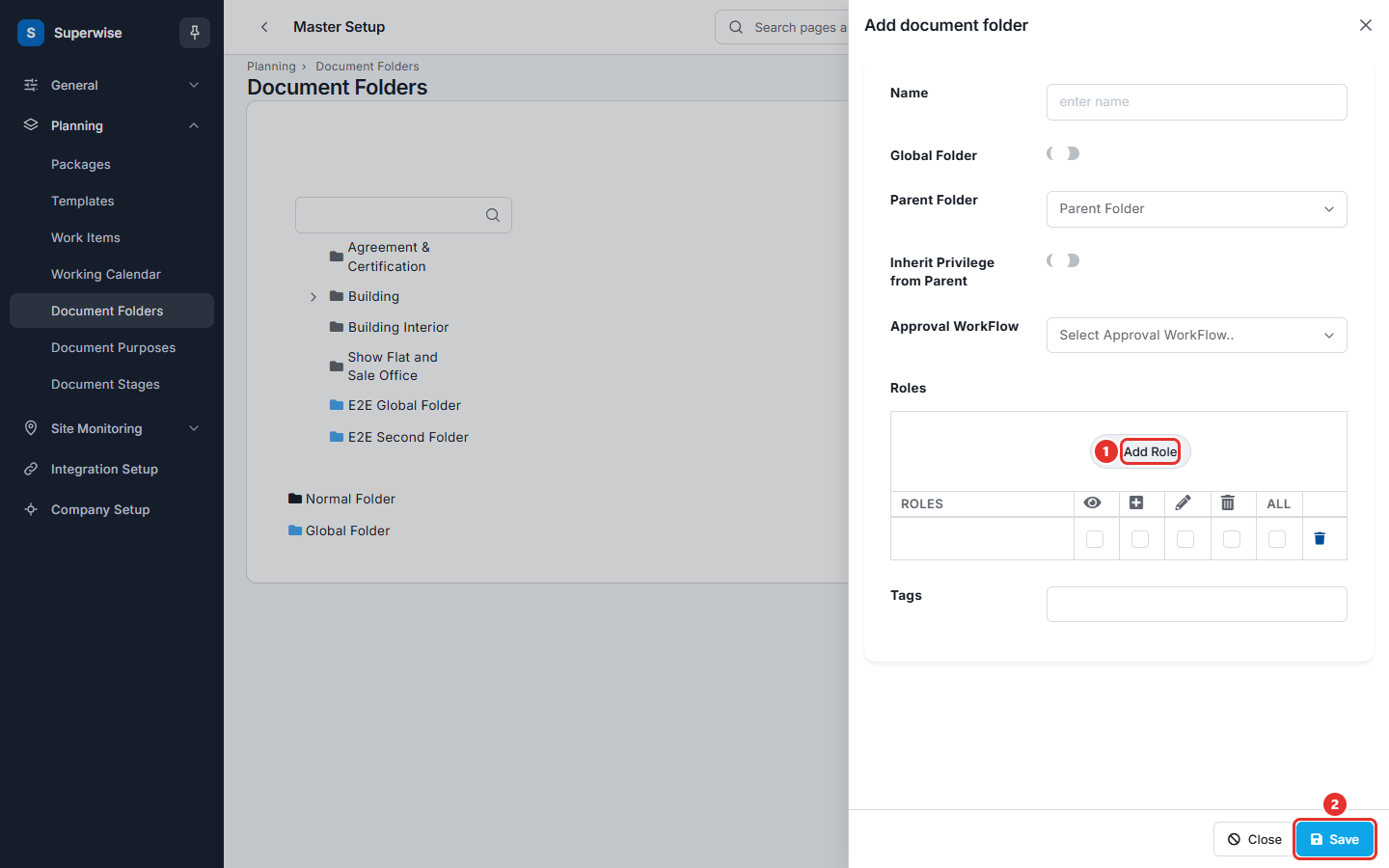
Every role you add must have the view right. The list of roles you can choose follows the parent folder: a folder inside another folder can use only the roles the parent already has.
How to view, edit or delete a folder
- Click a folder in the tree. The details appear on the right: Folder Name, Global Folder, Parent Folder, Inherit Privilege from Parent, Approval WorkFlow, Tags and the roles table.
- Click Edit to open the form again. Click Save when you finish.
- Click Delete and confirm to remove the folder.
The tree shows a normal folder in grey and a global folder in blue. Type in the filter box above the tree to find a folder.
What the fields mean
| Name | What it means |
|---|---|
| Name | The folder name. |
| Global Folder | The folder is shared by all projects. All users can view it. |
| Parent Folder | The folder this folder sits in. Empty means a top level folder. |
| Inherit Privilege from Parent | Use the roles and approval workflow of the parent folder. |
| Approval WorkFlow | The approval path for documents in this folder. |
| Roles | The roles that can use the folder, with the view, add, edit and delete rights. |
| Tags | Words attached to the folder. |
Rules to know
- A folder needs a name. Two folders with the same parent cannot have the same name.
- A global folder cannot have roles, an approval workflow or Inherit Privilege from Parent. A folder can be global only when it has no parent or all its parents are global.
- A normal folder that does not inherit must have at least one role. Each role needs the view right. A role cannot repeat.
- You cannot remove from a folder a role that a folder below it uses.
- You cannot change a folder from global to normal, or back, when the folder or a folder below it holds documents.
- A folder cannot be placed inside itself or inside a folder below it.
- You cannot delete a folder that holds documents. When you delete an empty folder, the folders below it move up to take its parent.
If something goes wrong
| What you see | What to do |
|---|---|
| Duplicate Document Folder name. | Another folder with the same parent has this name. Use another name. |
| Please provide Role Privilege(s). | Add at least one role, or turn on Inherit Privilege from Parent. |
| Providing View right to added role(s) is mandatory. | Tick the view box for every role in the table. |
| Folder contains document(s). | Move or remove the documents first, then delete the folder. |
| Cannot change a Global folder to Non-Global folder and Vice-Versa, since this folder or its child folder(s) contains document(s). | Keep the folder type, or empty the folders first. |
| The role you need is not in the list | The parent folder does not have that role. Add the role to the parent folder first. |
Related pages
- Document purposes and Document stages: the other two lists used when you upload a document.
- Planning masters: the order to set up the planning lists.