


Ask Superwise
Use the Ask Superwise assistant to get answers about any screen and to let it prepare some records for you.
- Where to find it
- Top bar > Ask Superwise
- Who can use it
- Everyone who is signed in. When the assistant creates a record for you, it needs the same Add permission that you would need yourself.
Ask Superwise is an assistant inside the portal. You type a question in your own words and it answers. Its answers come from the help pages of this site. It can also prepare some records for you, such as a purchase order or a progress entry.
How to open it
- Click Ask Superwise in the top bar, or press Ctrl /. On a Mac, press Cmd /.
- The panel opens on the right side of the screen. On a small screen it covers the page.
- To close it, click the cross at the top of the panel, or press Ctrl / again.
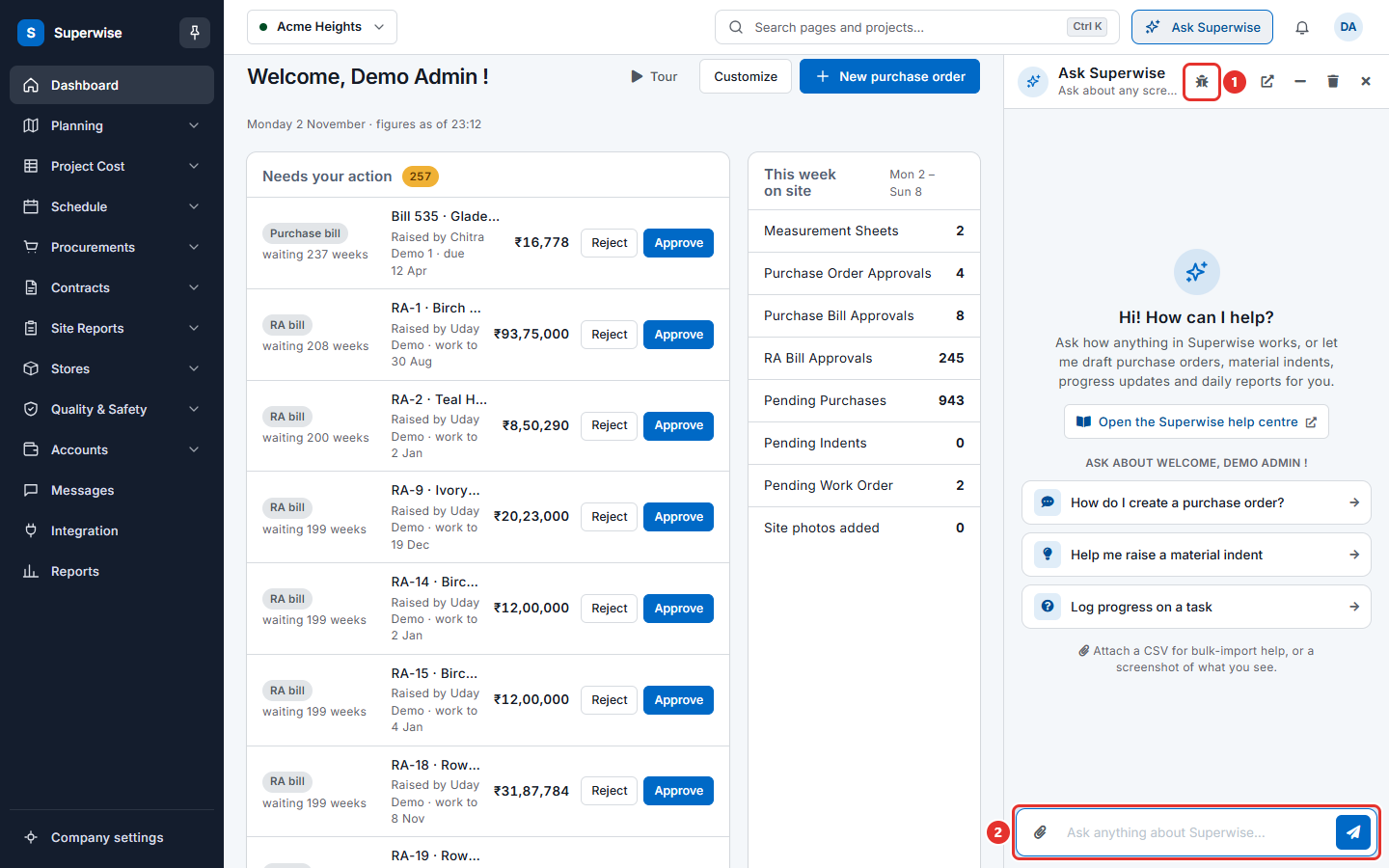
When you open the panel, it shows a greeting and a link to the help article for your page. It also shows three questions to start from. Click a question to ask it. The assistant knows which page and project you are on.
How to ask a question
- Click the text box in the message area (mark 2) and type your question, for example "How do I create a purchase order?".
- Press Enter, or click Send message. To start a new line, press Shift and Enter.
- Wait for the answer. A short message tells you that the assistant is working.
Good questions are short and name the screen or the record. Two examples: "Why is my purchase order not in the list?" and "Who approves a material indent?".
What the assistant can do
| Task | What you say |
|---|---|
| Answer how a screen works | "How do I record a material delivery?" |
| Prepare a purchase order | "Create a purchase order for 100 bags of cement from my supplier." |
| Raise a material indent | "Help me raise a material indent." |
| Log progress on a task | "Log 40 percent progress on the plastering task." |
| Raise a site issue | "Raise an issue about a broken scaffold." |
| Prepare a daily report | "I need the daily report for yesterday." |
| Create a user | "Create a user for a new site engineer." |
| Import rows from a file | Attach a CSV file and ask for help with a bulk import. |
The assistant works under your name and your permissions. If you cannot add purchase orders, it cannot add them for you. It tells you when a permission is missing. It cannot do something that your role cannot do.
For a user, the assistant shows a card that says whether the account was created. If the card does not say it was created, check Company settings > General > Users before you try again.
How to attach a file
- Click the paperclip button at the left of the message area (mark 2). The button is named Attach a CSV or image.
- Choose a CSV file or a picture. The file can be up to 5 MB.
- Type a question and click Send message.
Use a CSV file for bulk-import help. Use a picture when you want to show what you see on the screen. For bulk import, the assistant first does a trial run and tells you what it found. It stores nothing until you confirm. A file can have up to 500 rows.
How to report a problem
- Click Report an issue (mark 1).
- Type a short Subject and a Description. Both are required.
- Add a screenshot if you can. This is optional.
- Click Submit Ticket. Click Cancel to close the form without sending.
Other buttons in the panel
| Button | What it does |
|---|---|
| Clear conversation | Deletes the messages in the panel. |
| Open in new tab | Opens the assistant as a full page. |
| Minimize | Folds the panel to a thin bar. |
| Expand | Shows the panel in the middle of the screen. |
Rules to know
- The assistant can make mistakes. Check a record it prepares before you rely on it.
- Approving a record is not one of the actions the assistant performs. Use the approve buttons. See Approvals in plain words.
- Do not type passwords or private data in the message box.
- The assistant answers from the help pages. If an answer does not match your screen, tell support with Report an issue.
If something goes wrong
| What you see | What to do |
|---|---|
| The assistant says you do not have a privilege | Ask your administrator for the permission. See Roles and access. |
| File is too large. Maximum size is 5 MB. | Use a smaller file. |
| The response ended before the work completed. Please try again. | Send the question again. |
| No answer appears | Check your connection. Click Clear conversation and ask again. |