


Material deliveries
Record each load of material that a supplier brings to site, track its status, and see which deliveries are ready for a bill.
- Where to find it
- Site Reports > Material Deliveries
- Who can use it
- People who have the View Material Deliveries permission. Creating needs Add, editing needs Edit, deleting needs Delete, approving and bulk add need Approve.
A material delivery challan (MDC) is the record of what a supplier delivered to site. Each record has the supplier, the material, the quantity, the supplier's receipt number, the vehicle and the date. Site staff create one for every load. A person with approval rights then accepts or rejects it. Only accepted deliveries can go on a purchase bill.
The screen is called Material Delivery Challans. The left menu calls it Material Deliveries.
Before you start
- A project must exist, and you must be a member of it. The list shows the project that is chosen at the top of the screen.
- The supplier and the material must already exist in Superwise.
- Some materials must be linked to a purchase order (PO). The form then asks you to choose the PO.
The flow
- A site user creates the delivery. See Create a material delivery. The status is Pending.
- An approver checks it and accepts it. See Accept or reject a delivery. The status is Accepted.
- An accountant adds accepted deliveries to a purchase bill. After the bill is saved, the status is PendingBill. After the bill is approved, the status is Billed.
To enter many deliveries in one go, use Bulk add deliveries.
How to find a delivery
- Open Site Reports > Material Deliveries.
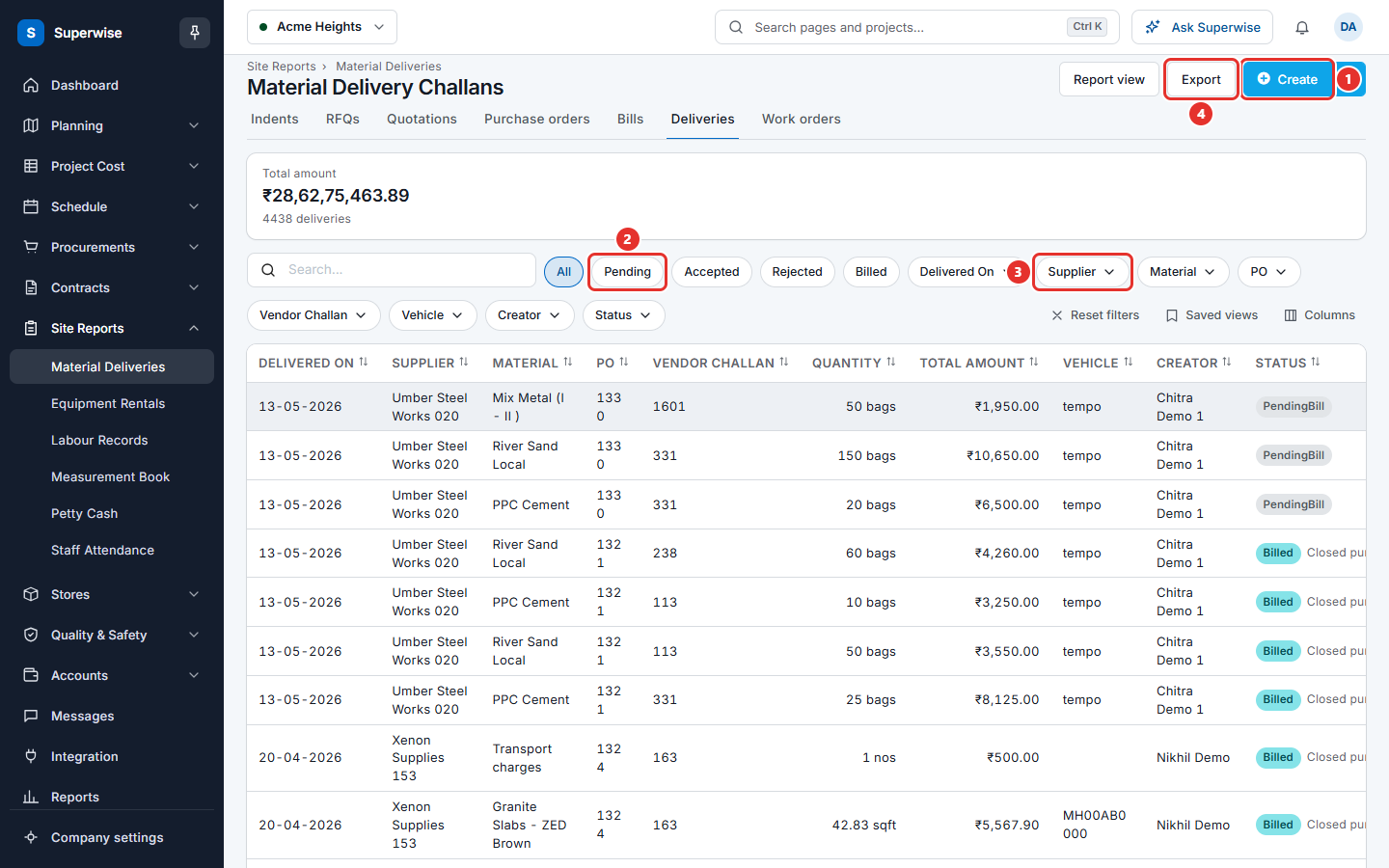
- Click one of the status buttons above the table (mark 2): All, Pending, Accepted, Rejected or Billed.
- To narrow the list more, use the filter buttons (mark 3): Delivered On, Supplier, Material, PO, Vendor Challan, Vehicle, Creator and Status.
- To search, type at least 3 characters in the search box.
- Click Reset filters to clear all filters.
The box at the top shows Total amount and the number of deliveries that match your filters. When all rows use the same unit, it also shows the total Quantity.
Click Export (mark 4) to download the rows that match your filters. Click Report view to see the deliveries as a table of suppliers and materials. Click View data to go back to the list.
How to see the details of a delivery
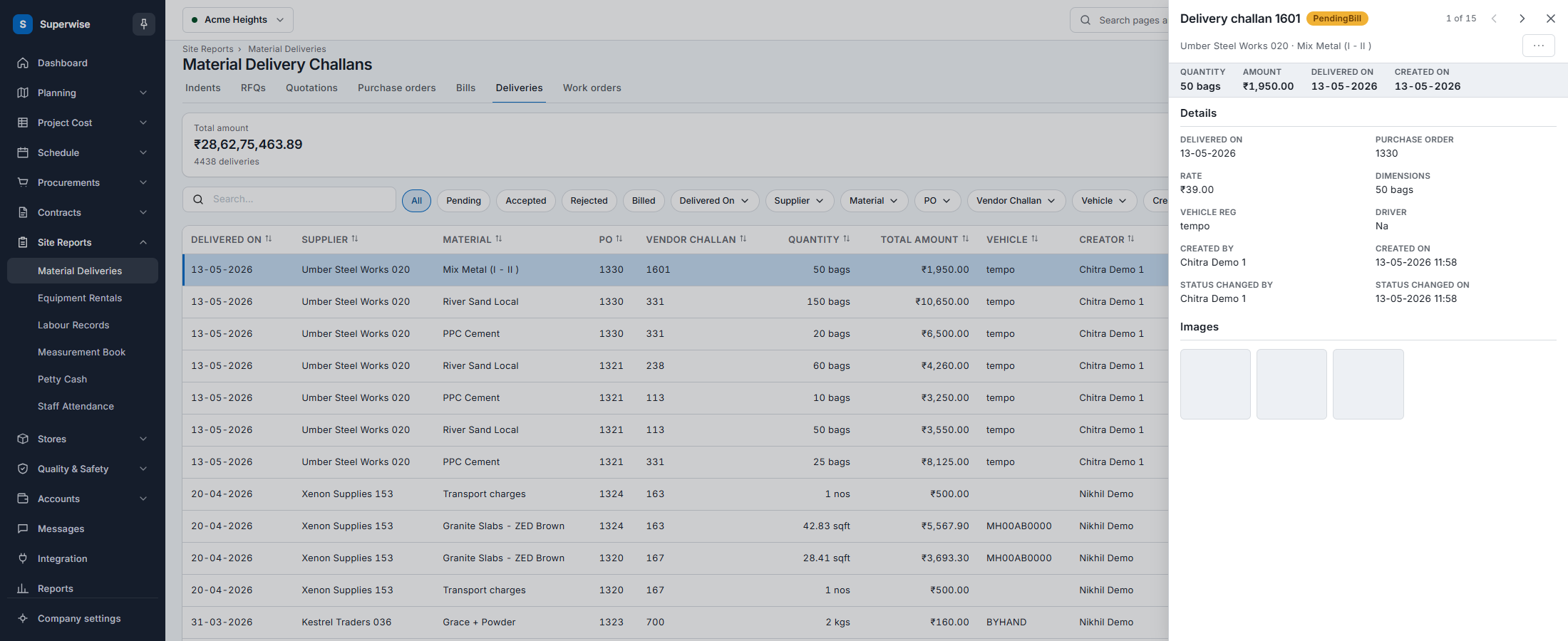
- Click a row, or click the eye icon at the end of the row. The detail sheet opens.
- Read the sections Details and Images in the sheet. The section Comments shows the comments of the record.
- Use the buttons at the top of the sheet to edit, approve, reject or unflag the delivery. Only the buttons that you may use are shown.
What the columns mean
| Name | What it means |
|---|---|
| Delivered On | The date the material arrived at site. |
| Supplier | The supplier who delivered. |
| Material | The material that was delivered. |
| PO | The number of the purchase order that the delivery belongs to. It is empty when no PO is linked. |
| Vendor Challan | The supplier's own receipt or challan number. |
| Quantity | The quantity and its unit, for example 50 bags. |
| Total Amount | Quantity multiplied by rate. |
| Vehicle | The vehicle number. |
| Creator | The user who created the record. |
| Status | The state of the record. See the table below. |
| Location | Valid location or Invalid location. Click it to see the place on a map. |
The columns Id and Project are hidden at first. Click Columns to show them.
What the statuses mean
| Status | What it means |
|---|---|
| Pending | The delivery is saved and waits for a decision. |
| Accepted | An approver accepted it. It can go on a purchase bill. |
| Rejected | An approver rejected it. |
| Flagged | The delivery is marked as an unscheduled delivery: it is not on a delivery schedule of its purchase order. An approver must resolve it. See Accept or reject a delivery. |
| PendingBill | The delivery is on a purchase bill that is not approved yet. |
| Billed | The purchase bill that holds the delivery is approved. |
When the delivery belongs to a closed purchase order, the status column also shows Closed purchase order.
Rules to know
- You cannot edit a delivery when it is on a bill, or when its purchase order is closed.
- You cannot delete a delivery after it is on a bill. Change the bill first.
- When you edit a delivery and save it, the status goes back to Pending.
- Only Accepted deliveries can be added to a new purchase bill.
Related pages
In this section
- Create a material deliveryRecord one load of material that a supplier delivered to site, edit it later, or delete it.
- Accept or reject a deliveryCheck a material delivery and accept it so it can be billed, reject it, or resolve a flagged delivery.
- Bulk add material deliveriesEnter many material deliveries at once in a sheet, or paste them from Excel, and save them in one step.