


Generate a report
Choose a project and a report type, set the period and the sections, and download the report as a PDF or Excel file.
- Where to find it
- Reports
- Who can use it
- People who have the Add Reports permission.
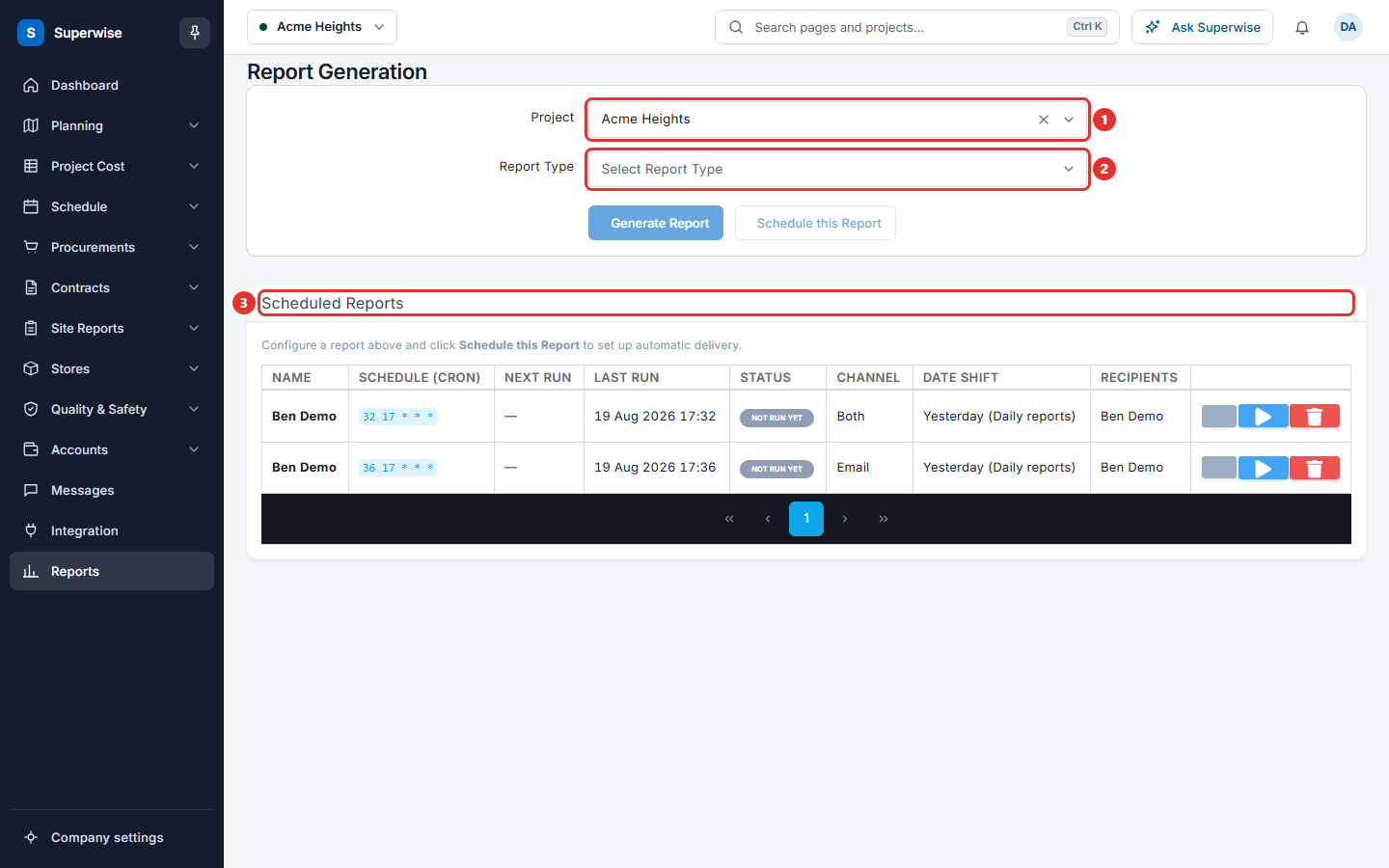
The Report Generation screen builds reports of every type. The form changes when you choose a Report Type. It shows only the fields that this type needs.
For example, you choose Daily (Summary), a date range, and the areas Site Progress and Labour Details. Superwise builds one file with those two areas for those days.
Before you start
- Enter the data first. A report only shows what people have already entered.
- You need the Add permission on Reports.
How to generate a report
- Click Reports in the left menu.
- In Project, choose the project.
- In Report Type, choose the type.
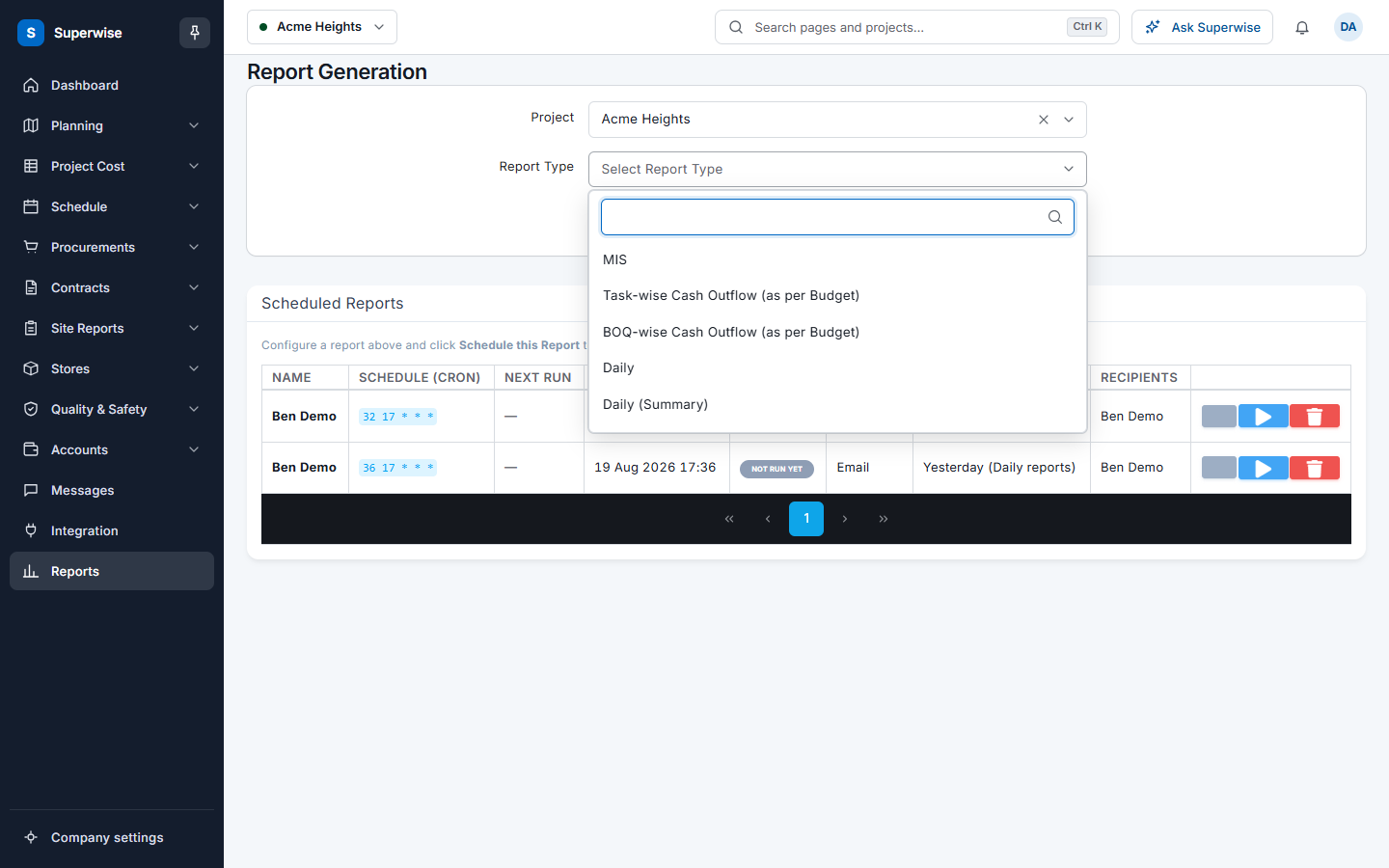
- Fill the fields that appear. The tables below list them for each type.
- Click Generate Report. Superwise builds the file and your browser downloads it.
If the button is not active, the project or the report type is not chosen.
How to generate a daily summary for a day or a range
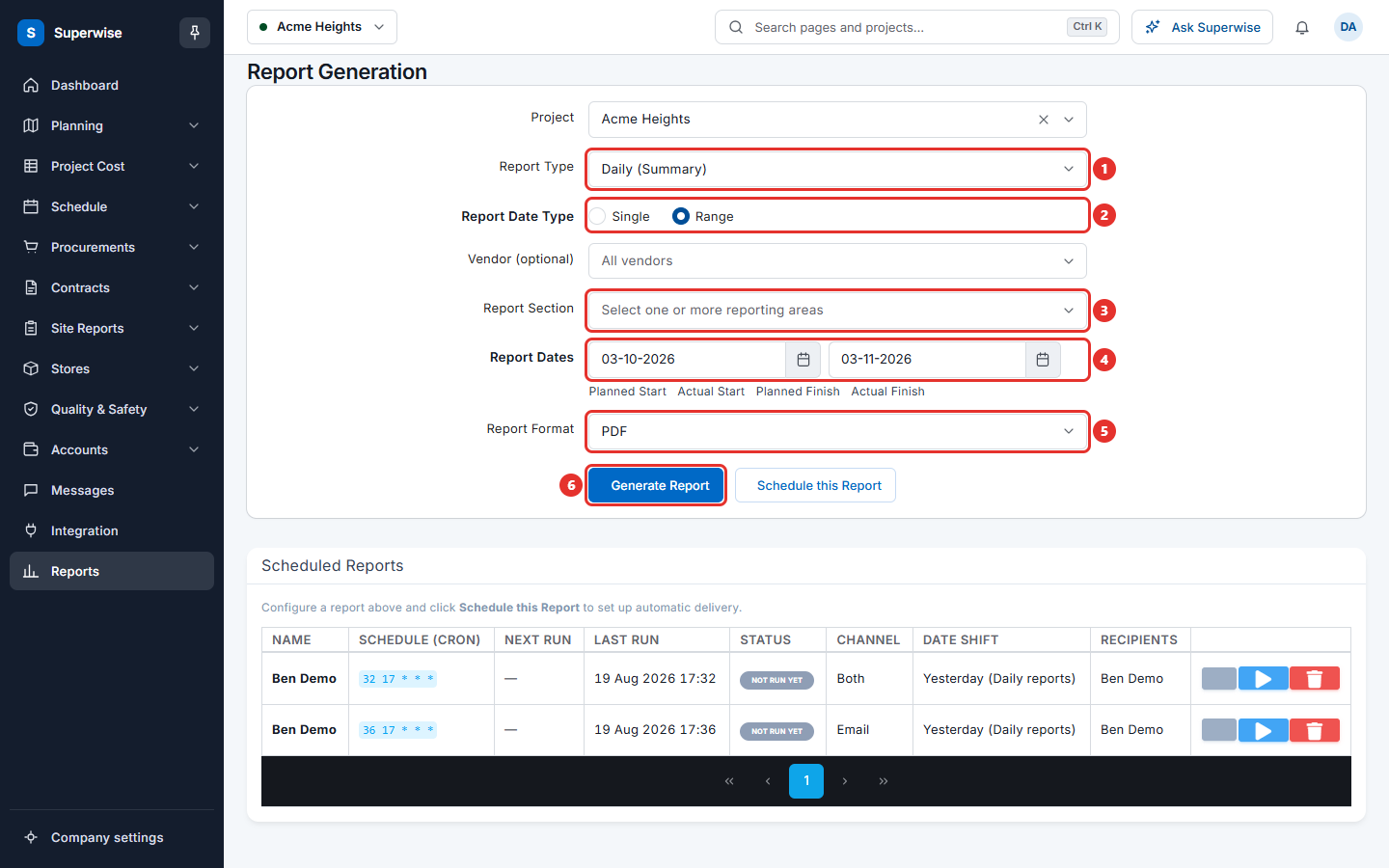
- In Report Type, choose Daily (Summary) (mark 1).
- In Report Date Type, choose Single for one day or Range for several days (mark 2).
- In Vendor (optional), choose a vendor to see only that vendor. Leave it empty for All vendors.
- In Report Section, choose one or more areas (mark 3). The choices are: - Site Progress, BOQ Measurement Sheets and Material Inventory. - Material Deliveries, Site Issues and Labour Details. - Tools Inventory, Site Attendance and Materials Supplied. - Material Indents and Checklists.
- For Single, choose Report Date. For Range, choose the first and the last day in Report Dates (mark 4). You can click Planned Start, Actual Start, Planned Finish or Actual Finish to fill a date from the project.
- In Report Format, choose PDF or XLS (mark 5).
- Click Generate Report (mark 6).
If you choose no area, Superwise shows Please select at least 1 Report Section.
What each report type asks for
| Report Type | Fields |
|---|---|
| Daily | Report Date Type, then Report Date or Report Dates. Include Checklist, Include Delivery Images, Include Debit/Credit note Images, Force Inventory Table, Report Format. After you tick Force Inventory Table, Exclude Resources Not In Stock also appears. |
| Daily (Summary) | Report Date Type, the date or the dates, Vendor (optional), Report Section, Report Format. |
| MIS | Page Size, Include Cover Page?, and then fields for the size. See the next section. |
| Monthly Summary | Month Selection, Images, Report Format. Click Show images of the period to choose pictures for the report. |
| Schedule Summary (Package-wise) | Report Date, Area Level, Report Format. |
| Cost Summary (Package-wise) | Area Level, Report Format. |
| Cost Summary (Template-wise) | Report Format. |
| Portfolio Summary | Report Format. |
| Task-wise Cash Outflow (as per Budget) | No other field. |
| BOQ-wise Cash Outflow (as per Budget) | No other field. |
Area Level is a word that you type, such as Flat, Floor or Slab. It is case-sensitive. The two package-wise reports need it. Superwise shows Search string is needed to generate Package-wise Summary Report if it is empty.
How to generate an MIS report
- In Report Type, choose MIS.
- In Page Size, choose A2 or A4.
- For A2, choose one Report Section. The choices are: - Task Summary, Task Forecast, Task Forecast (at Budgeted Rate) and Task Forecast (% Completion). - BOQ Summary, BOQ Forecast and BOQ Forecast (at Budgeted Rate).
- For A4, choose one or more sections. The choices are: - Task Summary (Cost-wise), Task Summary (Schedule-wise) and Baseline Schedule. - Labour Report. - Material Consumption Forecast, Material Procurement Schedule, Material Variation Report and Unplanned Material Purchases.
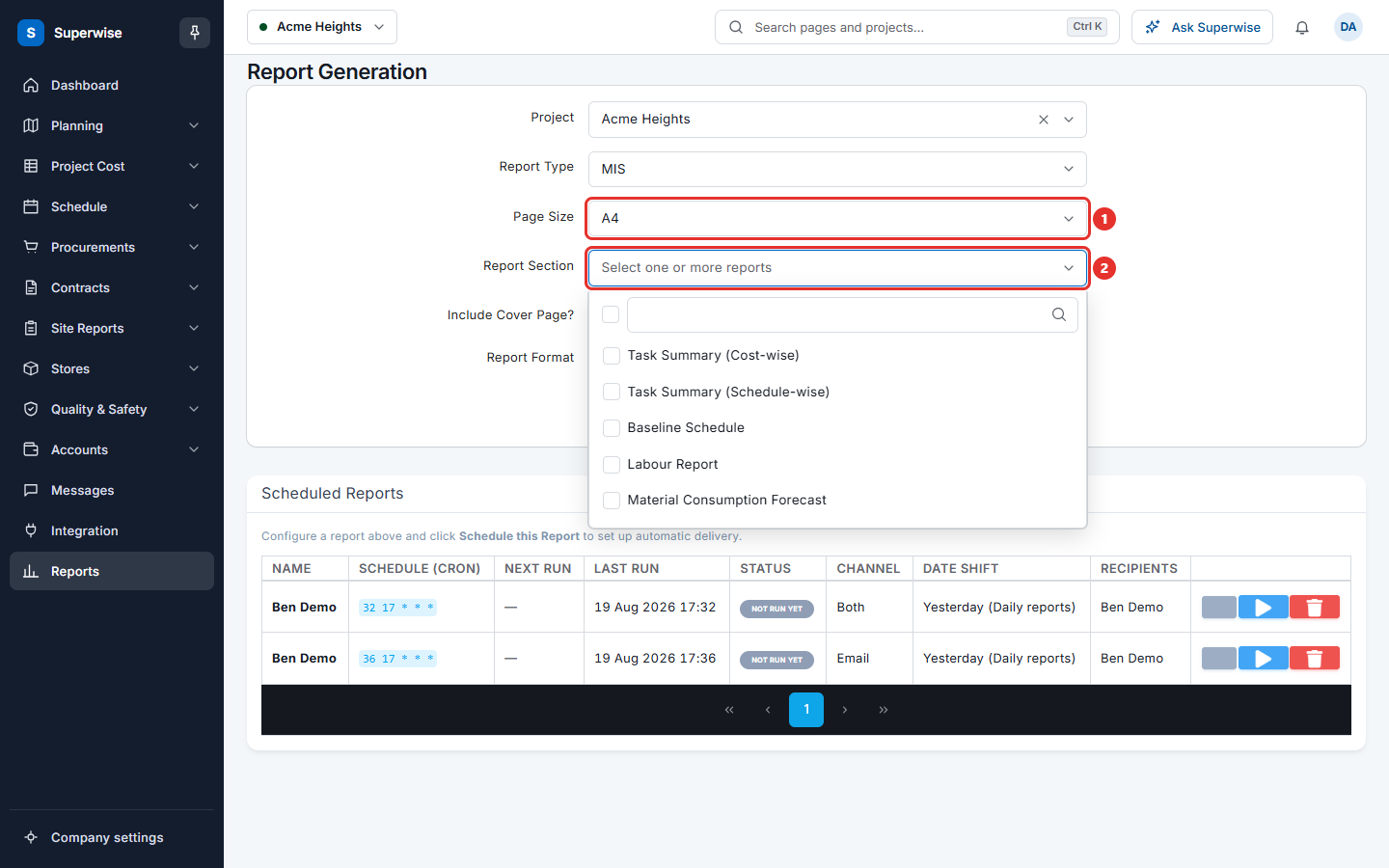
- Fill the extra fields that appear. See the table below.
- Click Generate Report.
| Field | When it appears |
|---|---|
| Include Cover Page? | For every MIS report, except A2 Task Forecast (% Completion). |
| Include Cost Graph | A2 Task Summary, Task Forecast, BOQ Summary, BOQ Forecast. |
| Tasks Summary Level | A2 task sections. A4 Task Summary (Cost-wise), Task Summary (Schedule-wise) and Baseline Schedule. |
| BOQ Summary Level | A2 BOQ sections. |
| Quantity Based Report? | A2 BOQ Summary and BOQ Forecast. |
| Forecast Type and Forecast Start Date | The forecast sections. Forecast Type is WEEKLY or MONTHLY. The start date must be after today. |
| Report Dates | A2 Task Summary and BOQ Summary. A4 Labour Report, Task Summary (Cost-wise), Task Summary (Schedule-wise) and Baseline Schedule. |
| Images | A4 Task Summary (Schedule-wise). |
What the fields mean
| Name | What it means |
|---|---|
| Project | The project of the report. |
| Report Type | The kind of report. |
| Report Date Type | Single is one day. Range is many days. |
| Report Dates | The first and the last day. |
| Vendor (optional) | Limits the report to one vendor. |
| Month Selection | The month of a monthly report. |
| Page Size | The paper size of an MIS report. |
| Report Section | The areas or sections that the report holds. |
| Include Cover Page? | Adds a cover page. |
| Force Inventory Table | Always prints the inventory table. |
| Exclude Resources Not In Stock | Leaves out resources with no stock. |
| Report Format | PDF or XLS. A2 Task Forecast (% Completion) is always XLS. |
If something goes wrong
| What you see | What to do |
|---|---|
| Please select at least 1 Report Section | Choose an area in Report Section. |
| Search string is needed to generate Package-wise Summary Report | Type an Area Level. |
| The generated Report does not contain any data | Choose another period. |
| Please select a date range for the project | Choose the dates, or click Planned Start and the other date shortcuts. |
| An error occurred while generating the report. Please try again later | Try again. If it fails again, tell your administrator. |