


Documents
Keep the drawings and files of a project in folders, find them, download them, and send them for approval so the site team always uses the latest version.
- Where to find it
- Planning > Documents
- Who can use it
- People who have the View Documents permission. Adding needs Add, editing needs Edit, deleting needs Delete. Approving needs the approval right on that document.
The Documents screen holds the files of one project: drawings, specifications, letters and reports. Files sit in folders. Each file has a number, a revision and a status. The site team opens this screen to find the latest drawing and to download it.
When you replace a file, Superwise keeps the old file as an earlier revision. The Rev column always shows the latest one, so nobody works from an old drawing by mistake.
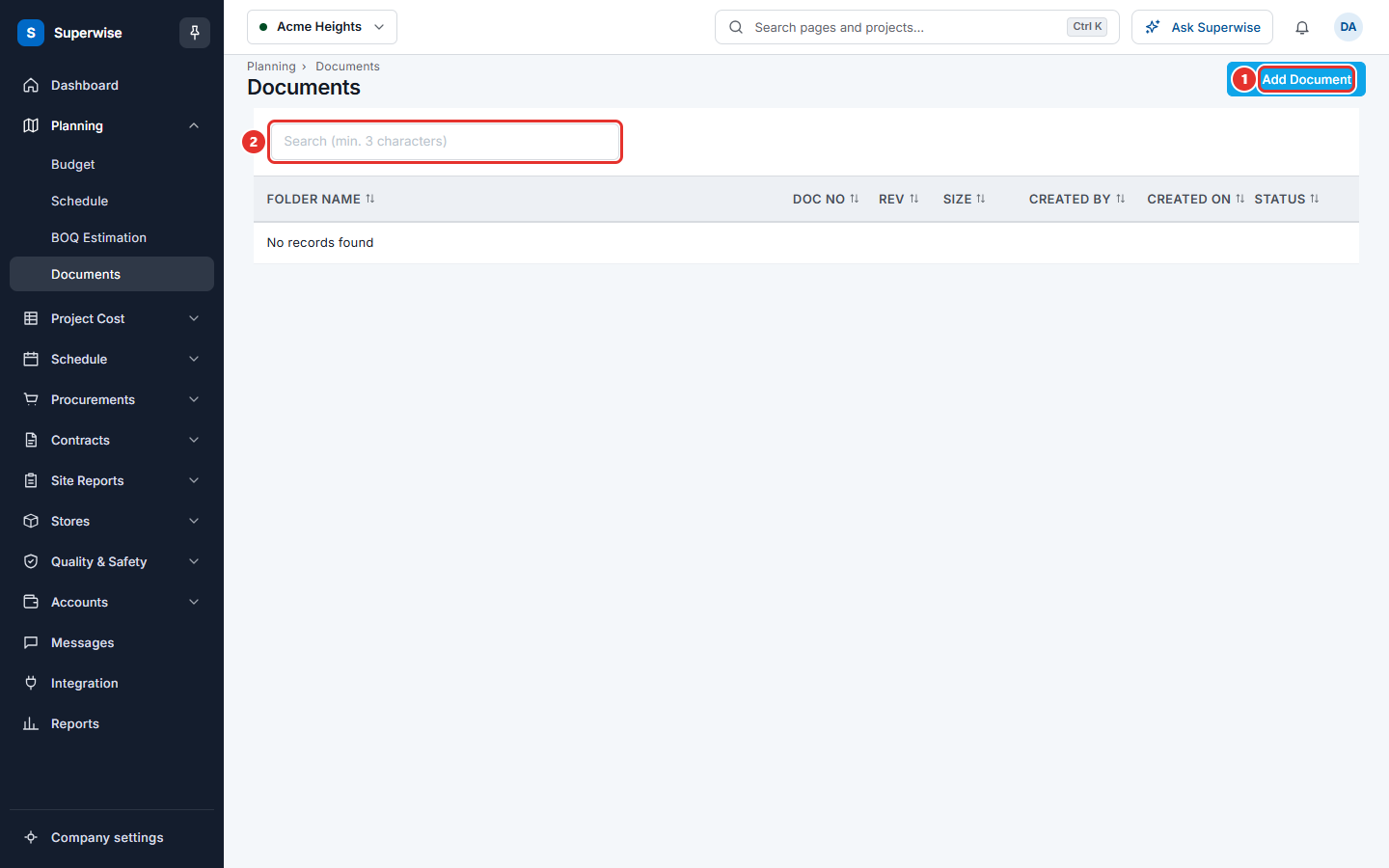
The screen shows the project that is chosen at the top of the page. The button marked 1 adds a file. The box marked 2 searches the list.
Before you start
- Choose the project at the top of the page.
- Ask your administrator to create the folders. See Document folders. A folder decides who can see it, add to it, edit it and delete from it.
- If you want a file to be checked before the site team uses it, an approval workflow must be set for the folder. See Approval workflows.
How to find a document
- Open Planning > Documents.
- Click the arrow in front of a folder to open it. The first row, All Documents, holds every folder of the project. Folders can hold other folders.
- To search, type at least 3 characters in the box marked 2. The search looks in the folder name, the file name, the status and the name of the person who uploaded the file.
- To sort, click a column heading.
Folders with a blue icon are company folders. They are shared by all projects.
How to download documents
- Click the three dots at the end of the row and choose Download. You get the latest revision of the file.
- To download many files, tick the boxes in front of the files or folders. A Download Files button appears at the top. Click it.
- If you choose Download on a folder, you get the files of that folder and the folders inside it.
How to see the details and old revisions
- Click the number in the Rev column, or choose Info from the row menu.
- The window Document Info opens. It shows the document number, file name, size, purpose, stage, who uploaded the file and when.
- The table Revisions lists every revision with its date, size, the person who uploaded it and the person who verified it. Click Revision 1, Revision 2 and so on to download that revision.
How to approve or reject a document
You see Approve and Reject in the row menu only when you have the approval right on that document.
- Click the three dots at the end of the row.
- Choose Approve or Reject.
- In the window, you can write Remarks (optional). Click Confirm.
- The Status column changes to Verified or Rejected.
A document that is Rejected can still be approved later. A document that is Verified can still be rejected.
To see who has approved and who must approve next, choose Approval History or Approval Work Flow from the row menu. You can also click the status in the Status column.
How to do the other actions
| Action in the row menu | What it does |
|---|---|
| Edit | Opens the form to replace the file with a new revision. See Add or revise a document. |
| Edit Tags | Changes the name, tags, purpose and stage of the document. At least one tag is needed to save. Approvers of the document see this action. |
| Add Comments | Adds a comment to the document. A comment is compulsory. |
| Delete | Removes the document, all its revisions and its comments. |
What the columns mean
| Name | What it means |
|---|---|
| Folder Name | The folder, or the file name when the row is a file. |
| Doc No | The document number you gave when you added the file. |
| Rev | The number of revisions the document has. Click it to see them. |
| Size | The size of the file. For a folder, the size of everything inside it. |
| Created By | The person who uploaded the file. |
| Created On | The date the file was uploaded. For a folder, the date of the latest file. |
| Status | Pending means nobody has decided yet. Verified means approved. Rejected means not accepted. |
Rules to know
- You see only the folders that your role may view. Other folders stay hidden.
- You can edit or delete a document only when your role may do so in that folder. If you may not delete, Superwise shows "Cannot delete document. Insufficient permissions".
- The size limit of one file is 100 MB.
- Deleting a document cannot be undone.
Warning: When you delete a document, its earlier revisions and its comments are deleted with it.
If something goes wrong
| What you see | What to do |
|---|---|
| No records found | The project has no documents yet, or your role cannot view the folders. Add a document, or ask your administrator. |
| No Approve in the row menu | You are not an approver for this document. Ask your administrator to check the approval workflow of the folder. |
| No Delete or Edit in the row menu | Your role does not have that permission in this folder. |