


Revisions
Compare a changed schedule with the live one, send it for approval, and approve or reject it. Each approval makes a new revision.
- Where to find it
- Planning > Schedule
- Who can use it
- People who have the View Tasks permission. Asking for approval needs Add or Edit. Approving and rejecting need Approve.
A revision is one approved version of the schedule. When you change the plan in the Playground or by file, the change is a draft. The draft becomes live only after someone with the approval right accepts it. Each approval makes a new revision with a new number.
The Revisions screen lists all revisions and the current draft. The Compare screen shows what the draft changes and is where you ask for approval.
Before you start
- A draft must exist. Save the draft in the playground, verify it, and use Save Tasks. See Create a schedule.
- You can ask for approval only after the tasks are updated. Before that, the Final Schedule tab says "Tasks need to be updated before viewing the Final Schedule."
How to see the revisions
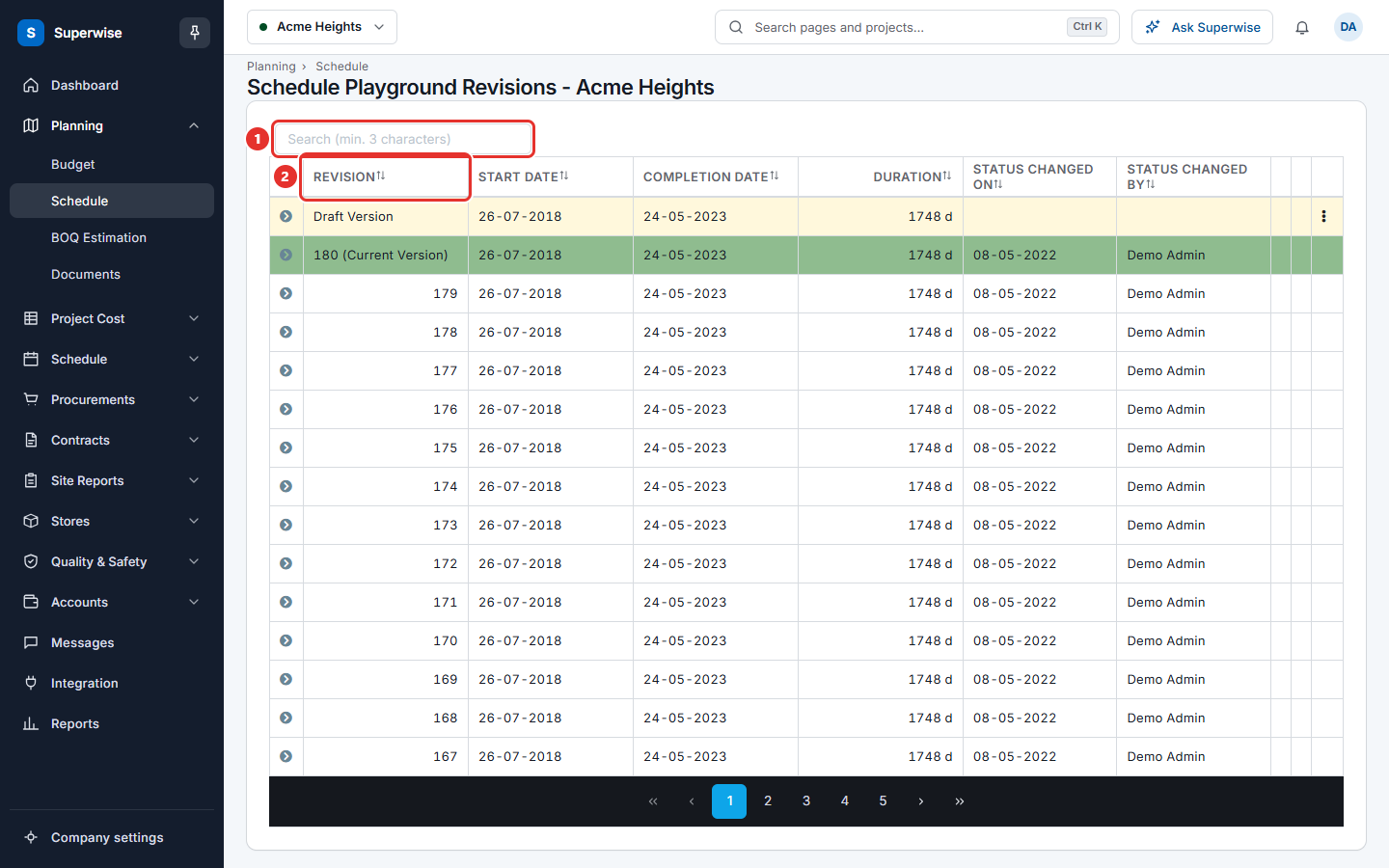
- Open Schedule > Tasks, click More actions and choose Playground Revisions. To go to the Compare screen directly, click Compare at the top of the Tasks screen or of the playground.
- The list shows each revision with Revision, Start Date, Completion Date, Duration, Status Changed On and Status Changed By.
- The current live revision shows
(Current Version)after its number and has a green row. A draft shows Draft Version and has a pale yellow row. - Click the arrow in front of a row to open its details. The tab Details shows who created and changed the revision and the remarks. The tab Attachments has a Download button for each file that came with the request.
- To search, type at least 3 characters in the search box.
- For a draft row, click the three dots and choose Summary to open the Compare screen. An approver sees Approve/Reject instead.
How to compare a draft with the live schedule
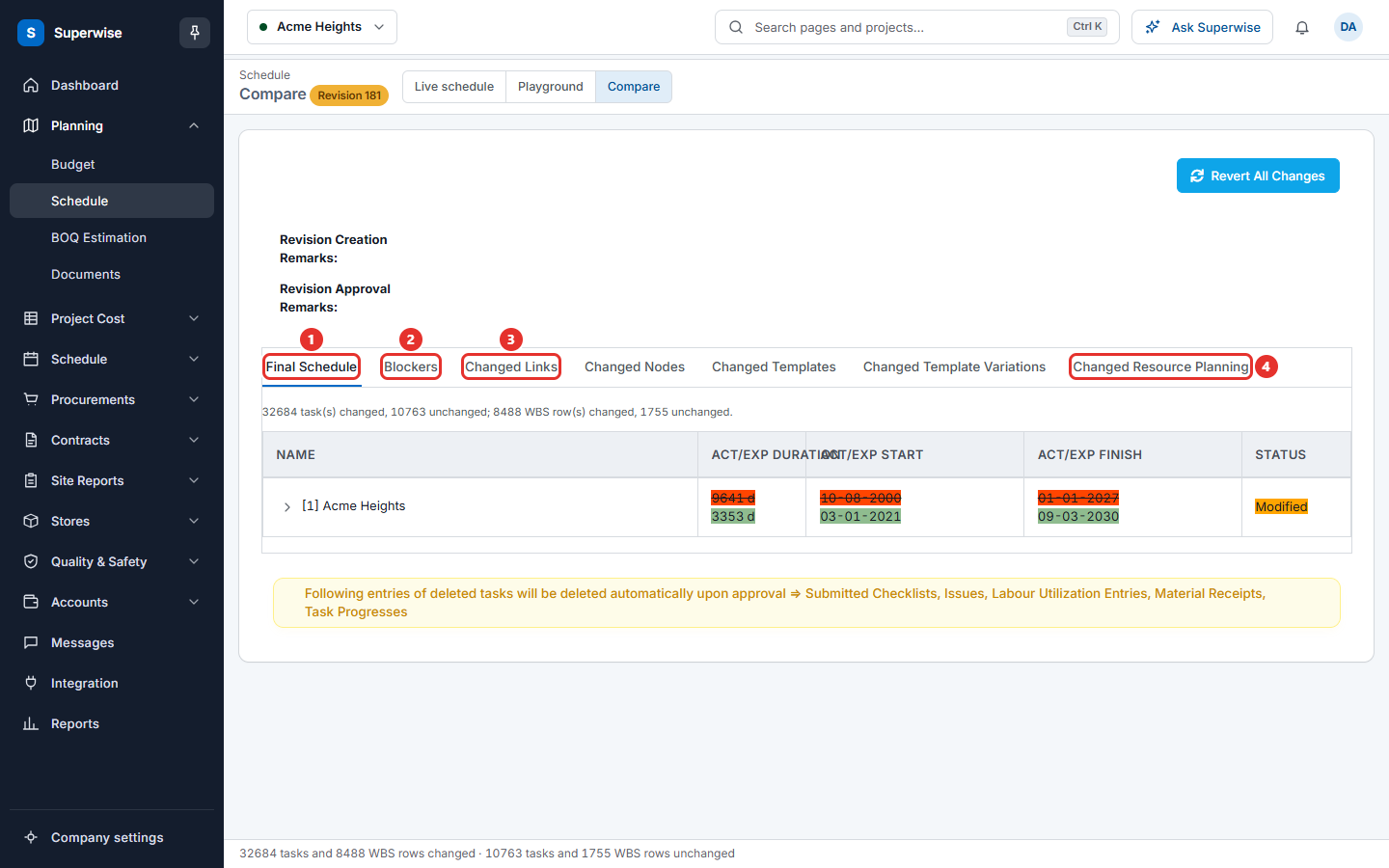
- Open the Compare screen. The title shows Compare and a pill with the revision number.
- Read the tabs one by one. - Final Schedule shows the new tree with Name, Act/Exp Duration, Act/Exp Start, Act/Exp Finish and Status. - Blockers lists deleted tasks that still have BOQs. - Changed Links, Changed Nodes, Changed Templates, Changed Template Variations and Changed Resource Planning list what changed in each part of the plan.
- In every table, a Status says Added, Deleted, Modified or Unchanged. Added is green, Deleted is red and Modified is orange. A changed value shows the old value struck out and the new value after it.
- A line above the table counts the changed tasks and areas, for example "5 task(s) changed, 120 unchanged".
How to ask for approval
- On the Compare screen, click Request Approval. The button shows only when the tasks are updated and you have the Add or Edit permission.
- In the window Request Approval, write the Remarks (compulsory).
- If you have a file for the approver, add it with the upload box. For example, add a PDF of the new plan.
- Tick the box Playgound Changes affect Cost if the change affects cost. The estimation team then gets a notice after approval.
- Click Confirm. Confirm works only when the remarks are filled.
- Superwise says: "Approval request has been sent. We will inform you once the approval is complete."
How to approve or reject
You need the Approve permission. The buttons show when the request is waiting.
- Open the Compare screen.
- Read the Last Request line. It shows who asked and when.
- Click Approve or Reject.
- In the window Confirm Approval, the remarks are optional. In Confirm Rejection, the remarks are compulsory.
- Click Confirm. Superwise says "Schedule has been approved!" or "Schedule has been rejected!".
How to throw away the draft
- On the Compare screen, click Revert All Changes.
- Type
RESETin the box and click Confirm. - Superwise says "Schedule and BOQ Playground changes have been reverted!".
The button shows only for the people who can add or edit, and only when the project already has an approved revision.
Rules to know
- Approval is not possible while a deleted task still has a BOQ. Superwise says so and the Blockers tab lists the tasks. Ask the cost team to remove the BOQs.
- When you approve, Superwise deletes these records of the deleted tasks: submitted checklists, issues, labour utilization entries, material receipts and task progress.
- Each approval makes a new baseline. See Baselines.
Careful: Approval deletes the progress, issues and receipts of tasks that the new plan removes. Read the Final Schedule tab before you approve.
If something goes wrong
| What you see | What to do |
|---|---|
| Approval is not possible because deleted Tasks have BOQs. | Ask the cost team to remove the BOQs from those tasks. They are listed in Blockers. |
| Request Approval is missing | The tasks are not updated yet, or you do not have the Add or Edit permission. |
| Confirm is grey | Write the remarks. |
| Approve and Reject are missing | No request is waiting, or you do not have the Approve permission. |