


Tasks
See every task of the live schedule with its dates and progress. Find tasks with filters, start and complete them, add progress and read the details of each task.
- Where to find it
- Schedule > Tasks
- Who can use it
- People who have the View Tasks permission. Changing dates, steps and baselines needs Edit. Adding measurements needs the measurement permission.
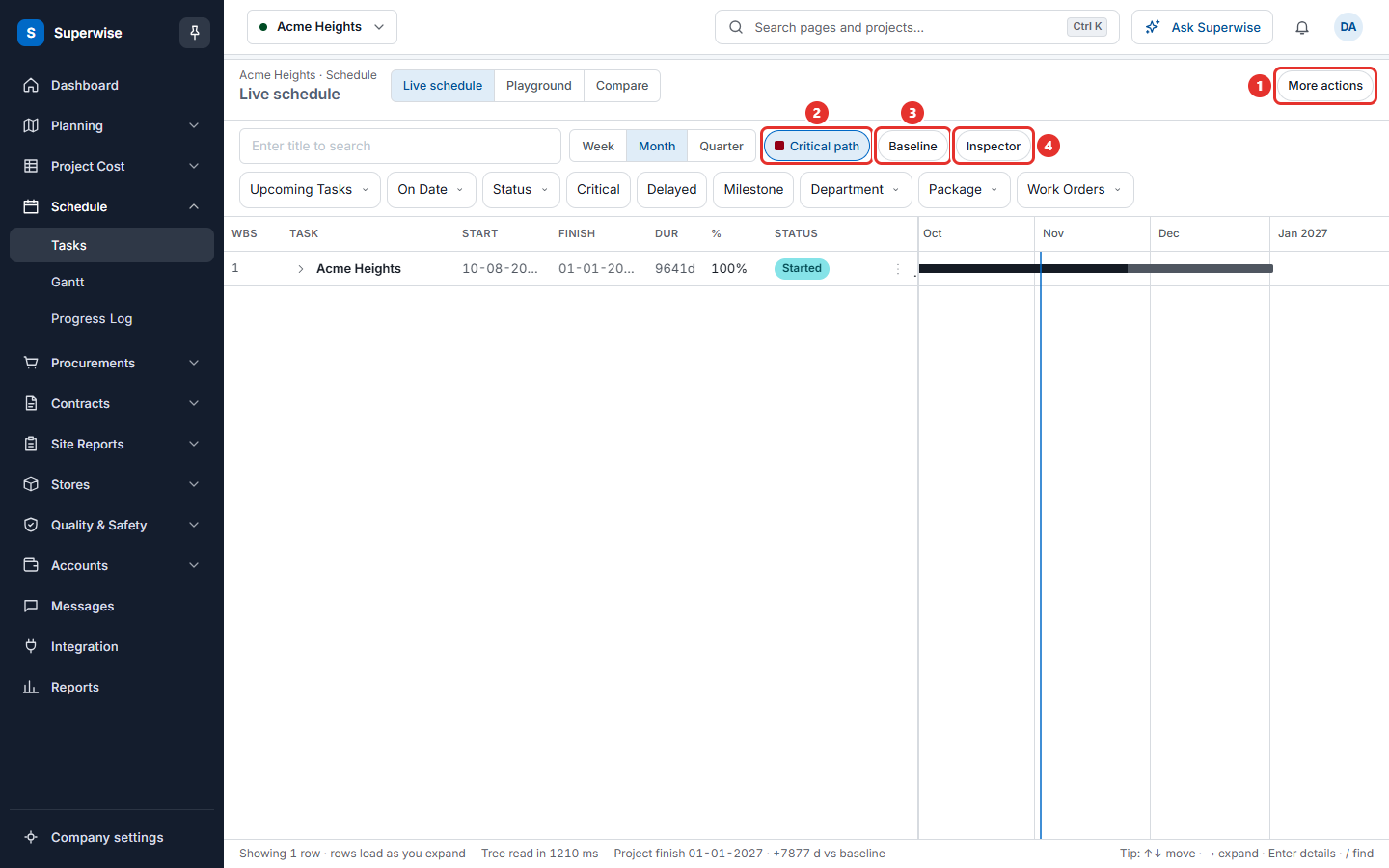
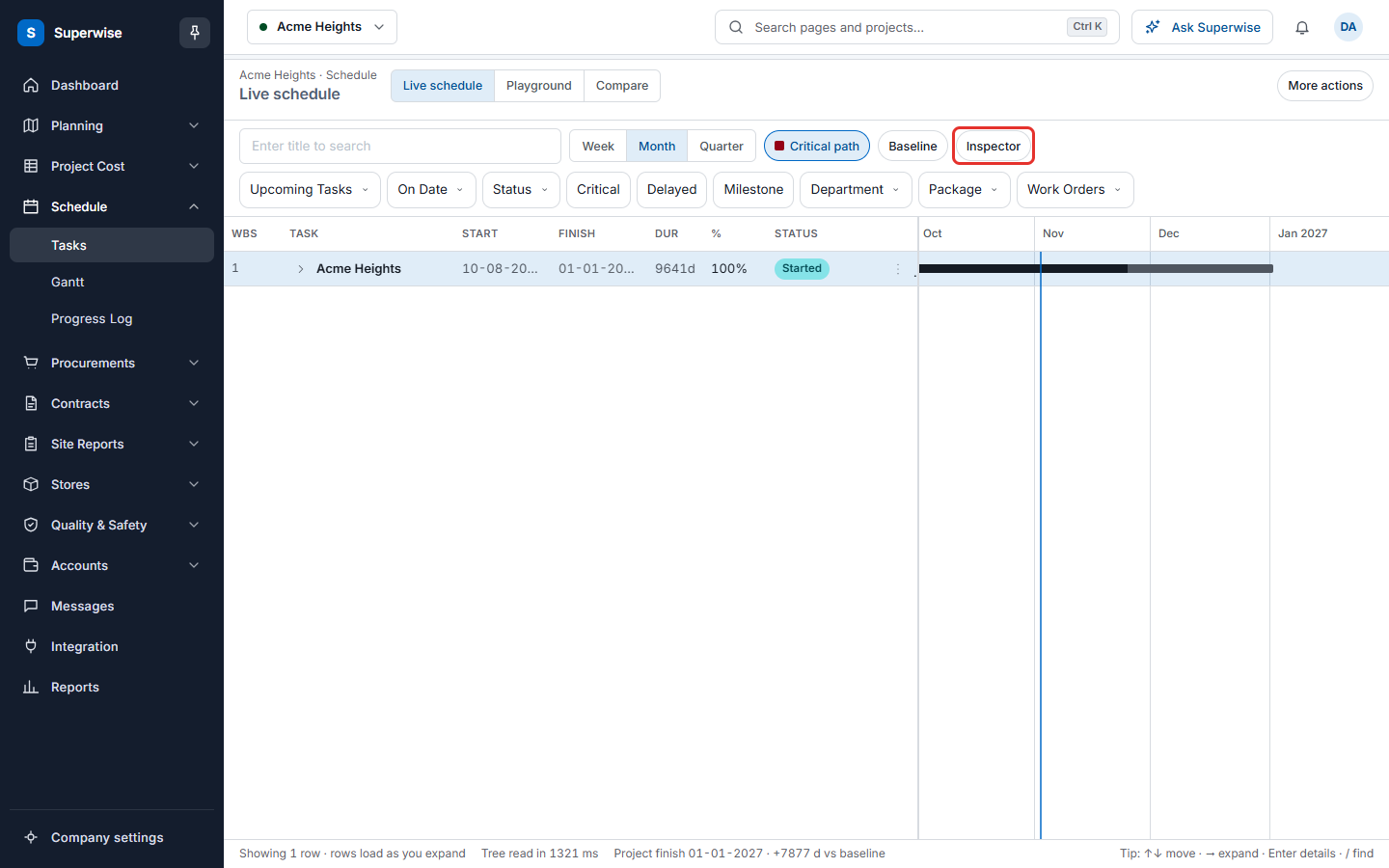
The Tasks screen shows the live schedule of the project as a tree. Areas are the parent rows. Tasks are the rows below them. Each row shows the dates, the progress and the status. Site engineers use this screen every day to start tasks and to record how much work is done.
A bar chart sits at the right of the tree. It shows the same rows as bars on a time line.
Before you start
- The project needs an approved schedule. See Create a schedule.
- Choose the project at the top of the page.
How to read the screen
At the top you see the three views of the schedule: Live schedule, Playground and Compare. You are on Live schedule. Playground opens the playground. Compare opens the revisions page.
- Click the arrow in front of an area to open it. The rows of an area load when you open it.
- Click a row to select it. The Inspector on the right shows the facts of that row.
- Use the buttons Week, Month and Quarter to zoom the bar chart.
- Click Critical path to mark the critical tasks on the chart. Click Baseline to show the baseline dates as thin bars under the task bars.
- The line at the bottom says how many rows are shown. It also shows the Project finish date and how many days it differs from the baseline.
Small signs appear in front of a task name. A flag sign marks a critical task. Another flag sign marks a milestone. A red +3d means the task is delayed by 3 days.
You can use the keyboard. Arrow up and down move between rows, arrow right opens an area, Enter opens the details and / goes to the search box.
How to find tasks with filters
- Type a title in the box Enter title to search and press Enter. The tree shows the matching tasks.
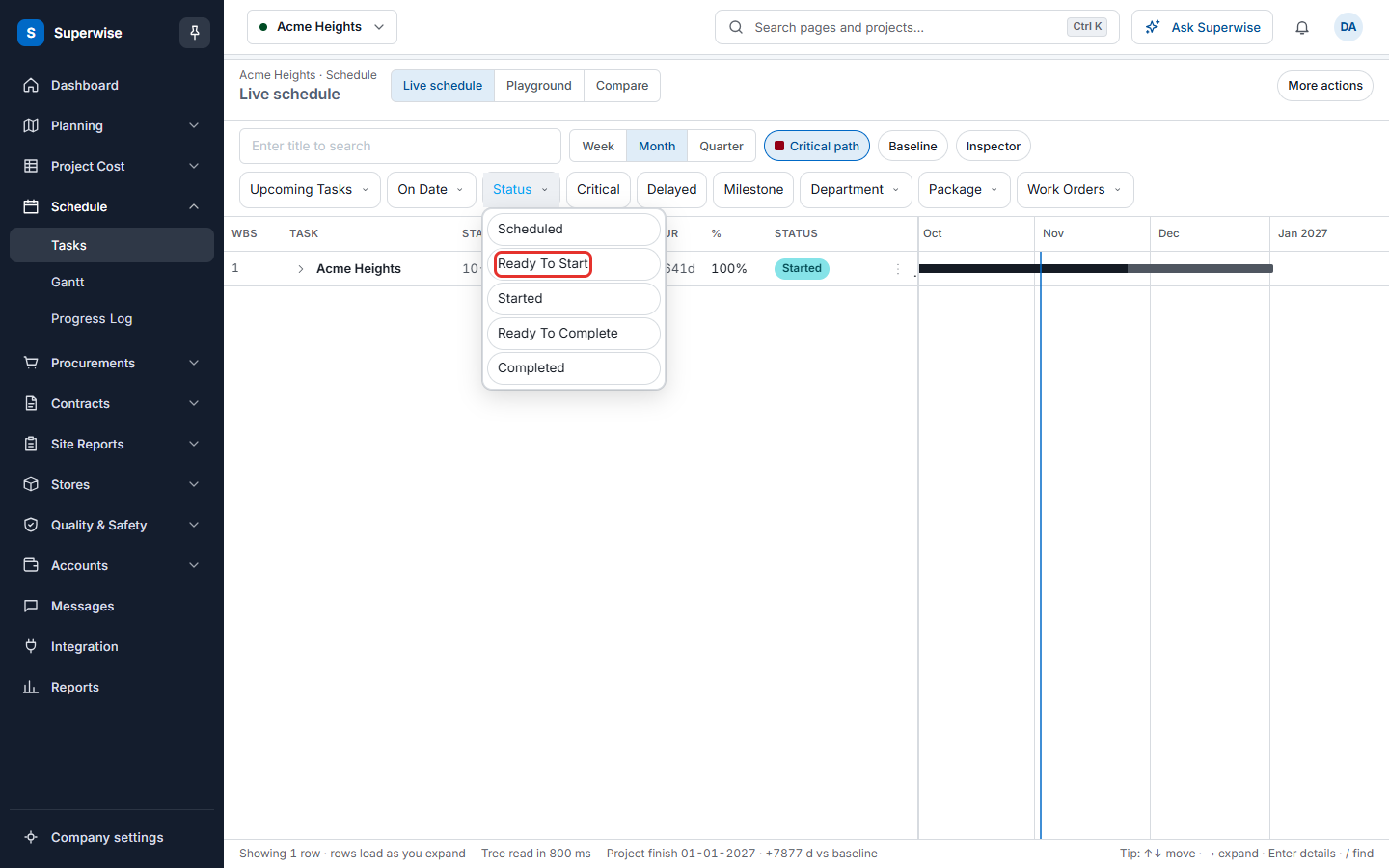
- Use the filter menu above the tree for more choices: - Upcoming Tasks: Today, Tomorrow, Next 7 Days or Next 30 Days. - On Date: Starts After, Starts Before, Finish After, Finish Before or In Between. Choose a date in the window Select Date and click Filter. - Status: one of the statuses in the table below. - Critical, Delayed and Milestone: click to switch on. - Department, Package and Work Orders: choose one from the list.
- Each filter you use appears as a chip. Click the cross on a chip to remove it.
The date filters On Date and Upcoming Tasks cannot work together. When you use one, Superwise removes the other.
What the status means
The filter and the Status column use the same words. The column writes them in a short form, for example Ready to start.
| Status | What it means |
|---|---|
| Scheduled | The task is in the plan and cannot start yet. |
| Ready To Start | The task can start now. |
| Started | Work has started. |
| Ready To Complete | The task can be marked complete. |
| Completed | The task is finished. |
How to start a task
- Filter the Status to Ready To Start, or find the task in the tree.
- Click the three dots at the end of the row and choose Start Task.
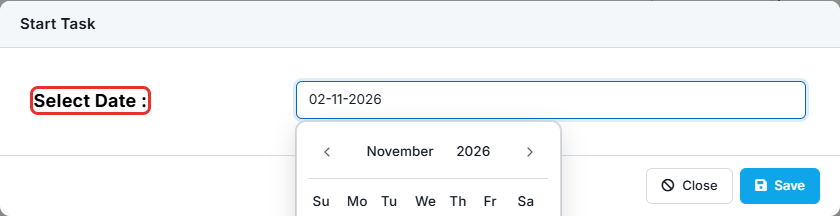
- In the window Start Task, choose the Select Date. You cannot choose a day after today.
- Click Save. The message Updated task status! appears.
How to add progress to a task
- Click the three dots at the end of the row of a started task and choose Add Progress.
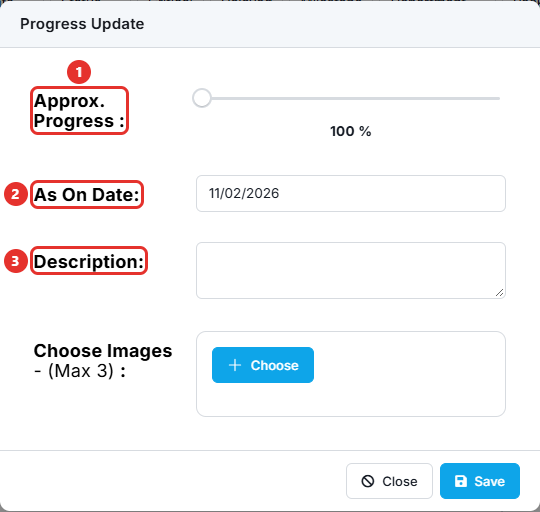
- In the window Progress Update, move the slider Approx. Progress (mark 1) to the percent done. The slider cannot go below the progress already saved.
- Choose As On Date (mark 2). You cannot choose a day after today.
- Write a Description (mark 3). It is optional.
- To add photos, use Choose Images. You can add up to 3 images. Each image must be smaller than 1 MB.
- Click Save. The message Progress Saved appears.
To add progress to many tasks at once, use Bulk Add.
How to do the other task actions
The row menu offers only the actions that fit the status of the task. A row that has rows below it offers Details only.
| Action | What it does |
|---|---|
| Mark Task Complete | Closes the task. For a task not yet started, you choose the start and the finish date. |
| Modify Actual Start | Changes the date a started task started. Needs the Edit permission. |
| Modify Dates | Changes the start and finish dates of a completed task. Needs the Edit permission. |
| Modify Steps | Opens the table Steps to tick the steps that are done and give each a date. Needs the Edit permission. Shown for tasks that have steps, at 100 percent progress. |
| Add Measurement | Opens Measurement Import. Choose a BOQ Item, give a Title, a Measurement Date and the Excel measurement sheet. |
| Report Issue | Opens Report Issue. Choose an Issue Type, write Remarks and choose a person for each department that is listed. |
| Details | Opens the details window. |
How to read the details of a task
Click a row and then Details in the inspector, or choose Details from the row menu. A side window opens.
The top shows the progress, whether the task is on time or delayed, and its start, end and duration. It also shows the Department and Package of the task. There are three tabs.
- Time lists the Predecessors, the Successors and the Issues of the task. For an area it lists the Areas below it and its Critical Tasks. When the task has progress photos, the Timeline shows them.
- Cost shows Planned, Committed, Completed and Billed as percent. Below it you see the BOQs, the BOM and the Vendors/Contractors of the task.
- Quality shows the start checklist, the finish checklist and the filled Checklists.
Click a task name in the Predecessors list to open that task.
Rules to know
- Only a task with no rows below it can be started, completed or given progress.
- The single date of Start Task, of Mark Task Complete and of Add Progress cannot be after today.
- A task that is Ready To Start does not offer Mark Task Complete when it waits for another task to finish.
- Modify Actual Start and Modify Dates need the Edit permission.
If something goes wrong
| What you see | What to do |
|---|---|
| No task found. Please change the filter combination. | Remove a chip and try again. |
| Could not load tasks. | Reload the page. If you have the Edit permission, you can also click More actions and then Refresh. |
| Start date cannot be empty. | Choose a date in the window and save. To mark a task as not started, remove its progress entries first. |
| Please specify the end date | Choose both dates when you mark a task complete. |
| There is a update to the schedule waiting for your approval | Approvers see this message. Open the link in it to review the change. See Revisions. |