


Work orders
Find, open, close and delete the work orders of a project. A work order is the contract you give to a contractor for a piece of work.
- Where to find it
- Contracts > Work Orders
- Who can use it
- People who have the View Work Orders permission. Creating needs Add, editing needs Edit, deleting needs Delete, and approving needs Approve.
A work order is the contract you give to a contractor. It lists the BOQ items the contractor will build, with the quantity and the rate of each item. It also holds the dates, the tax, the mobilization amount and the retention. After the work order is approved, the work is measured and billed against it.
For example, Acme gives the foundation work of Acme Heights to Alder Builders. The work order lists 12 BOQ items. It says the work is valid for 6 months and that Acme keeps 5 percent of each bill as retention.
A work order is for work that a contractor does. To buy material from a supplier, use a purchase order instead.
How the work order flow works
- You create a work order. You can start from the winning proposal, from an old work order, or from nothing.
- The work order is Pending. An approver approves or rejects it.
- When it is Accepted, you can send it to the contractor.
- If the work changes, you revise the work order. Each change makes a new revision.
- When the work is finished, you close the work order.
Before you start
- Select the project in the project selector at the top of the screen.
- The contractor must be in the system.
- To create a work order, you need the Add permission on Work Orders.
How to find a work order
- Open Contracts > Work Orders.
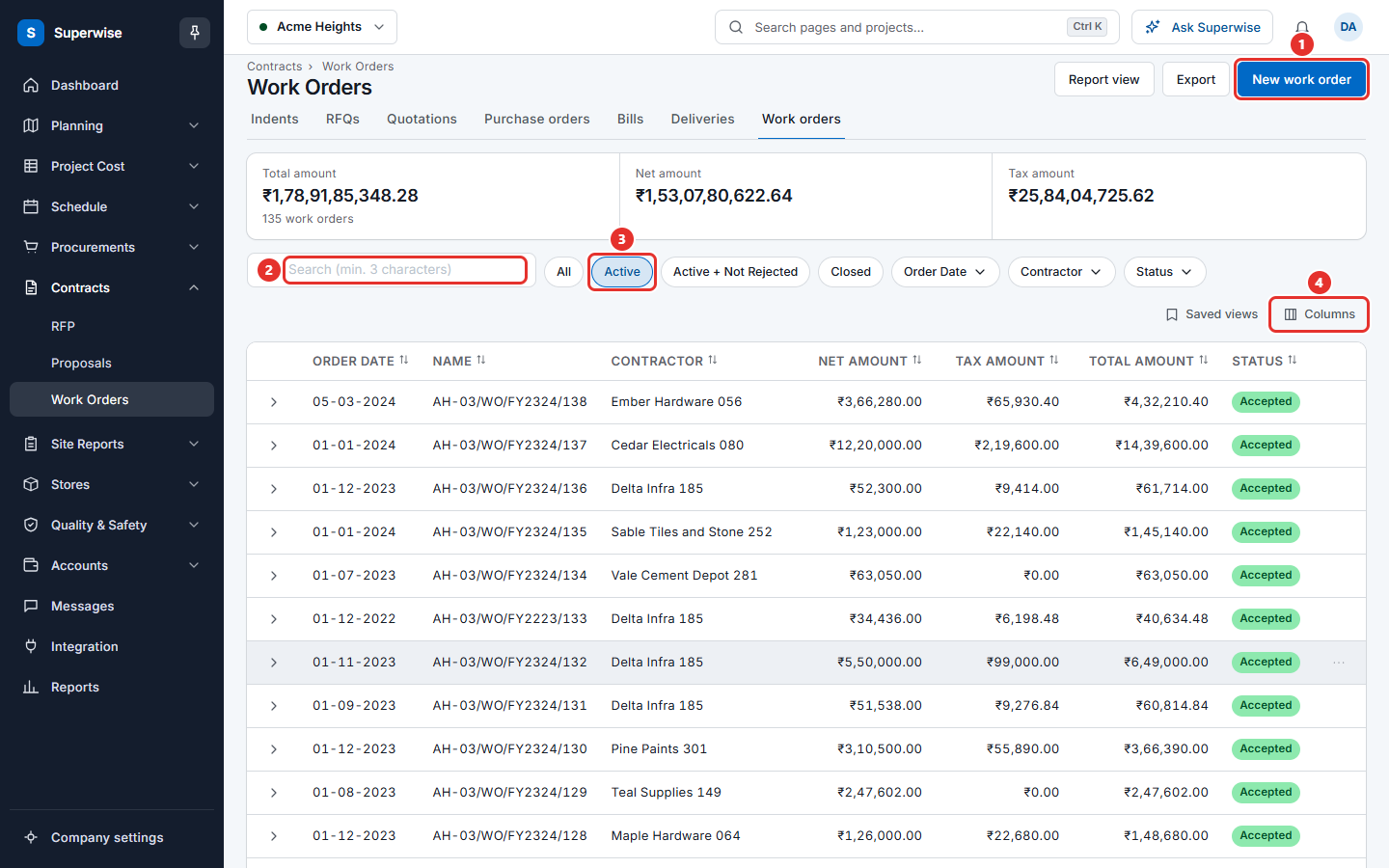
- Choose a filter above the table: All, Active, Active + Not Rejected or Closed (mark 3 in the picture). The list starts on Active.
- Type at least 3 letters in the search box (mark 2), or use the buttons Order Date, Contractor and Status.
- To show or hide columns, click Columns (mark 4).
The three tiles above the table show Total amount with the number of work orders, Net amount and Tax amount for the current filter.
The buttons above the tiles, Indents, RFQs, Quotations, Purchase orders, Bills, Deliveries and Work orders, take you to the other buying lists of the project.
To save the list as a file, click Export. To see a summary report instead of the list, click Report view. Click View data to come back.
What the columns mean
| Name | What it means |
|---|---|
| Order Date | The date of the work order. |
| Name | The work order number. A number in brackets is the revision. For example "(2)" is the second revision. |
| Contractor | The contractor who gets the work. |
| Net Amount | The total of all lines before tax. |
| Tax Amount | The tax on the work order. |
| Total Amount | Net Amount plus Tax Amount. |
| Status | Pending waits for approval. Rejected was rejected. Accepted is approved. "(Draft)" means a draft. "(Closed)" means the work order is closed. |
How to see the details of a work order
Click the arrow at the start of a row. The row opens and shows tabs.
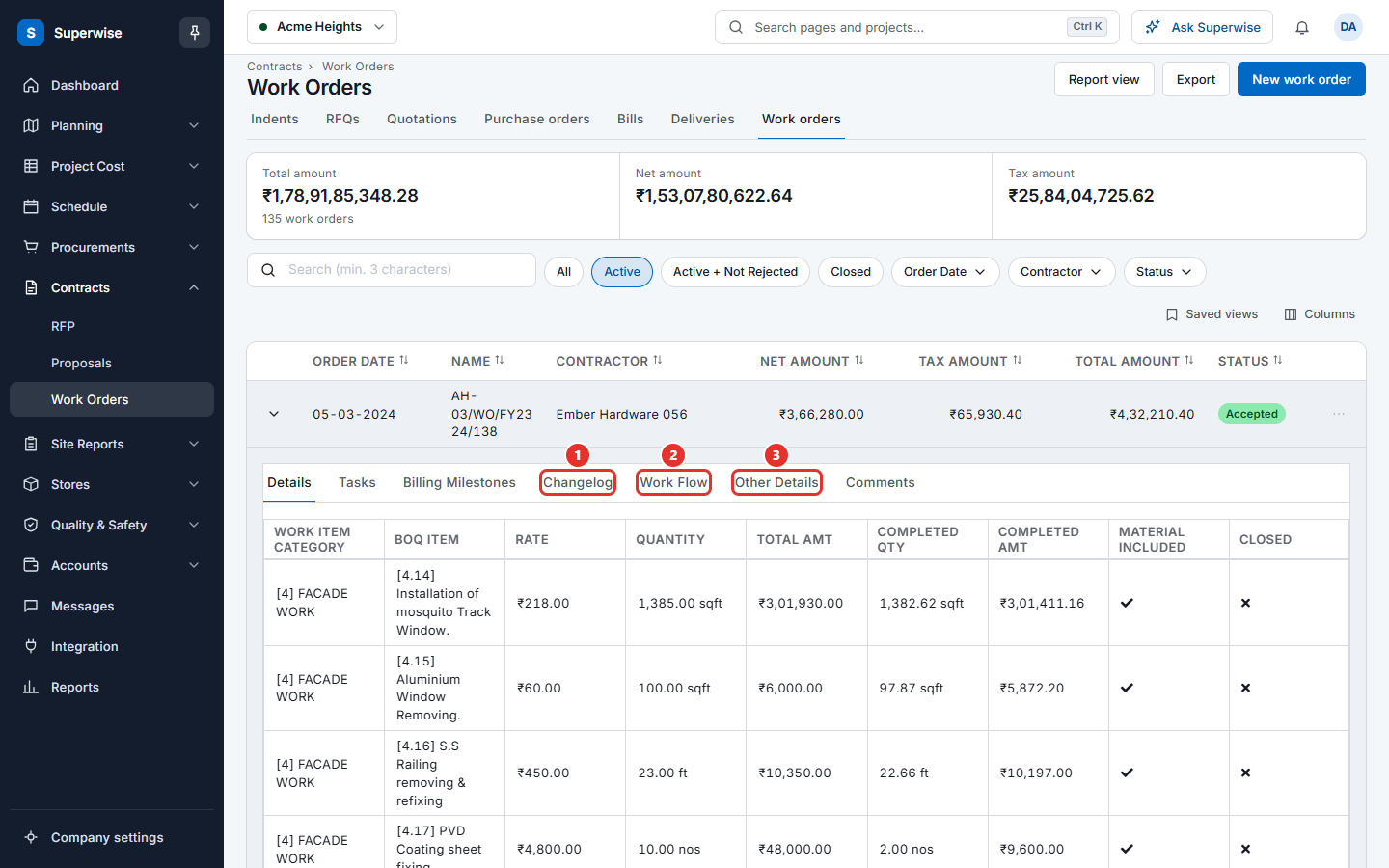
| Tab | What it shows |
|---|---|
| Details | Each BOQ item with the rate, the quantity, the total, the completed quantity and amount, and whether it is closed. |
| Attachments | The files of the work order. Click Download to save one. |
| Tasks and Billing Milestones | The schedule tasks and the billing milestones, for a work order made from the schedule. |
| Changelog | What changed in each revision. |
| Work Flow | The approval steps. |
| Other Details | The references, dates, mobilization amount, retention percent, tax and remarks. |
| Comments | The remarks of the people who worked on the work order. |
What the row menu does
Click the three dots at the end of a row (mark 1 in the picture). A menu opens. Only the items that fit the status and your permissions are shown.
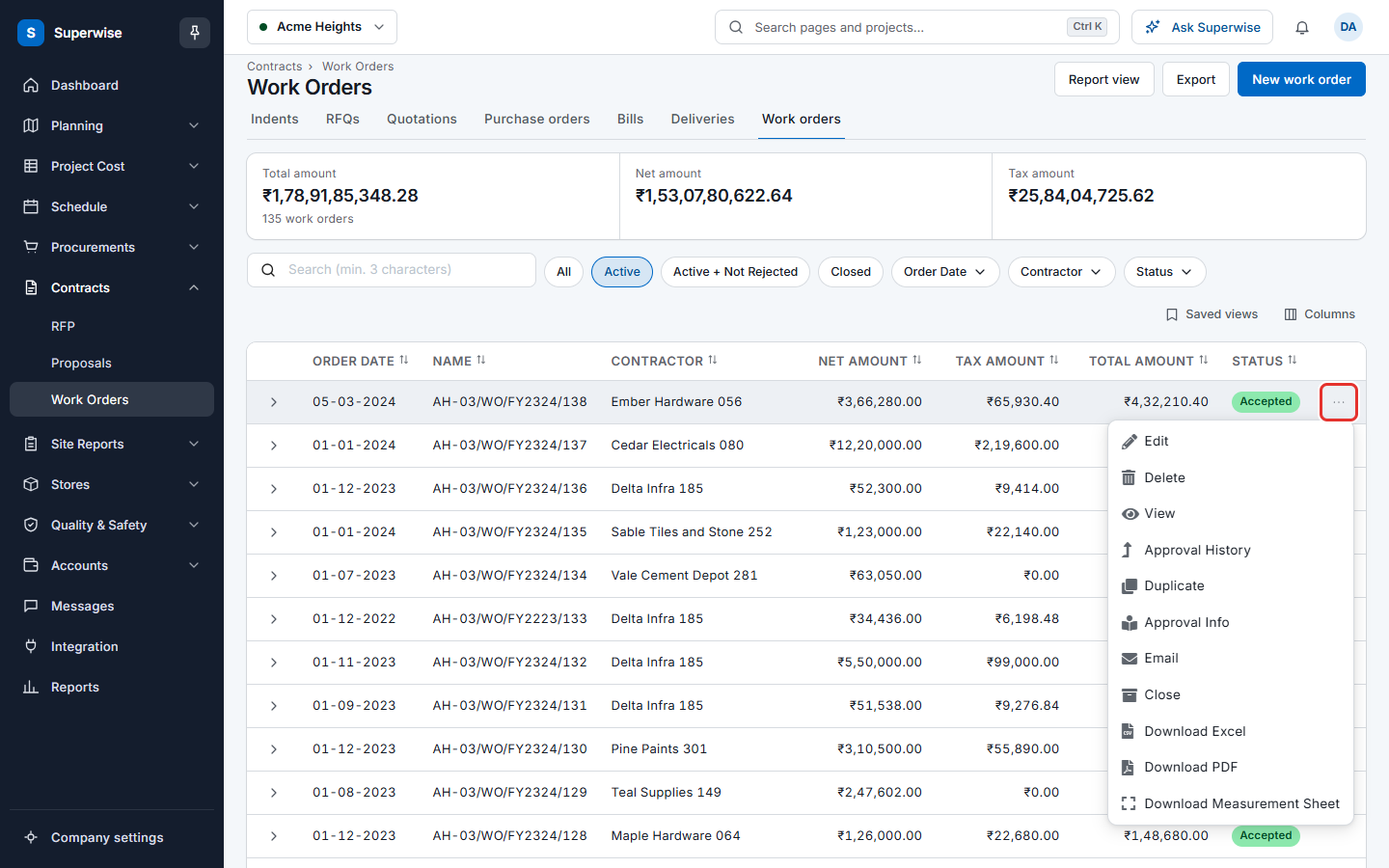
| Menu item | What it does | When it is shown |
|---|---|---|
| Edit | Opens the form to change the work order. See Revise a work order. | You have Edit, and the work order is not closed. |
| Delete | Deletes the work order. | The status is Pending, Rejected or Accepted, and you have Delete. |
| View | Opens the work order to read. | You have View. |
| Approval History | Opens a panel with the approval steps and who did them. | You have View. |
| Compare Revisions | Opens the comparison of revisions. | The work order has a revision. |
| Approve/Reject | Opens the approval screen. | You are an approver of this work order, and it waits for your decision. |
| Duplicate | Opens the form with the data of this work order. | You have Add. Not offered for a work order made from the schedule. |
| Approval Info | Saves the approval report. | The status is Accepted. |
| Sends the work order to the contractor. See Send or download a work order. | Accepted, not closed, not a draft, and you have Edit. | |
| Close | Closes the work order. | Same as Email. |
| Download Excel, Download PDF | Saves the work order as a file. | Pending, Rejected or Accepted, and you have Approve. |
| Download Measurement Sheet | Saves the measurement sheet of the work order. | The work order is not a draft. |
How to close a work order
Close a work order when the work is finished and nothing more will be billed.
- Click the three dots of an Accepted work order.
- Choose Close.
- Click Confirm in the window Confirm Action.
The message "Work Order closed successfully!" shows. The row now has "(Closed)" in the Status column. To see it, choose Closed above the table.
You need the Approve permission to close a work order. The system refuses in two cases:
| What you see | What to do |
|---|---|
| This Work Order cannot be closed as there are no Measurement Sheets for the Work Order. Delete work order instead | Nothing was measured on the work order. Delete it instead. |
| Cannot close Work Order as it has Pending Measurement Sheets | Approve or reject the pending measurement sheets first. |
How to delete a work order
- Click the three dots of the work order.
- Choose Delete.
- Click Confirm in the window Confirm Action.
The message "Work Order successfully deleted!" shows.
Warning: You cannot undo a delete. Use Close when the work was done.
The system refuses the delete in these cases:
| What you see | What to do |
|---|---|
| Work Order has Measurement Sheets recorded | Reject or delete the measurement sheets first. |
| Work Order has RA Bill created against it. | The contractor already billed. You cannot delete the work order. |
| Measurement Sheets included in RA Bills cannot be deleted | The measurements are in an RA bill. You cannot delete the work order. |
Rules to know
- A work order has the status Pending until an approver accepts it. A project can have an approval workflow with more than one approver. See Approval workflows.
- An RA bill (running account bill) is made from accepted measurement sheets of a work order.
- A draft is not sent for approval. It shows "(Draft)" in the Status column.
- The same contractor can have many work orders in one project, one for each piece of work.
If something goes wrong
| What you see | What to do |
|---|---|
| The New work order button is missing | You do not have the Add permission on Work Orders. Ask your administrator. |
| No Edit item in the menu | The work order is closed, or you do not have the Edit permission. |
| No Approve/Reject item | The work order is a draft, you are not an approver, or it is not your turn in the approval workflow. |
| The work order you look for is not in the list | The list shows Active work orders. Choose All or Closed. |
Related pages
- Create a work order
- Approve a work order
- Revise a work order and compare revisions
- Send or download a work order
- Proposals
In this section
- Create a work orderMake a work order for a contractor in five steps. Start from a winning proposal, from an old work order, or from nothing.
- Approve a work orderCheck a pending work order, then approve or reject it. An approved work order gets the status Accepted.
- Revise a work order and compare revisionsChange a work order, see what changed between revisions, and undo the last change while it waits for approval.
- Send or download a work orderE-mail an accepted work order to the contractor, or save a work order as an Excel file, a PDF file or a measurement sheet.