


Release a payment
Record the date, the mode and the amount of a payment that both approvers accepted, and mark it as processed.
- Where to find it
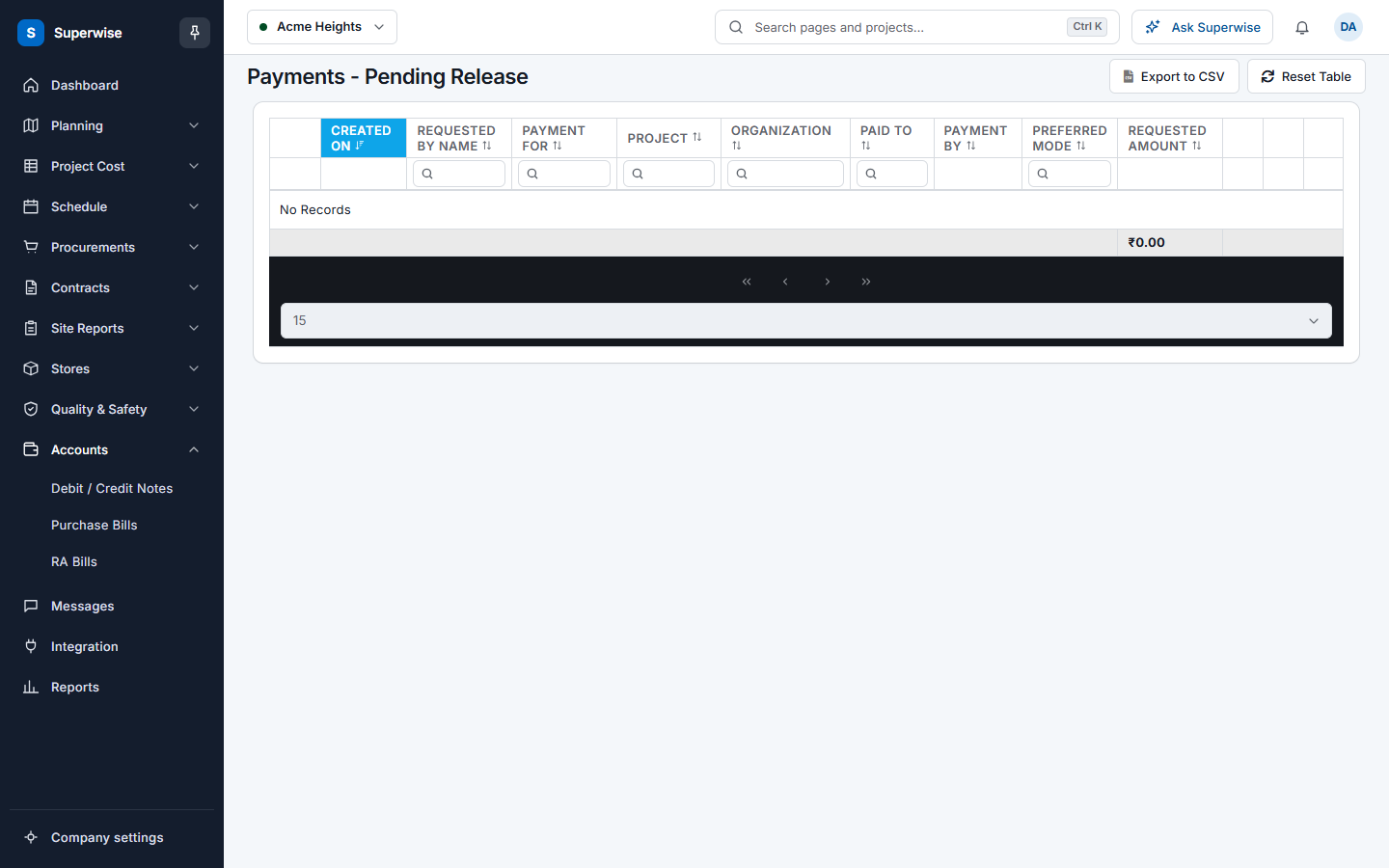
- Accounts > Payments > Pending Release
- Who can use it
- People who have the View Admin permission to see the list. Processing a payment needs the Approve Admin permission.
Releasing a payment is the last step. The director and accounts have accepted the request. You pay the money outside Superwise, then you record here how and when you paid. The request becomes Processed.
For example, the accountant pays ₹1,00,000 by bank transfer on 5 November 2026. In Pending Release the accountant opens the request and records the date, the mode BankTransfer, the amount and the transfer details.
Before you start
- The request must be accepted by the director and by accounts.
- You need the Approve permission on Admin to process a payment.
- Pay the money first. Superwise does not move money.
How to release a payment
- Open Accounts in the left menu, open Payments and click Pending Release.
- Find the request. Click the arrow at the start of a row to read the details.
- Click the Process payment button at the end of the row. The page Process Payment opens.
- Enter Date, the day you paid. It is required.
- In Mode, choose the way you paid: Cash, Cheque, BankTransfer or PDC.
- In Amount, enter the amount you paid.
- In Details, type the cheque number, the bank transfer reference or other proof.
- Click Process. The request becomes Processed.
The page also shows Requested Date, Notes, Directors Comments and Accounts Comments. You cannot change them.
How to reject or comment at this step
- Click the Reject button to send the request back. The status becomes AccountsReject. A box titled Confirm Action asks you to confirm.
- Click the Comment button to add an accounts remark. The box is titled Accounts Comments.
What the fields mean
| Name | What it means |
|---|---|
| Date | The day the money was paid. Required. |
| Requested Date | The Payment By date of the request. |
| Mode | How you paid: Cash, Cheque, BankTransfer or PDC (post-dated cheque). |
| Amount | The amount you paid. |
| Notes | The note of the requester. |
| Directors Comments | What the director wrote. |
| Accounts Comments | What accounts wrote. |
| Details | Proof of payment: a cheque number or a transfer reference. |
Rules to know
- When you process a payment, Superwise marks the linked items as paid.
- For a cash reimbursement, the items are the expense vouchers. For a bill payment, they are the delivery receipts of the bills.
- The paid amount can differ from the requested amount. In All Payments the requested amount then shows in red.
- If there was no accounts approval, your name is saved as the accounts approver.
- The person who made the request can download the payment slip from All Payments after processing.
If something goes wrong
| What you see | What to do |
|---|---|
| The Date field is required. | Enter Date. |
| Access denied | You do not have the Approve permission on Admin. |
| A request is missing. | It is not accepted by both approvers yet. Check its status in All Payments. |