


Planning masters
The lists you set up once for planning, such as packages, templates, work items, calendars and document lists, and the order to fill them in.
- Where to find it
- Company settings > Planning
- Who can use it
- People who can see the Planning group in the Company settings menu. Each list needs its own View permission.
A master is a list that you set up once and pick from later. The Planning group holds the masters used for schedules, bills of quantities (BOQ) and project documents. For example, you create the work item Excavation once. After that, every project BOQ picks it from the list and you do not type it again.
Masters belong to the company, not to one project. A change here shows in every project that uses the item.
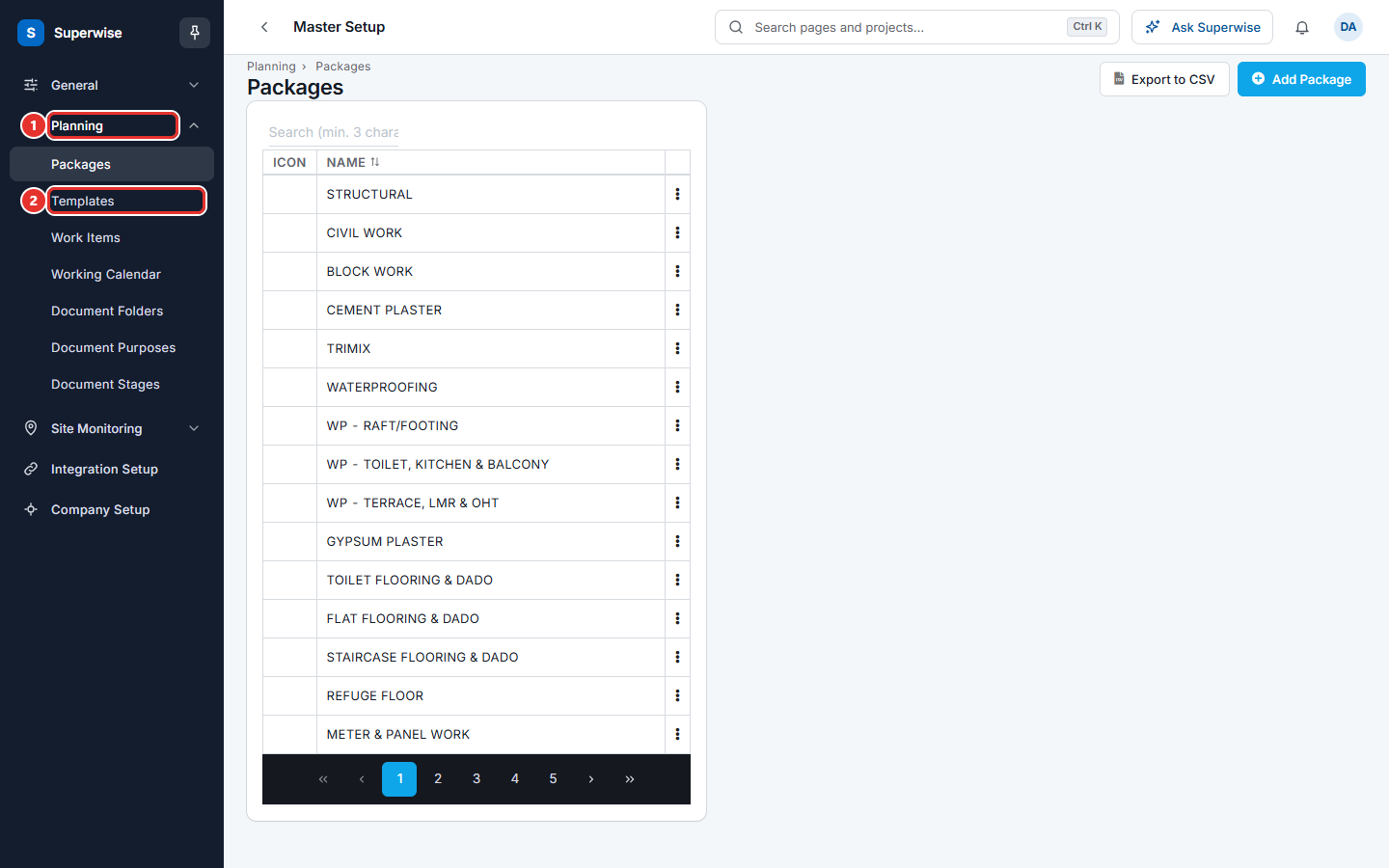
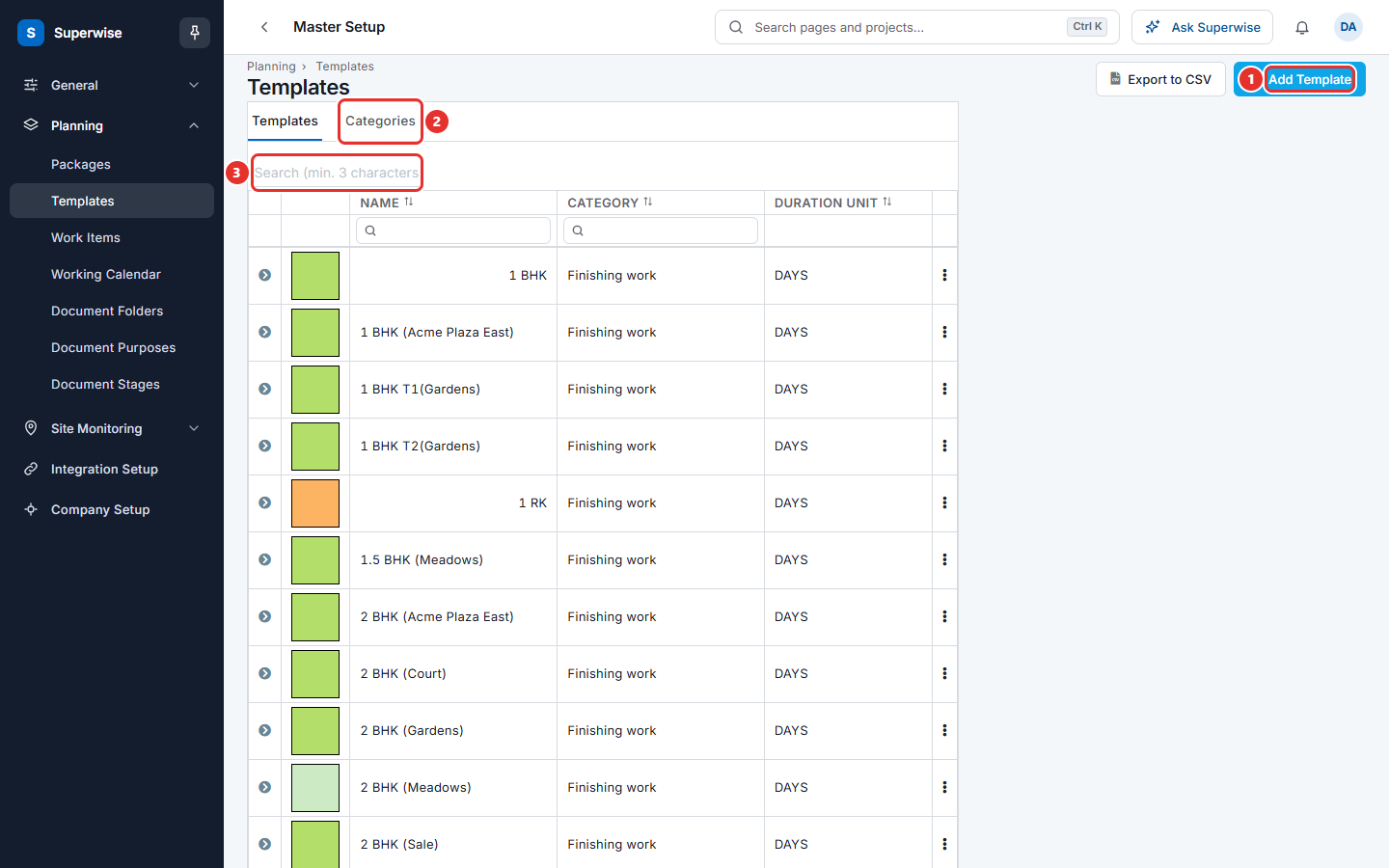
Open Company settings > Planning to see the seven lists. Each list is a page like the one below, with a table, a search box and a button to add an item.
When to use these pages
- Before you start the first project, to load the standard lists of your company.
- When a new trade, work item, holiday list or document type appears.
- When you want to change a template that many projects use.
The order to fill them in
The lists depend on each other. Work from the top.
- Packages. A package is a trade or type of work, such as
Block work. Templates use it. - Working calendars. A calendar gives the working days and holidays. Projects use it to count schedule days.
- Work items. Work items and their categories fill the BOQ. Their rate analysis uses resources, so set up Resources first if you want a rate.
- Templates. Templates use packages, departments, checklists and resources. Build them after those lists exist.
- Document folders. The folders hold project documents and decide who can see them. Create roles first.
- Document purposes. The reasons a document is shared, such as
For approval. - Document stages. The design stages of a document, such as
Concept design.
What happens next
When you create a project, you choose its working calendar. You then add templates to the project schedule, and the project gets its own copy of each template. You pick work items when you build the project BOQ. When people upload documents, they choose a folder, a purpose and a stage from these lists.
Rules to know
- You see a list in the menu only if you have its View permission. Document Folders, Document Purposes and Document Stages also need the View Documents permission.
- You cannot delete an item that a project or a document still uses. Each page lists the messages you may see.
Related pages
- Site monitoring masters: resources, checklists and reason lists for site work.
In this section
- PackagesCreate the list of work packages, such as Structural or Waterproofing, that you attach to template tasks.
- TemplatesBuild reusable task plans, group them in categories, and edit the copy that a project uses.
- Work itemsSet up the list of work items and their categories, add many at once, and enter the rate analysis that gives each item its rate.
- Working calendarsDefine the days and hours a project works, and the holidays when it does not, so schedule dates skip non-working days.
- Document foldersCreate the folder tree for project documents and decide which roles can view, add, edit or delete in each folder.
- Document purposesSet up the list of reasons for which a document is shared, such as For approval or For construction.
- Document stagesSet up the list of design stages for documents, such as Concept design or Technical design.