


Approve a purchase order
Check a pending purchase order, then approve or reject it. Approved orders can receive deliveries.
- Where to find it
- Procurements > Purchase Orders
- Who can use it
- People who are approvers of the order and have the Approve permission on Purchase Orders. Anyone with the View Purchase Orders permission can read the order.
A purchase order that is saved with Save has the status Pending. An approver must approve it before the site can receive deliveries against it. This page shows how to check an order and decide.
Before you start
- You must have the Approve permission on Purchase Orders and be an approver of the order. If the project has an approval workflow, the workflow decides who the approvers are.
- The order must not be a draft. A draft is not sent for approval.
How to approve a purchase order
- Open Procurements > Purchase Orders.
- To find the orders that wait for you, look at the tile Pending approval. You can also choose Active and read the Status column.
- Point at the row and click the Approve / Reject icon (mark 1 in the first picture) in the Actions column. You can also open the details of the order and click Approve / Reject there.
- Read the screen. See "How to read the approval screen".
- If a check box says that you accept a higher budget, tick it (mark 1 in the second picture). See "How to accept a higher budget rate".
- Click Approve (mark 2) under Resource Details. The button changes to Approved. Then click Approve under Basic Details. A window Confirm Approval opens.
- Type a remark if you want. The field Remarks (optional) is not required.
- Click Confirm.
The list opens again with the project filter. The order now has the status Accepted.
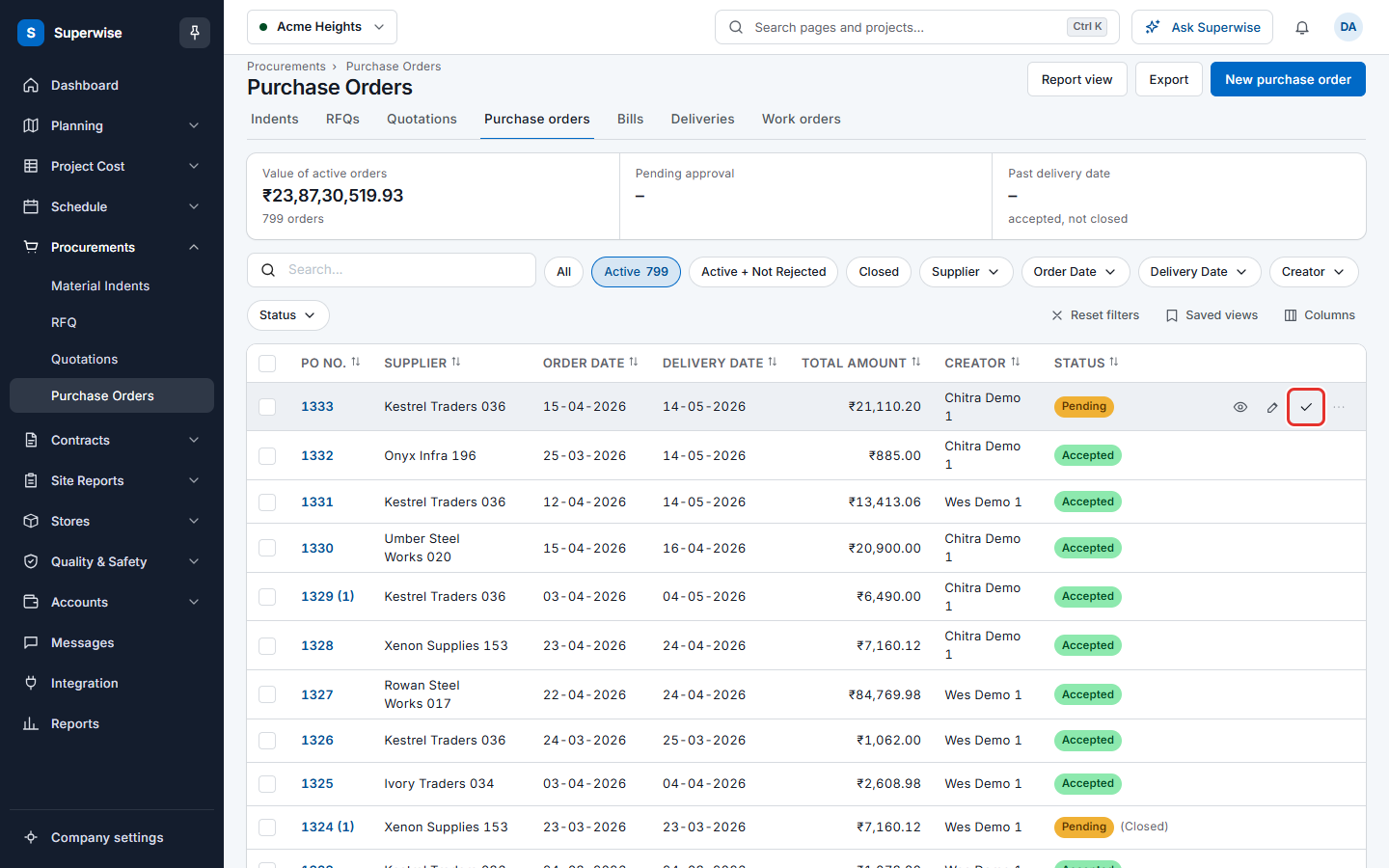
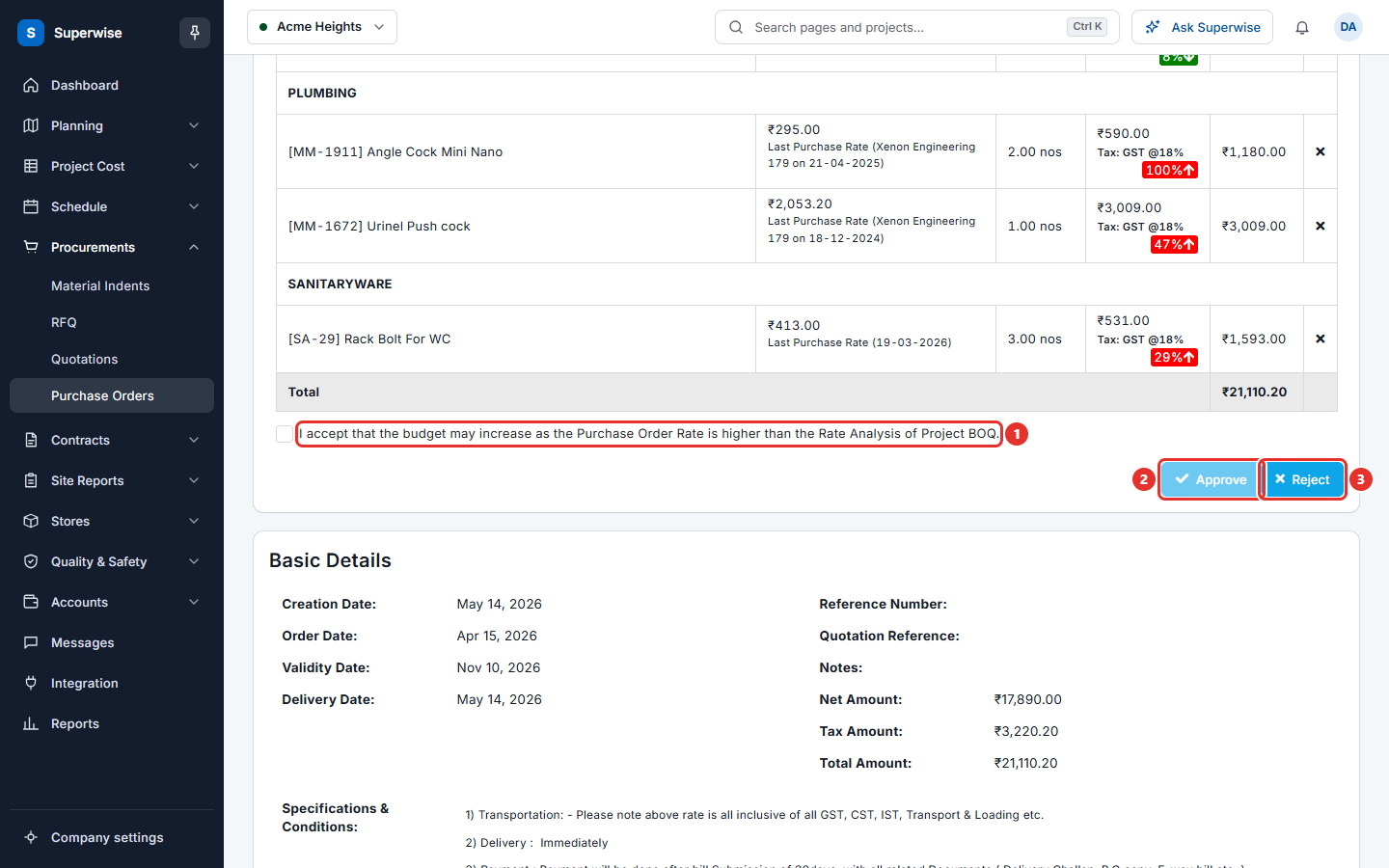
You must approve both cards. The window opens when you approve the second card. The order of the cards does not matter.
How to read the approval screen
The top card shows the project, the supplier, the status and the order number.
The card Resource Details shows the lines. When the order is not a revision, the table also shows a column Ref. Rate. This is the rate used earlier for the same material, with its source. A coloured arrow next to Rate with Tax shows the change in percent. A red arrow up means the rate is higher.
If the order is a revision, the table has two blocks: Original (or the earlier revision) and the new Revision with its number. For each line you see the quantity, rate, amount, whether a delivery schedule is needed, the specifications, and whether the line is closed. Cells that changed are shaded. See Revise a purchase order and compare revisions.
The card Basic Details shows the dates, the references, the notes, the amounts and the Specifications & Conditions.
How to accept a higher budget rate
Sometimes a rate in the order is higher than the rate analysis of the project. Then a check box appears above the Approve button of the first card. It says that you accept that the budget may increase. Tick it. Until you do, the first Approve button stays grey.
How to reject a purchase order
- Click Reject (mark 3) on either card.
- The window Confirm Rejection opens. Type a reason in Remarks (compulsory).
- Click Confirm. The button stays grey until you type a remark.
The order gets the status Rejected. The person who made it can edit it and send it again. See Create a purchase order.
Rules to know
- Approve is offered when the order is Pending or Rejected. Reject is offered when it is Pending or Accepted.
- You cannot approve an order if a line has a quantity below the quantity already delivered. The screen shows "Cannot Approve Purchase Order as PO Quantity is less than Delivered Quantity for :" and names the materials.
- A remark is optional when you approve and compulsory when you reject.
- After the decision, the screen returns to the list of the project.
- If you save an order with Save and approve, you do not need this step. That button is offered only when the project has no approval workflow.
If something goes wrong
| What you see | What to do |
|---|---|
| No Approve / Reject icon | The order is a draft, or you are not an approver of it. |
| Approve is grey | Tick the check box that accepts the higher budget. |
| Confirm is grey in the rejection window | Type a remark. |
| Cannot Approve Purchase Order as PO Quantity is less than Delivered Quantity for : | Edit the order and raise the quantity of the materials named. |