


Progress log
Read every progress entry of the project, correct or delete an entry, and add the daily progress of many tasks in one table.
- Where to find it
- Schedule > Progress Log
- Who can use it
- People who have the View Progress permission. Bulk Add needs Add. Add Remark and Edit need Edit. Delete needs Delete.
Progress is the percent of a task that is done. Each time a site engineer adds progress to a task, Superwise stores one entry with the date, the percent and a description. The Progress Log lists all these entries for the project.
You can also use this screen to add the progress of many tasks together at the end of the day. This is the Bulk Add table.
Before you start
- The project needs a schedule with tasks. See Create a schedule.
- Choose the project at the top of the page.
How to find a progress entry
- Open Schedule > Progress Log.
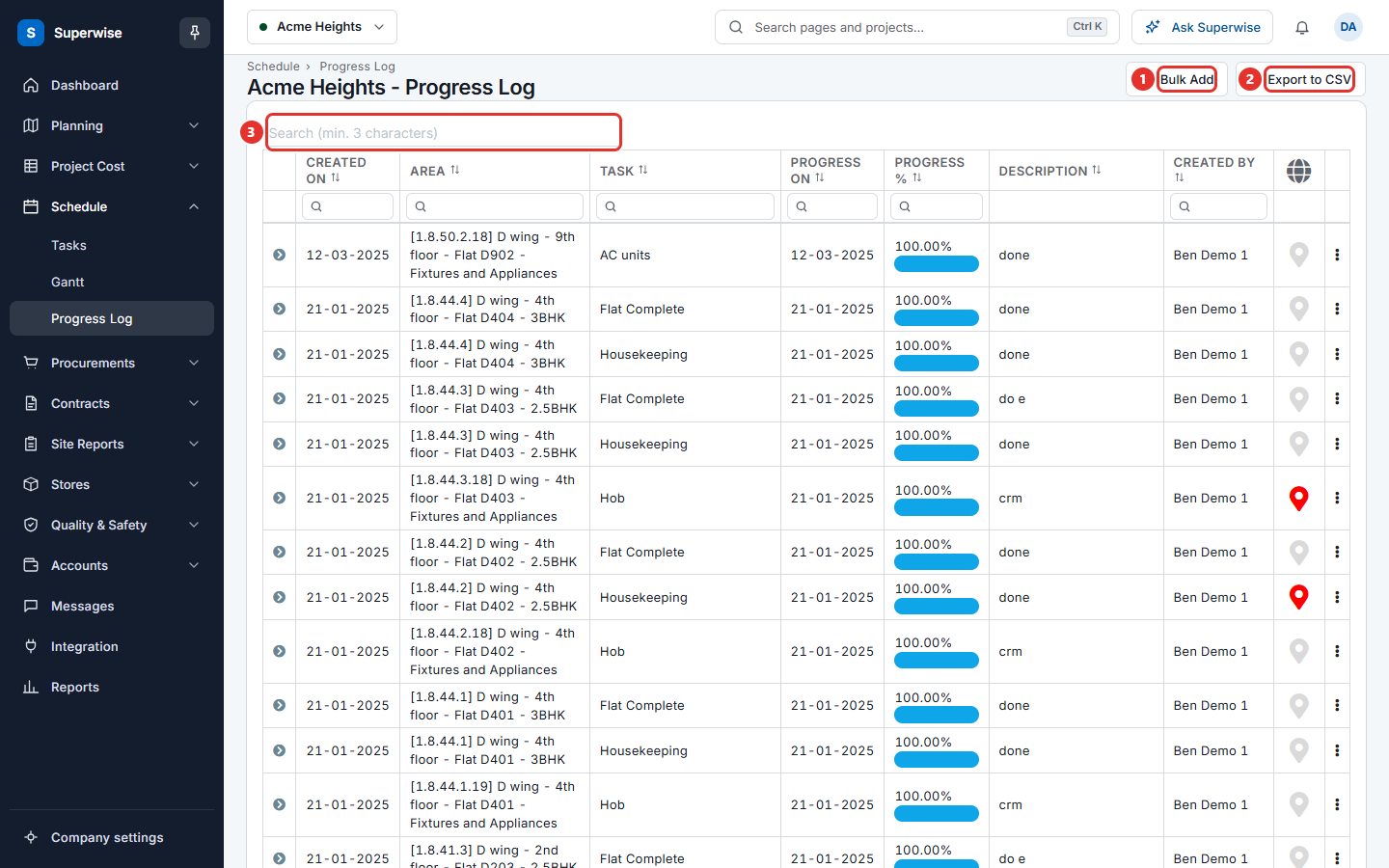
- To search, type at least 3 characters in the box marked 3.
- Each column heading has a filter row. Type in a box, or choose a date range, to filter by Created On, Area, Task, Progress On, Progress % or Created By.
- Click the arrow in front of a row to see the full description and the photos of the entry.
- To save the list, click Export to CSV (mark 2).
A map pin at the end of the row opens the place where the entry was made. A red pin says the location is not valid.
How to correct or delete an entry
- Click the three dots at the end of the row.
- Choose one of the actions.
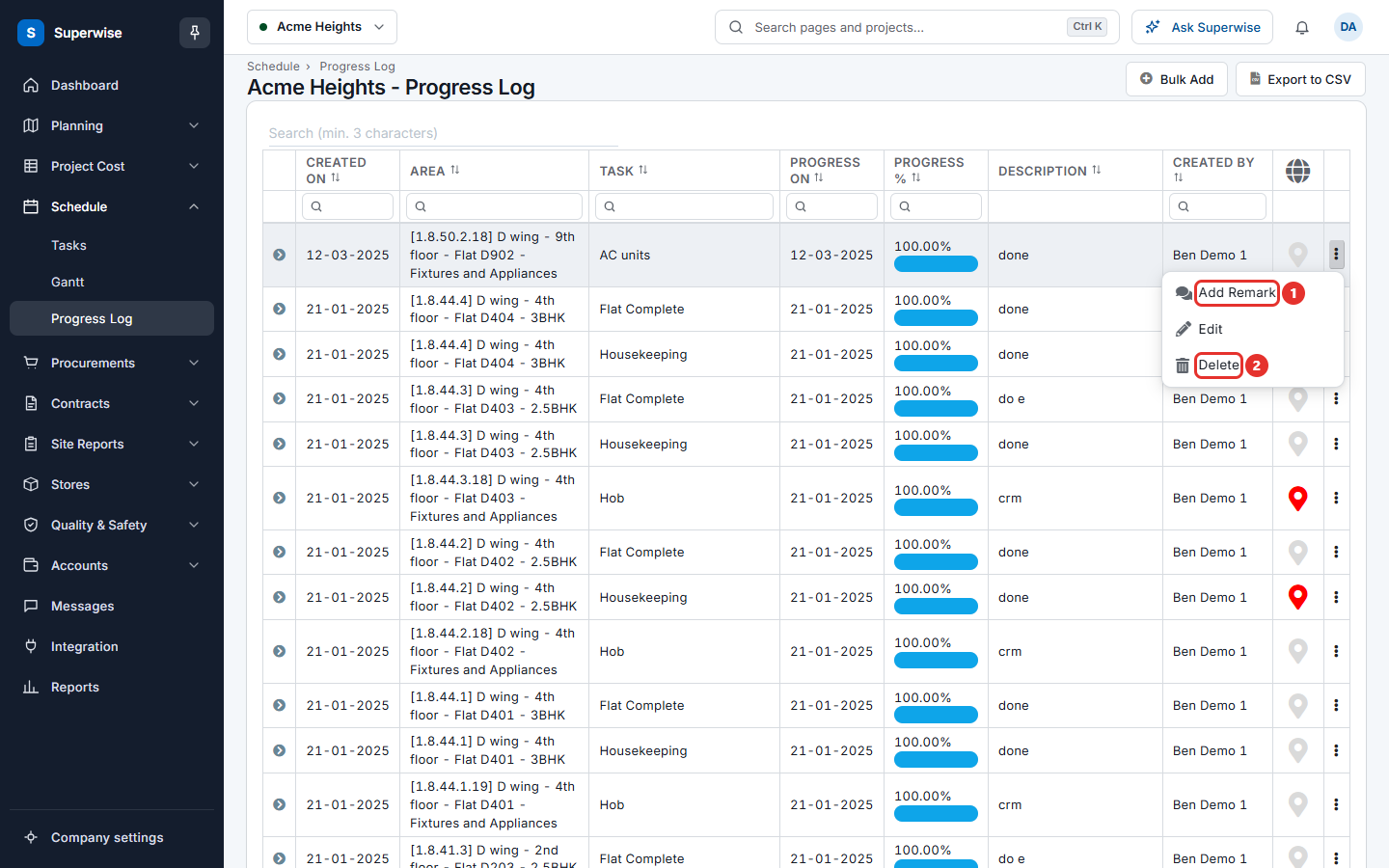
| Action | What it does |
|---|---|
| Add Remark | Adds a note to the entry. The note is compulsory in the window Add Remark. |
| Edit | Opens Update Progress. You can change As On Date, Approx. Progress, Description and the photos. The slider can only move between the lowest and highest values that fit the other entries of the task. |
| Delete | Asks you to confirm in Confirm Action. Then it removes the entry. |
Edit is not offered for entries that came from a step of a task.
How to add progress for many tasks
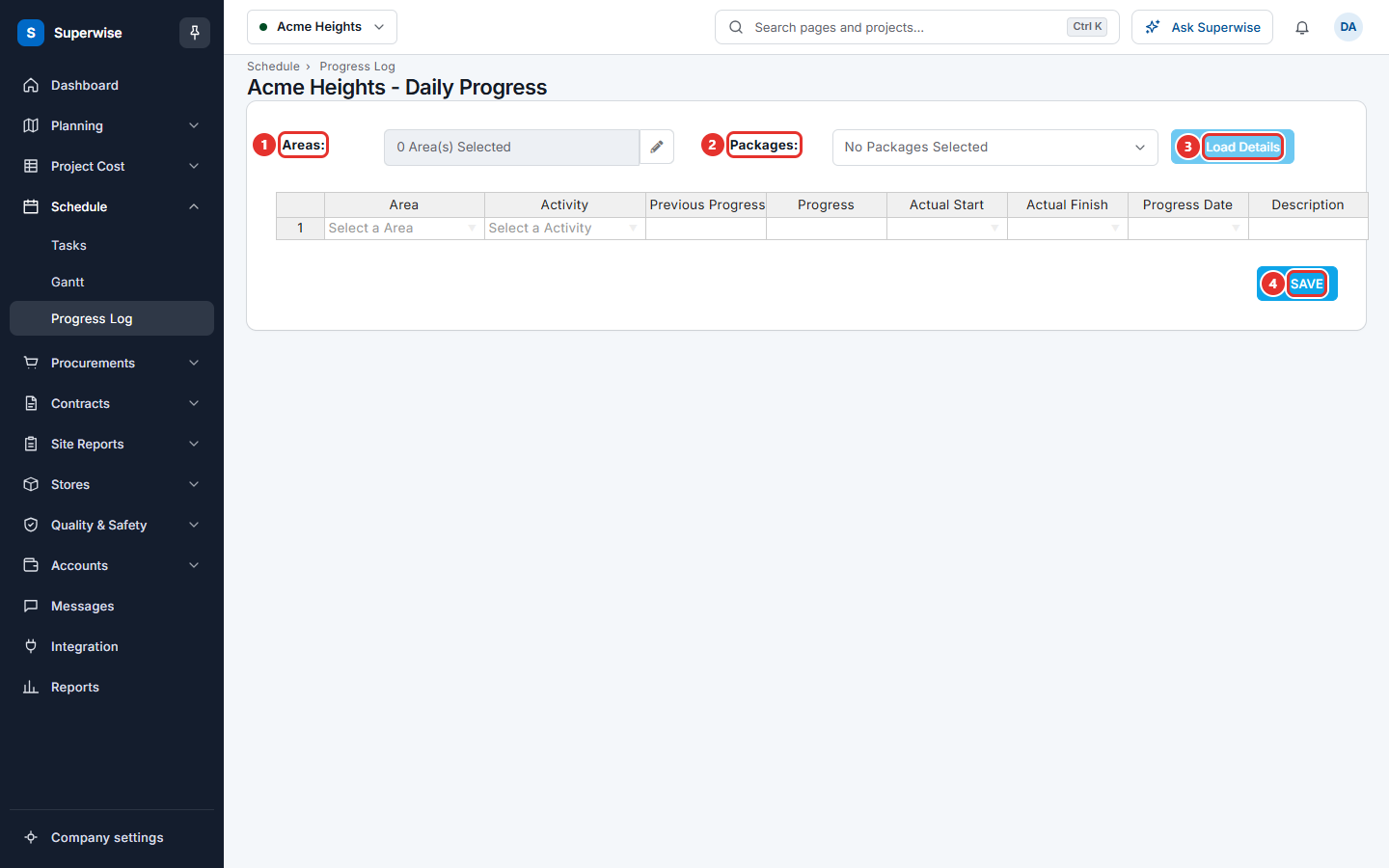
- Open Schedule > Progress Log and click Bulk Add (mark 1). You can also click More actions on the Tasks screen and choose Bulk Update Activities.
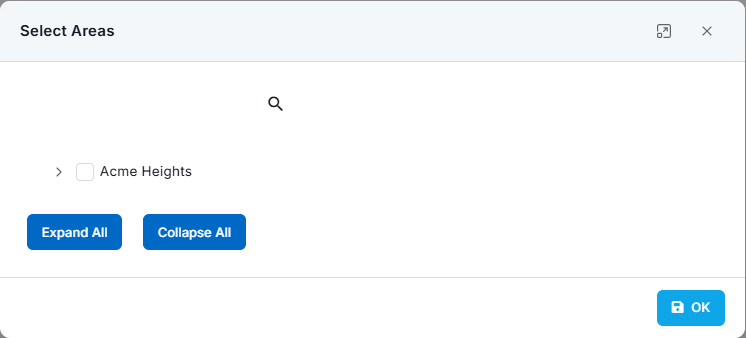
- Click the pencil button next to Areas. The window Select Areas shows the areas as a tree. Open a branch with the arrow, tick the areas you need, and click OK. Expand All and Collapse All open or close the whole tree. The box then shows how many areas are chosen.
- You can also choose one or more Packages.
- Click Load Details. The button works only when you chose an area or a package.
- The table lists the tasks that can take progress. Fill the columns for each task that has progress today.
- Click SAVE. Superwise says Task Progress Updated successfully!
Rows where Progress is empty or 0 are left out. Only the rows with progress are saved.
What the columns mean
| Name | What it means |
|---|---|
| Area | The area of the task. |
| Activity | The task. |
| Previous Progress | The percent saved so far. You cannot change it. |
| Progress | The new percent done. It must be more than Previous Progress and at most 100. |
| Actual Start | The date the work started. Required. |
| Actual Finish | The date the work ended. Required when Progress is 100. |
| Progress Date | The date of this progress. Superwise fills today. It must be between Actual Start and Actual Finish. |
| Description | A note about the work. |
Rules to know
- Each task can appear only once in the table. Superwise reports "Duplicate Area(s) and Activity(s) found".
- If one row has a problem, Superwise saves nothing. It lists the row numbers of the problems above the table.
- The Edit window and the Progress Update window on the Tasks screen allow up to 3 photos.
If something goes wrong
| What you see | What to do |
|---|---|
| Actual Start on Row No ... are required | Fill Actual Start in the rows named. |
| Actual Finish on Row No ... are required for 100% Progress | Fill Actual Finish for each task that has 100 in Progress. |
| Progress must be between Previous Progress and 100% | Give a Progress above Previous Progress. |
| Progress Date must be between Actual Start and Actual Finish | Change Progress Date, or one of the other two dates. |
| Task Progress has no record to update | Fill Progress in at least one row. |
| Project does not have any Task to add Progress currently | No task can take progress now. Check the schedule and the status of tasks. See Tasks. |