


Create or change an RFP
Make a request for proposal (RFP) for a project. Choose the vendors, set the bid period, add the BOQ items and save it for approval.
- Where to find it
- Contracts > RFP
- Who can use it
- People who have the Add RFPs permission. Changing an RFP needs Edit.
Use this form to ask contractors for a price. You choose the project, the vendors and the bid period. You add the BOQ items that the contractors must price. One RFP can hold many items.
Before you start
- The project must exist. Its BOQ items must exist too. See Project BOQ.
- Each vendor you invite must be in the system, approved, and have an e-mail address. Vendors without an e-mail address are not shown in the Vendors list.
How to create an RFP
- Open Contracts > RFP.
- Click Create. The form Create RFP opens.
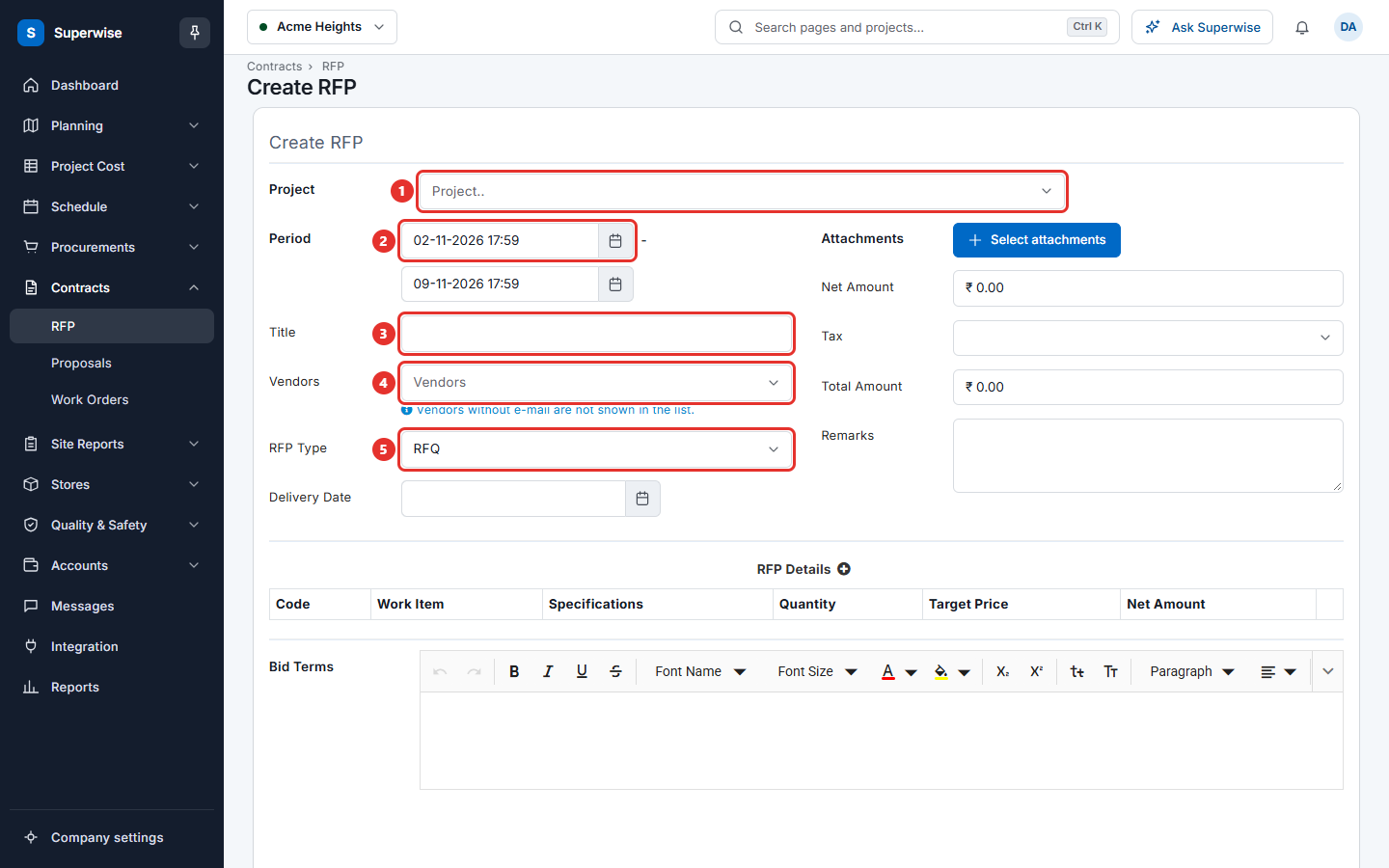
- Choose the Project (mark 1).
- Set the Period (mark 2). The first date is when bidding starts. The second date is when bidding ends. A new form starts with a period of one week from now.
- Type a Title, for example "Foundation work, Block A" (mark 3).
- Choose one or more Vendors (mark 4). These are the contractors that get the invitation.
- Choose the RFP Type (mark 5): RFQ, Tender or Reverse auction.
- Fill the other fields if you need them. See What the fields mean.
- Add the BOQ items. See How to add the BOQ items.
- Write the Bid Terms. This is the text the vendors read.
- To keep the RFP as a draft, tick Draft. Leave it empty to send the RFP for approval.
- Click Create.
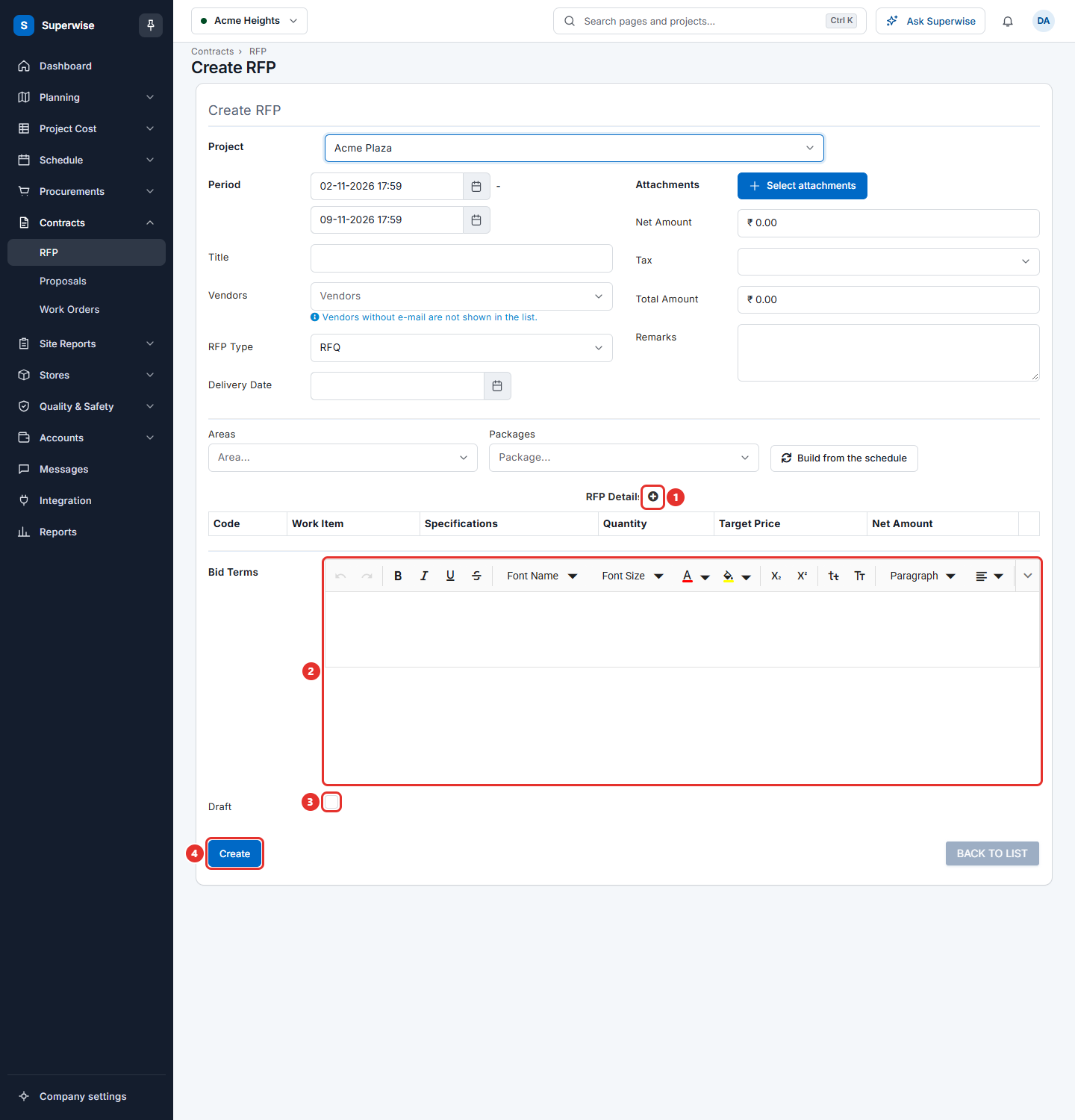
If you did not tick Draft, the status is Pending. An approver must approve the RFP before the vendors get the invitation. See How to approve or reject an RFP.
How to add the BOQ items
Each line is one BOQ item that the vendors must price.
- Click the plus icon next to RFP Details (mark 1 in the picture above). The window Add/Edit RFP Detail opens.
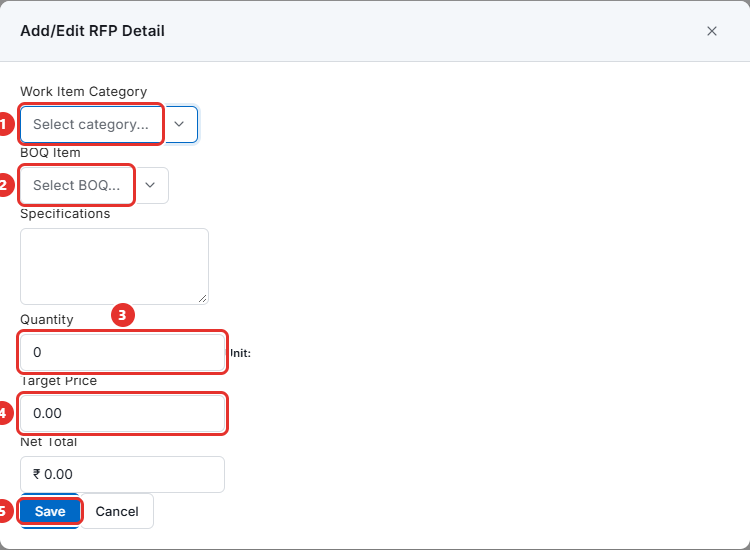
- Choose the Work Item Category (mark 1). This narrows the list of items.
- Choose the BOQ Item (mark 2).
- Type the Specifications if the vendors need more detail.
- Type the Quantity (mark 3). The unit shows under the field.
- Type the Target Price (mark 4). This is the rate you expect for one unit.
- Click Save (mark 5). Net Total is the quantity times the target price.
To change a line, click its pencil icon. To remove a line, click its bin icon and click Confirm.
If the project has a schedule made from a template, two more fields show above the table: Areas and Packages. Choose them and click Build from the schedule. The system fills the lines from the schedule. Click Confirm if it asks to update lines that already exist.
How to change an RFP
- Open Contracts > RFP.
- Click the Edit icon of the RFP. It is shown while the RFP is Draft, Pending, Rejected or Approved.
- Change the fields or the lines. The project cannot be changed.
- Click Save Changes.
When you save without Draft, the status goes back to Pending and the RFP needs approval again. If the RFP was Rejected or Approved before, the number in Rev. goes up by 1. If you moved the bid period, the system schedules the status changes again for the new dates.
To make a new RFP from an old one, use Duplicate. See How to copy an RFP.
What the fields mean
| Name | What it means |
|---|---|
| Project | The project the work is for. |
| Period | The first date is Bid Start. The second is Bid End. Vendors can send proposals between the two. |
| Title | A short name for the work. It is required. |
| Vendors | The contractors you invite. At least one is required. |
| RFP Type | The kind of bidding: RFQ, Tender or Reverse auction. |
| Delivery Date | An optional date for the delivery of the work. |
| Attachments | Files for the vendors, such as drawings. Click Select attachments. |
| Net Amount | The sum of the Net Amount of all lines. You cannot type here. |
| Tax | The tax for the RFP. Choose one from the list. |
| Total Amount | Net Amount plus the tax. You cannot type here. |
| Remarks | A note for your own team. The system adds your name in front of it. |
| Bid Terms | The conditions of the bid, written for the vendors. |
| Draft | Tick it to keep the RFP as a draft. |
Rules to know
- Title and at least one vendor are required.
- You need at least one line. A BOQ item can be on the RFP only once.
- Each line needs a quantity above 0 and a target price above 0.
- Either all lines or none of the lines are linked to schedule activities.
- A new RFP does not send any e-mail. The invitations go out when an approver approves the RFP.
If something goes wrong
| What you see | What to do |
|---|---|
| "The Title field is required." | Type a Title. |
| "The Vendors field is required." | Choose at least one vendor in Vendors. |
| "RFP Details not added" | Add at least one line. |
| "RFP has duplicate resources" | The same BOQ item is on two lines. Remove one. |
| "RFP Details have invalid quantity." | Give every line a quantity above 0, or remove the line. |
| "RFP Details have invalid rate." | Give every line a Target Price above 0. |
| "All (or none) of the RFP details should be linked with activities" | Link every line to activities, or none of them. |
| A vendor is missing in Vendors | The vendor has no e-mail address or is not approved. |