


Users
Add a person who signs in to Superwise, give the person roles and projects, reset a password, lock or unlock the account, or delete the user.
- Where to find it
- Company settings > General > Users
- Who can use it
- People who have the View Users permission. Adding needs Add and editing needs Edit. Locking, unlocking and password reset need Approve. Deleting needs Delete.
A user is a person who signs in to Superwise. The roles you give the user decide what the person can see and do. The projects you give the user decide which projects the person can open. Site staff who do not sign in are not users. Add them under Staff (non-users).
Before you start
- Create the roles first. See Roles. A user needs at least one role.
- Create the projects the user will work on. See Projects. You can also give projects later.
- For a person from another company, such as a contractor, add the company first. See Organizations.
- Create departments if you want to use them. See Departments.
How to add a user
- Open Company settings in the left menu, then General, then Users.
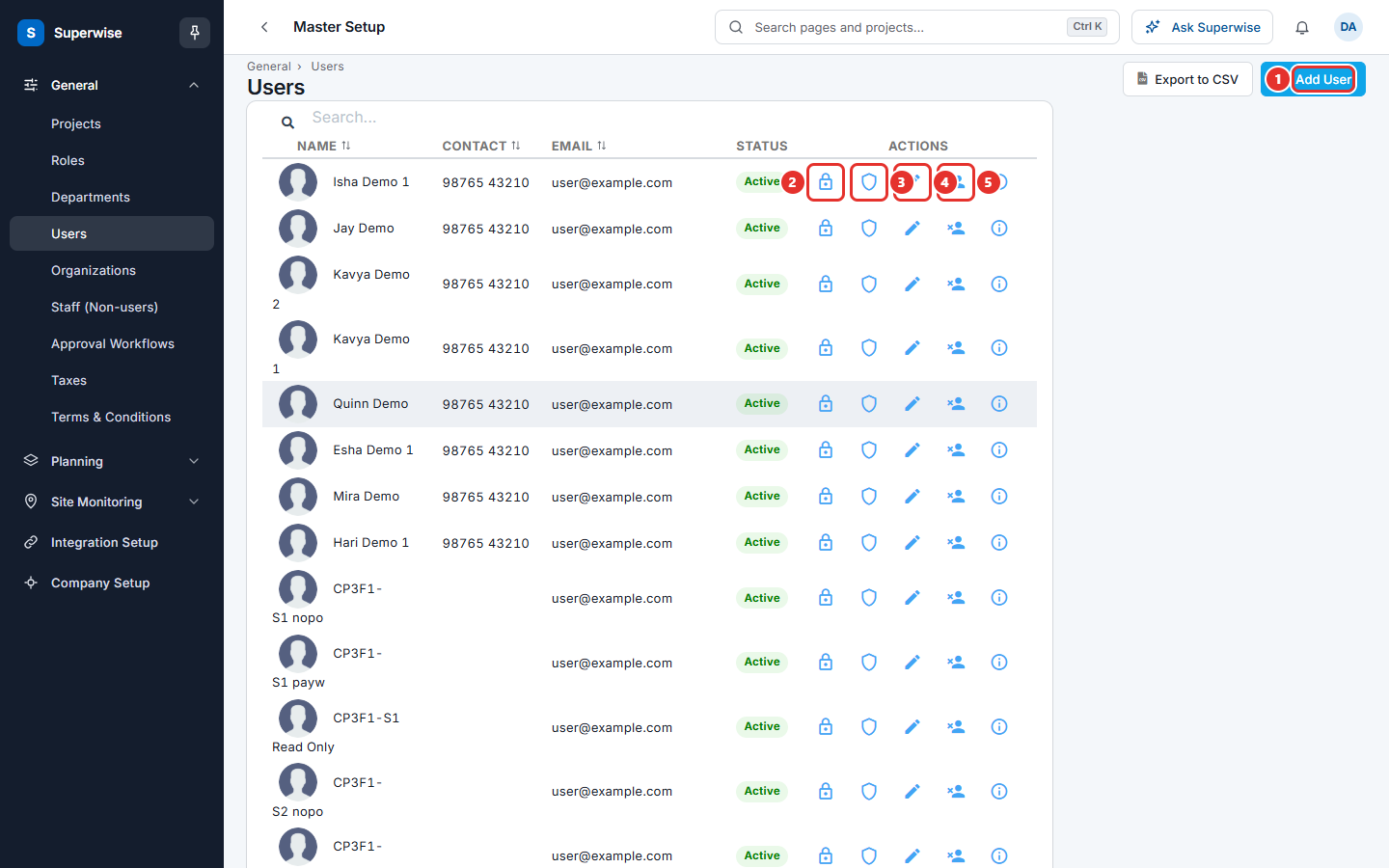
- Click Add User (mark 1 in the first picture).
- In Name, type the full name. The most is 30 characters.
- In Designation, type the job title, for example Chief of Planning.
- In Email, type the work e-mail address. The person uses it to sign in. Each address can be used once.
- In Phone No, type the phone number.
- In Roles, choose one or more roles.
- In Projects, choose the projects the user can open.
- In Departments, choose the departments of the user. This is optional.
- Click Save. A message says that the user was created.
Superwise sends the new user an e-mail to set a password.
How to change a user
- In the list of users, find the person. Use the box Search... if the list is long.
- Click the pencil icon, Edit (mark 4 in the first picture).
- Change the fields and click Save.
To see the roles, departments and projects of a user without opening the form, click the row or the icon Detail. A side panel opens with Basic Details, Roles, Department and Project.
How to reset a password
- In the list of users, find the person.
- Click the shield icon, Reset Password (mark 3 in the first picture).
- In the box Reset Password, type the new password in Password.
- Type the same password again in Confirm Password.
- Click Save. A message says that the password was updated.
The password must have at least 6 characters, one capital letter, one digit and one special character, for example Acme@2026.
How to lock or unlock a user
Lock a user who left the company or who must not sign in. The user cannot sign in while locked.
- In the list of users, find the person.
- Click the lock icon, Lock (mark 2 in the first picture).
- Read the question and click Confirm.
To let the person in again, click the open lock icon, Unlock, and click Confirm. Superwise sends the user an e-mail to set a new password, because the old password is removed at the lock.
How to delete a user
- In the list of users, find the person.
- Click the icon Delete (mark 5 in the first picture).
- Read the question and click Confirm.
What the columns and icons mean
| Name | What it means |
|---|---|
| Name | The name of the user, with the profile picture. |
| Contact | The phone number. |
| The sign-in e-mail address. | |
| Status | Active means the user can sign in. Locked means the account is locked. External means the user belongs to another company. |
| Actions | The icons Lock or Unlock, Reset Password, Edit, Delete and Detail. |
What the fields mean
| Name | What it means |
|---|---|
| Name | The full name of the user. Required. |
| Designation | The job title in your company. Required. The most is 50 characters. |
| The work e-mail address of the user. Required. | |
| Phone No | The contact number of the user. Required. The most is 20 characters. |
| Profile Image | A picture of the user. The file must be smaller than 1 mb. |
| Sign | A picture of the signature of the user. Superwise uses it to sign documents such as purchase orders and bills when the user creates or approves them. Use a dark pen on white paper. The file must be smaller than 1 mb. |
| Projects | The projects the user can open. |
| Roles | The roles of the user. Required. See Roles. |
| Departments | The departments of the user. The user sees the tasks and chats of these departments. |
| Unsubscribe E-mails | On: Superwise stops sending project e-mails to this user. |
| External Account? | On: the user belongs to another company, such as a contractor, a consultant or the client. The user cannot see sensitive information or the internal chat and e-mail threads. |
| Organization | Shows when External Account? is on. The company the user belongs to. Required. |
Rules to know
- A user needs a name, a designation, an e-mail address, a phone number and at least one role.
- Two users cannot have the same e-mail address.
- For an external user, Unsubscribe E-mails is switched on and cannot be changed.
- You cannot lock or delete your own user.
- You cannot delete a user who created or approved records, for example bills, purchase orders, work orders, payments, challans, documents or checklists. The message lists the reasons. Lock the user instead.
- You cannot delete a user who is the contact person of a project. Choose another contact person in the project first.
- When you lock a user, Superwise removes the user from the approval steps that still wait for that user.
- Locking and unlocking show for people with Approve. The server also checks the Delete permission for them.
- Use Filter Users at the bottom of the list to show All Users, Locked Users or Unlocked Users. The list starts with the unlocked users.
If something goes wrong
| What you see | What to do |
|---|---|
| User with this email already exists. | Use another e-mail address, or edit the existing user. |
| The Name field is required. | Type the name. The other required fields give the same kind of message. |
| Invalid Role. | Choose the role again from the list. |
| Self-deletion is not allowed. | Ask another administrator to delete the user. |
| Enter Confirm Password | Type the password again in Confirm Password. |
| Password & Confirm Password must be Same | Type the same password in both fields. |
| The icons Lock, Unlock and Reset Password are missing. | Ask your administrator to give you the Approve permission for Users. |