


Create a purchase order
Make a purchase order from nothing, from approved indents, from a winning quotation or from an old order. Fill the details, add the items and save.
- Where to find it
- Procurements > Purchase Orders
- Who can use it
- People who have the Add Purchase Orders permission. Editing an order needs Edit. Save and approve needs Approve.
Use this form to place an order with a supplier. You choose the supplier and the dates, add the materials with quantity and rate, add your terms, and save.
There are four ways to start:
- From nothing: click New purchase order on the Purchase Orders list.
- From indents: tick accepted indents and click Place Order. See Material indents.
- From a quotation: click Mark Awarded on the winning quotation. See Quotations. The supplier, the lines, the rates and the terms are filled in for you.
- From an old order: open the details of an order and click Duplicate. A warning tells you that you are making a copy. Change what is different before you save.
Before you start
- Select the project. The order is made for the selected project.
- The supplier must exist. A supplier that is not approved shows an Inactive label in the list.
- Know the materials, quantities, rates and the delivery date.
How to create a purchase order
- Click New purchase order.
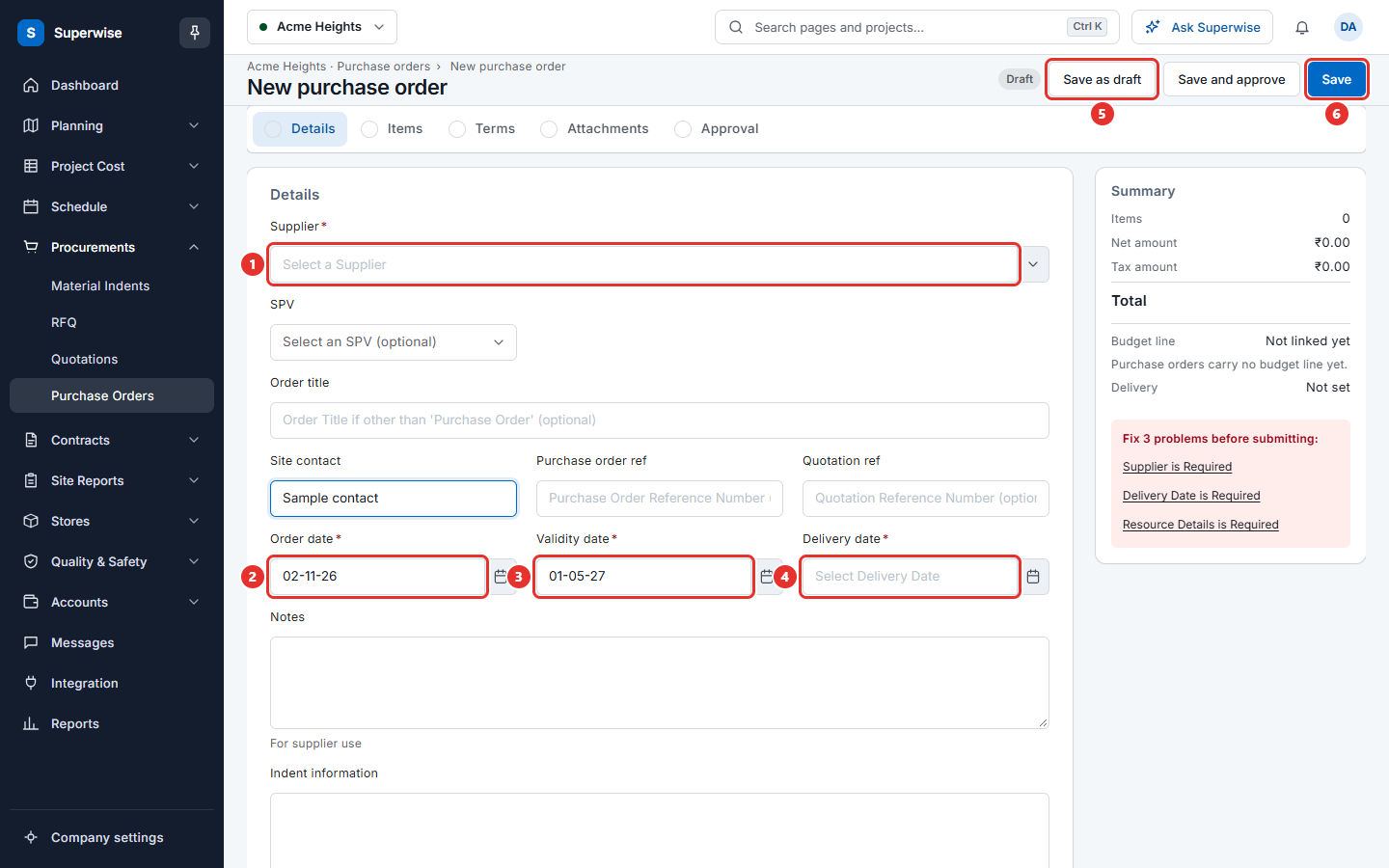
- In Details, choose the Supplier (mark 1 in the picture of the form). You must choose it before you add items.
- Choose an SPV if the order is billed to a special purpose vehicle. This is optional.
- Check the Order date (mark 2), the Validity date (mark 3) and the Delivery date (mark 4). All three are required. See the rules below.
- Fill the optional fields if you need them: Order title, Site contact, Purchase order ref, Quotation ref, Notes and Indent information.
- Add the items. See the next section.
- In Terms and conditions, add your terms. See the section after it.
- In Attachments, add the quotation or other documents if you have them.
- Save the order with one of the buttons at the top. See "How to save".
How to add the items
- Go to the section Items.
- Click Add item (mark 3 in the picture below). A new row appears.
- Choose the Resource category and then the Resource in the row.
- Type the Quantity. The Max quantity is filled in. It is the quantity plus the allowed variation of the resource. The system does not accept deliveries above it.
- Check the Rate, the Discount % and the Discounted rate. The system fills them from an earlier order or from the rate of the resource. Change them if the price is different.
- Choose a Tax. Tax amount, Rate with tax, Net amount and Amount with tax are worked out.
- For a material, tick Delivery schedule if the supplier delivers in parts. See Material delivery schedule.
- Type Specifications if you need them.
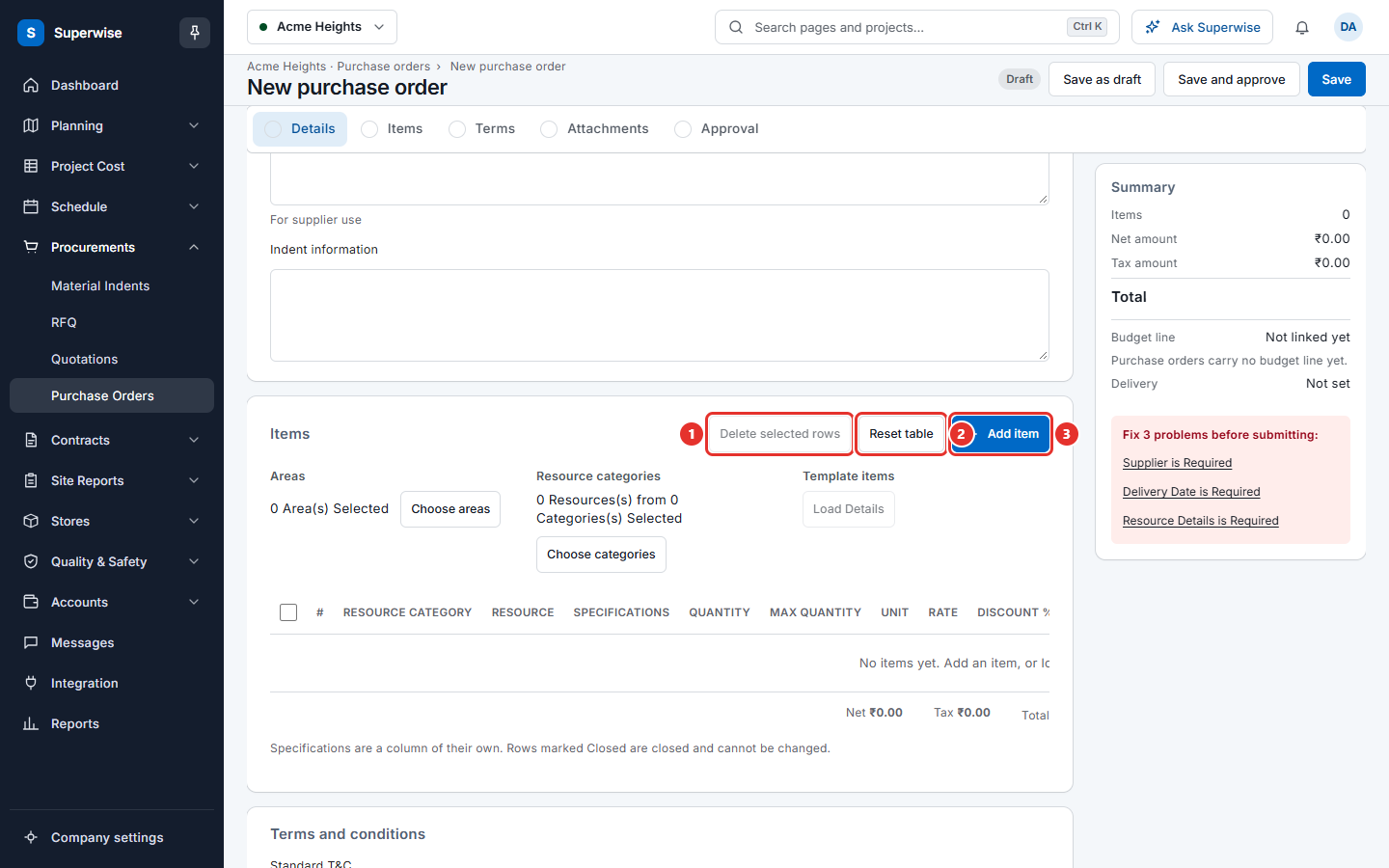
To remove rows, tick them and click Delete selected rows (mark 1). Reset table (mark 2) clears all rows.
If the schedule of the project was made from a template, the section also has Choose areas, Choose categories and Load Details. Choose the areas and categories, then click Load Details. The system fills the rows from the work plan. The project and the supplier must be chosen first.
Warning: If the same material is on an active order of this project, a message gives the number of that order. When you save, the old line is closed and the new order replaces it.
How to add terms and attachments
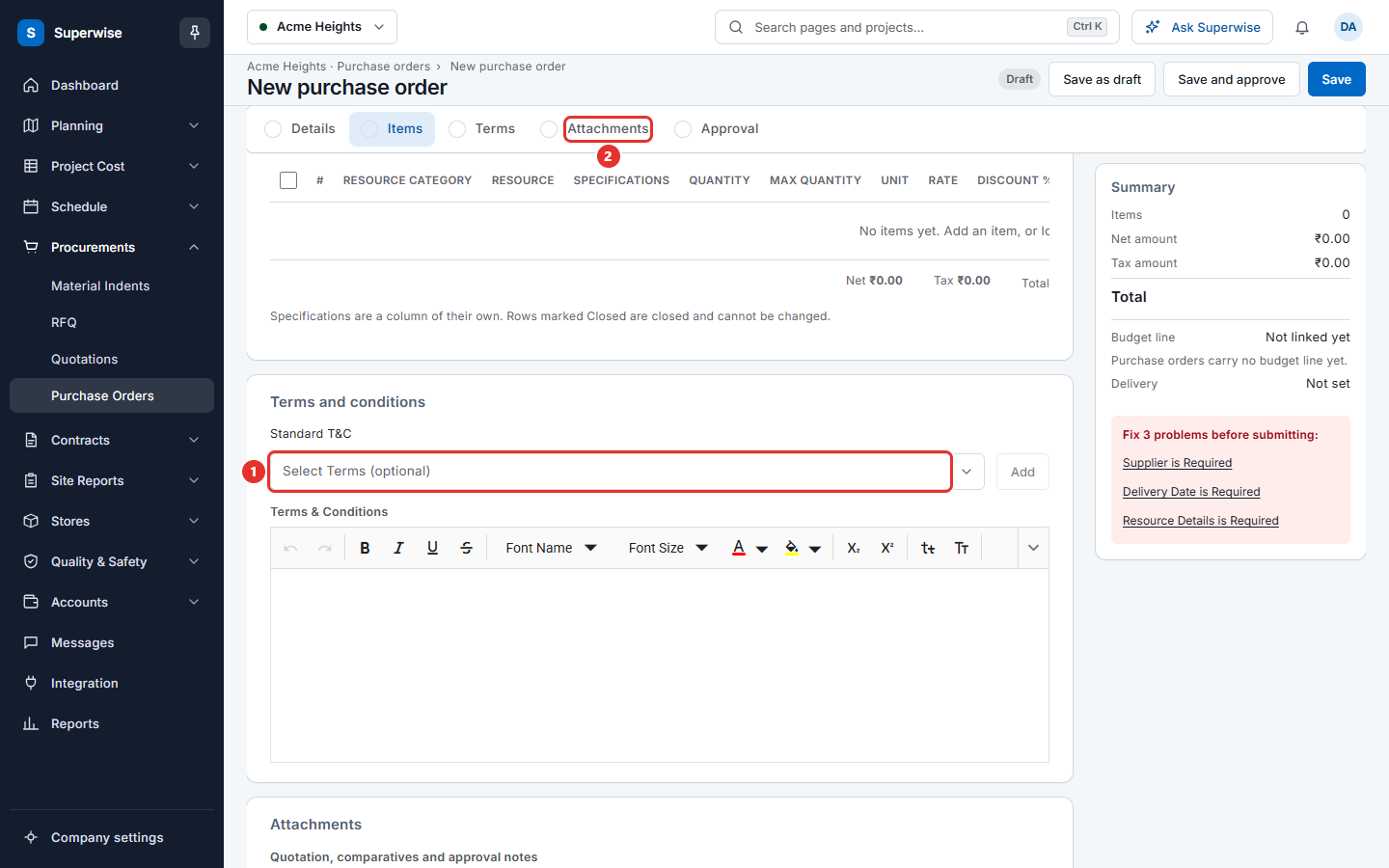
- In Terms and conditions, choose a text in Standard T&C and click Add (mark 1 in the picture below). The text goes into the box Terms & Conditions. You can also type there.
- In Attachments, upload the quotation, the comparative or the approval notes. A file can be up to 10 MB.
How to save
The buttons are at the top of the form.
| Button | What it does |
|---|---|
| Save as draft | Keeps the order as a draft. Nobody has to approve it yet. Offered when you create a new order. |
| Save and approve | Saves the order and approves it in one step. Offered to approvers when the project has no approval workflow. |
| Save | Saves the order and sends it for approval. Its status is Pending. |
The box Approval at the bottom shows the approval workflow of the project, if there is one. Use Comments there for a note for your own company. The supplier does not see it.
What the fields mean
| Name | What it means |
|---|---|
| Supplier | The company you order from. Required. |
| SPV | A special purpose vehicle that is billed. Optional. |
| Order title | A title if it must not be called "Purchase Order". Optional. |
| Site contact | The name and number of the person who receives the goods. Optional. |
| Purchase order ref | Your own reference number. Optional. |
| Quotation ref | The supplier's quotation number. Optional. |
| Order date | The date of the order. Required. |
| Validity date | The last date the order is valid. Required. |
| Delivery date | The date you expect the material. Required. |
| Notes | A note for the supplier. |
| Indent information | The indents this order comes from. |
| For project | Shown when the project is a store. The project that is billed. |
| Quantity | How much you order. |
| Max quantity | The most the system accepts as delivered. |
| Discounted rate | The price of one unit after discount. Deliveries are costed with it. |
| Delivery schedule | Tick it when the supplier delivers on several dates. |
If you choose an order date in the past, the form also shows PO number and Delivered?. Use them to enter an order that was already placed and delivered.
Rules to know
- The Validity date cannot be before today.
- The Order date must not be after the Validity date.
- The Delivery date must be between the Order date and the Validity date.
- The order needs at least one item.
- Every item needs a rate above 0.
- A material can appear only once in one order.
- Quantity and Max quantity must both be 0, or both be above 0.
- The buttons stay grey while the form has a problem. A list on the side names each problem.
- When you leave the page without saving, the form keeps a draft on your computer. Next time, click Restore draft to get it back.
If something goes wrong
| What you see | What to do |
|---|---|
| Supplier is Required | Choose a supplier. |
| Delivery Date is Required | Choose the delivery date. |
| Resource Details is Required | Add at least one item. |
| Vendor is Required for entering Resource Details | Choose the supplier before you add items. |
| There are duplicate Resources present in the Purchase Order. | Remove the repeated material. |
| Resource Rate is required and must be greater than 0 on Row No: | Type a rate above 0 on the rows named. |
| Delivery date should be between Order date and Validity. | Change the dates. |
| Purchase Order Validity cannot be before today's date | Choose a validity date from today on. |