


RA bills
Find, approve, reject, download and delete running account (RA) bills, the bills of contractors for the work done so far on a work order.
- Where to find it
- Accounts > RA Bills
- Who can use it
- People who have the View RA Bills permission. Creating needs Add, editing needs Edit, deleting needs Delete, approving and rejecting need Approve.
A running account (RA) bill is a contractor's bill for the work done so far on a work order. The contractor does not wait for the whole job to end. Every few weeks the contractor bills the work measured in that period. Each bill is numbered RA-1, RA-2, RA-3 and so on.
For example, Acme gives a work order for plastering to a contractor. In October the site measures 400 square metres of finished plaster. The contractor sends RA-1 for those 400 square metres. In November it sends RA-2 for the next measured work.
An RA bill is built from approved measurement sheets, not from typed quantities. This is how Superwise stops a contractor from being paid twice for the same work.
This screen lists the RA bills of the project you have selected.
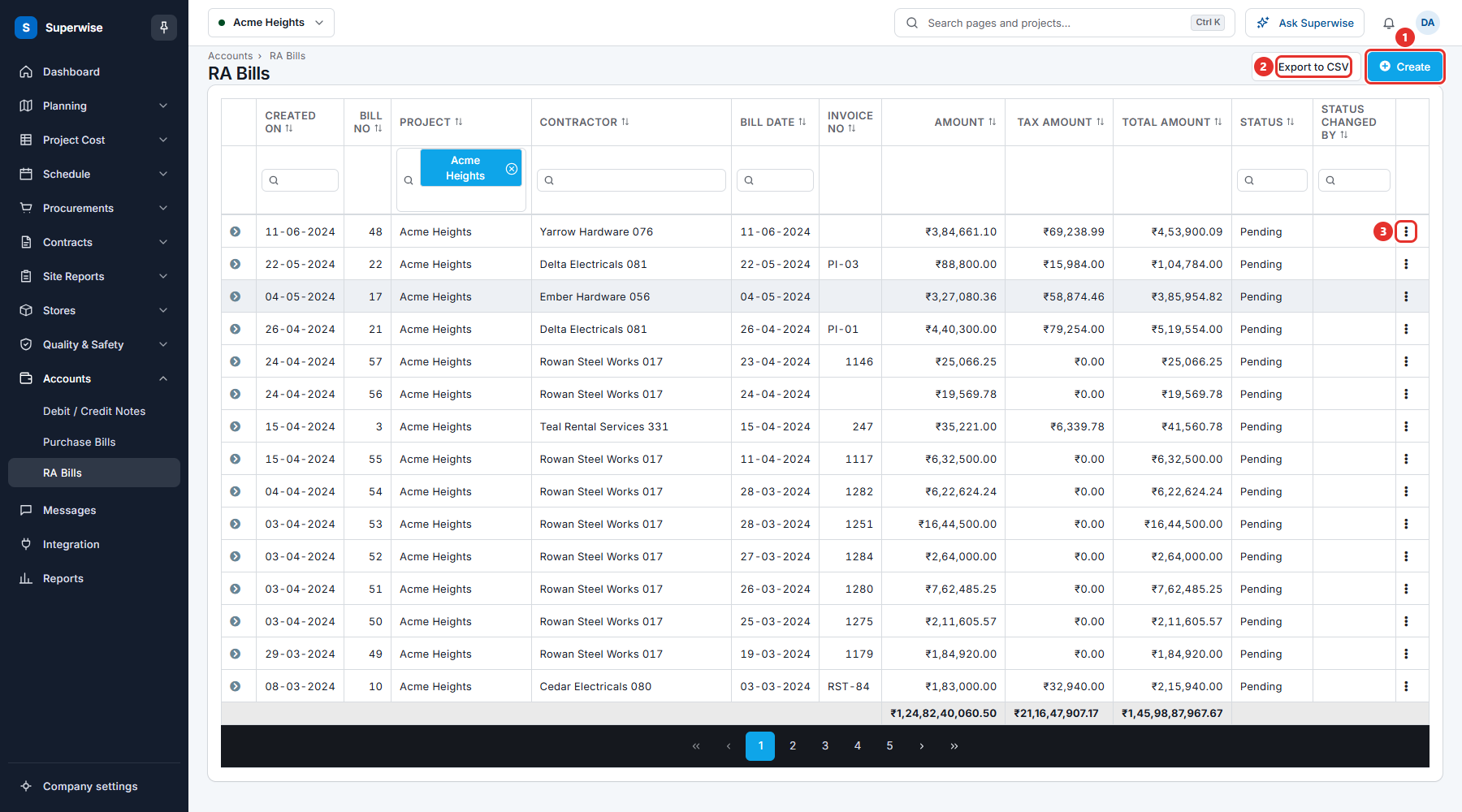
How an RA bill moves
- The site measures the work. The measurement sheets are approved. See Measurement book.
- You create an RA bill. It is Pending.
- An approver clicks Approve. The status becomes Accepted. The measurement sheets and the debit and credit notes of the bill become Billed.
- The accountant pays the bill. See Payments.
- If the bill is wrong, the approver clicks Reject. The status becomes Rejected. The measurement sheets can be billed again.
Before you start
- Select the project at the top of the screen.
- The contractor must have a work order, and the work must be measured and approved. See Work orders.
- To create, edit or delete a bill you need the Add, Edit or Delete permission on RA Bills. To approve or reject you need the Approve permission.
How to find a bill
- Open Accounts in the left menu and click RA Bills.
- Use the filter boxes under the column names: Created On, Project, Contractor, Bill Date and Status. Click a column name to sort.
- Click Export to CSV to download the list.
The row at the bottom of the table adds up Amount, Tax Amount and Total Amount.
How to approve, reject, download or delete a bill
- Click the three dots at the end of the row (mark 3 in the picture above).
- Choose an action.
- A box titled Confirm Action opens. Click Confirm. Click Cancel to stop.
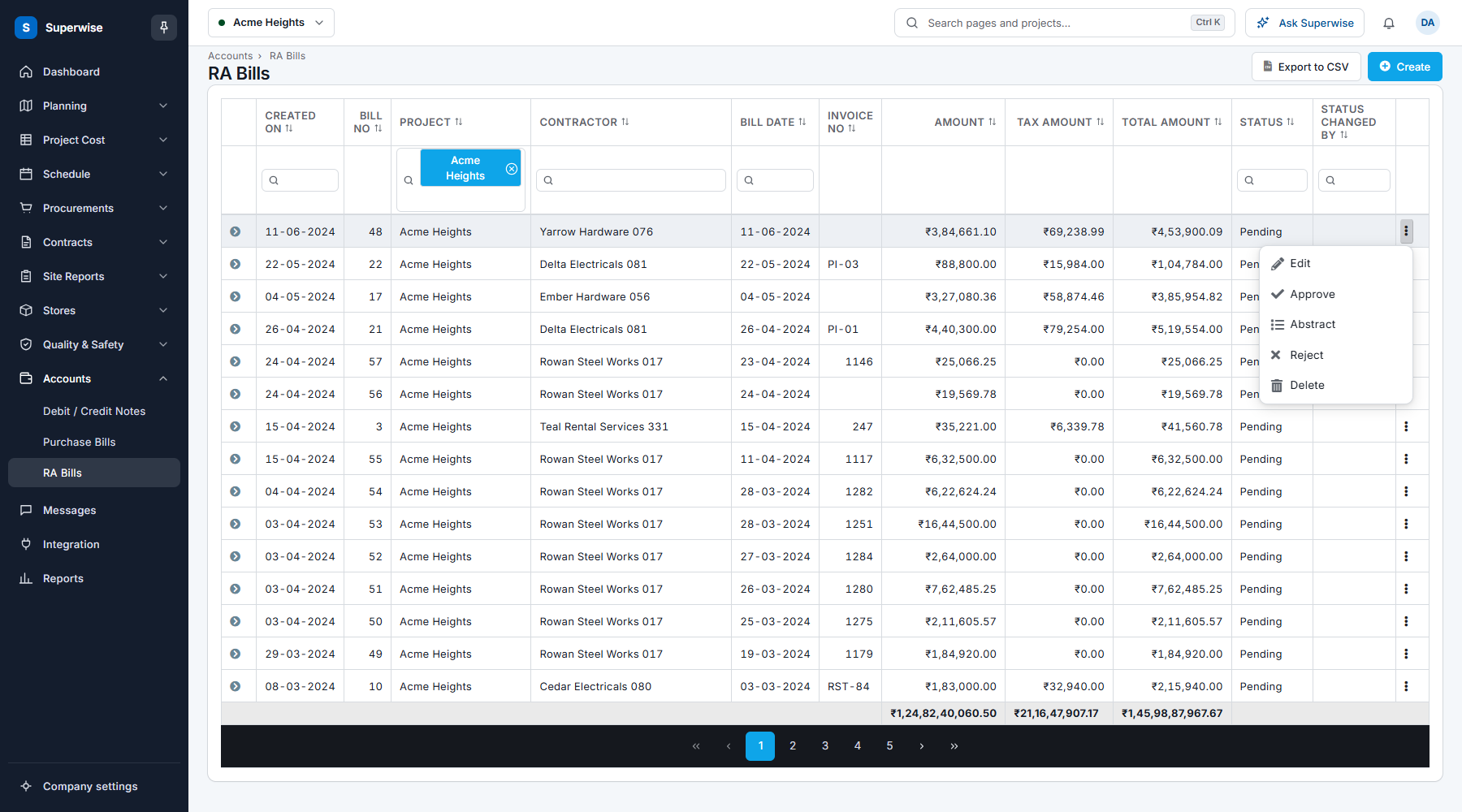
| Action | When you see it | What it does |
|---|---|---|
| Edit | You have the Edit permission. | Opens the bill in the form. |
| Approve | You have the Approve permission and the bill is Pending or Rejected. | Approves the bill. |
| Abstract | You have the Edit permission. | Opens the abstract of the work order. See RA bill abstract. |
| Download Bill (PDF) | You have the View permission and the bill is Accepted. | Downloads the bill as a PDF. |
| Download Bill (Excel) | You have the View permission and the bill is Accepted. | Downloads the bill as an Excel file. |
| Reject | You have the Approve permission and the bill is Pending or Accepted. | Rejects the bill. |
| Delete | You have the Delete permission. | Deletes the bill. |
Click the arrow at the start of a row to open its details. The tabs are Details (code, work item, rate, billed quantity and amount), More Details, Debit / Credit Notes and Payments.
What the columns mean
| Name | What it means |
|---|---|
| Created On | The day the bill was created. |
| Bill No | The number of the bill within its work order: 1, 2, 3. |
| Project | The project of the bill. |
| Contractor | The company that sent the bill. |
| Bill Date | The date of the contractor's bill. |
| Invoice No | The number on the contractor's invoice. It can be empty. |
| Amount | The value of the measured work, before tax. |
| Tax Amount | The tax on that work. |
| Total Amount | Amount plus tax, minus debit and credit notes. |
| Status | Pending, Accepted or Rejected. A flagged bill shows Flagged. |
| Status Changed By | The person who last approved or rejected the bill. |
Rules to know
- Only a measurement sheet that is Accepted can go on an RA bill. A sheet can be on one bill only.
- When you approve a bill, its measurement sheets and its debit and credit notes become Billed.
- When you reject a bill, its measurement sheets become available again. Its debit and credit notes stay linked to the rejected bill.
- When you delete a bill, its measurement sheets and its debit and credit notes become available again.
- You cannot delete a bill that is paid. Superwise shows Cannot delete RA Bill, since bill has been paid.
If something goes wrong
| What you see | What to do |
|---|---|
| You cannot see Create. | You do not have the Add permission on RA Bills. Ask your administrator. |
| Cannot delete RA Bill, since bill has been paid. | A paid bill cannot be deleted. |
| The work you want to bill is not offered. | Check that the measurement sheet is approved and not on another bill. See Create an RA bill. |