


Daily report
Preview the daily report of a project for a date range on the screen, open it in a new tab, or download it as PDF or Excel.
- Where to find it
- Reports
- Who can use it
- People who have the View Reports permission.
The daily progress report (DPR) lists what happened on site: work done, deliveries, labour, issues and more. On the Daily Report screen you choose the dates and see the report at once.
For example, the project manager chooses 1 to 7 November 2026 and clicks Preview. The report of that week opens on the screen.
Before you start
- Select the project at the top of the screen. Without a project, the screen says Select a project to view its daily report.
- Enter the site data for the days. Site staff enter it in the site screens.
- You need the View permission on Reports.
Some companies open this screen from Reports. Other companies open Report Generation from Reports and choose the type Daily there. See Generate a report.
How to view the daily report
- Click Reports in the left menu.
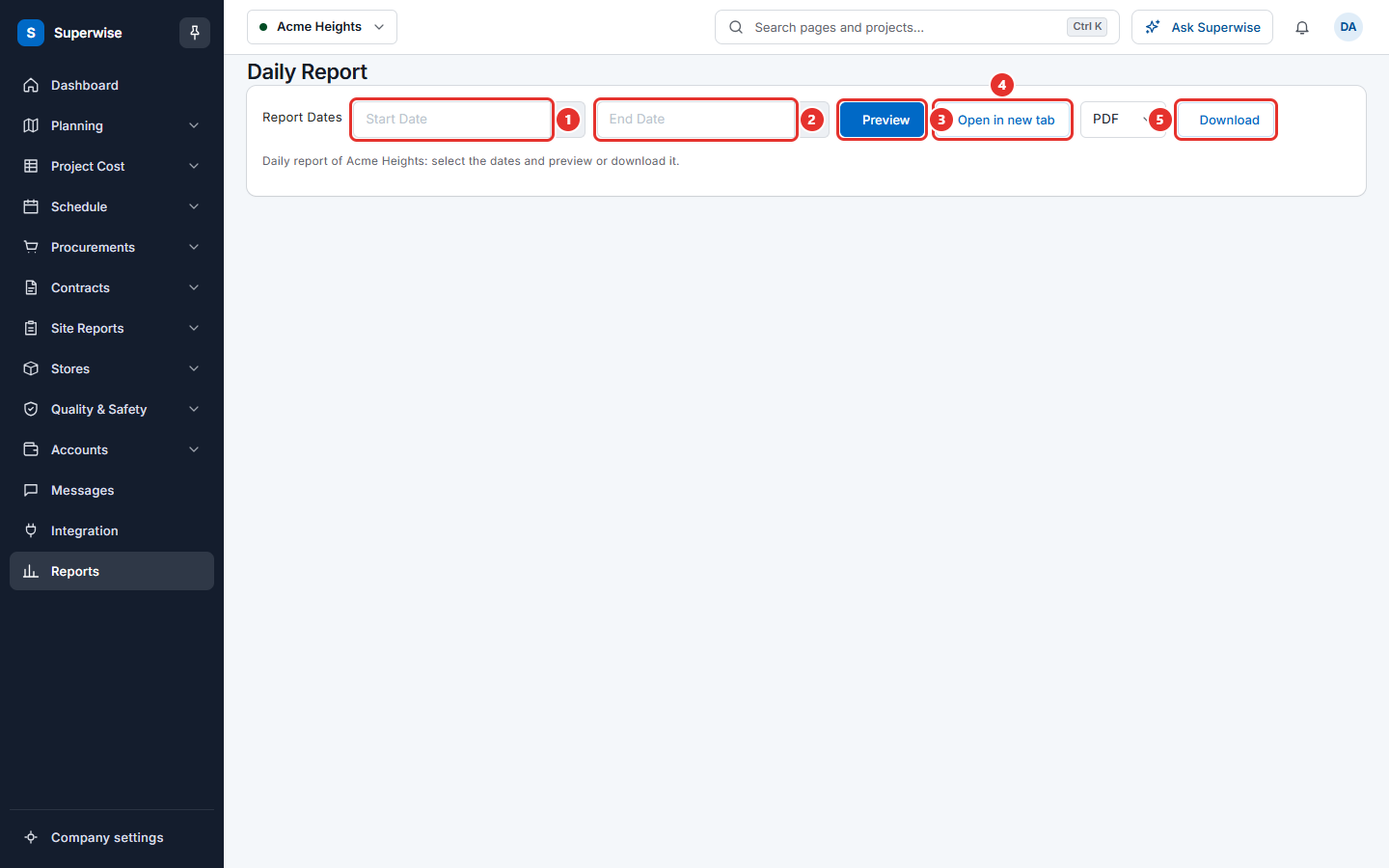
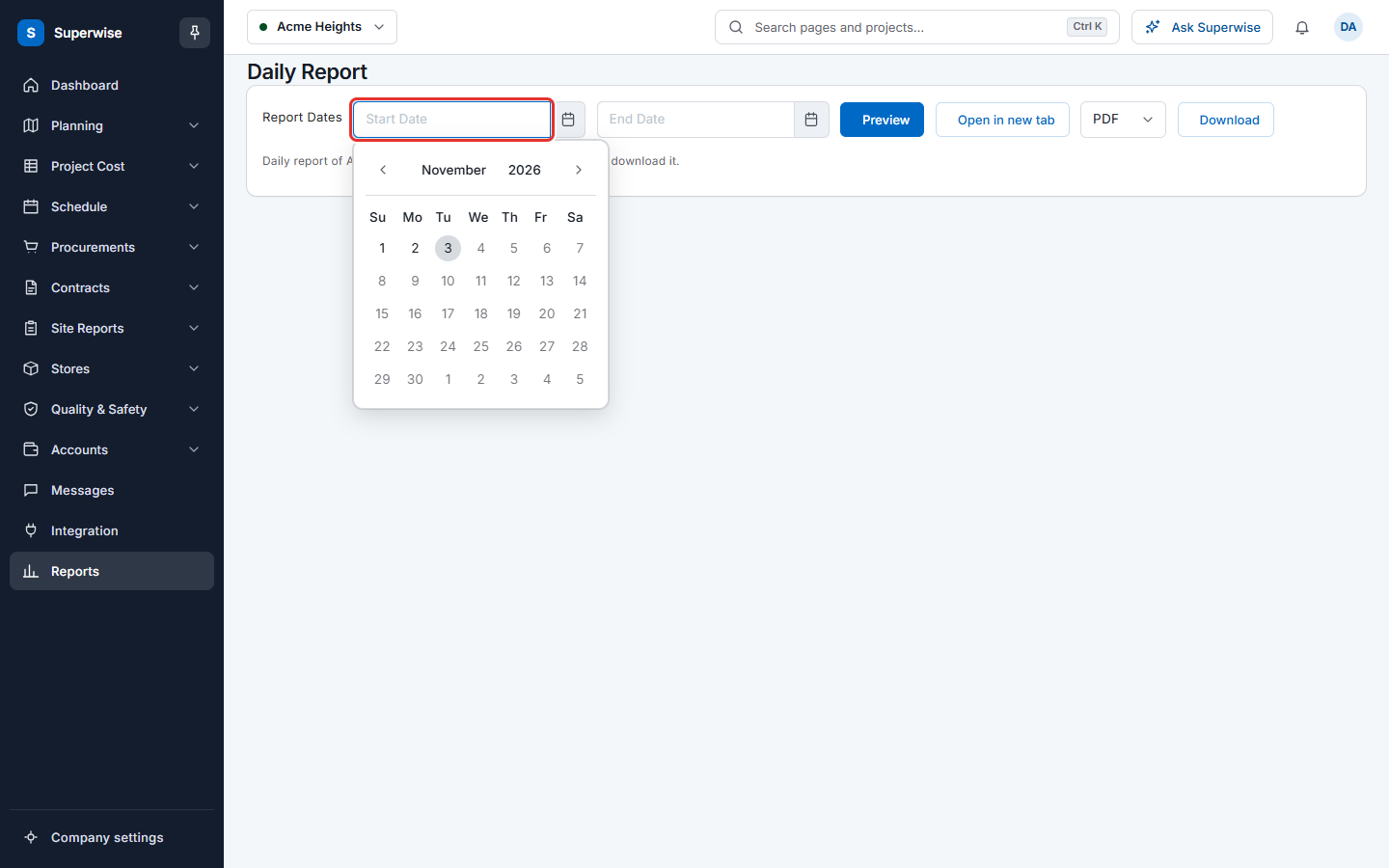
- In Report Dates, choose the start date and the end date (marks 1 and 2). Neither can be in the future.
- Click Preview (mark 3). The report appears below the buttons.
To read the report in a larger window, click Open in new tab (mark 4).
How to download the daily report
- Choose the dates as above.
- Choose PDF or XLS in the box next to Download.
- Click Download (mark 5).
Rules to know
- The report belongs to the project that you selected.
- You must choose both dates. Otherwise Superwise shows Please select a date range for viewing the report.
- You must have a project. Otherwise Superwise shows Please select a project before viewing the report.
- If the days have no data, Superwise shows The generated Report does not contain any data.
- To choose which areas the report holds, use Report Generation with the type Daily (Summary).
If something goes wrong
| What you see | What to do |
|---|---|
| Please select a date range for viewing the report | Choose a start date and an end date. |
| Please select a project before viewing the report | Choose the project at the top. |
| The generated Report does not contain any data | Choose other dates. |
| An error occurred while generating the report. Please try again later | Try again. |