


Integration setup
Connect Superwise to another system, choose which events pass between them, and check the log to see what was sent.
- Where to find it
- Company settings > Integration Setup
- Who can use it
- People who have the View Integrations permission. Adding a client or an event needs Add. Changing needs Edit and deleting needs Delete.
An integration connects Superwise to another system, for example an accounting tool, so that the two share records without typing them twice. The other system is called an integration client. An event is something that happens to a record, such as a purchase order (PO) being added or approved. An outgoing event means Superwise tells the client when it happens. An incoming event means the client tells Superwise, for example to add a record.
Use this book when you want to start sharing records with another system. Integrations need technical details from the other system, such as its web address and how it checks who you are. Ask the person who looks after that system to give them to you.
Before you start
- Get from the other system: its base web address and its way of signing you in.
- Get its rate limit. This is the request limit the other system gives you.
- Have the logo of the other system as an image file smaller than 100 kb.
- Choose a Superwise user that the integration acts as. See Users.
The steps in order
- Add the client. See Integration clients.
- Choose the events to share. This is step 2 of the client form. See Integration clients.
- Change how the data is mapped for an event, if needed. See Integration events.
- Switch the client to Active. See Integration clients.
- Check the results in the event log. See Event log.
What each screen is for
| Screen | What you do there |
|---|---|
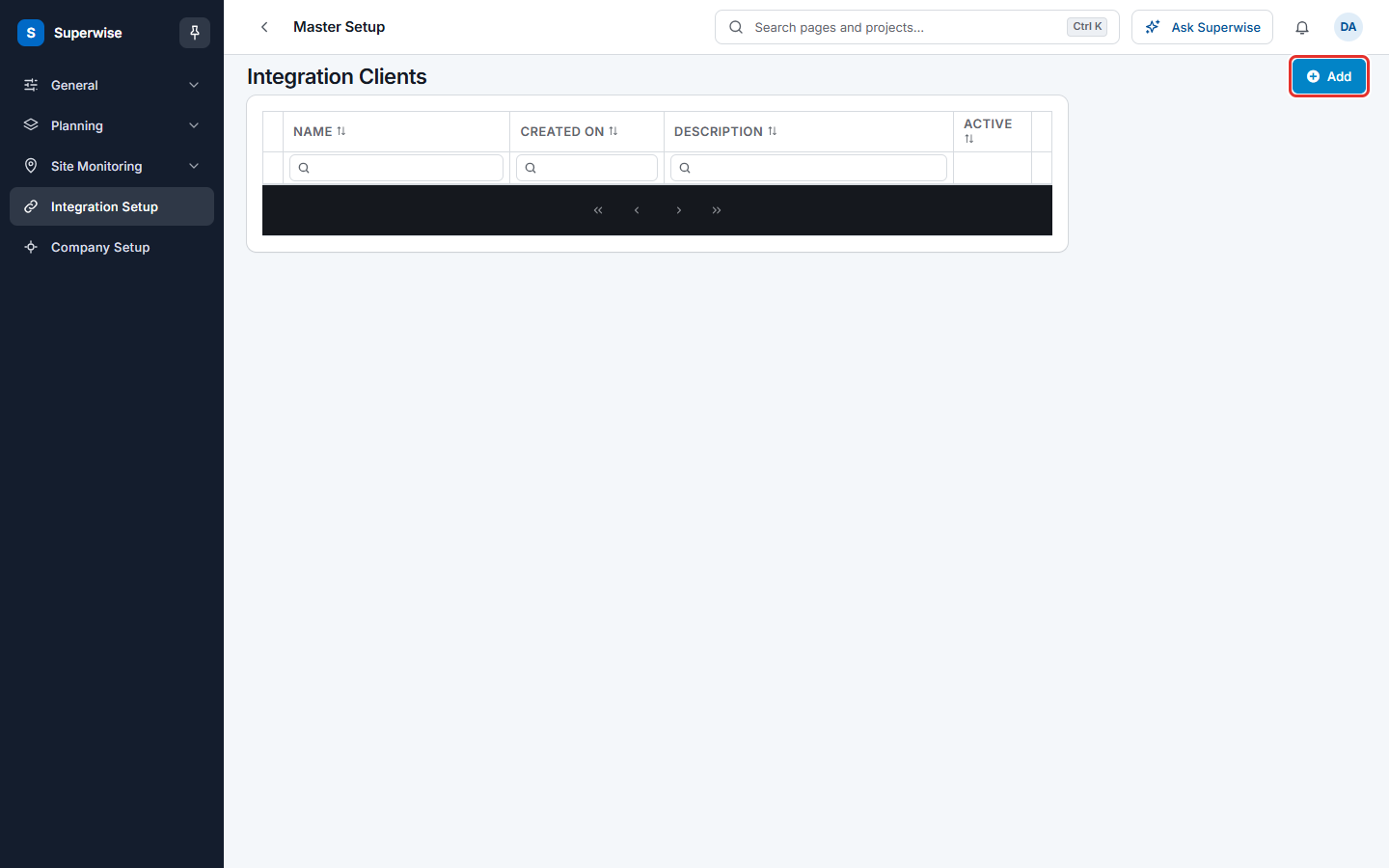
| Integration Clients | Add the other systems, choose their events and switch them on or off. |
| Events (inside a client) | Change the web address and the mapping of one event. |
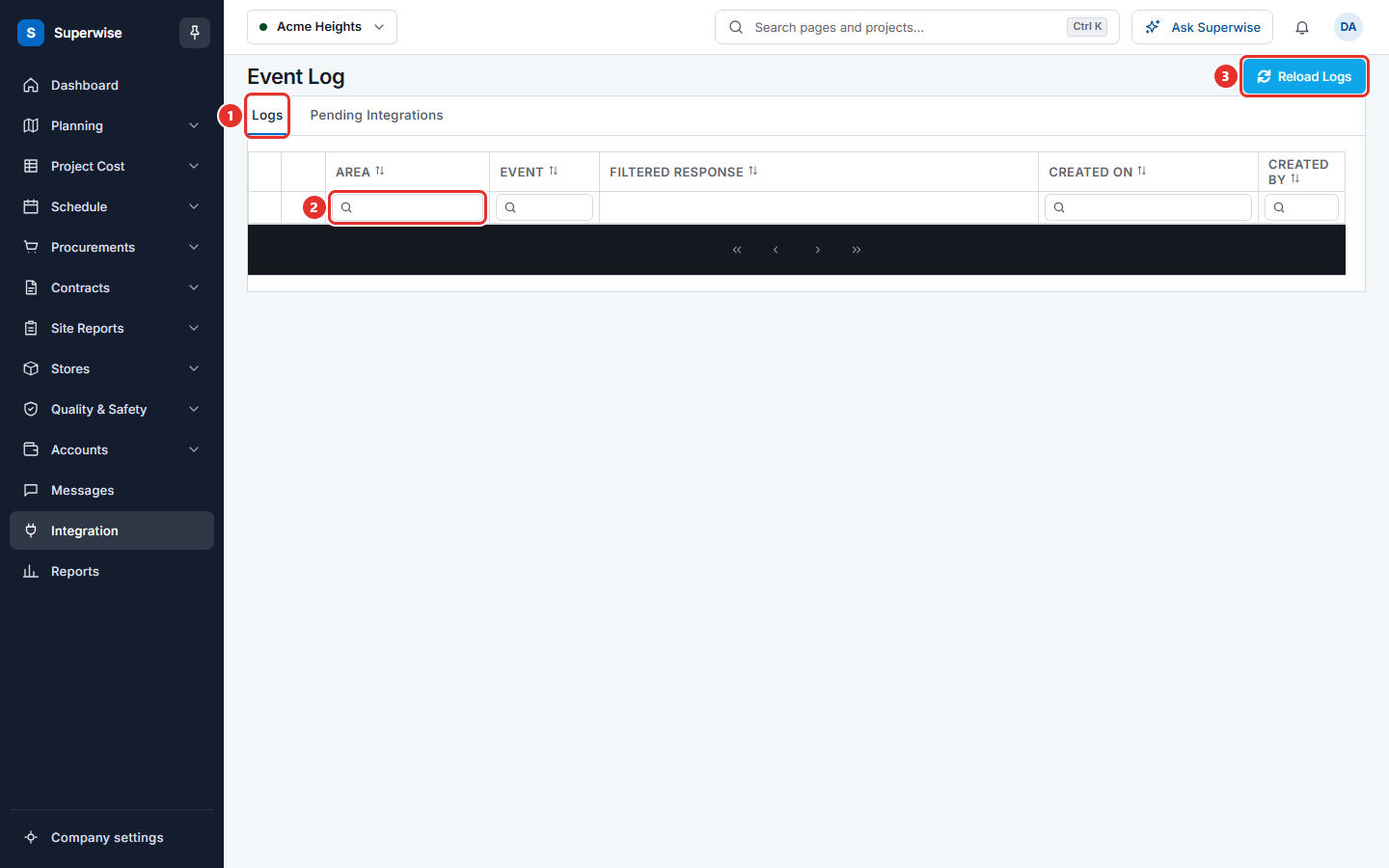
| Event Log | See what was sent and received, and send records that were never sent. |
Rules to know
- A client name must be new in your company.
- You cannot choose the same operation of the same area as both an incoming and an outgoing event of one client.
- The Event Log is in the project menu, under Integration. The other screens are under Company settings.
Related pages
In this section
- Integration clientsAdd the systems you connect to Superwise, choose the events they share, switch them on or off, and change or delete them.
- Integration eventsOpen one event of an integration client to change its web address, its projects and the functions that map the data going out and coming in.
- Event logSee what Superwise sent to and received from integration clients for a project, check if each call worked, and send records that were never sent.